
Barcodes & QR Codes
Complete guide to generating barcodes and QR codes from data
SheetsToLabels provides powerful tools to generate industry-standard barcodes and customizable QR codes directly from your spreadsheet data.
Barcodes
Barcodes are essential for retail, inventory management, and logistics.
Supported Barcode Types
| Type | Best For | Character Set | Notes |
|---|---|---|---|
| Code 128 | General purpose, shipping, ID cards | Alphanumeric (A-Z, 0-9, symbols) | Most versatile and compact high-density code. |
| Code 39 | Industrial, automotive, defense | Alphanumeric (A-Z, 0-9, -.$/+%) | Older standard, lower density than Code 128. |
| EAN-13 | Retail products (Global) | Numeric (13 digits) | Standard for retail products outside N. America. |
| UPC-A | Retail products (North America) | Numeric (12 digits) | Standard for retail products in US/Canada. |
Adding a Barcode
- Switch to Design Label mode.
- Open the Design sidebar tab and click Barcode.
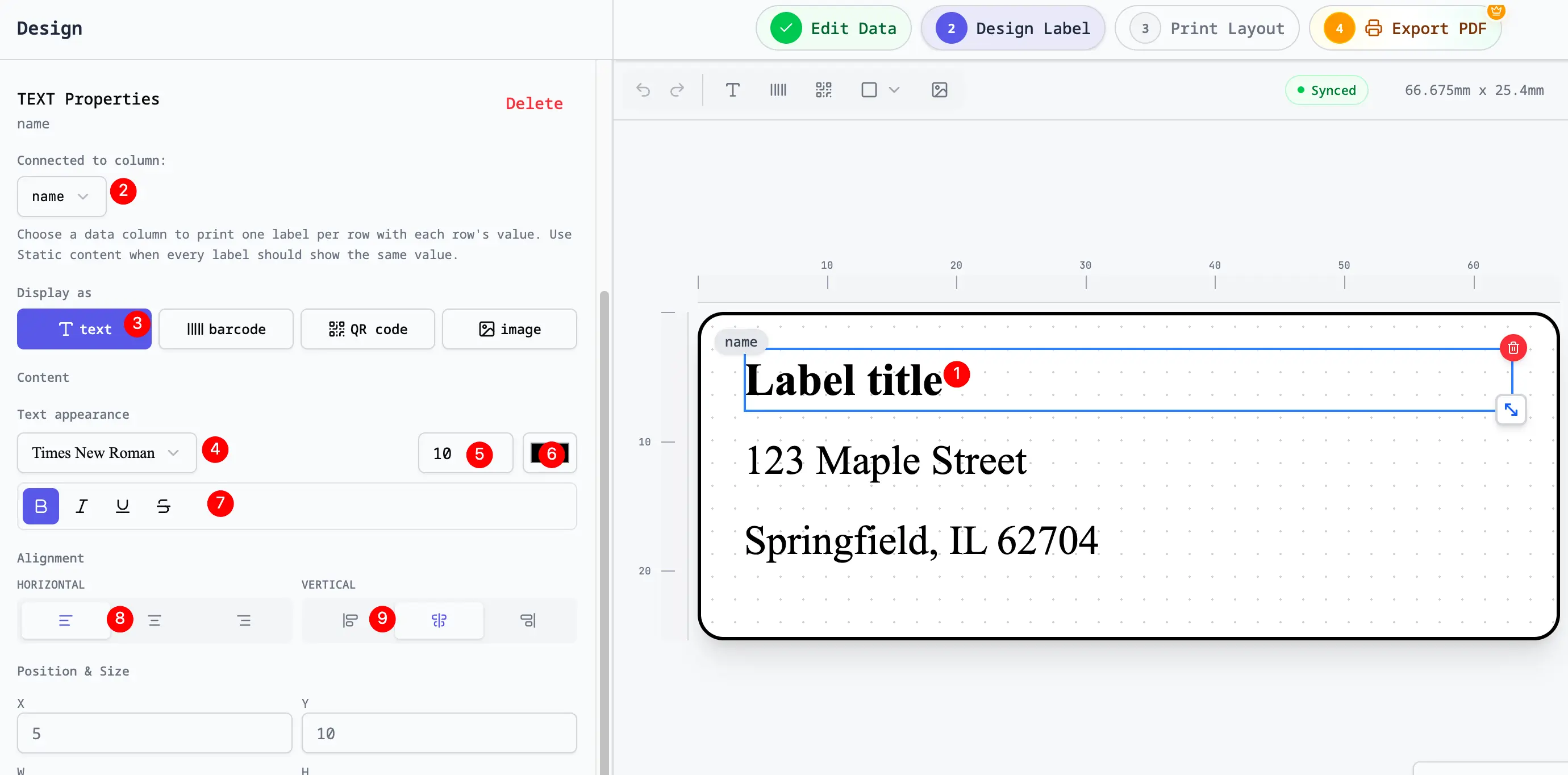
- Select the barcode element and configure it in the sidebar:
- Type: Select the barcode format (e.g., Code 128).
- Data Source: Bind to a column (e.g.,
SKUorProduct ID) or enter a static value. - Show Text: Toggle the human-readable text below the bars.
- Height: Adjust the height of the bars.
Tips for Barcodes
- Quiet Zone: Ensure there is enough white space around the barcode (the "quiet zone") for scanners to read it.
- Contrast: Use black bars on a white background for maximum readability. Avoid red bars (scanners use red light).
- Size: Don't shrink barcodes too much; they may become unreadable. Test scan with your phone or scanner.
QR Codes
QR (Quick Response) codes are 2D barcodes that can store more data, including URLs, contact info, and text.
Adding a QR Code
- Switch to Design Label mode.
- Open the Design sidebar tab and click QR.
- Select the QR code element and configure it in the sidebar:
- Data Source: Bind to a column (e.g.,
Website URL,vCard Data) or enter static text. - Error Correction: Detailed below.
- Color: Foreground and background color.
- Data Source: Bind to a column (e.g.,
Error Correction Levels
Error correction allows a QR code to be scanned even if part of it is damaged or covered (e.g., by a logo).
- Low (L): ~7% damage recovery. Best for small data amounts.
- Medium (M): ~15% damage recovery. Standard use.
- Quartile (Q): ~25% damage recovery. Good for industrial environments.
- High (H): ~30% damage recovery. Essential if you place a logo in the center.
Common QR Use Cases
- Website Links: Direct customers to your online store or product page.
- Digital Business Cards (vCard):
- Format:
BEGIN:VCARD\nVERSION:3.0\nN:Smith;John\nTEL:555-1234\nEMAIL:[email protected]\nEND:VCARD - Use a formula in Excel/Google Sheets to construct this string for each row.
- Format:
- Wi-Fi Access:
- Format:
WIFI:S:MyNetworkName;T:WPA;P:MyPassword;;
- Format:
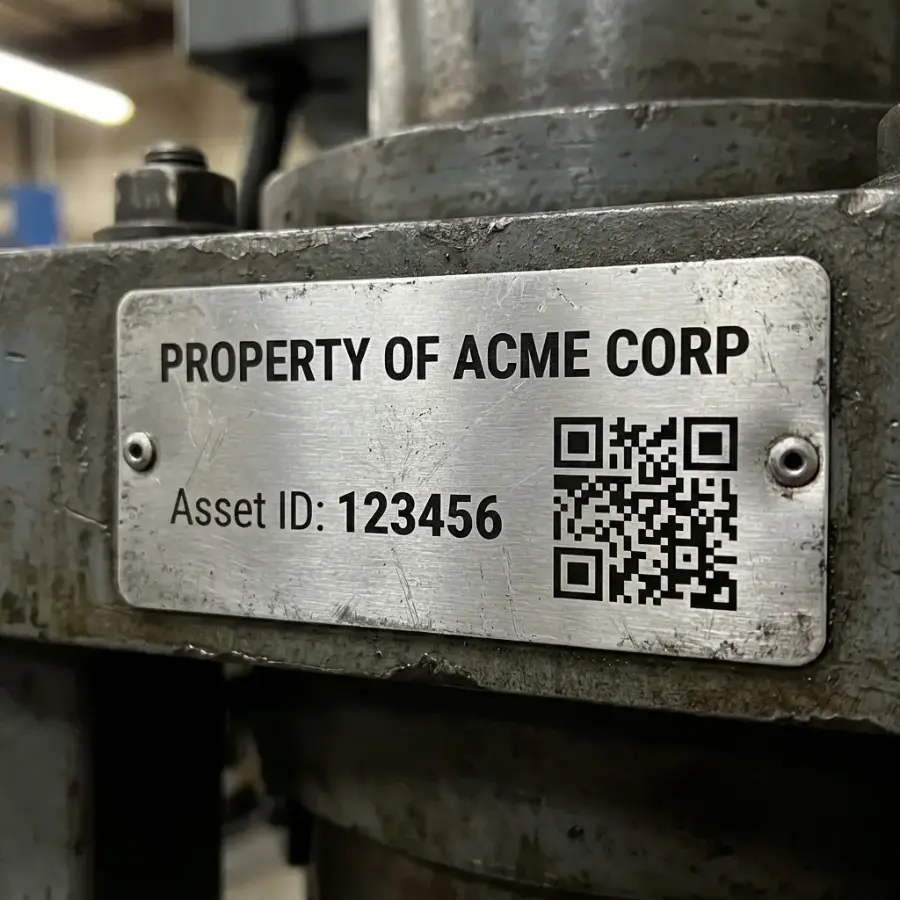
- Asset Tracking: Encode internal asset IDs for easy scanning with inventory apps.
Customizing QR Codes
- Center Logo: You can place a small image (Logo) on top of the QR code. Ensure you use High error correction.
- Colors: You can use branded colors, but ensure high contrast (dark code on light background). Avoid inverted colors (light code on dark background) as some scanners usually struggle with them.
Data Column
Both Barcodes and QR codes rely on clean data.
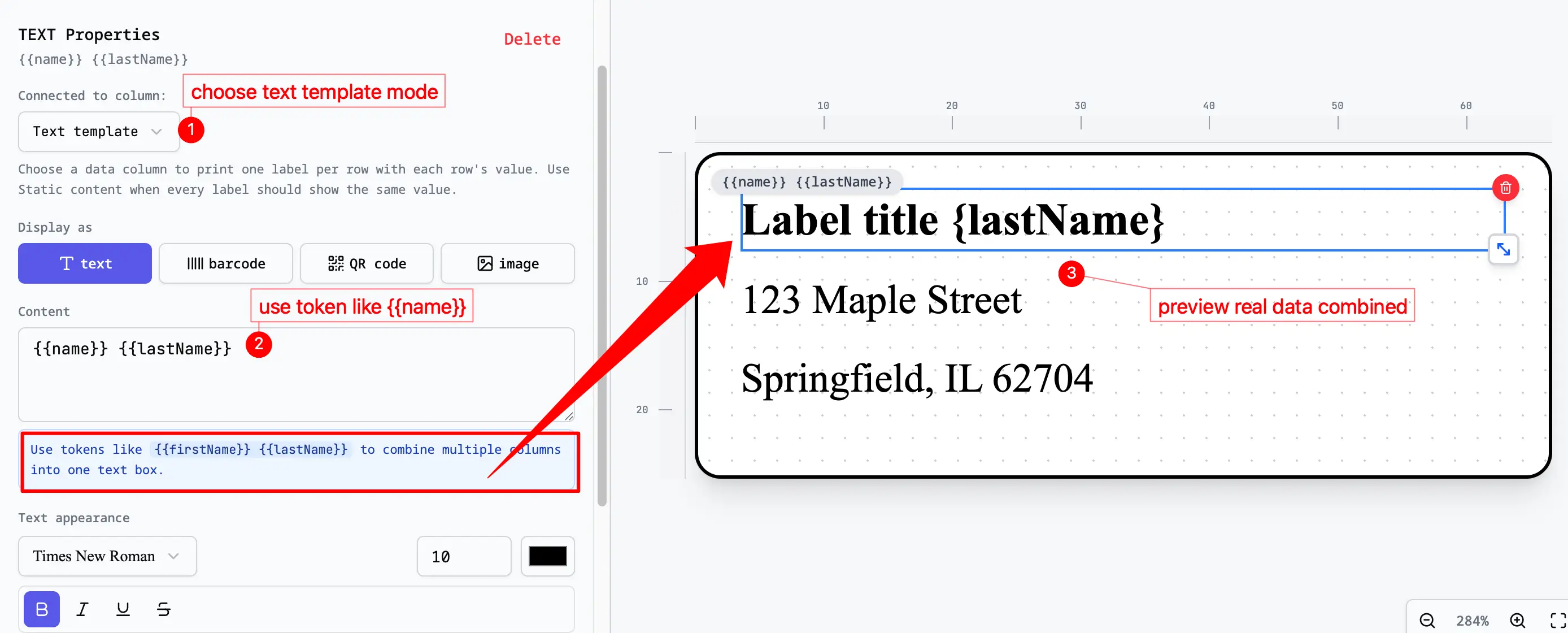
- Dynamic Data: Select a column from your 'Data Source' tab to generate a unique code for each label.
- Static Data: Type text directly into the data field if you want the same code on every label (e.g., link to your homepage).
Troubleshooting
- Barcode won't generate: Check if your data contains characters not supported by the selected barcode type (e.g., letters in EAN-13).
- QR Code too dense: If your URL is very long, use a URL shortener (like bit.ly) to make the QR code simpler and easier to scan.
- Scan Failures: Always print a test sheet and scan with the actual device you plan to use (phone app or dedicated scanner).