
Label Designer Reference — Canvas, Elements, Data Fields & Print Layout
Complete reference for the SheetsToLabels Label Designer. Learn how to use templates, text elements, dynamic text templates, images, shapes, barcodes, QR codes, layout tools, and print settings.
The Label Designer is the reusable editing workspace behind product labels, price tags, barcode labels, QR labels, shipping labels, badges, and custom sheet layouts. It gives you a visual canvas, but the workflow is still grounded in real data, print layout, and PDF export.
Use this section as the editor reference. If you are still choosing what to make, start with Workflows.

Design labels and connect spreadsheet fields
Core Workflow
Most label jobs follow the same sequence:
- Import or prepare data.
- Choose a template or set the label size.
- Design one label on the canvas.
- Bind text, barcodes, QR codes, or images to data columns.
- Preview the full print layout.
- Export a print-ready PDF.
The Canvas
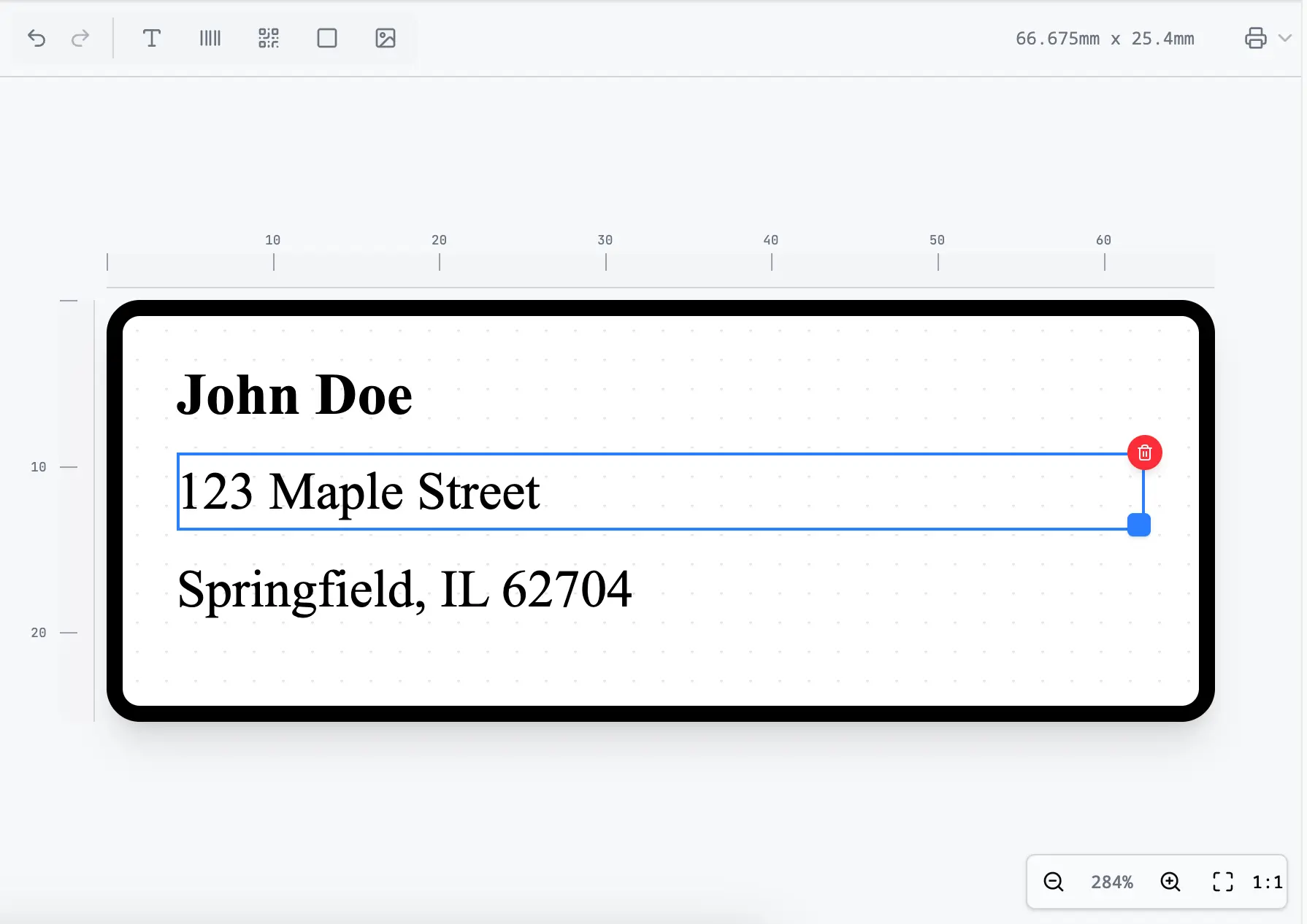
The white area represents a single label. Its size is determined by your Print Settings.
- Zoom: Use the zoom controls or scroll wheel to zoom in/out.
- Grid: Enable grid lines to help with alignment.
Elements
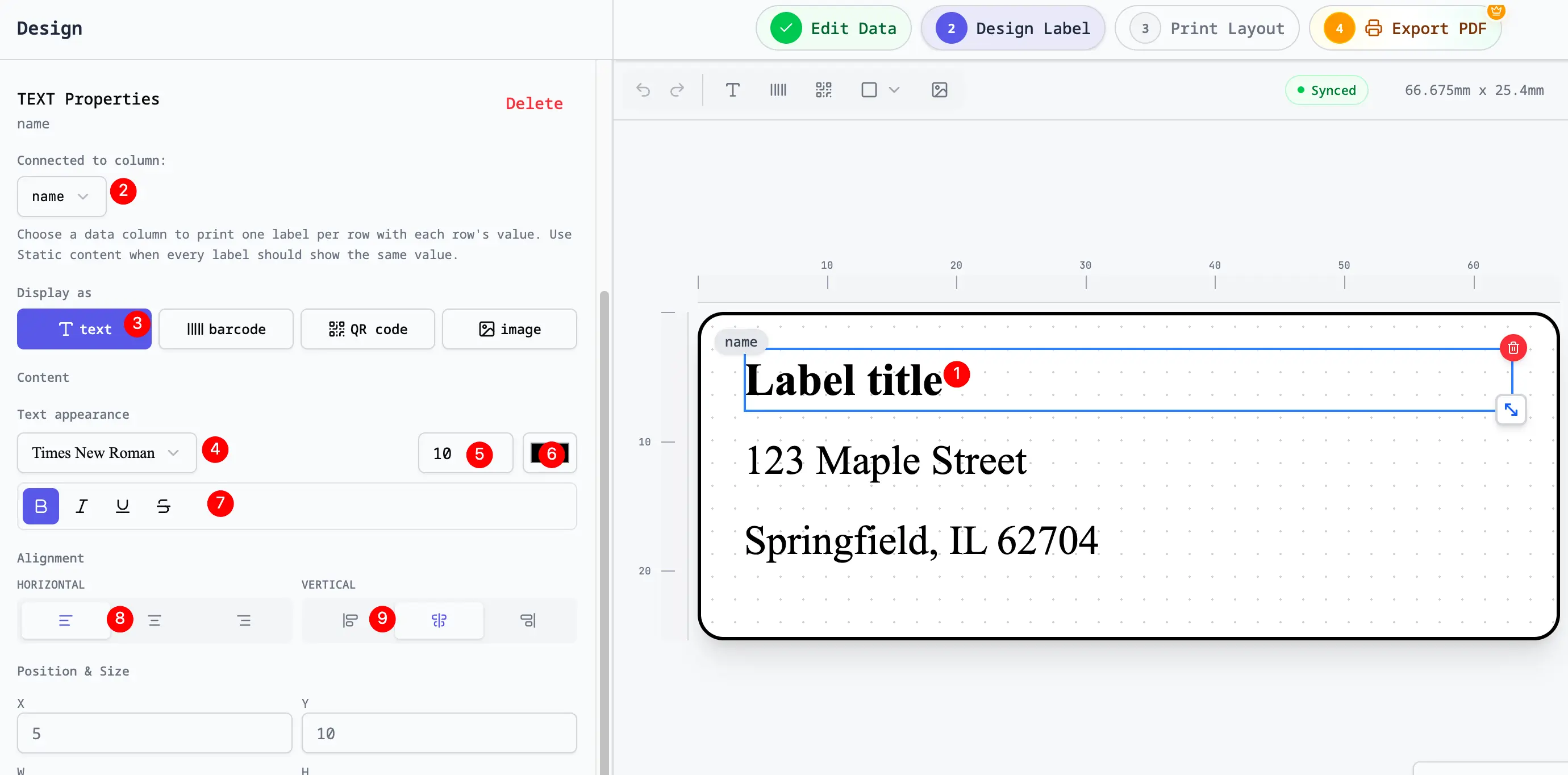
Text
Add text blocks for static copy, single spreadsheet fields, or dynamic text templates such as SKU: {{sku}}.
- Formatting: Change font family, size, weight, color, and alignment.
- Auto-Fit: Enable "Shrink to fit" to automatically reduce font size if the text content is too long for the box.
Images
- Static: Upload a company logo or background image.
- Dynamic: Bind to a URL column in your data for variable images.
Barcodes
Generate industry-standard barcodes.
- Types: Code 128, Code 39, EAN-13, UPC-A.
- Data Column: Link the barcode value to a SKU or ID column.
QR Codes
Generate QR codes for URLs, contact info (vCard), or plain text.
- High Error Correction: Useful if you plan to add a logo overlay or if the code might get damaged.
Shapes
Use rectangles, circles, lines, triangles, diamonds, starbursts, arrows, ribbons, and tag holes for backgrounds, dividers, badges, callouts, and hang tag details.
Layout Tools
- Align: Select multiple objects and align them to the left, center, or top.
- Distribute: Evenly space multiple objects.
- Layers: Send objects to back or bring to front to create overlapping designs.
Saving Designs
Don't forget to Save your design!
- Templates: Save as a template to reuse the layout with different data files later.
- Projects: Save as a project to keep the data and design together.