
Page Settings & Templates
Configuring label dimensions, sheet layout, and paper sizes
Before you design specifically what goes on the label, you need to define the shape and size of the label itself.
Accessing Page Settings
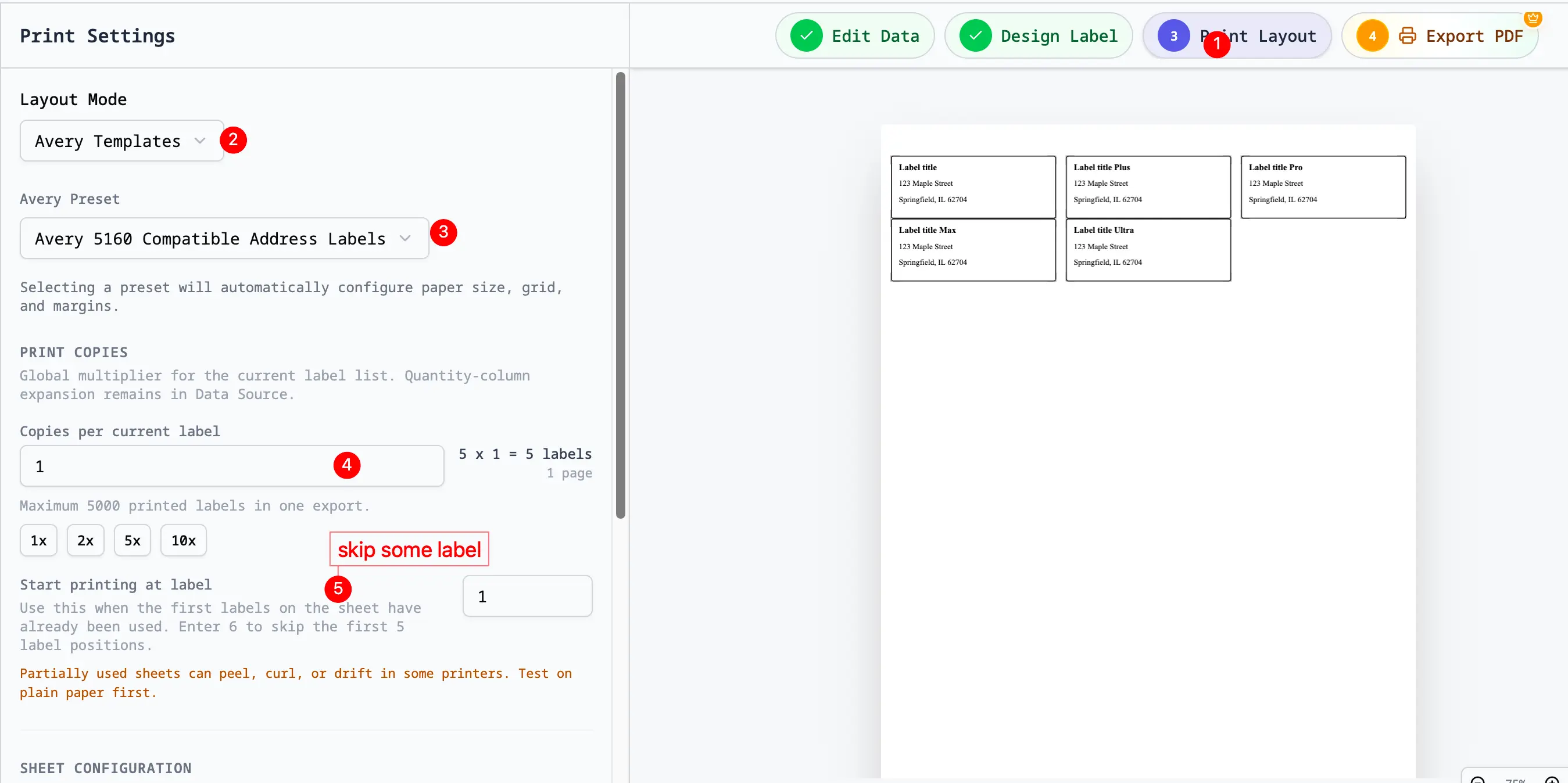
Open the Print Layout or Print Settings sidebar tab from Label Designer. This is where you choose the paper size, label size, grid, gaps, margins, manufacturer presets, thermal label size, and starting label position.
Choosing a Preset
The easiest way to start is by selecting a standard manufacturer template or label size. Presets keep the paper size, label size, rows, columns, margins, and gaps together so the PDF matches the physical sheet.
- Open Print Layout.
- Choose Avery®-Compatible Templates, Standard Sheet, or Single Label / Thermal.
- Search for the layout code (e.g., "5160®") when using Avery®-compatible sheets.
- Select the preset to apply its paper size, label size, margins, and spacing.
Common Presets:
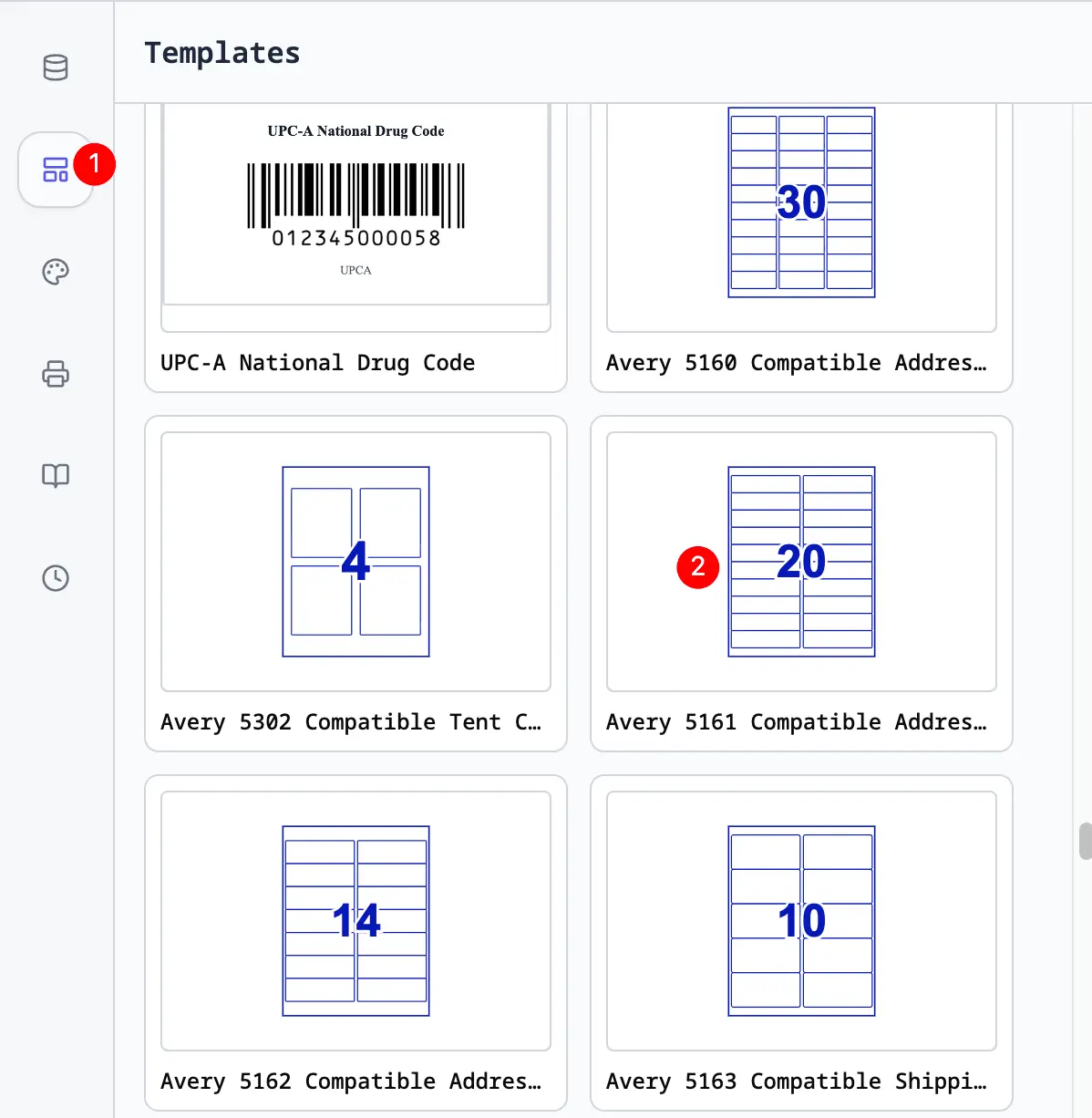
- Avery® 5160® Address Labels: 30 labels per US Letter sheet.
- Avery® 5163® Shipping Labels: 10 labels per US Letter sheet.
- 4" x 6": Standard Thermal Shipping Label (1 per page).
Avery®-Compatible Presets
Use Avery®-compatible presets when your label package has a matching layout number. Selecting a preset automatically configures:
- paper size, such as Letter or A4
- label width and height
- rows and columns
- margins
- horizontal and vertical gaps
If your label stock is compatible with the Avery® 5160® Address Labels layout, Avery® 8160® Address Labels layout, or another 30-up layout, choose that preset instead of entering dimensions manually.
If the printed labels drift, first confirm that the preset, paper size, and printer scale are correct. Small differences between layout numbers can produce visible alignment errors.
Standard Sheet
Use Standard Sheet when you know the page size, label size, rows, columns, gaps, and margins but do not need a manufacturer preset.
This is useful for generic label sheets, custom office stock, cardstock layouts, and repeated labels that will be cut after printing.
Single Label / Thermal
Use Single Label / Thermal when each export page should contain one label. This is common for 4x6 shipping labels, roll printers, and thermal label sizes.
Custom Dimensions
If you have non-standard label paper or a specific need, you can create a custom layout.
Label Size
- Width: The width of a single label.
- Height: The height of a single label.
- Corner Radius: Adjust for rounded corners (visual only, for design help).
Sheet Layout (Page)
- Page Size: The size of the paper going into the printer (e.g., A4, US Letter, Custom).
- Margins: The blank space around the edge of the whole sheet (Top, Left).
- Spacing (Gutters): The space between labels.
- Horizontal Spacing: Gap between columns.
- Vertical Spacing: Gap between rows.
- Rows & Columns: Number of labels across and down.
- Start Position: The first label slot to print when the sheet is partially used.
Units of Measurement
You can toggle between units at the top of the settings panel:
- Inches (in): Standard for US templates.
- Millimeters (mm): Standard for international/A4 templates.
- Pixels (px): For digital-only designs.
Saving Custom Templates
Once you've configured a custom layout that works for you:
- Adjust the label size and sheet layout in Print Settings.
- Return to the Templates tab.
- Save the current design to My Templates for future use.
Partially Used Sheets
If the first few stickers on a sheet have already been used, set Start printing at label before exporting. For example, enter 6 to skip the first five positions and begin on the sixth label.
Always test partially used sheets carefully. Some printers can pull label stock unevenly when labels have already been peeled from the page.
For the full workflow, see Test Pages & Partially Used Label Sheets.
Print Copies
Use Print Copies when you want to repeat the current labels during export.
- With imported data, it works as a global multiplier for the current label list.
- With a single design and no data rows, it controls how many copies of that design are placed across the selected paper.
If each row needs a different number of labels, use Quantity Columns & Multiple Labels in the Data Manager instead.
Orientation
- Portrait: Vertical page orientation.
- Landscape: Horizontal page orientation.
- Note: Rotating the page does not rotate the text; it rotates the sheet layout.
Troubleshooting Layouts
"My labels are printing too high/low"
- Adjust the Top Margin in page settings.
- Ensure your printer is not scaling the page (print at 100%). See Print Settings.
"The gaps didn't match my paper"
- Measure the physical spacing on your label sheet with a ruler.
- Update Horizontal/Vertical Spacing values to match exactly.
"I need to print on a thermal printer"
- Set Page Size to match your label roll (e.g., 4x6 inch).
- Set Rows = 1 and Columns = 1.
- Set Margins to 0.