
批量从 CSV 文件生成标签
有大量的邮件列表存储在 Excel 或 CSV 文件中?我们的转换工具可在几秒钟内处理数千条记录,非常适合地址标签、产品标签和批量操作。
🎁 标准用量免费


为速度与高效优化

批量从 CSV 文件生成标签

为什么选择我们的 CSV 标签生成器?
CSV 是数据的通用语言。我们打造了最强大的引擎来处理它。
极速处理
基于浏览器的处理方式,无需将数据上传到缓慢的服务器,瞬间完成。
智能分隔符检测
逗号、分号还是制表符分隔?我们会自动检测文件格式,并严格遵循 RFC 4180 进行解析。
全面支持 UTF-8
我们支持特殊字符、表情符号以及 CSV 数据中出现的所有国际语言。
自动布局
数据会自动适配到您选择的标签模板,最大化空间利用率。
赋能数据驱动型企业
将您的数据库导出文件直接连接到打印机。
从 Shopify、Woo 或 Magento 导出订单为 CSV,批量打印运输标签或装箱单。
轻松将 CSV 转换为标签
最快速的大批量标签生成流程。
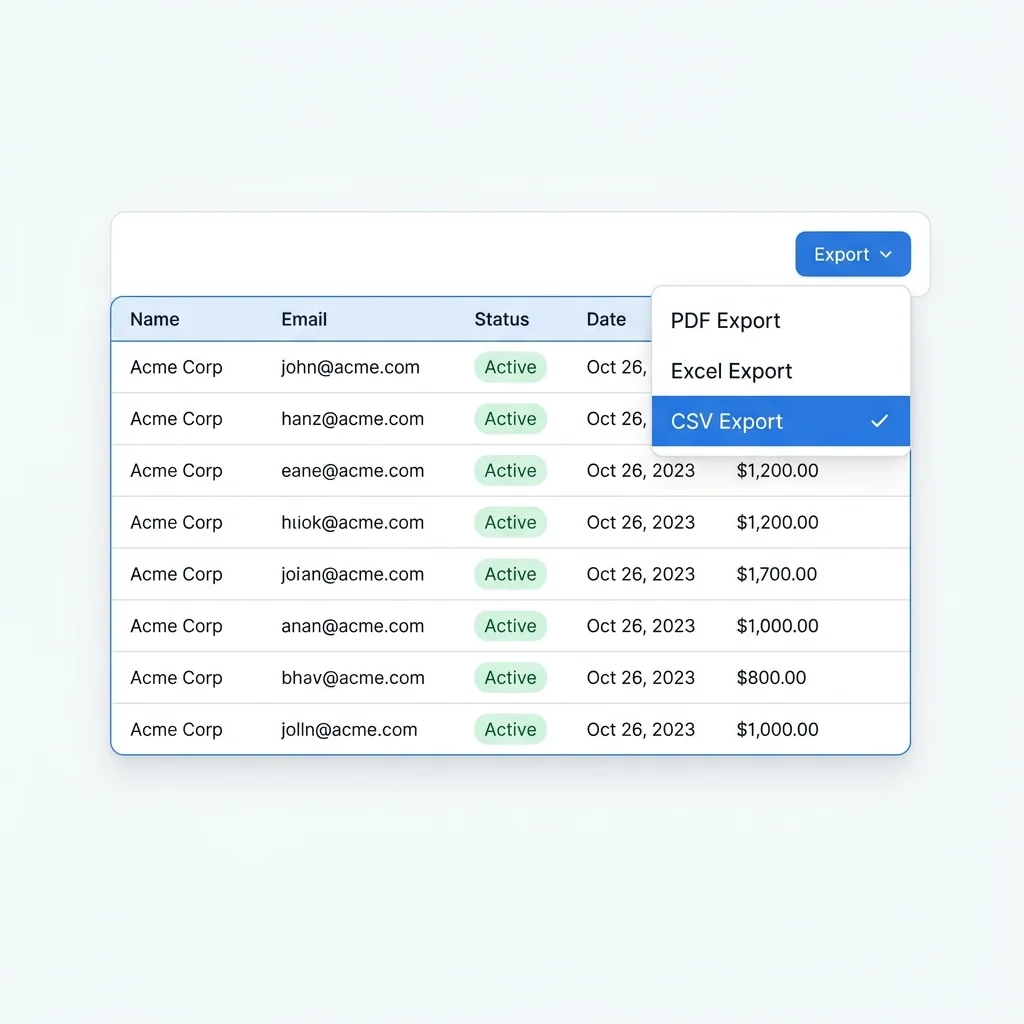
导出 CSV
从任何系统(CRM、ERP、SHOP)导出数据为 .csv 文件。
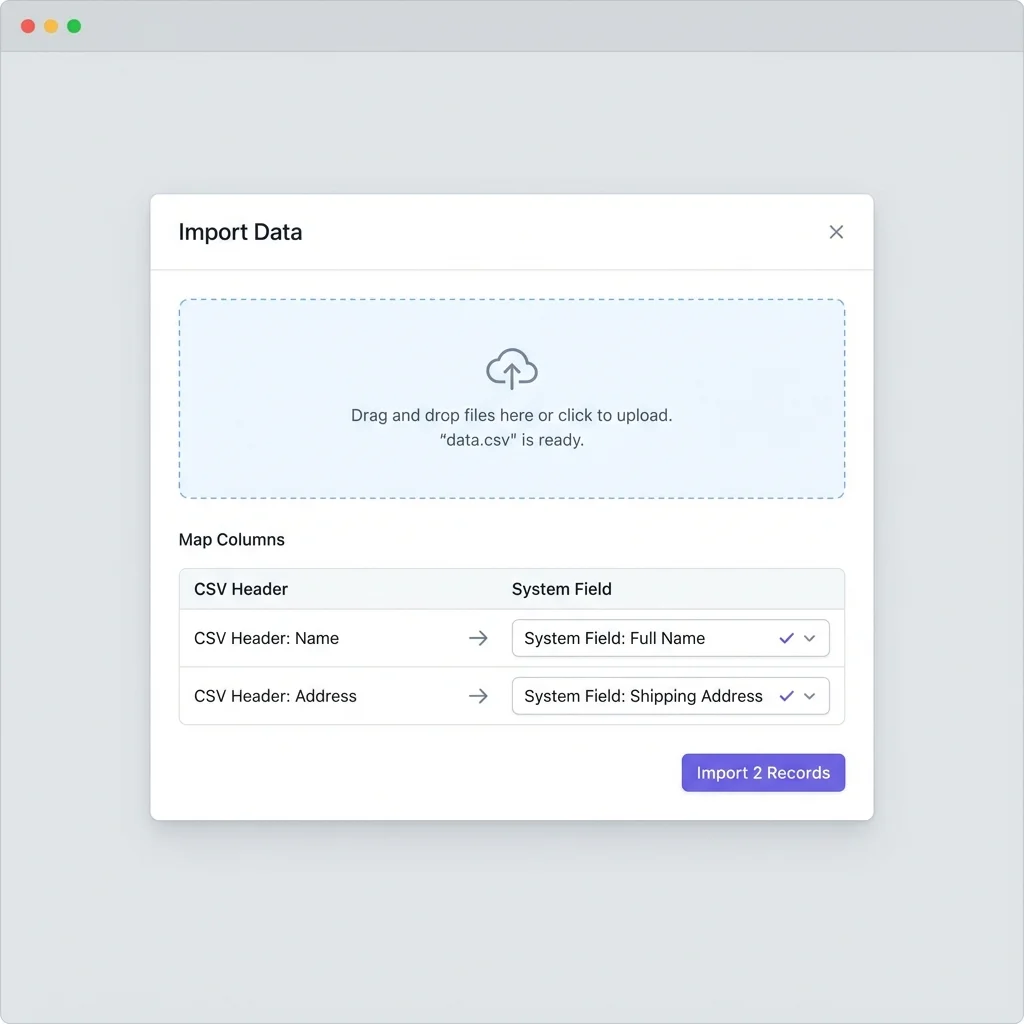
上传并映射
上传到 SheetsToLabels,我们会为你展示列的预览。
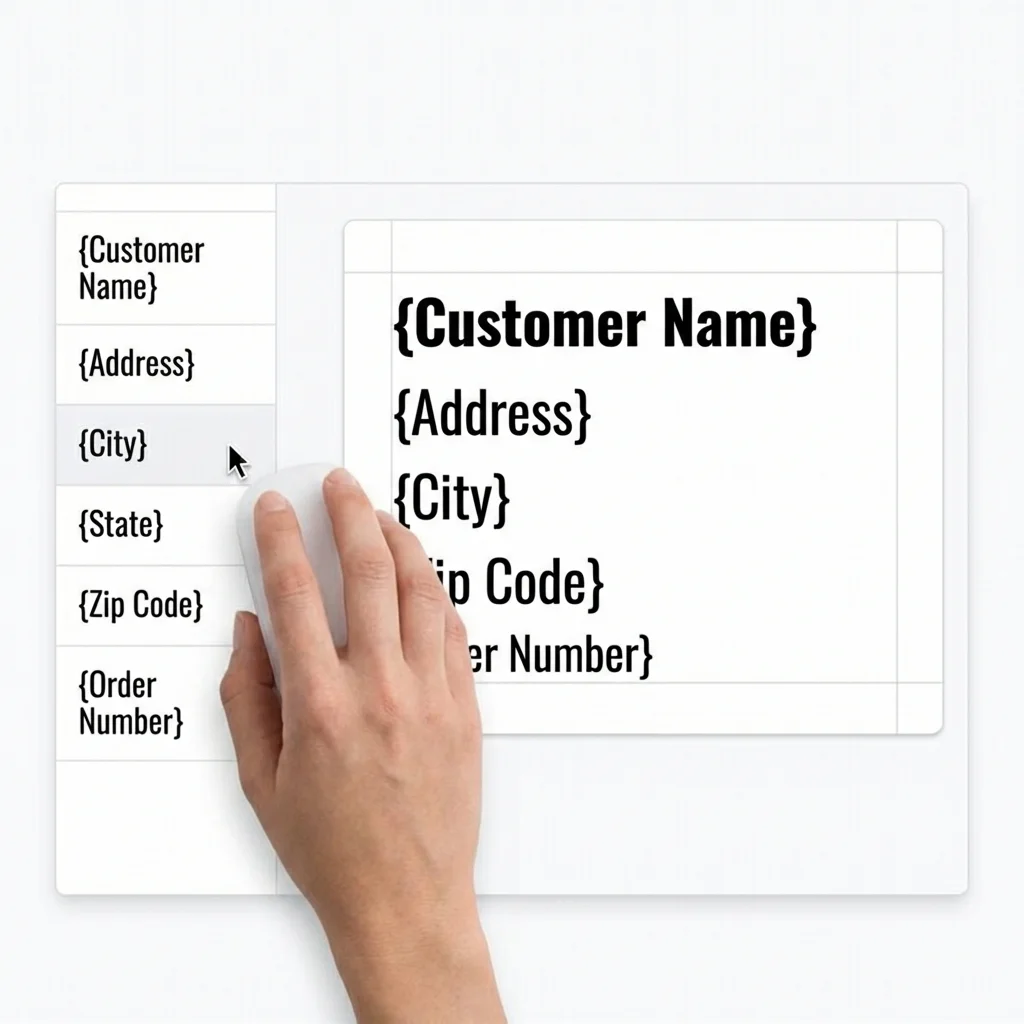
设计
在标签画布上排列你的字段,如有需要可添加静态文本或图片。
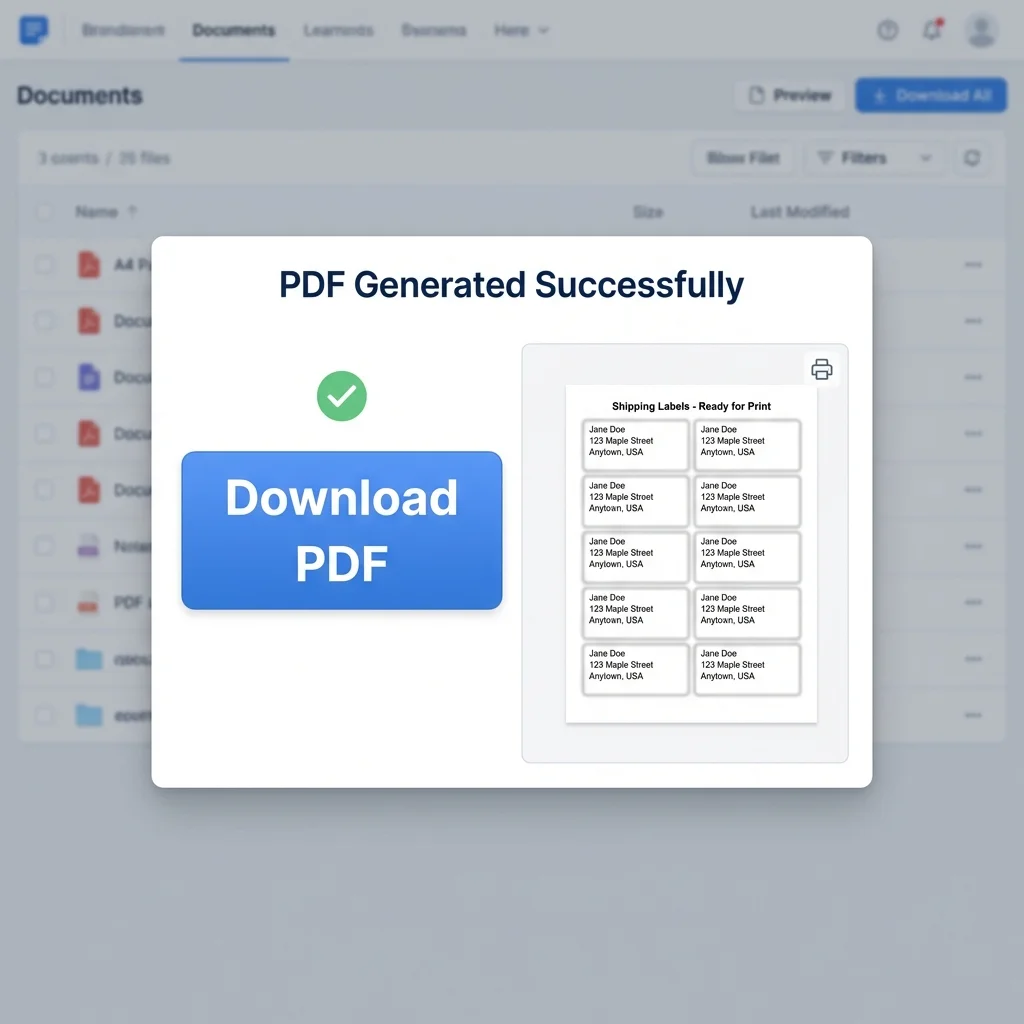
打印
下载 PDF 并在任意标签纸(Avery、Herma、Uline)上打印。
为 CSV 高级用户设计
让处理大型数据集更轻松的功能。
可视化数据映射
在设计时直接查看实际的 CSV 数据,而不仅仅是字段名。
错误检查
如果某些行的必填字段缺失数据,我们会提醒你。
编码自动检测
UTF-8、ASCII、Latin-1?我们会自动检测并正确解码,确保字符显示无误。
字段合并
将 'First Name' 和 'Last Name' 列合并为标签上的一个文本字段。
CSV 生成条码
将产品 ID 或 SKU 直接转换为可扫描的条码。
无限行数
高效处理数万行数据的文件。
全球数据处理
值得信赖的 CSV 标签处理引擎。
1 亿+ 已处理记录数
已处理记录数
0.1 秒 每千行解析时间
每千行解析时间
150+ 支持国家和地区
支持国家和地区
用户评价
来自数据密集型用户的真实反馈。
我喜欢它能处理**大体积 CSV 导出**,不会卡死。其他工具在处理我 5000 行的文件时都会崩溃,这个工具却非常流畅。
Mark S., 数据分析师
Mark S.
数据分析师
我们每天都从 ERP 导出发货数据为 CSV,这个工具能在几秒钟内生成我们的发货标签,真正节省了时间。
Sarah J., 物流协调员
Sarah J.
物流协调员
自动识别分隔符非常棒。我不用再调整设置,只需拖拽、放下、打印即可。
Kevin L., IT 管理员
Kevin L.
IT 管理员
我们用这个工具进行每月的客户邮件发送。能够直接从我们的客户 Excel 文件**批量打印地址标签**,为我们节省了大量行政时间。
David Miller, 办公室经理
David Miller
办公室经理
我一直在寻找一种为我的包裹制作**定制品牌贴纸**的方法。这个编辑器非常易用,而且每次打印对齐都非常精准。
Jessica Lee, Etsy 卖家
Jessica Lee
Etsy 卖家
可以无缝地从表格数据中生成 500 多个**会议胸卡**。为每位与会者添加动态二维码的功能正是我们所需要的。
Tom Wilson, 会议组织者
Tom Wilson
会议组织者
CSV 标签制作常见问题
常见 CSV 数据问题解答。
还有其他问题吗?
如果您找不到想要的答案,请随时向我们咨询!