
Excel Import
Importing data from Microsoft Excel (.xlsx, .xls) files
Microsoft Excel is the most popular format for label data. SheetsToLabels fully supports importing .xlsx and .xls files.
Preparing Your Excel File
To ensure a smooth import, format your data simply:
- Single Header Row: The first row must contain column names (e.g., Name, Address, Price).
- These headers become your Merge Fields.
- One Label per Row: Each row below the header represents one label.
- No Merged Cells: Avoid merging cells headers or data.
- Clean Data:
- Ensure dates and currencies are formatted consistently.
- Remove empty rows at the bottom of the content.
Example Structure:
| Name | Address | City | Zip |
|---|---|---|---|
| Alice | 123 Maple St | New York | 10001 |
| Bob | 456 Oak Rd | Chicago | 60601 |
How to Import
- Open Excel to Labels.
- Click the Data Source tab in the left sidebar.
- Click the Upload button.
- Select your Excel file from your computer.
Sheet Selection
If your Excel workbook has multiple sheets (tabs):
- A dialog will appear asking you to select a sheet.
- Choose the sheet that contains your label data.
- Click Confirm.
Data Review
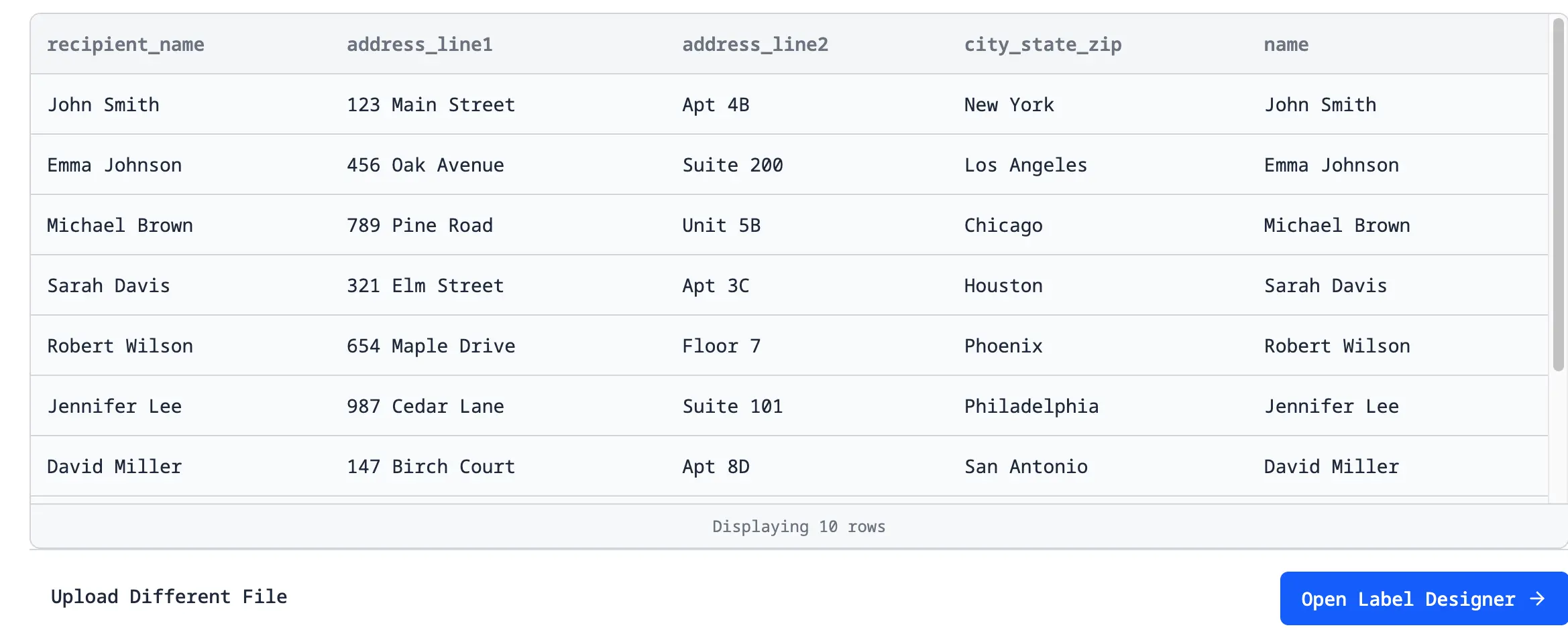
After uploading, you will see a preview of your imported data.
- Check Headers: Verify that the column names match your expectations.
- Check Rows: Ensure all your data rows are present.
- Edit Data: You can make minor text edits strictly within the designer tool if needed by double-clicking a cell.
Updating Data
If you change your Excel file on your computer:
- Save the changes in Excel.
- In SheetsToLabels, click Re-upload or simply upload the file again.
- The new data will replace the current dataset. Your design column mappings will remain if the header names haven't changed.
Common Issues
"File format not supported"
- Ensure the file ends in
.xlsxor.xls. - Try saving as
.csvif the Excel file is complex or password-protected.
"No headers found"
- We assume the first row is headers. If your data starts on row 1 without headers, insert a row at the top and name your columns.
"Dates look like numbers (e.g., 44562)"
- Excel stores dates as serial numbers. We try to format them, but if you see raw numbers, format the column as "Text" in Excel before uploading, or use a formula to convert it to a string.
See Also
- Data Best Practices: How to organize your spreadsheet for success.
- Google Sheets Connection: An alternative to uploading static Excel files.
- Excel to Labels: Go straight from an Excel workbook to a print-ready label workflow.
From the Blog
- Excel to Labels Case Study: Read how others are automating their Label workflow from Excel.
- CSV Import Tips: Specific advice for handling CSV exports from other software.