
Merge Fields
Using data columns to create dynamic labels
Merge fields are placeholders that pull values from your imported spreadsheet, CSV, XML, or Google Sheets data. They are what let one reusable design print different text, barcodes, QR codes, or images for each row.

Design one label and connect it to spreadsheet columns
What is a Merge Field?
A merge field is a placeholder that gets replaced by row data when the label is previewed or exported.
| Design text | Row value | Printed output |
|---|---|---|
Hello, {{first_name}} | John | Hello, John |
SKU: {{sku}} | SCARF-001 | SKU: SCARF-001 |
${{price}} | 25.00 | $25.00 |
Syntax
Use double curly braces:
{{column_name}}The text inside the braces must exactly match the header in your data source, including spaces and capitalization. If the header is First Name, use {{First Name}}.
How to Insert Fields
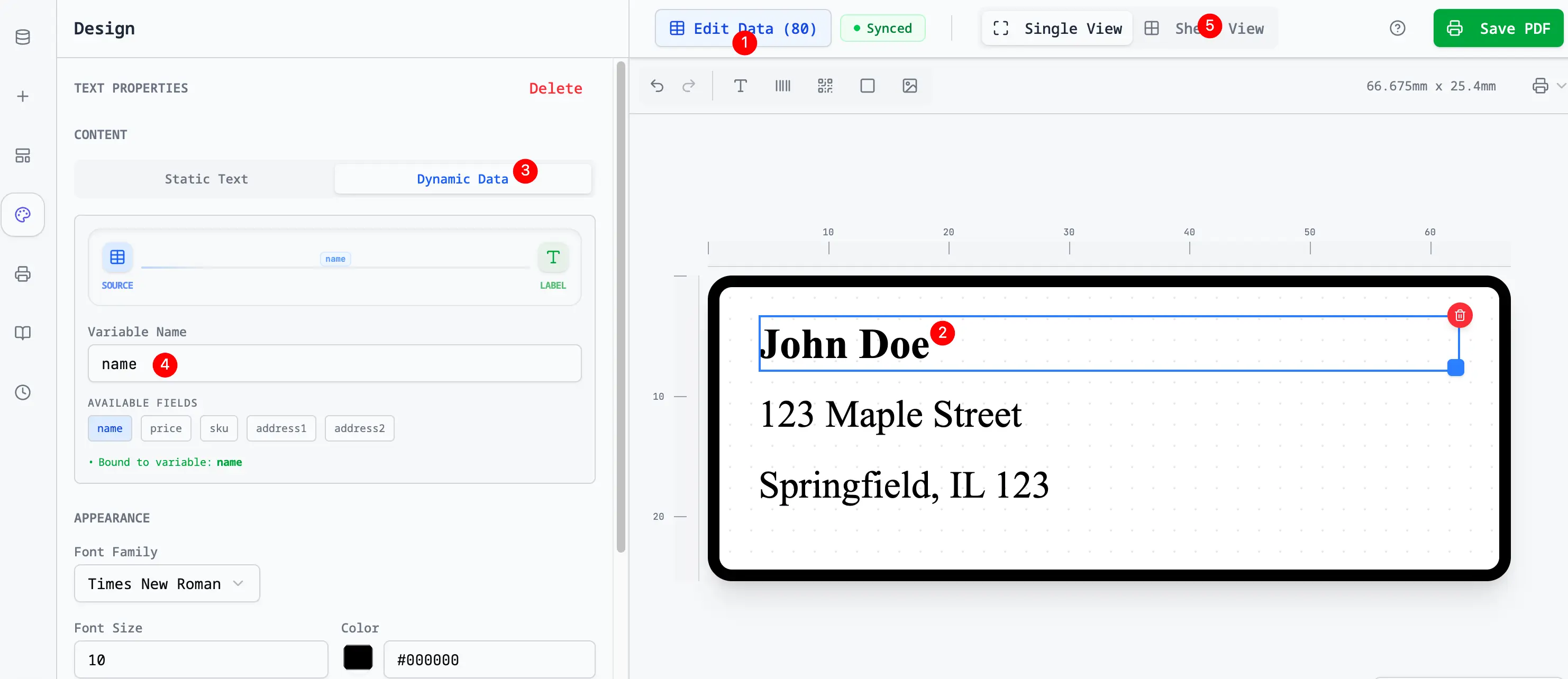
Method 1: Drag a Field
- Go to the Data Source tab.
- You will see a list of available columns.
- Drag a column name onto the canvas.
- It will automatically create a text box containing that field.
Method 2: Type a Text Template
- Create a normal text box.
- Open Connected to column and choose Custom text (combine fields).
- Click the field buttons or type static text and fields together in Content.
- Use this when one text element should combine multiple values.
Combining Fields
You can mix static text and multiple fields in a single text element.
Examples:
{{First Name}} {{Last Name}}{{city}}, {{state}} {{zip}}Price: ${{price}}Batch {{batch_code}} - {{size}}See Dynamic Text Templates for more examples.
Field Binding vs Text Templates
There are two common patterns:
| Pattern | Best for |
|---|---|
| Bind one element to one column | Product name, barcode value, QR URL, image URL |
| Type a text template | Address lines, price labels, batch codes, mixed static and dynamic copy |
Text outside {{ }} is static and repeats on every label. Fields inside {{ }} are replaced with values from each spreadsheet row.
For barcode and QR elements, bind the element to the data column that contains the scannable value. For human-readable labels around the code, use a separate text element.
Missing Data Handling
If a cell is empty in your spreadsheet for a specific row:
- The
{{Field}}will be replaced by an empty string (nothing). - The label will print without that specific bit of text.
- It will NOT print "undefined" or
{{Field}}.
Tip: If a line depends on optional data, consider creating a clean helper column in your spreadsheet. For example, a display_address_2 column can include punctuation only when the value exists.
Best Practices
- Keep headers simple: Prefer
phone,sku,price, orbatch_code. - Avoid special symbols: Headers with slashes, parentheses, and currency symbols are harder to use in templates.
- Preview real rows: Long names, missing prices, and dense QR URLs are easier to catch before export.
- Use helper columns for logic: Do conditional text in the spreadsheet, then bind the final display column.