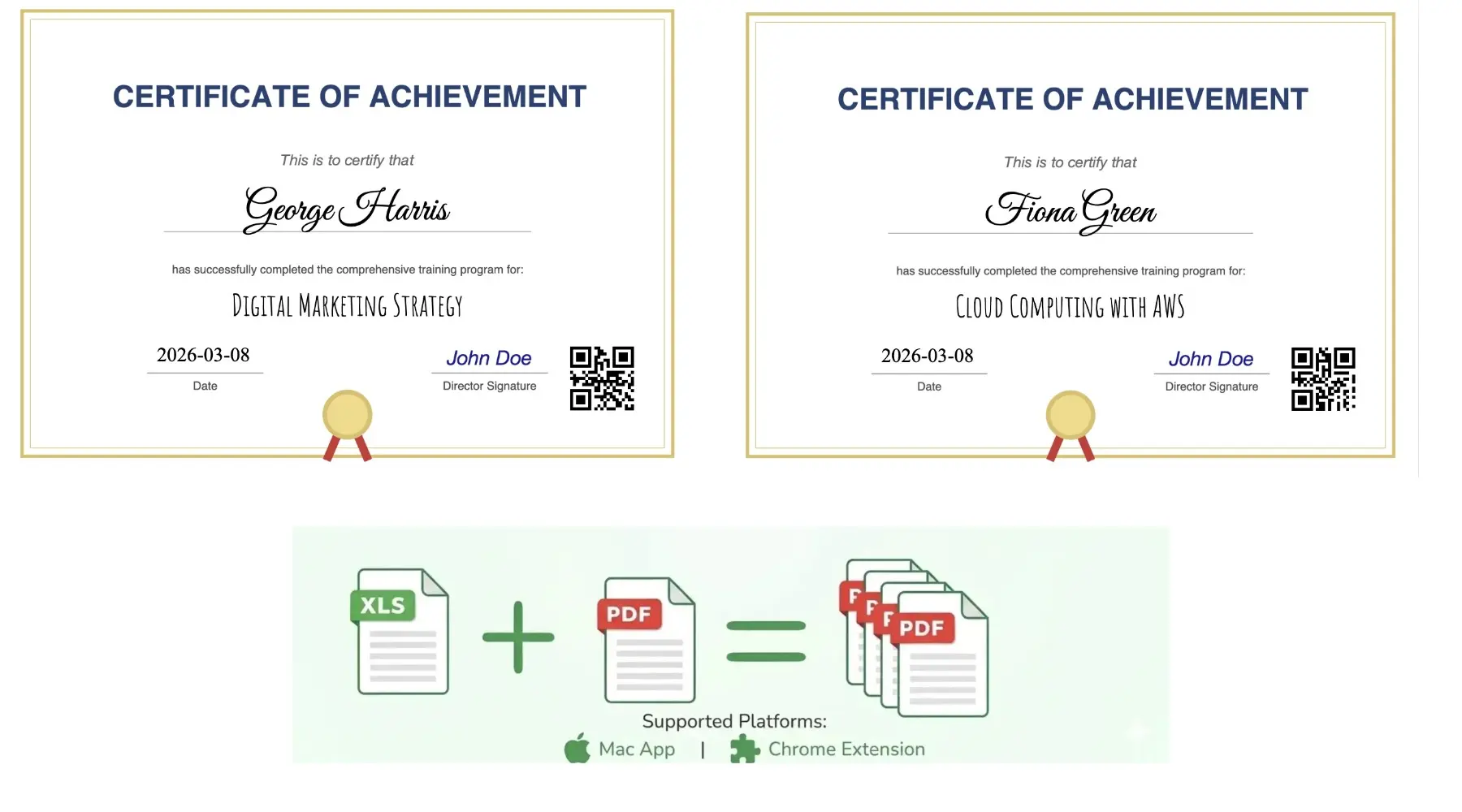
How to Fill PDFs from Excel, Google Sheets, or CSV with PDF Mail Merge
Learn the spreadsheet-to-PDF workflow for Excel, Google Sheets, and CSV. Start in the web workspace, map fields visually, and batch generate one PDF per row or a merged PDF.

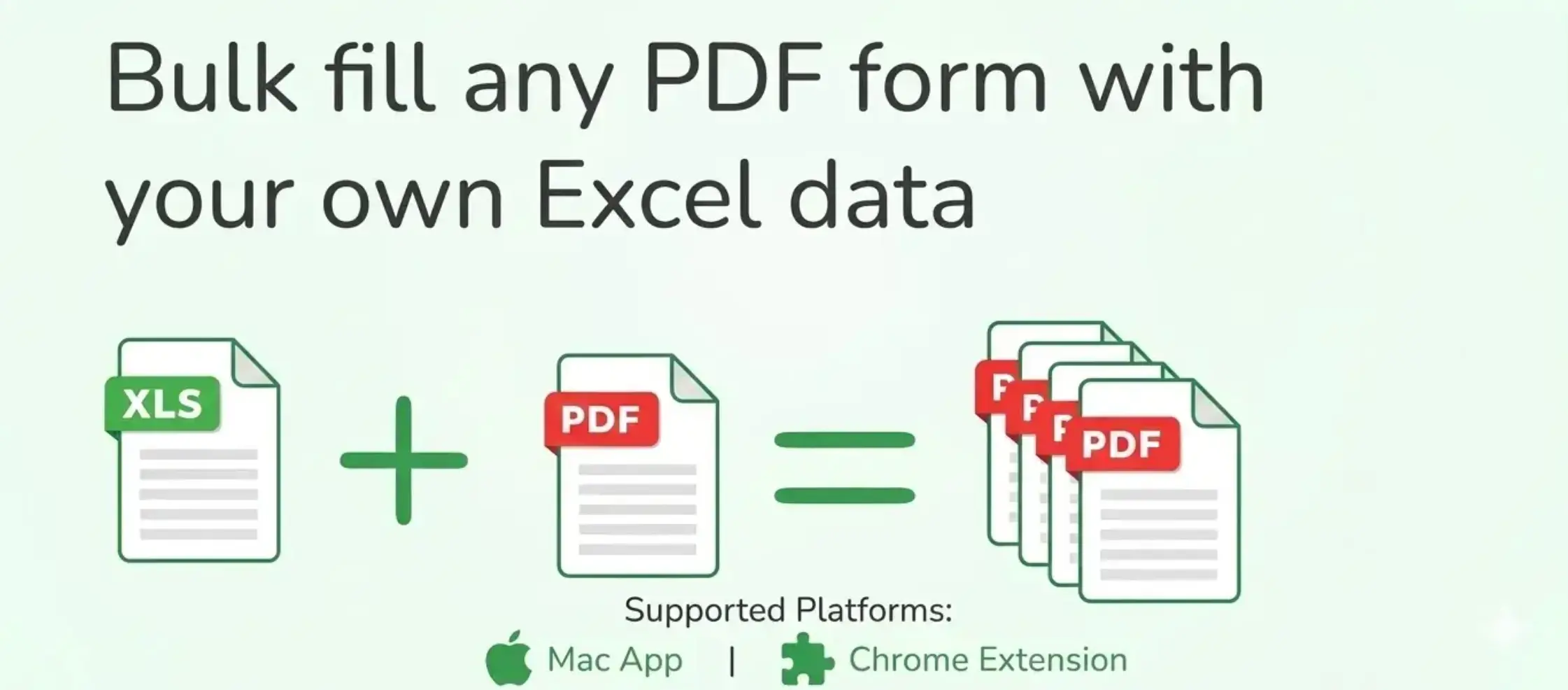
PDF Mail Merge is our spreadsheet-to-PDF web workspace for filling PDF forms, contracts, invoices, certificates, and other templates from Excel, Google Sheets, or CSV. You can start directly in the browser, map fields visually on fillable or non-fillable PDFs, preview real rows, and export one PDF per row or a merged review file.
Getting Started
Follow these steps to generate your first batch of documents:
1. Start in the Web Workspace
For most users, the best starting point is the main PDF Mail Merge web workspace. Upload an Excel or CSV file directly in the browser, or paste a public Google Sheet URL if your data is already online.
This path is usually the fastest because you can test the real workflow immediately without installing anything first.
2. Optional: Launch from the Google Sheets Add-on
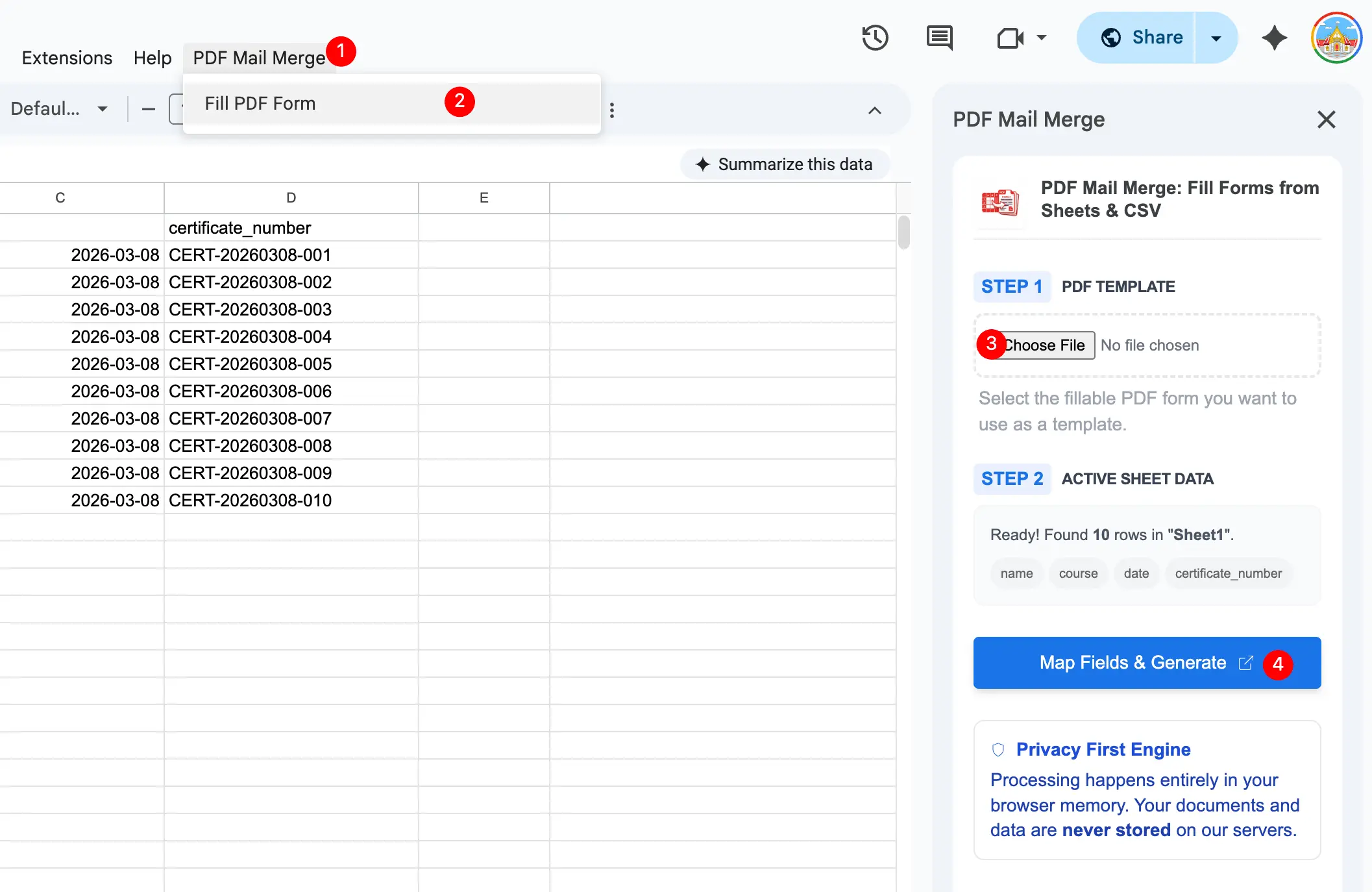
If you already work inside Google Sheets every day, you can also install the PDF Mail Merge add-on from the Google Workspace Marketplace. Then open the target sheet and use:
Extensions > PDF Mail Merge > Fill PDF Form
This is just a launch path into the same full browser workspace on sheetstolabels.com. It is useful when you want to start from the active sheet without exporting or publishing it.

3. Upload Your PDF Template
Choose the exact PDF you want to personalize. It can be a fillable PDF, a standard PDF, a scanned form, a certificate layout, a contract, or another fixed design where you want spreadsheet data to appear.
4. Data Detection
If you started from the add-on, the active sheet headers and rows are detected automatically. If you started in the browser, upload your file or connect the sheet there. In both cases, your first row should contain descriptive headers such as Name, Date, Invoice ID, or Document ID.
5. Mapping and Generating
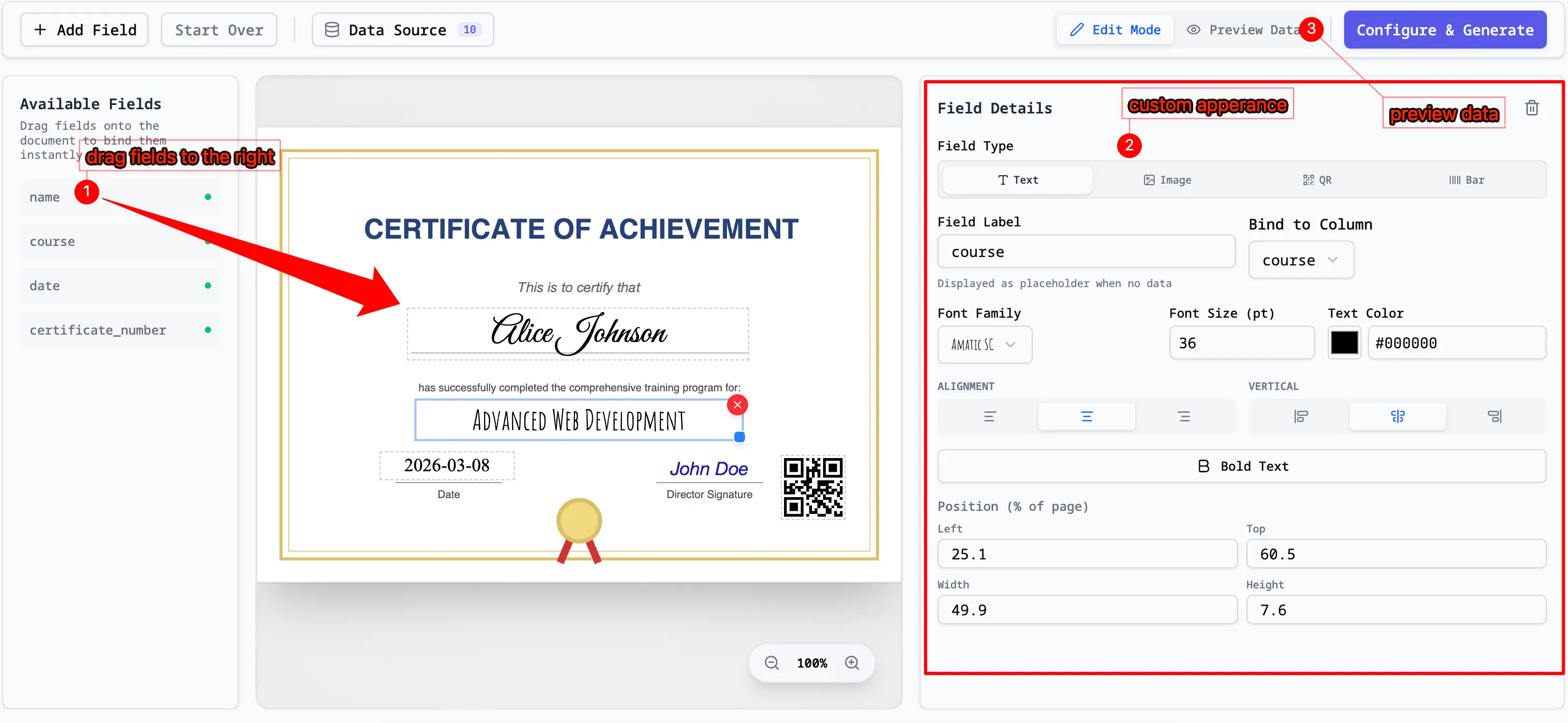
Use the Visual Mapper workspace at sheetstolabels.com to connect spreadsheet columns to the PDF layout.
- Drag and Drop: Drag the spreadsheet columns from the sidebar onto your PDF.

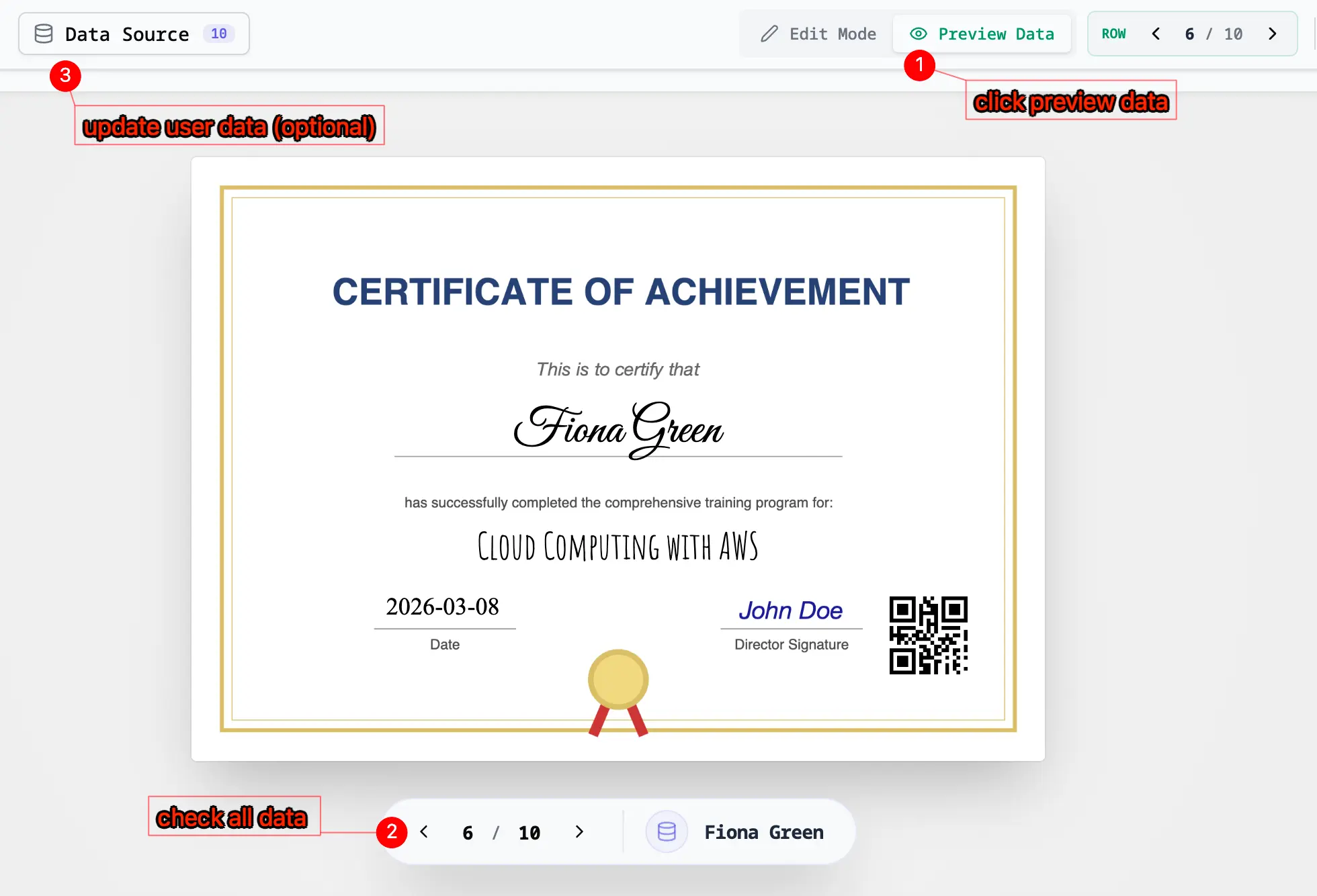
- Preview: See how the data will look on each page.

- Generate: Once satisfied, click "Generate" to create your PDFs. You can download them as a single combined file or a ZIP of individual documents.

Tutorial Ideas: Certificates, Invitations, and More
The same workflow in the video and screenshots above can be reused for many personalized document types. Once your Google Sheet headers are ready, you only need to upload one PDF template, drag the fields into place, preview the result, and generate the full batch.
1. Training Certificates
Need to create completion certificates for a class, workshop, or internal company training? Prepare a sheet with columns such as Name, Course, Completion Date, and Certificate ID, then upload your certificate template.
In the Visual Mapper, drag each column onto the correct area of the certificate. For example, place the student name in the center, the course title below it, and the completion date near the signature area. Use the preview step to check spacing for longer names before generating the final batch.
This is ideal for onboarding programs, online courses, safety training, professional development workshops, and any event where every participant receives the same design with different personal details.
2. Award Certificates and School Recognition
If you are preparing awards for a school, contest, team event, or company recognition program, create a sheet with fields like Winner Name, Award Title, Event Name, and Date.
After uploading the award certificate PDF, map each field to its visual position just like shown in the drag-and-drop screenshots above. Preview a few winners to confirm that names and award titles remain balanced on the page, then generate all certificates in one run.
This approach saves a huge amount of manual editing time when you need to personalize dozens or hundreds of certificates without changing the overall layout.
3. Event Invitations
PDF Mail Merge also works well for personalized invitations. Start with a spreadsheet containing columns such as Guest Name, Company, Seat, Event Date, and Location, then upload your invitation design as a PDF.
Map the guest name into the greeting area, place the seat or table number where needed, and add event details in the lower section of the layout. The preview tool helps you catch alignment issues early, especially when guest names vary in length.
This is a practical workflow for conferences, corporate events, weddings, product launches, alumni gatherings, and private dinners where every guest receives a tailored PDF invite.
4. Invoices, Receipts, and Confirmation Letters
Beyond certificates, the same process is perfect for business documents. Create a sheet with columns like Customer Name, Invoice Number, Order ID, Amount, and Date, then connect those fields to an invoice or confirmation template.
You can place billing details in the top-right area, customer information in the address block, and totals in the summary section. Once the mapping is set up, generate all documents at once instead of copying values into each file manually.
This use case is especially helpful for small businesses, training providers, event organizers, and operations teams that need to send large volumes of personalized PDFs quickly and accurately.
Privacy & Security
We believe your data belongs to you. Our architecture is designed to protect your privacy:
- 100% Client-Side: All data processing, field mapping, and PDF generation happen entirely within your browser's memory.
- Zero Server Storage: Your spreadsheet content and generated PDF files are never uploaded to, stored on, or transmitted to our servers.
- Local Bridges: We use a secure bridge to move data from Google Sheets to the browser's
sessionStorage. Once you close the tab, the data is wiped. - Limited Access: The add-on only requests permission to access the current spreadsheet (
spreadsheets.currentonly) to minimize its security footprint.
Frequently Asked Questions
Why does it open a new tab on sheetstolabels.com?
Because the main product experience lives in the full browser workspace. Multi-page PDF mapping, preview, and export controls work far better there than in a narrow Google Sheets sidebar. The add-on is only a convenient launch bridge, not a reduced separate product.
Do I need a fillable PDF?
No. While fillable PDFs are supported, you can also use standard PDFs and manually place text overlays wherever you need data to appear.
Is my data safe?
Yes. As a "Privacy First" tool, we do not have a database to store your spreadsheet data. Your documents are processed locally on your device.
Support
If you encounter any issues or have questions, please contact our support team:
- Email: [email protected]
- Website: sheetstolabels.com/contact