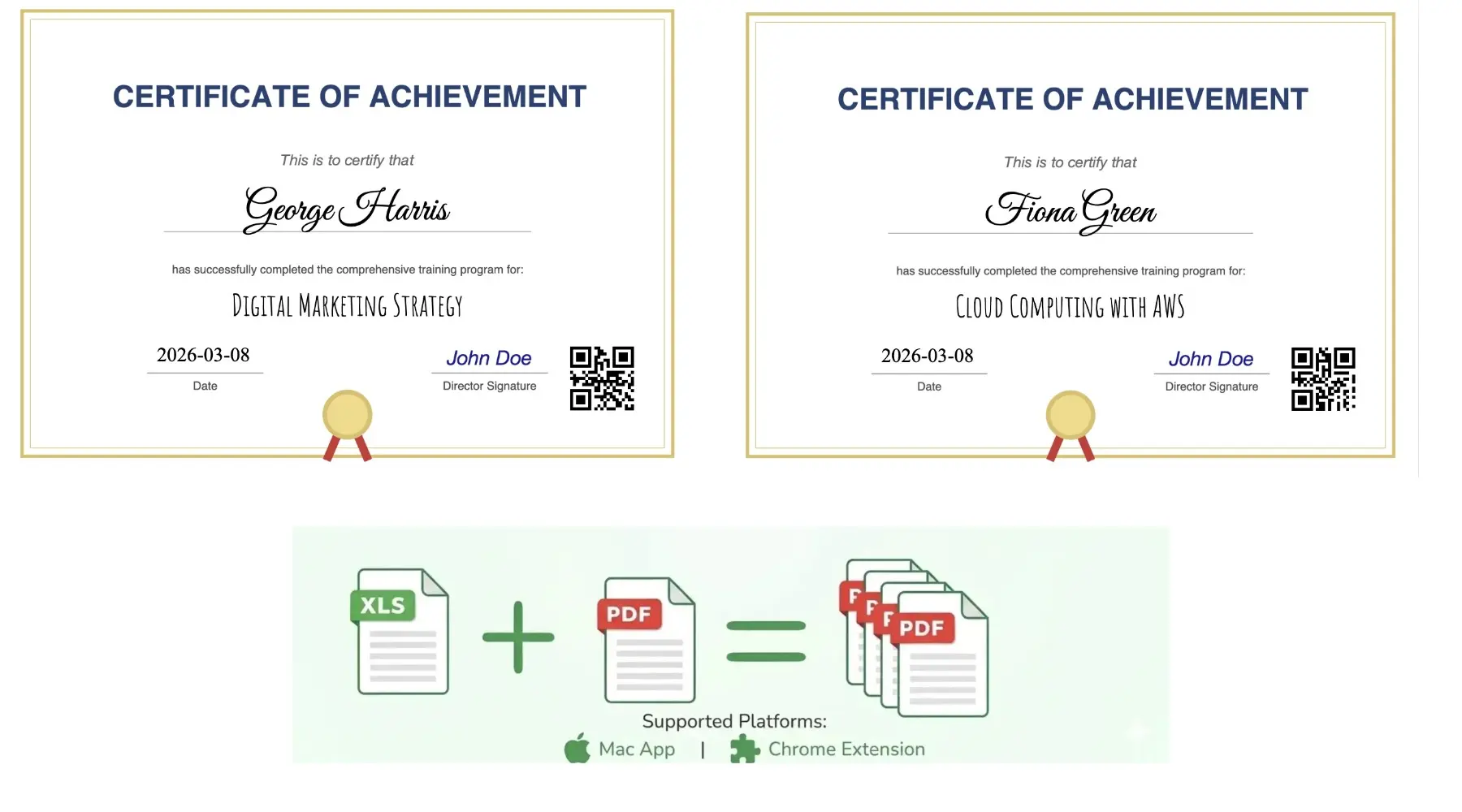
Bulk Fill PDF from Spreadsheet
Learn the direct spreadsheet-to-PDF workflow on sheetstolabels.com. Upload Excel/CSV/Google Sheets, map fields visually, and batch generate filled PDF forms.
How to Bulk Fill PDFs from Excel or Google Sheets
PDF Mail Merge is our spreadsheet-to-PDF web workspace for filling PDF forms, contracts, invoices, certificates, and other templates from Excel, Google Sheets, or CSV. You can start directly in your browser, map fields visually, preview real rows, and export one PDF per row or a merged file.
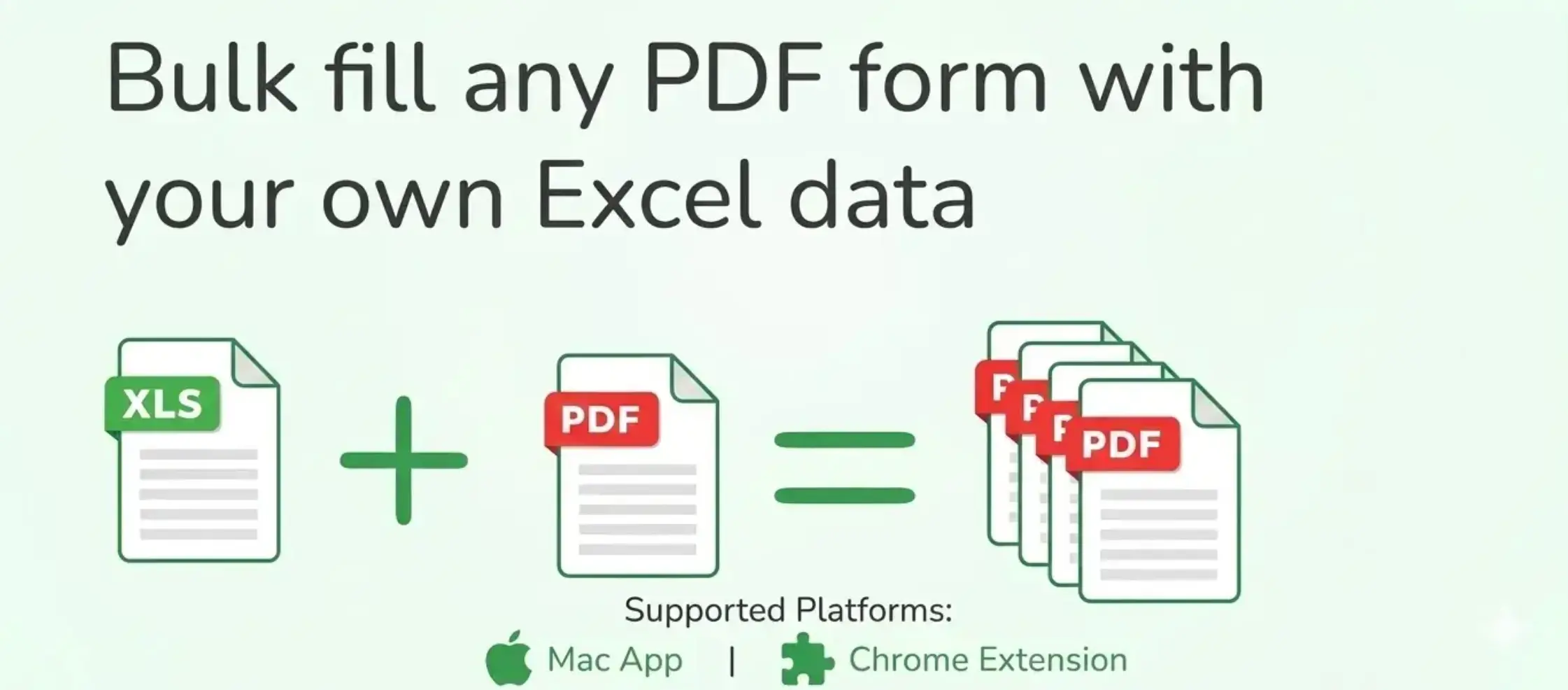
Open the PDF Mail Merge Tool
Batch fill PDF forms from Excel—one PDF per row. Map columns once, preview free, export separate PDFs or a ZIP. No Acrobat or VBA.
Step-by-Step Guide
Follow these steps to generate your first batch of filled PDF documents directly in the web workspace:
1. Upload Your Spreadsheet Data
Go to the PDF Mail Merge web workspace.
- Upload File: Upload an Excel (.xlsx, .xls) or CSV file directly from your computer.
- Connect Google Sheets: Paste a public Google Sheets URL if your data is hosted online.
- Ensure your first row contains descriptive column headers (e.g.,
Name,Date,Invoice ID).
2. Upload Your PDF Template
Select the target PDF template you want to personalize. This can be:
- A fillable PDF form with interactive form fields.
- A standard flat PDF (such as a certificate, invoice, or contract template) where you want to overlay text.
3. Map Fields Visually
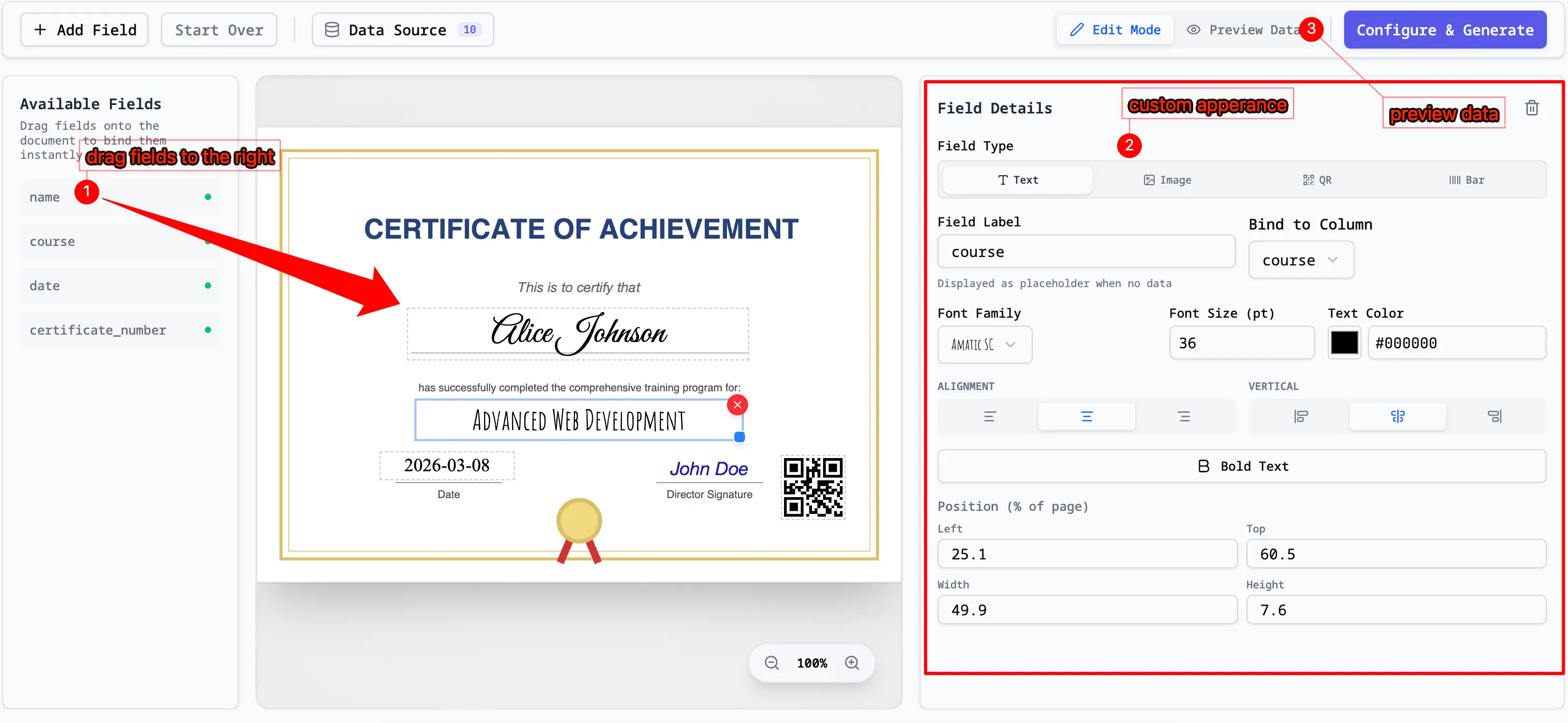
Use the Visual Mapper workspace to connect spreadsheet columns to the PDF layout.
- Drag and Drop: Drag the column headers from the left sidebar onto the PDF page.
- Customize: Position the fields exactly where you want the text to appear. You can adjust font size, color, and alignment.
4. Preview and Batch Generate
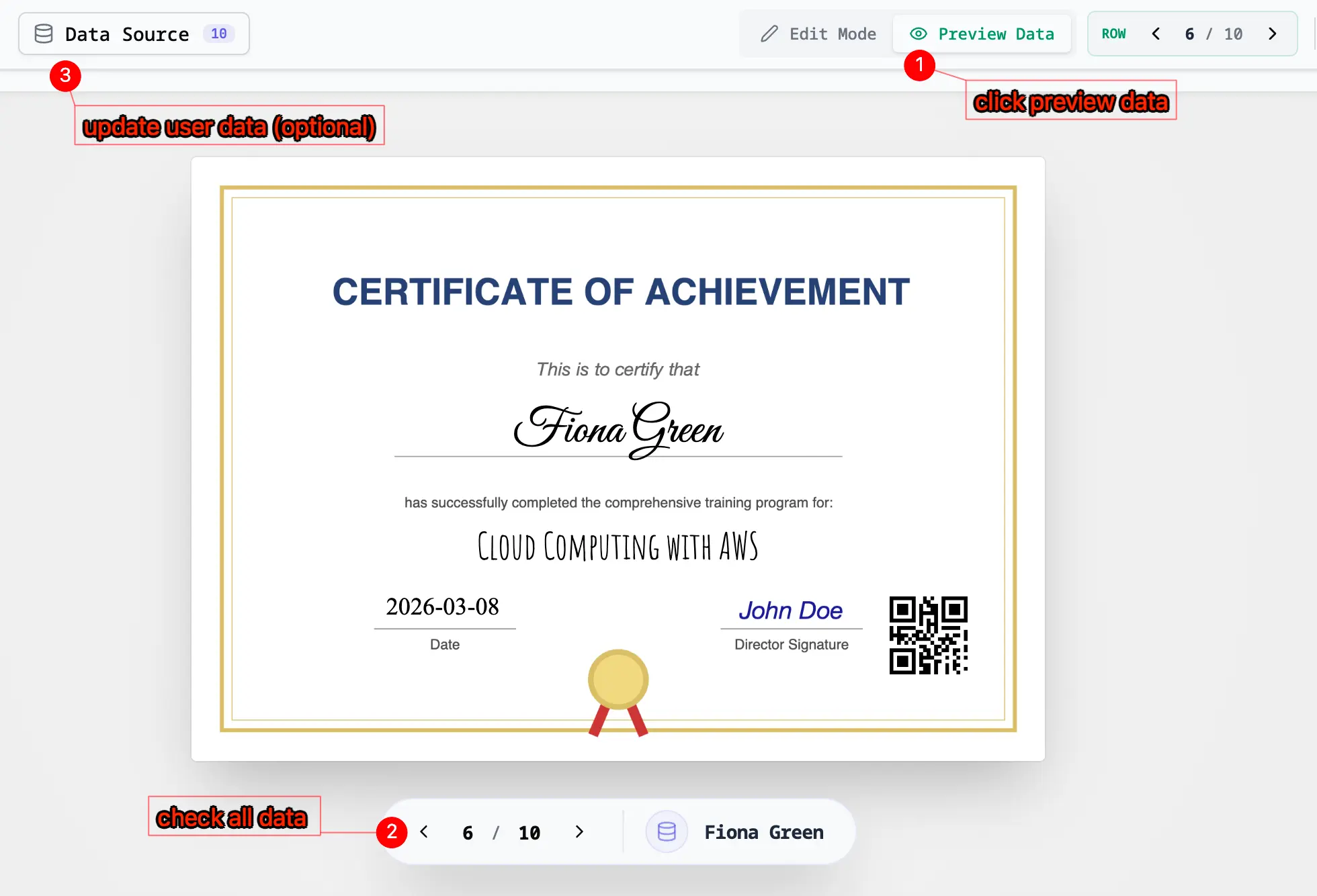
Before exporting, verify your layout:
-
Preview Rows: Toggle through different rows of your spreadsheet to see how the mapped data looks on each page.
-
Generate: Once satisfied, click "Generate". You can choose to download the batch as a single merged PDF file or a ZIP archive containing individual PDFs.