
Google Sheets Add-on Guide
Learn how to install and launch the PDF Mail Merge add-on from Google Sheets to batch fill PDF templates, visually map fields, and generate files.
PDF Mail Merge Google Sheets Add-on Guide
If you manage your mailing lists, invoices, or contractor data inside Google Sheets, you can use the official PDF Mail Merge add-on to launch the PDF bulk-filling workspace directly from your active sheet.
Open the PDF Mail Merge Tool
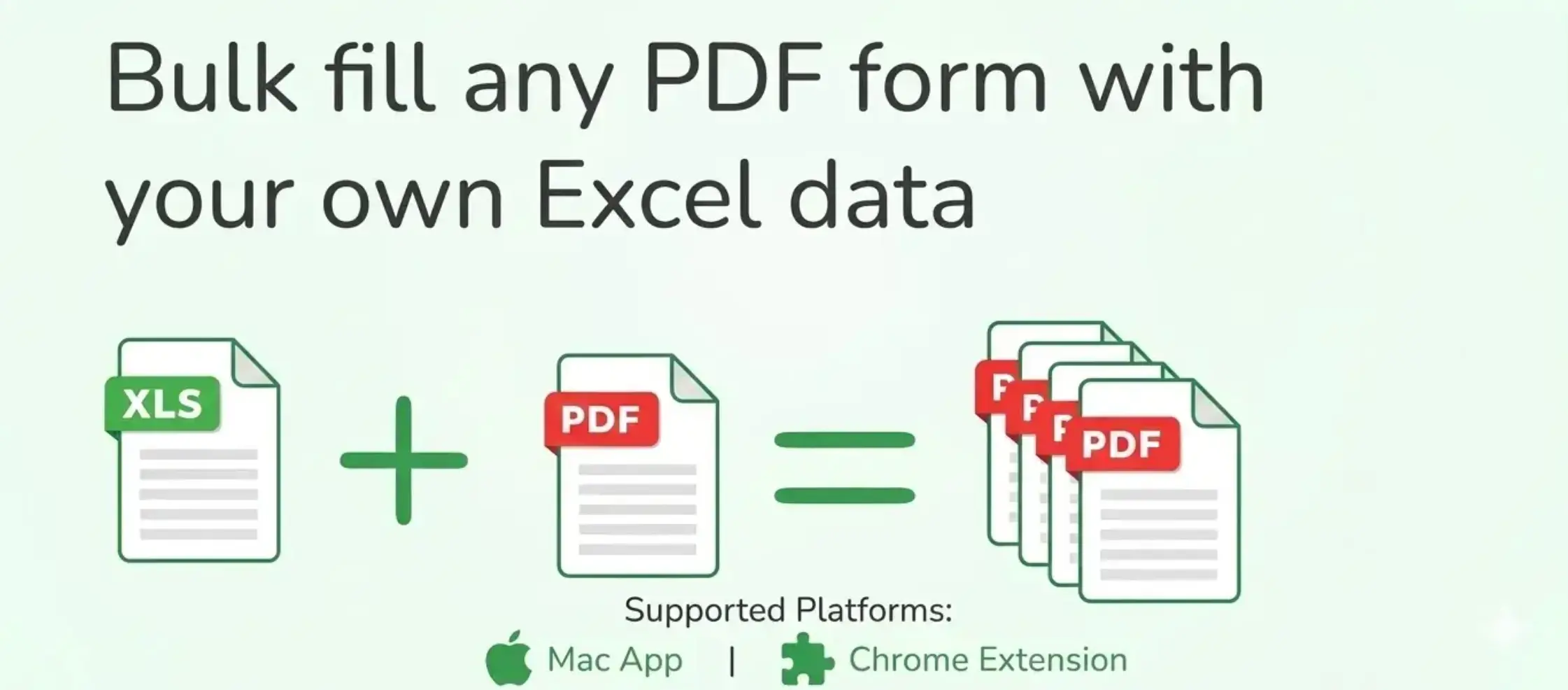
Batch fill PDF forms from Excel—one PDF per row. Map columns once, preview free, export separate PDFs or a ZIP. No Acrobat or VBA.
If you don't want to use the Google Sheets add-on, you can also use our online Bulk PDF Form Filler tool directly to upload your Excel, CSV or Google Sheets link.
How to Install the Add-on
- Open the PDF Mail Merge Google Sheets add-on page on Google Workspace Marketplace.
- Click Install (or Admin Install if you manage a Google Workspace domain).
- Grant the required permissions. The add-on only requests permission to access the active sheet (
spreadsheets.currentonly) to ensure maximum security.
How to Use the Add-on
Once installed, follow these steps to connect your spreadsheet rows to a PDF template:
1. Open the Add-on in Your Sheet
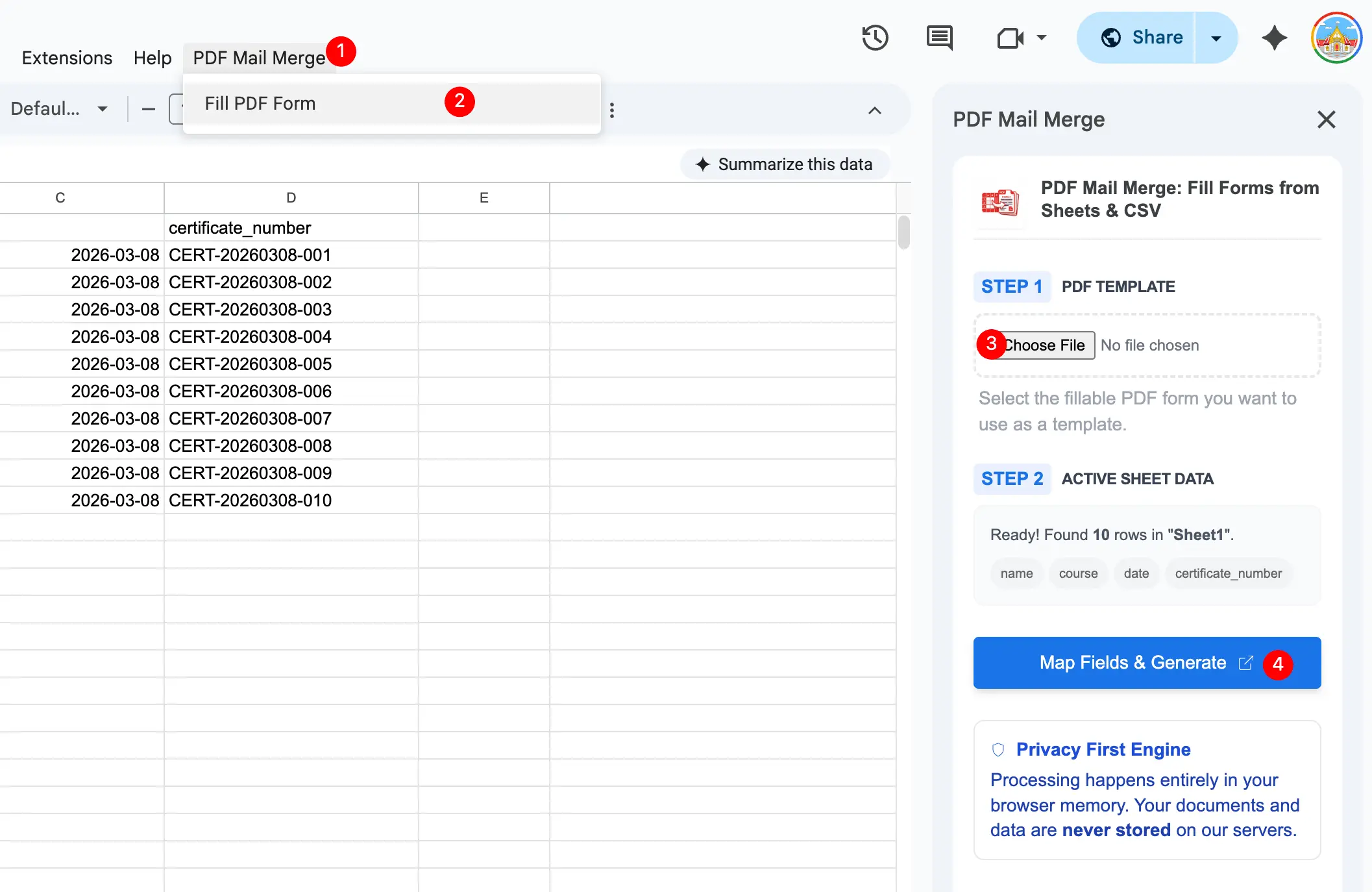
Inside Google Sheets, navigate to: Extensions > PDF Mail Merge > Fill PDF Form
A side panel will open. Click the main button to bridge your data.
2. Upload Your PDF Template
The add-on will open a secure new tab on sheetstolabels.com containing the Visual Mapper workspace. Select the target PDF template you want to personalize (a fillable form or a standard PDF template).
3. Map Fields Visually
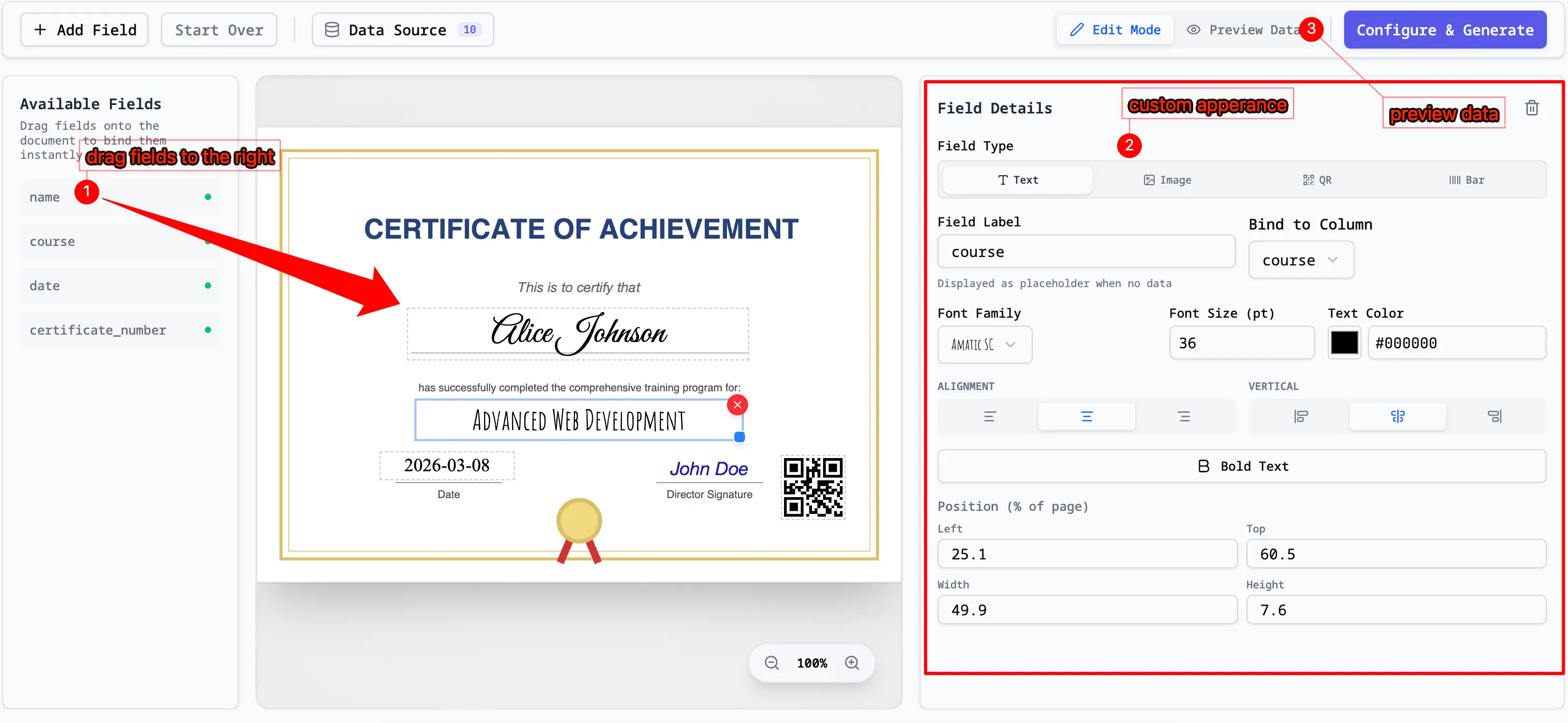
Connect spreadsheet columns to your PDF layout by dragging and dropping:
- Drag and Drop: Drag the column headers from the left sidebar onto the PDF page.
- Customize: Position the fields exactly where you want the text to appear. You can adjust font size, color, and alignment.
4. Preview and Batch Generate
Once you have mapped the fields, you can preview and export:
-
Preview Rows: Toggle through different rows of your active sheet to see how the mapped data looks on each page.

-
Generate: Click "Generate" to download the filled PDFs as a single merged PDF file or a ZIP archive containing individual PDFs.

Privacy & Security
Our architecture is designed to protect your spreadsheet data:
- 100% Client-Side: All field mapping and PDF generation happen inside your browser. Your spreadsheet rows and PDF files are never uploaded to or stored on our servers.
- Local Bridge: The add-on uses a secure bridge to temporarily pass data from Google Sheets into your browser's
sessionStorage. Once you close the browser tab, the data is deleted.