
Google Sheets Add-on Guide for Address Label Maker
Launch Address Label Maker from Google Sheets with the official add-on, then continue in the full web editor on sheetstolabels.com to choose templates and export print-ready PDFs.
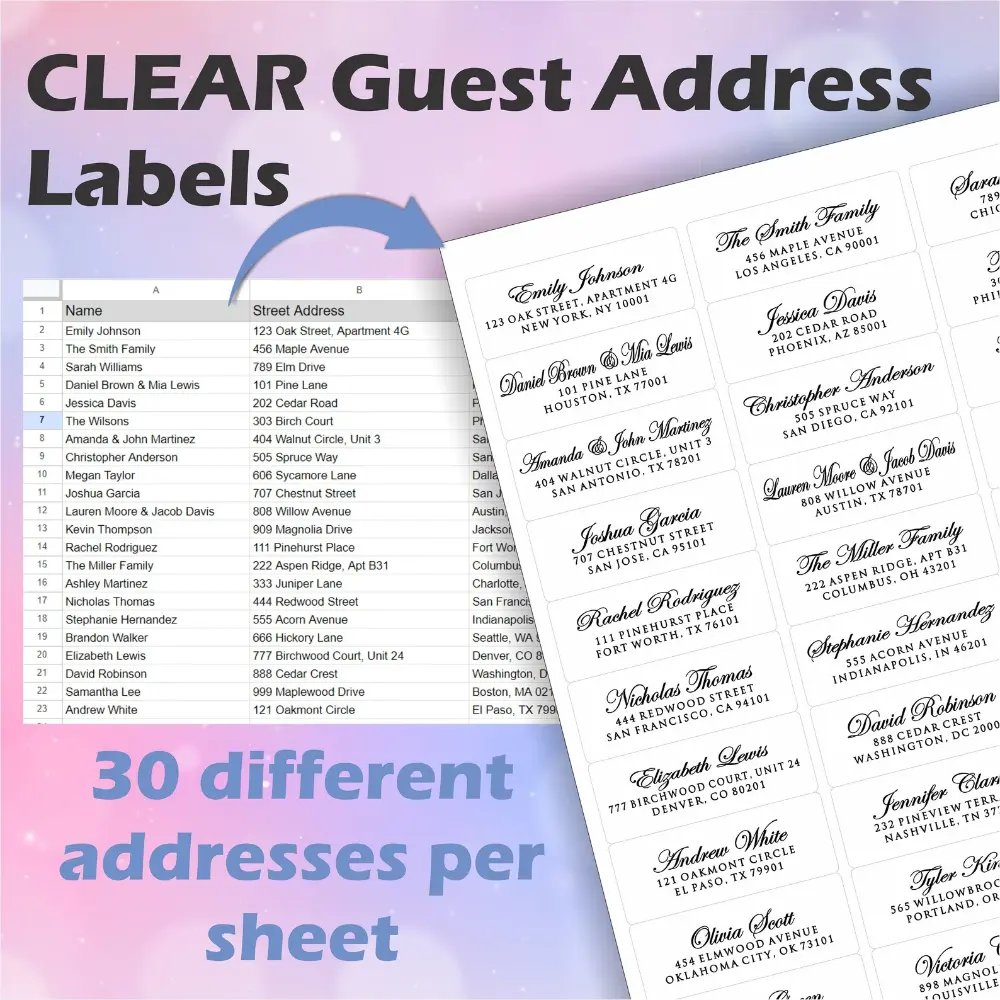
Address Label Maker is the main web workspace for printing address labels from Excel, CSV, and Google Sheets data. If you already manage your mailing list in Google Sheets, you can start from the official add-on and then continue in the full editor on sheetstolabels.com.
Best Starting Path
For most users, the best starting path is still the main Address Label Maker web workspace. That keeps your first visit on the website, lets you test the editor immediately, and works whether your data comes from Google Sheets, Excel, or CSV.
If you already live inside Google Sheets every day, the add-on is a useful launch bridge. It is not a separate reduced product. It simply starts the same main workflow from the active sheet.
Install the Google Sheets Add-on
Install the official Address Label Maker Google Sheets add-on on Google Workspace Marketplace.
After installing it, open the target spreadsheet and use:
Extensions > Address Label Maker > Create Address Labels
The add-on reads the current sheet headers and rows, detects common address fields, and opens the full label workflow on sheetstolabels.com.
Chrome Extension Entry Point
If you prefer to start from the browser instead of the Google Sheets Extensions menu, use the Address Label Maker Chrome extension.
The Chrome extension is useful when your address list comes from a local Excel file, a CSV file, pasted CSV rows, or a shared Google Sheets link. The Google Workspace add-on is useful when your current mailing list already lives inside an active Google Sheet.
Both entry points lead back to the same main Address Label Maker web workspace, where you choose the label template, preview the sheet, and export the print-ready PDF.
What Happens Next
- Start from your active Google Sheet.
- Launch the add-on from the Extensions menu.
- Confirm the detected sheet data.
- Continue in the full browser editor on
sheetstolabels.com. - Choose a layout such as Avery 5160, A4, or US Letter.
- Preview the labels and export a print-ready PDF.
Why It Opens the Website
The full editing experience lives on sheetstolabels.com, not inside a narrow Google Sheets sidebar. Template selection, visual preview, layout adjustments, and PDF export work better in the full browser workspace.
That means the add-on should be treated as an optional Google Sheets entry point, while the website remains the main product surface.
Privacy and Permissions
The add-on uses narrow Google Sheets access so it can read only the active spreadsheet and launch the workflow:
spreadsheets.currentonlyscript.container.ui
This is used to detect columns such as name, company, street, city, state, ZIP or postal code, and country from the current sheet so you can generate address labels without exporting the file first.
When To Use Which Path
- Use the web workspace when you want the clearest first-run flow or need Excel and CSV support.
- Use the Google Workspace Marketplace listing when your list already lives in Google Sheets and you want to launch from the active spreadsheet.
- Use the Chrome Web Store listing when you want a browser shortcut for Excel, CSV, pasted rows, or shared Google Sheets links.
Supported Address Label Jobs
The web workspace is focused on address-label jobs, including:
- Avery 5160-style mailing labels
- US Letter address label sheets
- A4 address label sheets
- return address labels
- wedding invitation address labels
- holiday card mailing labels
- business mailing lists from Excel, CSV, or Google Sheets
For Avery 5160-specific setup and print checks, read Avery 5160 Address Labels from Excel or Google Sheets.
Support
- Website: sheetstolabels.com/address-label-maker
- Official Marketplace listing: Address Label Maker on Google Workspace Marketplace
- Chrome extension: Address Label Maker on Chrome Web Store
- Contact: sheetstolabels.com/contact