
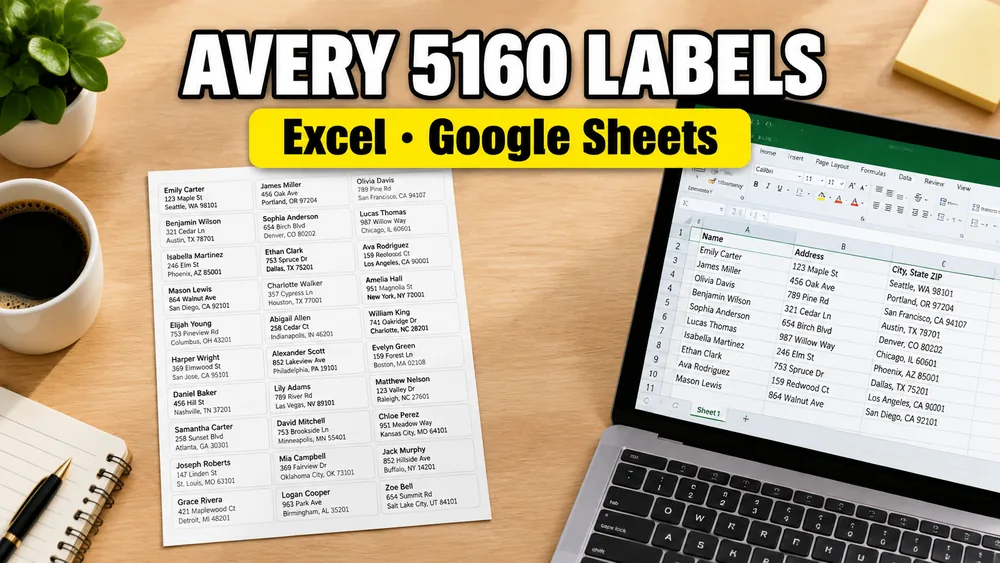
The Avery® 5160® Address Labels layout is one of the most common US Letter address-label formats. It is a 30-label sheet format used for mailing labels, invitation envelopes, holiday cards, customer mailings, and other address-list jobs.
Trademark note: This program is not made, tested or endorsed by Avery Products Corporation. Avery and all Avery brands, product names and codes are trademarks of CCL Label, Inc. Product names and codes are referenced only to describe compatible label layouts.
If you are comparing the Avery® 5160® Address Labels layout with Avery® 8160® Address Labels, Avery® 5161® Address Labels, Avery® 5162® Address Labels, Avery® 5163® Shipping Labels, or A4 layouts such as Avery® 7160® Address Labels, start with the Avery®-Compatible Label Sizes Chart & Templates Guide. It explains label size, labels per sheet, compatible stock numbers, and when to choose a different compatible layout.
If your addresses are already in Excel, CSV, or Google Sheets, the fastest workflow is to open Address Label Maker, import the spreadsheet, choose the Avery® 5160® Address Labels-compatible layout, preview the full sheet, and export a print-ready PDF.
This page is the 5160-specific printing guide. For the main address-label workflow, including return labels, Avery 5163-style sheets, A4 layouts, and one-address jobs, start with Address Label Maker.
If you print recurring 5160-style batches on an Apple Silicon Mac, Address Label Maker for Mac lets you keep the address design, Excel or CSV mapping, and paper setup available locally between mailings.
For school offices, PTAs, libraries, nonprofit teams, or other organizations that need a staff handout, use the Avery® 5160® Address Labels Printing Guide for Schools and Organizations or download the PDF checklist.
Quick Workflow
- Prepare one spreadsheet row per recipient.
- Use clear headers such as
full_name,address_line_1,city,state, andzip. - Open Address Label Maker.
- Import Excel, CSV, pasted rows, or Google Sheets data.
- Choose an Avery® 5160® Address Labels-compatible layout.
- Preview the full 30-label sheet.
- Export the PDF and print at
100% / Actual Size.
Prepare the Spreadsheet
The label layout is only as clean as the address data. Before importing, check the spreadsheet:
- one recipient per row
- plain text headers in the first row
- no merged cells
- no fully blank rows between addresses
- ZIP or postal codes stored as text if they can start with
0 - apartment, suite, unit, or floor details in a separate second address line when possible
Recommended columns:
| Column | Example |
|---|---|
full_name | Jordan Lee |
company | Northstar Studio |
address_line_1 | 120 Market Street |
address_line_2 | Suite 400 |
city | Boston |
state | MA |
zip | 02110 |
country | United States |
Import Excel, CSV, or Google Sheets
Use the source that matches your current list:
- Excel file: upload the
.xlsxfile directly. - CSV file: upload the exported CSV.
- Pasted rows: paste CSV rows into the browser workflow.
- Google Sheets: paste a shared Google Sheets link, or start from the Google Sheets add-on guide.
If you use Chrome often, the Address Label Maker Chrome extension is another entry point into the same workflow.
Choose the Avery® 5160® Address Labels-Compatible Layout
After import, choose the Avery® 5160® Address Labels-compatible layout in Address Label Maker. If you want to verify dimensions or compatible product codes first, check the Avery® 5160® Address Labels Template page.
This format is commonly used for standard mailing labels on US Letter label sheets. If your physical label package is a different product code, choose the matching layout instead. Do not force the 5160® layout onto a different sheet just because the label sizes look similar.
Use the preview to check:
- each row maps to one label
- long names still fit
- apartment or suite lines are visible
- city, state, and ZIP stay on the final line
- blank spreadsheet rows do not create unwanted blank labels
Print at 100% Scale
Most printing alignment problems for these sheets come from print scaling or the wrong sheet layout.
Before printing on label stock:
- Export the PDF.
- Open the PDF in your normal print dialog.
- Set scale to
100%orActual Size. - Turn off
Fit to Page,Shrink to Fit, and other auto-scaling settings. - Print one test page on plain paper.
- Hold the test page against the label sheet to confirm alignment.
If the output is shifted or drifting, read How to Fix Label Printing Misalignment.
Excel vs Google Sheets for 5160®-Style Layouts
Use Excel when:
- the address list is already a local workbook
- you received the file from another person
- the list is final and does not need team collaboration
Use Google Sheets when:
- multiple people update the address list
- the list comes from a Google Form
- you want to start from the Google Workspace Marketplace add-on
- the source of truth should stay in Google Drive
Both paths end in the same print step: preview the label sheet, export a PDF, and print at actual size.
Do You Need Word Mail Merge?
No. Word mail merge can create these labels, but it adds extra setup:
- choosing the correct Word label template
- inserting merge fields manually
- connecting the Excel file
- generating a merged document
- checking print scale after the merge
A browser-based Address Label Maker keeps the job focused: import the address list, choose the sheet layout, preview the result, and export the PDF.
Frequently Asked Questions
Can I print Avery® 5160® Address Labels from Excel?
Yes. Import the Excel file into Address Label Maker, map the address columns, choose the Avery® 5160® Address Labels-compatible layout, preview the sheet, and export the PDF.
Can I print Avery® 5160® Address Labels from Google Sheets?
Yes. You can paste a shared Google Sheets link or use the Google Sheets add-on guide to start from the active sheet.
Why are my printed address labels misaligned?
The most common causes are print scaling, the wrong paper size, the wrong label layout, or printing without a test page. Start by printing the PDF at 100% / Actual Size and compare a plain-paper test page against the label sheet.
Should address labels be centered or left aligned?
Left alignment is usually easier to scan and works better for long names or apartment lines. Centered text can look good for invitation envelopes, but preview the longest rows before printing.
Can I use Avery® 8160® Address Labels instead?
If your physical package is Avery® 8160® Address Labels or another inkjet variant with the same address-label pattern, choose the matching preset when available. If the package has different margins or spacing, use the exact layout for that product.
Start with Address Label Maker
Open Address Label Maker when you are ready to turn your spreadsheet into Avery® 5160® Address Labels-compatible layouts. It supports Excel, CSV, pasted rows, Google Sheets, full-sheet preview, and PDF export.
Related guides: