How to Print 4x6 Shipping Labels from a Spreadsheet (Zebra, Dymo & Rollo)
Create custom 4x6 shipping address labels from Excel or Google Sheets. Works with thermal printers from Zebra, Dymo 4XL, and Rollo. No carrier account needed.
If you are shipping packages but don't use a carrier API (like UPS WorldShip), you can generate your own address labels.
1. Prepare Data
Columns:
To NameTo StreetTo City,To State,To ZipOrder Number(for reference)
2. Page Setup
Most shipping labels use a 4 inch x 6 inch thermal label.
- Go to Settings.
- Set Unit: Inches.
- Label Width/Height: 4 x 6.
- Page Size: 4x6 (Custom).
- Margins: 0.
- Rows/Cols: 1.
3. Design
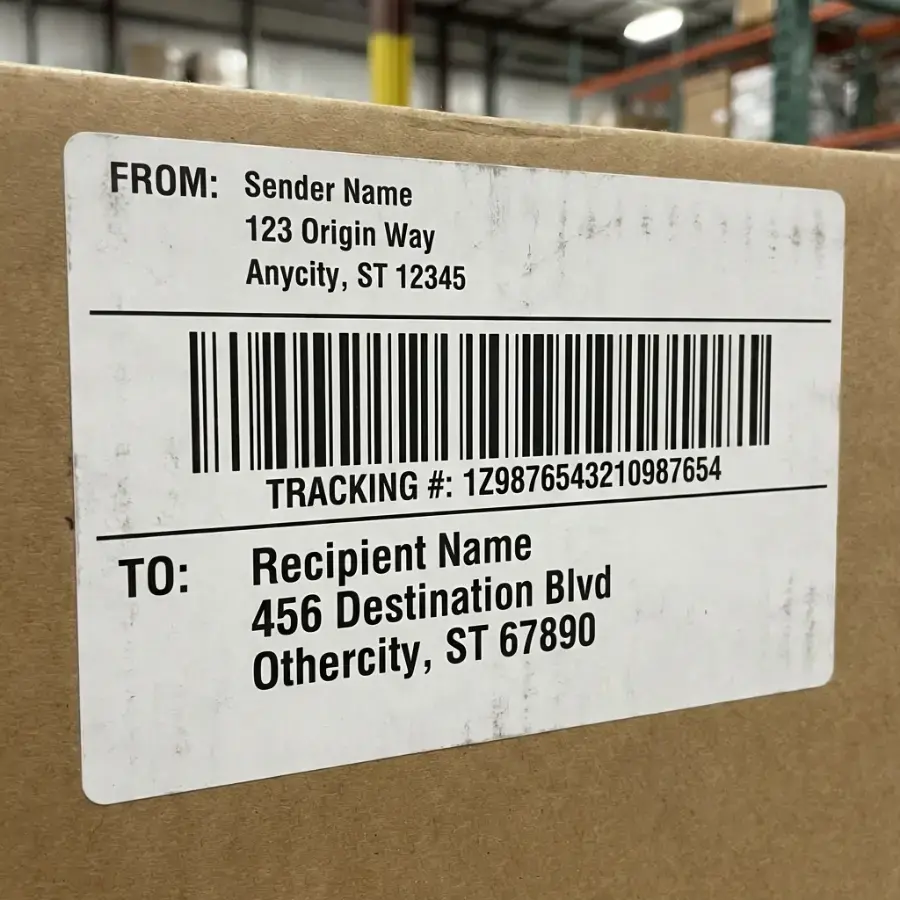
Layout standard:
- From Address: Small, Top Left.
- To Address: Large, Center.
- Order Info: Reference number at bottom (small).
Note on Postage: SheetsToLabels does not generating valid postage (stamps). You are generating the address label. You must still apply postage separately.
4. Printing on Thermal
- Printers: Zebra, Dymo 4XL, Rollo.
- When exporting PDF, ensure your system Print Dialog selects the correct thermal paper size, not "Letter".