
Combine Multiple Columns with Custom Text
Use Custom text to combine spreadsheet fields, names, addresses, prices, and fixed words inside one reusable text element
In Label Designer, Custom text lets one text element render different content for every spreadsheet row. This is also called a dynamic text template.
Use them when a label needs more than a single column value, such as a price line, a full address line, a batch code, or a product description assembled from several fields.

Static text vs dynamic spreadsheet fields
When to Use a Text Template
Use a text template when you want to combine:
- static words and spreadsheet values
- multiple spreadsheet columns in one text box
- punctuation, currency symbols, or units around a field
- a reusable line such as
SKU: {{sku}} - compact address or product information that should move as one block
For example:
| Template | Example output |
|---|---|
{{product_name}} | Lavender Candle |
SKU: {{sku}} | SKU: CAN-008 |
${{price}} | $18 |
{{First Name}} {{Last Name}} | Jordan Lee |
{{city}}, {{state}} {{zip}} | Austin, TX 78701 |
Batch {{batch_code}} - {{size}} | Batch LM-0526 - 8 oz |
How to Combine Fields in Label Designer
- Import your spreadsheet, CSV, or Google Sheet.
- Select a text element on the label.
- Open Connected to column.
- Choose Custom text (combine fields) instead of choosing a single column.
- In Content, click the field buttons in the order you want them to appear. Add spaces and punctuation between the fields.
- Switch rows or open Print Layout to confirm that each label uses values from its own row.
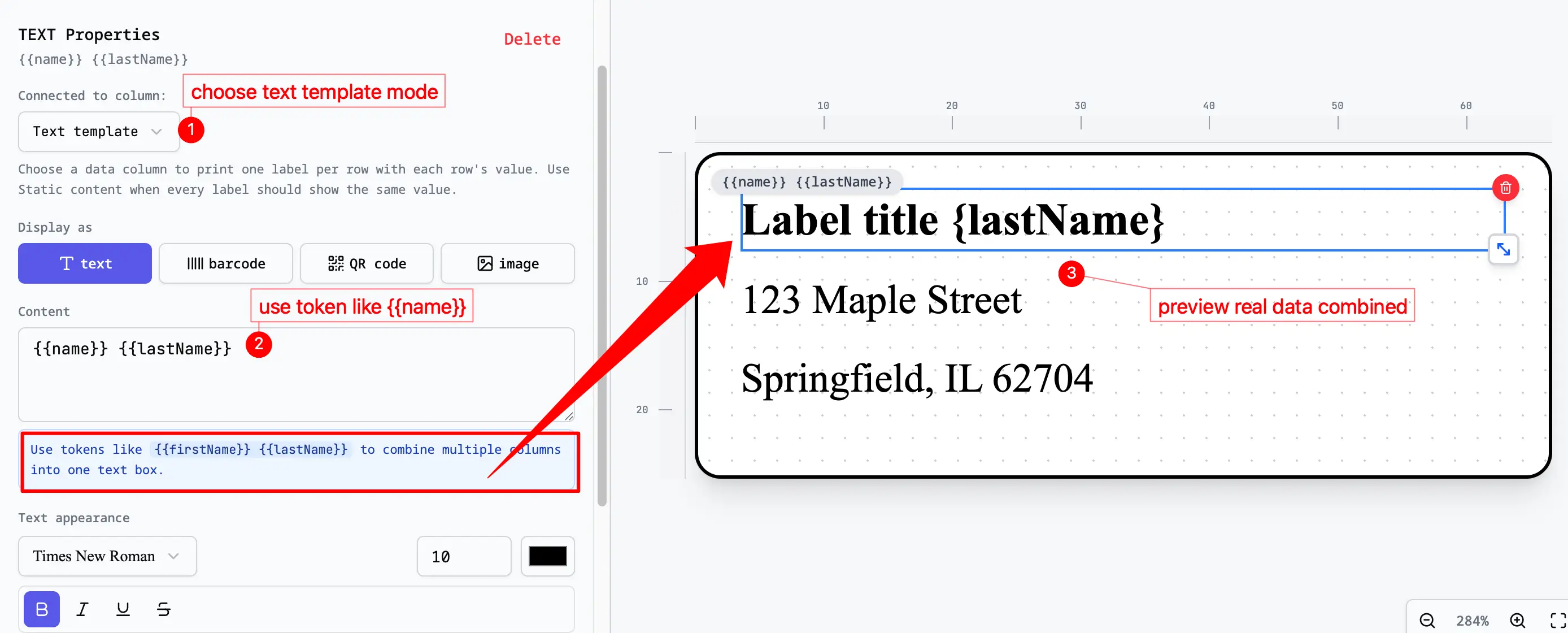
For a recipient name and city line, use two text elements:
{{First Name}} {{Last Name}}{{City}}, {{State}} {{ZIP}}The field buttons insert the correct header names automatically. If you type a field manually, the text inside {{ }} must exactly match the spreadsheet header, including spaces and capitalization.
[!IMPORTANT] Text outside
{{ }}is fixed and repeats on every label. Fields inside{{ }}change for each spreadsheet row. If every label shows the same city, state, or ZIP, replace the typed address values with the corresponding fields.
Field Syntax
Wrap each field name in double curly braces:
{{field_name}}The field name must match the column header in your imported data. For example, a header named Zip Code must use {{Zip Code}}, not {{zip}}. Simple headers work best, such as name, sku, price, batch_code, or qr_url.
Static Text Plus Fields
You can place normal text around fields:
Price: ${{price}}{{product_name}}
{{size}} - {{collection}}Lot: {{batch_code}} | SKU: {{sku}}This keeps the design simpler because the whole line can be moved, aligned, styled, and resized as one element.
Empty Values
If a spreadsheet cell is empty, the field renders as blank. The editor will not print undefined.
For example, if sale_price is empty:
Sale: {{sale_price}}prints as:
Sale:If blank values would leave awkward punctuation, create a helper column in the spreadsheet. For example, use a display_price column that already contains either the sale price or regular price.
Good Column Names
Prefer simple field names:
product_namepricesale_priceskubarcodebatch_codestreetcitystatezip
Avoid headers with slashes, currency symbols, parentheses, or long labels. A short spreadsheet cleanup step usually saves time later.
Common Patterns
Price Tags
{{product_name}}
${{price}}
SKU: {{sku}}
Use a separate barcode element for the scannable code and bind it to sku or barcode.
Candle Labels
{{scent_name}}
{{collection}} - {{size}}
Batch {{batch_code}}
For warning labels, keep required safety copy in a static text box and use dynamic fields for batch, scent, or business details.
Address Lines
{{First Name}} {{Last Name}}
{{Street Address}}
{{city}}, {{state}} {{zip}}
For mailing-only workflows, Address Label Maker is usually faster. It automatically builds the city, state, and ZIP line for standard address data. Use Label Designer when you need to combine separate First Name and Last Name columns, control the layout, or add logos, QR codes, barcodes, or mixed label types.