
How to Make Wedding & Mailing Address Labels from Google Sheets (Free & Easy)
The stress-free guide to printing elegant wedding address labels directly from your Google Sheets guest list. No mail merge headaches, just beautiful labels.
Planning a wedding involves a million details, and addressing hundreds of envelopes shouldn't be the thing that breaks you. If you've already organized your guest list in Google Sheets, you're 90% there.
SheetsToLabels is the easiest way to turn that spreadsheet into professional, elegant Address Labels without fighting with printer settings or installing complex software.
Why Use Google Sheets for Wedding Labels?
- Collaboration: easy for you, your partner, and parents to add addresses simultaneously.
- Accuracy: Minimize typos by collecting addresses via Google Forms directly into your sheet.
- Efficiency: Print all your labels in one batch instead of hand-writing each one.
Step 1: Prepare Your Guest List
Ensure your Google Sheet is clean and organized. We recommend having separate columns for:
- Full Name: (e.g., "Mr. and Mrs. John Smith" or "The Doe Family")
- Address 1: (Street address)
- Address 2: (Apt, Suite, optional)
- City, State, and ZIP: Keep these as separate columns so they are easier to clean and reuse.
If your source has separate First Name and Last Name columns, you can either add a Full Name helper column for the simple Address Label Maker or combine them directly with Custom text in Label Designer.
[!TIP] Use a Google Form to collect addresses from guests. It automatically populates a Google Sheet for you!
Step 2: Choose an Elegant Template
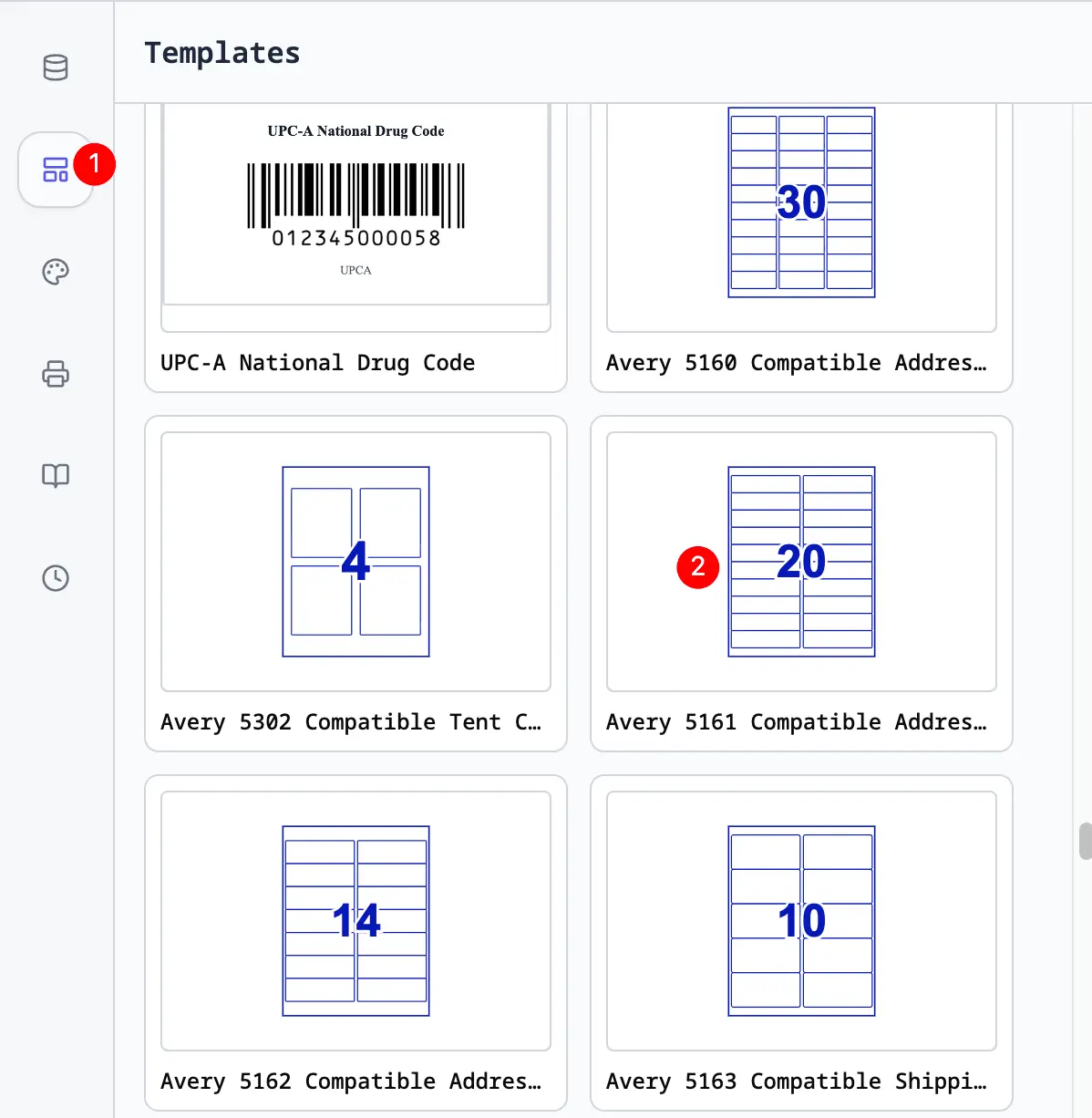
Open Address Label Maker and start with an address label layout.
We offer clean, minimalist designs that serve as a perfect canvas. You can:
- Choose a handwritten-style font like Great Vibes or Dancing Script for that calligraphy look.
- Add a small wedding icon or your monogram if desired.
Step 3: Connect Your Guest List
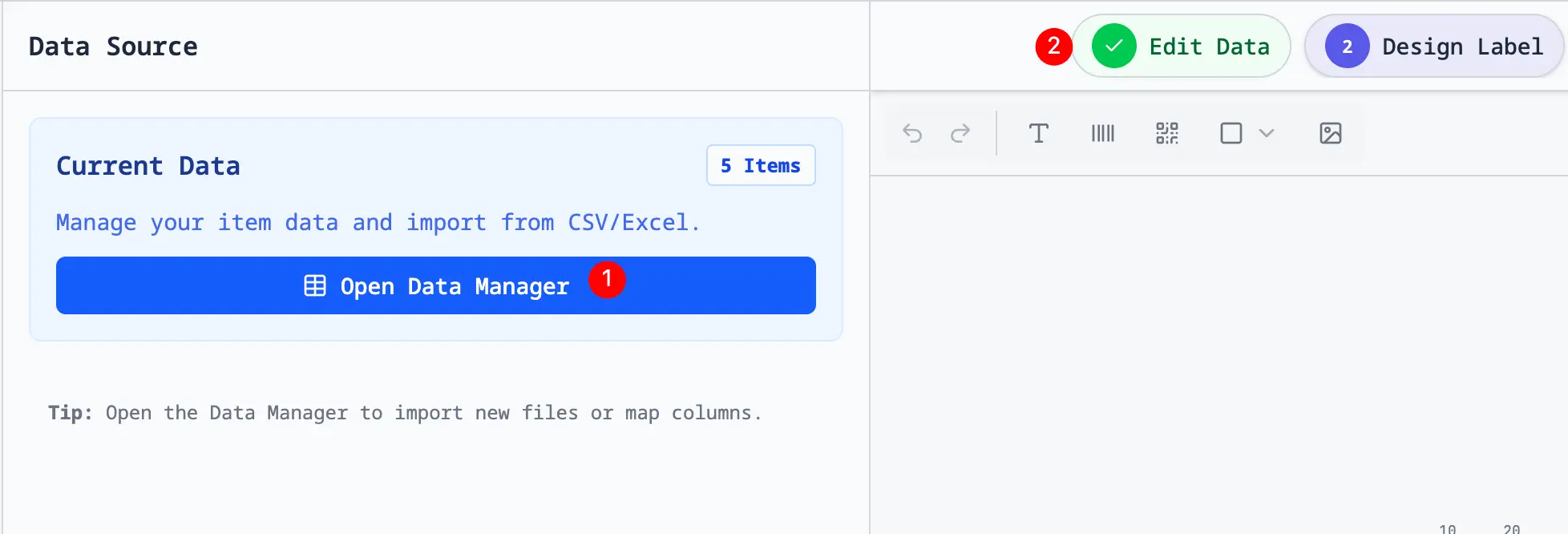
In the Fill data section, choose Google Sheets and connect your guest list. You can also use Excel / CSV or paste CSV rows.
- Choose the Google Sheet and worksheet that contains your addresses.
- Confirm that the first row contains the column headers.
- Check the imported rows in the table before styling the labels.
Step 4: Choose the Simple or Custom Path
Standard Address Labels
In Address Label Maker, map or confirm the Full Name, Address, City, State, and ZIP columns. The maker automatically formats City, State, and ZIP on one line for each spreadsheet row. Check several labels in the preview before exporting.
Custom Address Layouts
Use Label Designer when you need separate First Name and Last Name columns, custom positioning, or additional elements.
- Select the recipient-name text element.
- Open Connected to column and choose Custom text (combine fields).
- In Content, click the field buttons to create
{{First Name}} {{Last Name}}. - Create or select the city-line text element and enter
{{City}}, {{State}} {{ZIP}}. - Make sure every field name inside
{{ }}exactly matches its spreadsheet header.
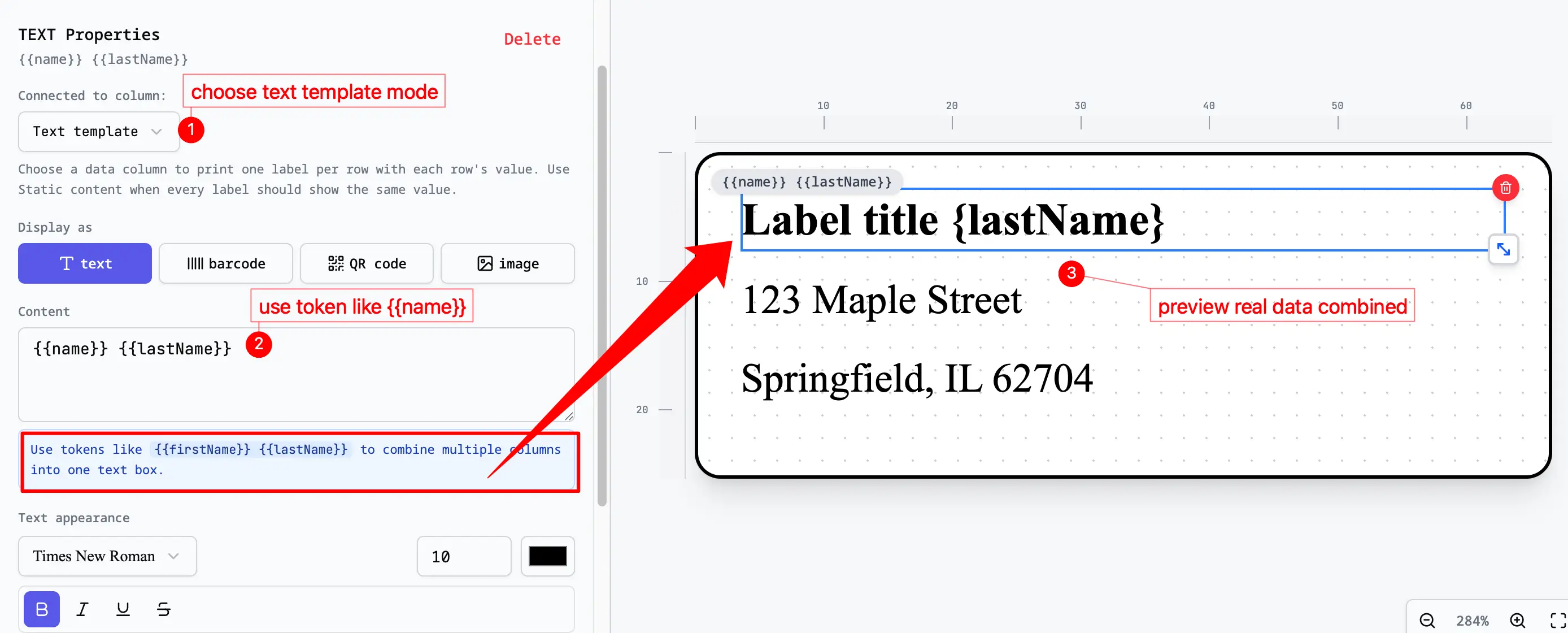
Text outside {{ }} repeats on every label. Fields inside {{ }} change with each row, so do not type the first recipient's city, state, or ZIP as ordinary text.
[!TIP] Switch between several rows or open Print Layout before exporting. This confirms that names and city lines are changing instead of repeating the first row.
Step 5: Print & Celebrate
Switch to Print Layout to see how your labels will look on the full page.
- Load your printer with your preferred label paper (e.g., Avery® 5160® Address Labels for standard addressing, or clear labels for a seamless look).
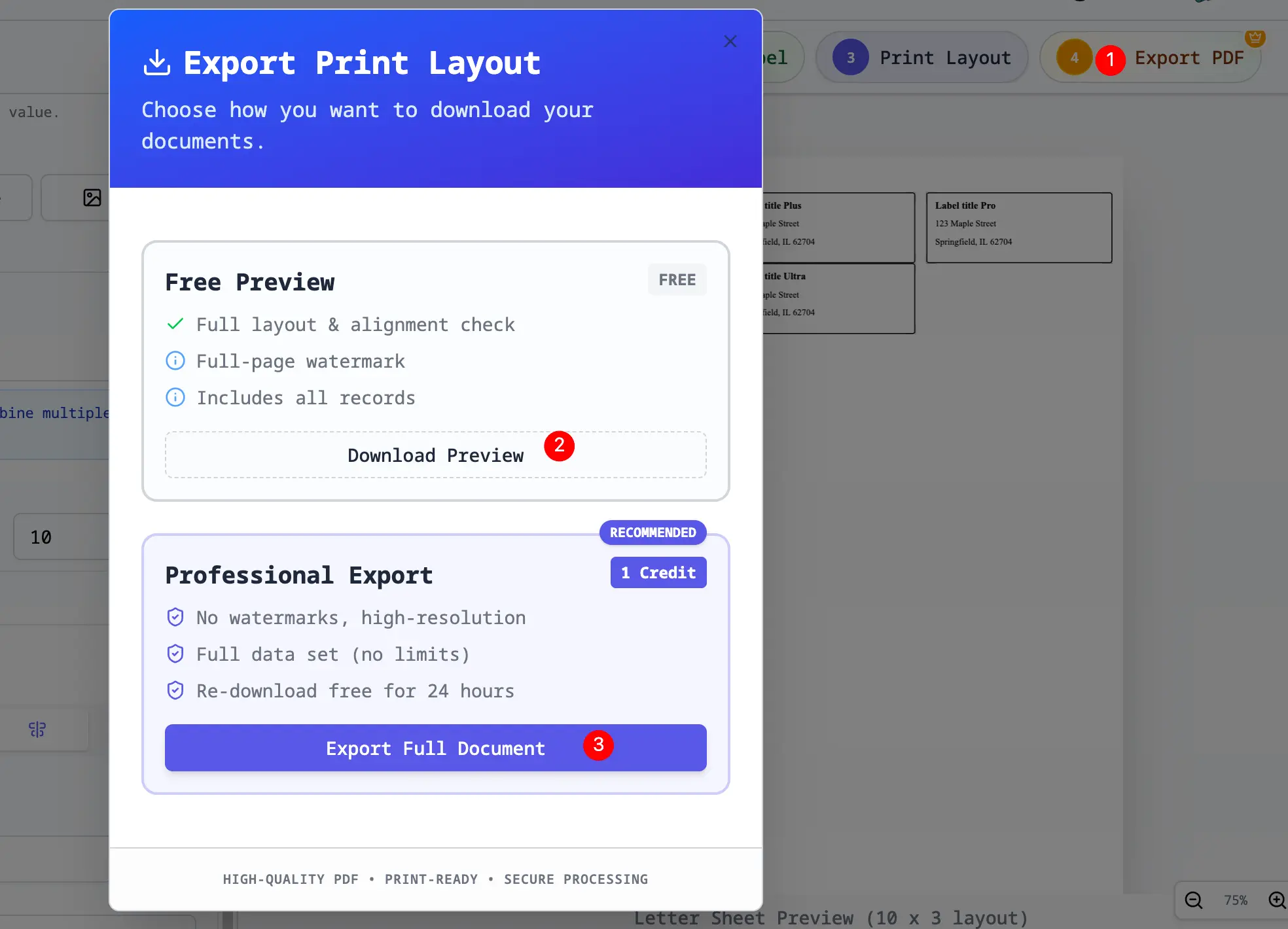
- Click Export PDF.
- Critical Step: Ensure your printer scale is set to 100% (do not "Scale to Fit") to align perfectly with the sticker sheet.
Frequently Asked Questions
Can I use clear labels? Yes! Our pdfs are compatible with standard clear label sheets. Just make sure to test print on plain paper first to check alignment.
How do I handle international addresses? Our tool adapts to your data. If you have a longer address, you can set the text to "Auto-fit" or simply ensure your text box is large enough to accommodate 3-4 lines of text.
Is it really free? Yes, Address Label Maker is free to use. We want your big day to be perfect, starting with the very first piece of mail your guests receive.
Design Your First Label — Step-by-Step Tutorial with Barcode, Logo & Live Data
Complete beginner tutorial for SheetsToLabels. Create a professional product label with a company logo, barcode linked to your SKU column, and dynamic text that changes per row — from scratch.
How to Make Product Price Tags with Barcodes from a Spreadsheet
Step-by-step guide to creating professional retail price tags in SheetsToLabels. Attach barcodes to SKU data, format currency symbols, and print on standard or specialty label paper.