
⚡️ Process 5000+ rows instantly


Bulk Generate Labels from CSV Files
Have a large mailing list in Excel or CSV? Our converter processes thousands of records in seconds. Perfect for address labels, product tagging, and bulk operations.
🎁 Free for standard use
Optimized for speed & efficiency

Bulk Generate Labels from CSV Files

Universal CSV Compatibility
Why choose our CSV Label Maker?
CSV is the universal language of data. We built the most robust engine to handle it.
Lightning Fast
Browser-based processing means your data doesn't need to be uploaded to a slow server. It's instant.
Smart Delimiter Detection
Comma, semicolon, or tab separated? We automatically detect your file format and parse it complying with RFC 4180.
Universal UTF-8 Support
We support special characters, emojis, and all international languages found in your CSV data.
Auto-Layout
Data is automatically fitted into your chosen label template, maximizing space usage.
Powering Data-Driven Businesses
Connect your database exports directly to your printer.
Export orders from Shopify, Woo, or Magento as CSV and print shipping labels or packing slips in bulk.
Convert CSV to Labels Simply
The fastest workflow for bulk label generation.
1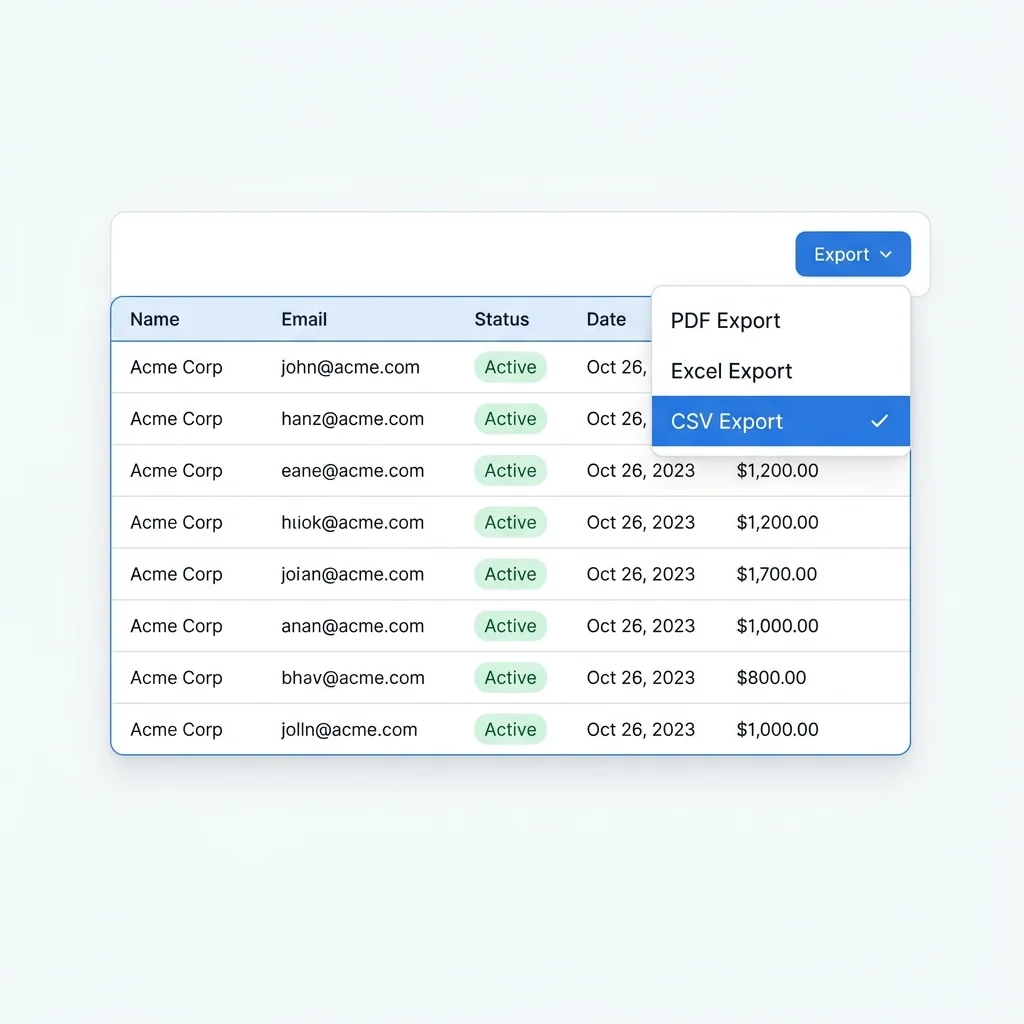
Export CSV
Export your data from any system (CRM, ERP, SHOP) as a .csv file.
2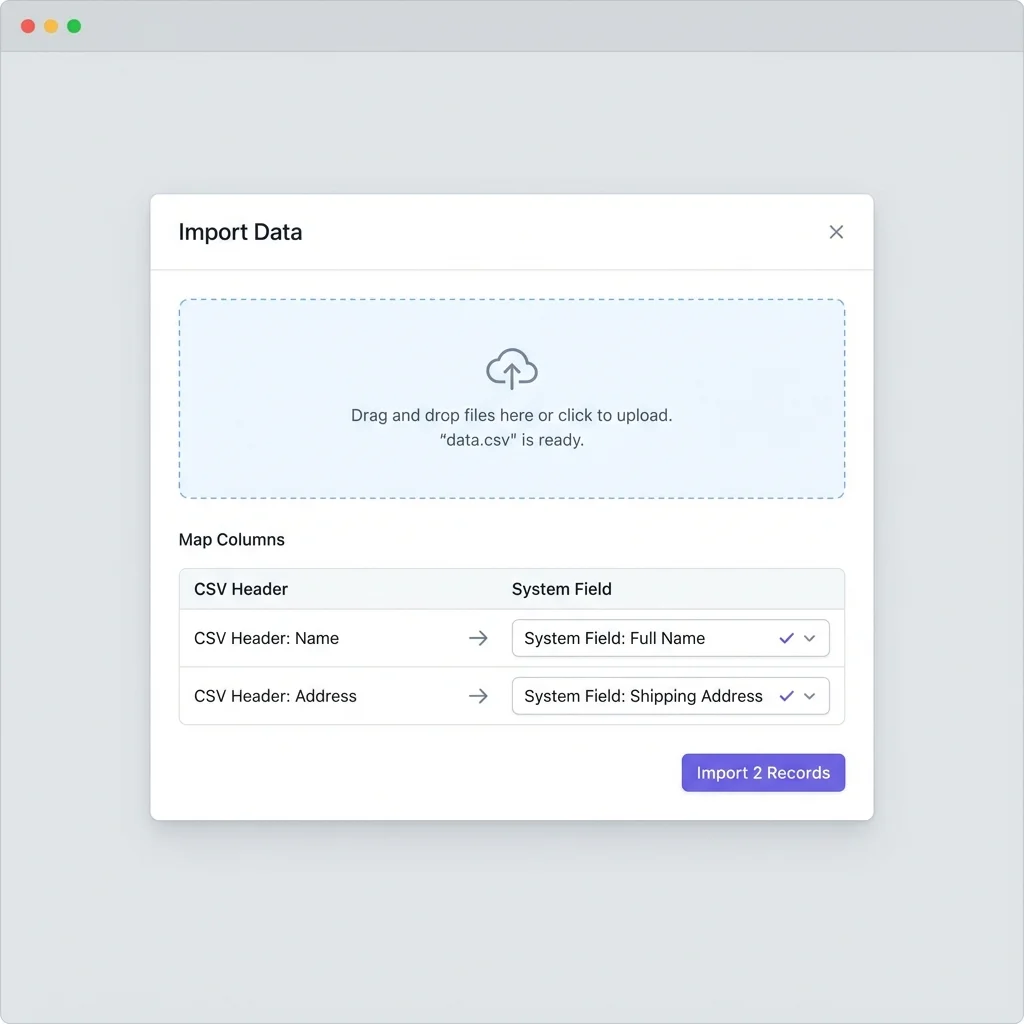
Upload & Map
Upload to SheetsToLabels. We'll show you a preview of your columns.
3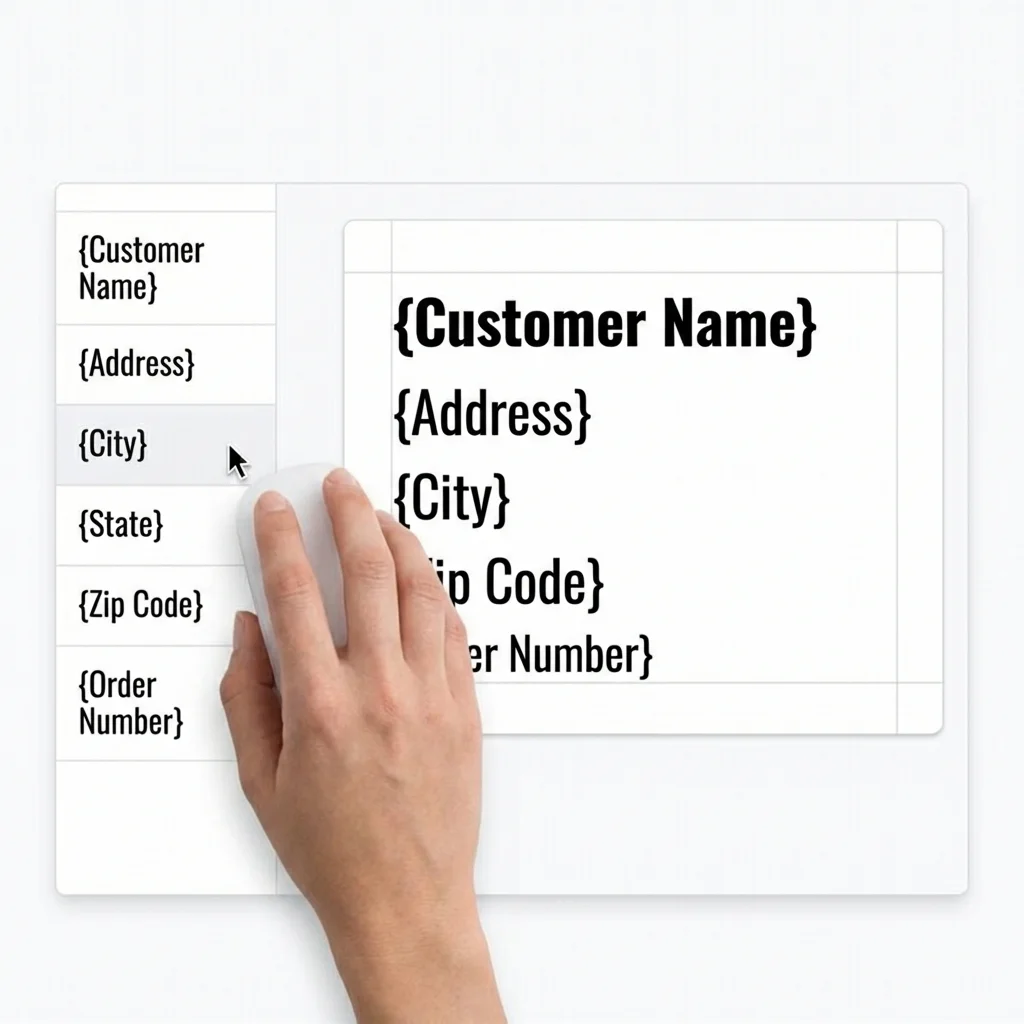
Design
Arrange your fields on the label canvas. Add static text or images if needed.
4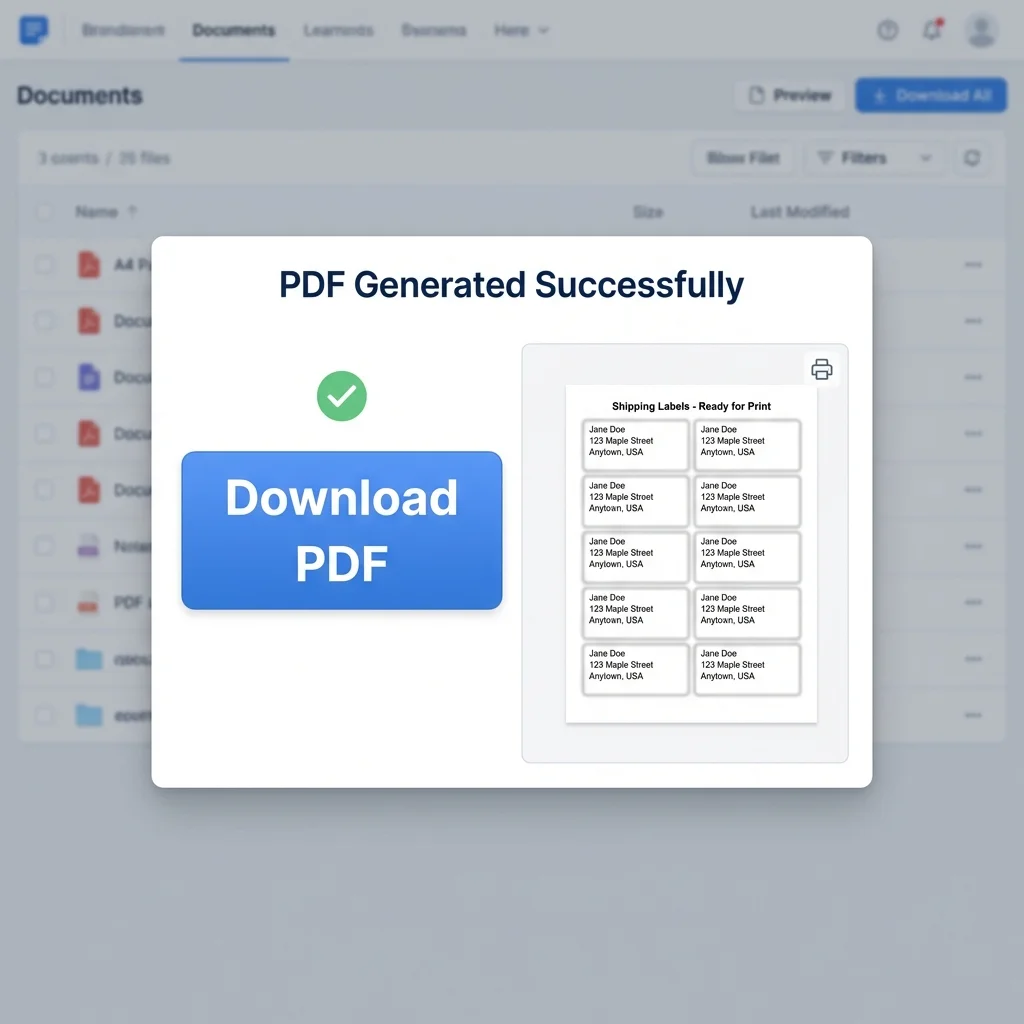
Print
Download PDF and print on any label sheets (Avery, Herma, Uline).
Designed for CSV Power Users
Features that make handling large datasets easier.
Visual Data Mapping
See your actual CSV data while you design, not just field names.
Error Checking
We alert you if some rows have missing data for required fields.
Encoding Auto-Detect
UTF-8, ASCII, Latin-1? We detect and decode it correctly so accents look right.
Field Concatenation
Combine 'First Name' and 'Last Name' columns into one text field on the label.
Barcodes from CSV
Convert product IDs or SKUs directly into scannable barcodes.
No Row Limit
Process files with tens of thousands of rows efficiently.
Processing Global Data
The trusted engine for CSV label processing.
100M+ Records Processed
100M+
Records Processed
0.1s Parse Time / 1k Rows
0.1s
Parse Time / 1k Rows
150+ Countries Supported
150+
Countries Supported
What Our Users Say
Real feedback from data-heavy users.
I love that it handles **large CSV exports** without choking. Other tools crash with my 5000-row files. This one is buttery smooth.
Mark S., Data Analyst
Mark S.
Data Analyst
We export our daily shipments from our ERP to CSV. This tool creates our shipping labels in seconds. A true timesaver.
Sarah J., Logistics Coordinator
Sarah J.
Logistics Coordinator
The auto recognition of delimiters is great. I don't have to fiddle with settings, just drag, drop, and print.
Kevin L., IT Admin
Kevin L.
IT Admin
We use this for our monthly client mailings. Being able to **batch print address labels** directly from our client Excel file saves us so much administrative time.
David Miller, Office Manager
David Miller
Office Manager
I was looking for a way to make **custom branding stickers** for my packages. The editor is so easy to use and the print alignment is spot on every time.
Jessica Lee, Etsy Seller
Jessica Lee
Etsy Seller
Generated 500+ **conference badges from spreadsheet data** seamlessly. The ability to add dynamic QR codes for each attendee was exactly what we needed.
Tom Wilson, Conference Organizer
Tom Wilson
Conference Organizer
CSV Label Maker FAQ
Answers to common CSV data questions.
Still have questions?
If you couldn't find the answer you're looking for, please feel free to ask us!