
Batch print product, barcode, QR, badge, and custom labels from Excel


Convert Excel Rows to Printable Labels
Upload an Excel file, map columns like product name, SKU, price, barcode, QR URL, or badge name, then generate print-ready PDF labels without Word mail merge.
Need mailing labels or Avery 5160 address sheets? Use Address Label Maker instead.
Trusted by 10,000+ businesses


Compatible with all spreadsheet formats
Excel Rows to Printable Labels
Turn Excel rows into product labels, barcode labels, QR stickers, price tags, badges, and custom sheet labels. For mailing addresses, Address Label Maker is the faster path.
Direct Excel Import
Upload .xlsx or .xls files directly. We detect headers such as Product Name, SKU, Price, Barcode, QR URL, Category, or Badge Name.
Visual Designer
Drag Excel fields onto the label canvas and preview real rows before creating the final PDF.
Auto-Formatting
We handle the difficult part: page margins, cell spacing, and alignment for any paper size.
Bulk Generation
Generate 10 or 10,000 labels in seconds. Download a single PDF ready for printing.
Label jobs this Excel workflow handles best
Use this workflow when your Excel file needs to become product labels, barcode labels, QR labels, badges, or inventory sheets. For mailing lists, Address Label Maker is the faster path.
Product Labels from Excel
Map Excel columns such as Product Name, SKU, Price, Size, Color, and Category onto product labels, shelf tags, retail stickers, and marketplace product inserts.
Barcode Labels from Excel
Use SKU, UPC, EAN, Code128, or internal item IDs from Excel to generate barcode labels for inventory, storage, and retail workflows.
QR Labels from Excel
Turn URLs, asset IDs, ticket links, or tracking codes in Excel into QR labels that can be printed as sheets.
Badges and Custom Label Sheets
Create name badges, classroom tags, event labels, catalog labels, or custom stickers when each Excel row should become one printed label.
Popular Excel Label Workflows
Use this workflow for product, barcode, QR, badge, and custom label sheets. If your spreadsheet is mainly names and mailing addresses, Address Label Maker is the faster path.
Turn your Excel inventory list, Shopify export, or Etsy product planning sheet into price tags with barcodes. Map SKU columns to barcode elements instantly.
How to Convert Excel to Printable Labels
Upload Excel, choose a label layout, map columns, preview real rows, and export a print-ready PDF.
1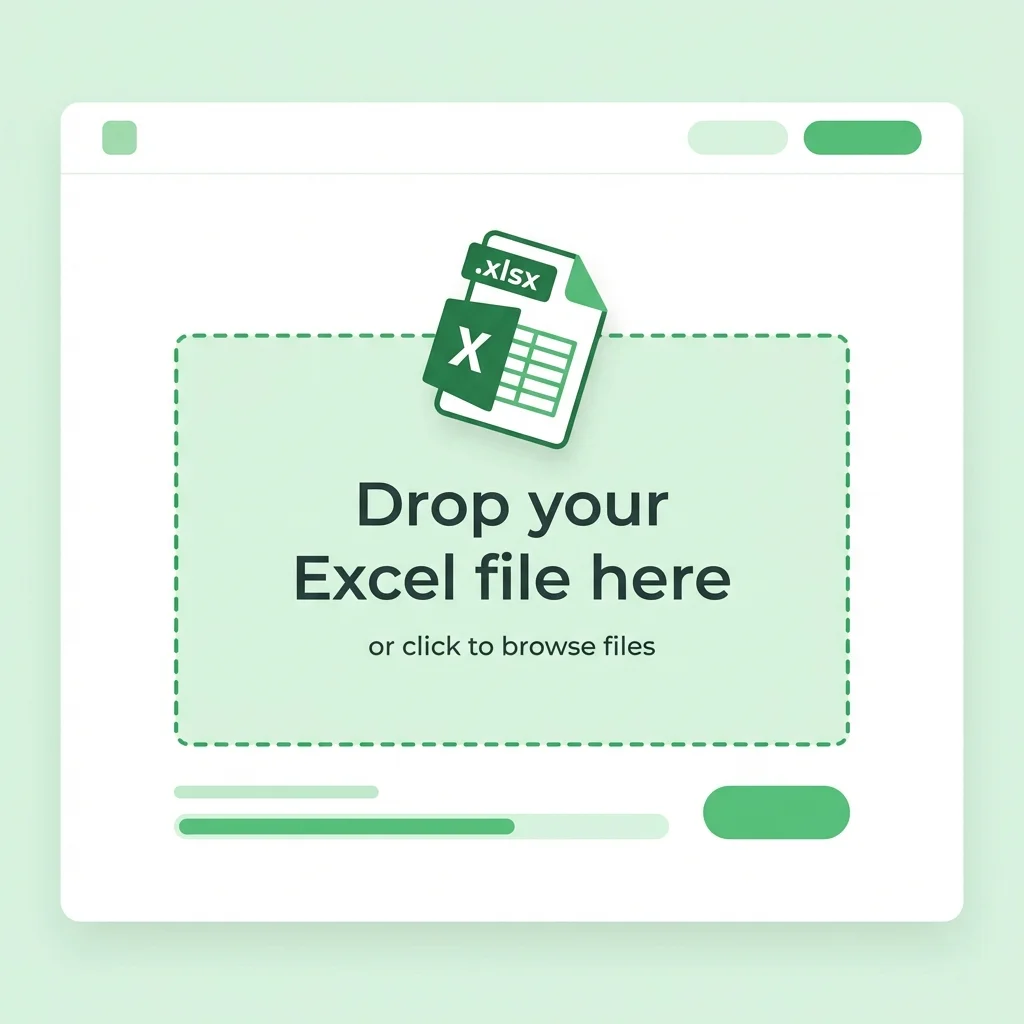
Upload Excel File
Drag and drop your .xlsx or .xls file. Each row becomes one label, and the first row is used as column headers.
2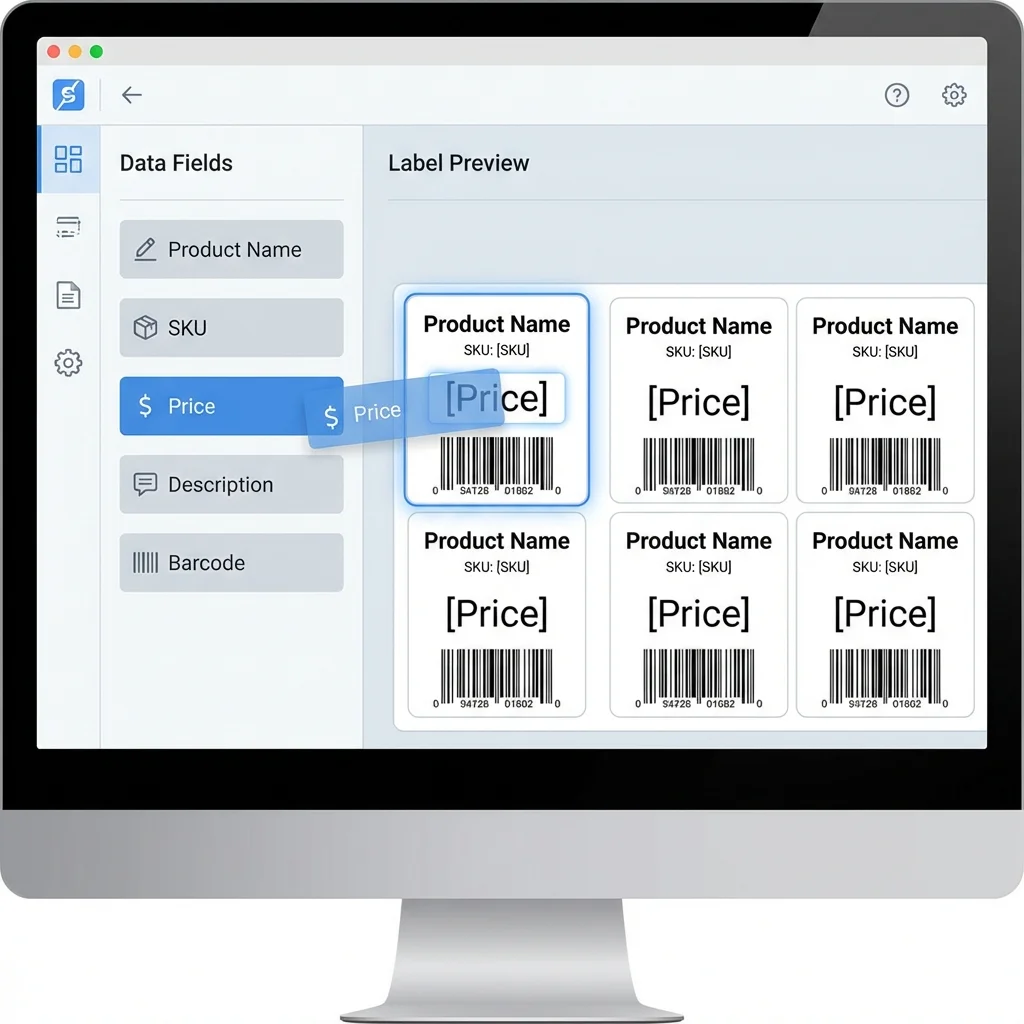
Customize Design
Select a label size and drag Excel fields such as SKU, Price, Barcode, QR URL, or Product Name onto the design.
3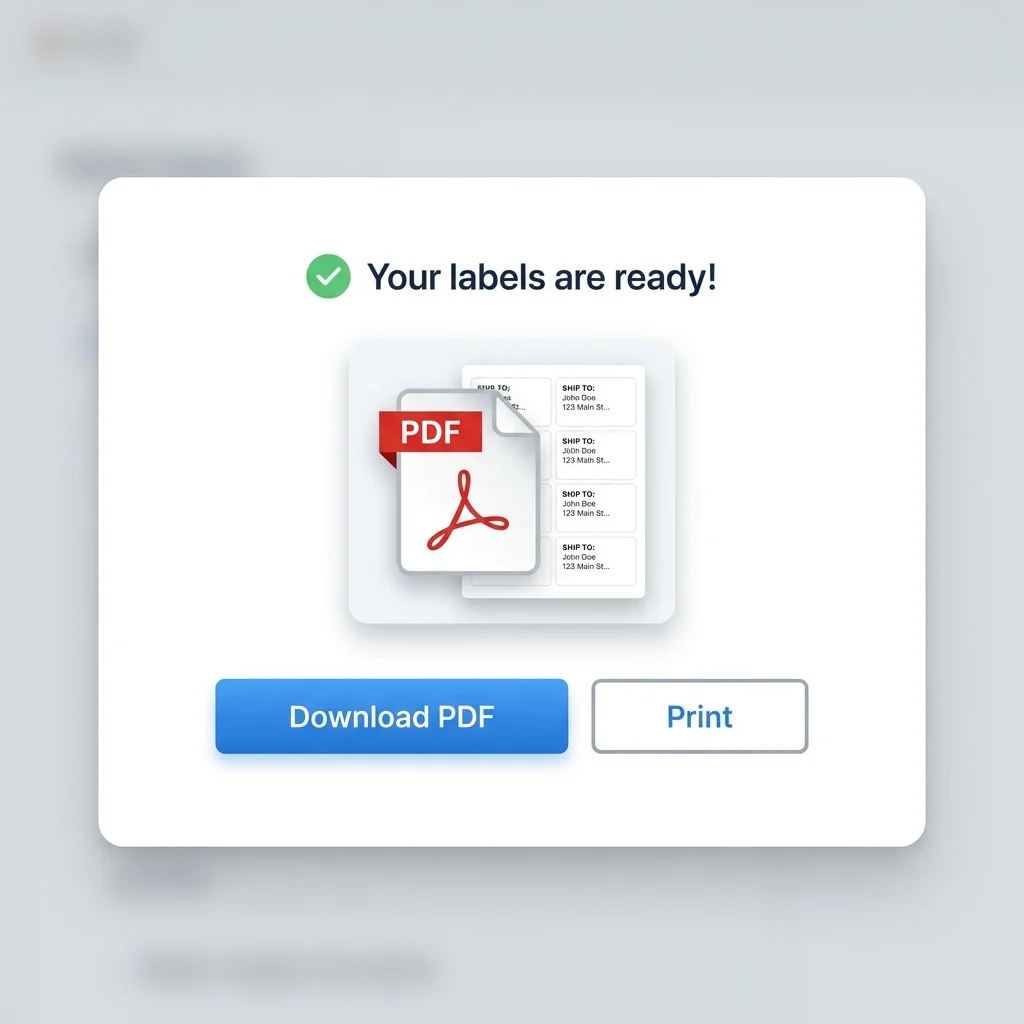
Download PDF
Generate a print-ready PDF label sheet for your selected paper size, then print at 100% scale.
4
Save Template
Save your design to reuse with updated Excel files later.
Excel Label Maker Features
Built for repeatable Excel-to-label workflows, especially product, barcode, QR, badge, and custom label batches.
Smart Column Mapping
Use clear Excel headers such as Product Name, SKU, Price, Barcode, QR URL, Size, Color, or Location and map them onto the label.
High Volume Support
Process files with thousands of rows without crashing or slowing down.
Data Filtering
Select specific rows to print or print the entire sheet.
Barcode Generation
Generate UPC, EAN, Code128 barcodes from Excel data columns.
Image Merge
Include image URLs in your Excel file to dynamically print product photos or headshots.
Secure Processing
Your Excel data is processed securely and not shared with third parties.
Excel Label Output
Use Excel as the data source and export a clean PDF label sheet for printing.
XLSX / XLS Excel import
XLSX / XLS
Excel import
Barcode / QR Dynamic labels
Barcode / QR
Dynamic labels
PDF Print-ready export
PDF
Print-ready export
User Success Stories
See how others are automating their labeling workflow.
I have an **Excel sheet with 2,000 SKUs**. This tool let me generate barcode labels for all of them in under 5 minutes. fast and reliable.
Amanda K., Inventory Manager
Amanda K.
Inventory Manager
The 'Mail Merge' in Word was driving me crazy. **SheetsToLabels** just worked. Upload Excel file -> Get Labels. Simple.
Robert B., Event Coordinator
Robert B.
Event Coordinator
I keep product names, SKUs, and prices in Excel. This gives me printable shelf labels without rebuilding the design every time.
Lucia M., Small Business Owner
Lucia M.
Small Business Owner
We use Excel exports for internal inventory and asset labels. Mapping columns to QR codes and label text is much faster than manual copy and paste.
David Miller, Office Manager
David Miller
Office Manager
I was looking for a way to make **custom branding stickers** for my packages. The editor is so easy to use and the print alignment is spot on every time.
Jessica Lee, Etsy Seller
Jessica Lee
Etsy Seller
Generated 500+ **conference badges from spreadsheet data** seamlessly. The ability to add dynamic QR codes for each attendee was exactly what we needed.
Tom Wilson, Conference Organizer
Tom Wilson
Conference Organizer
Excel Label Printing FAQ
Common questions about converting Excel rows into printable labels.
Still have questions?
If you couldn't find the answer you're looking for, please feel free to ask us!
Convert Excel Rows into Printable Labels
Upload Excel, map your columns, preview real label rows, and export a print-ready PDF.