
Export to PDF
Generating print-ready PDFs from your design
Once you have connected your data and perfected your label design, the final step is generating a PDF file for printing.

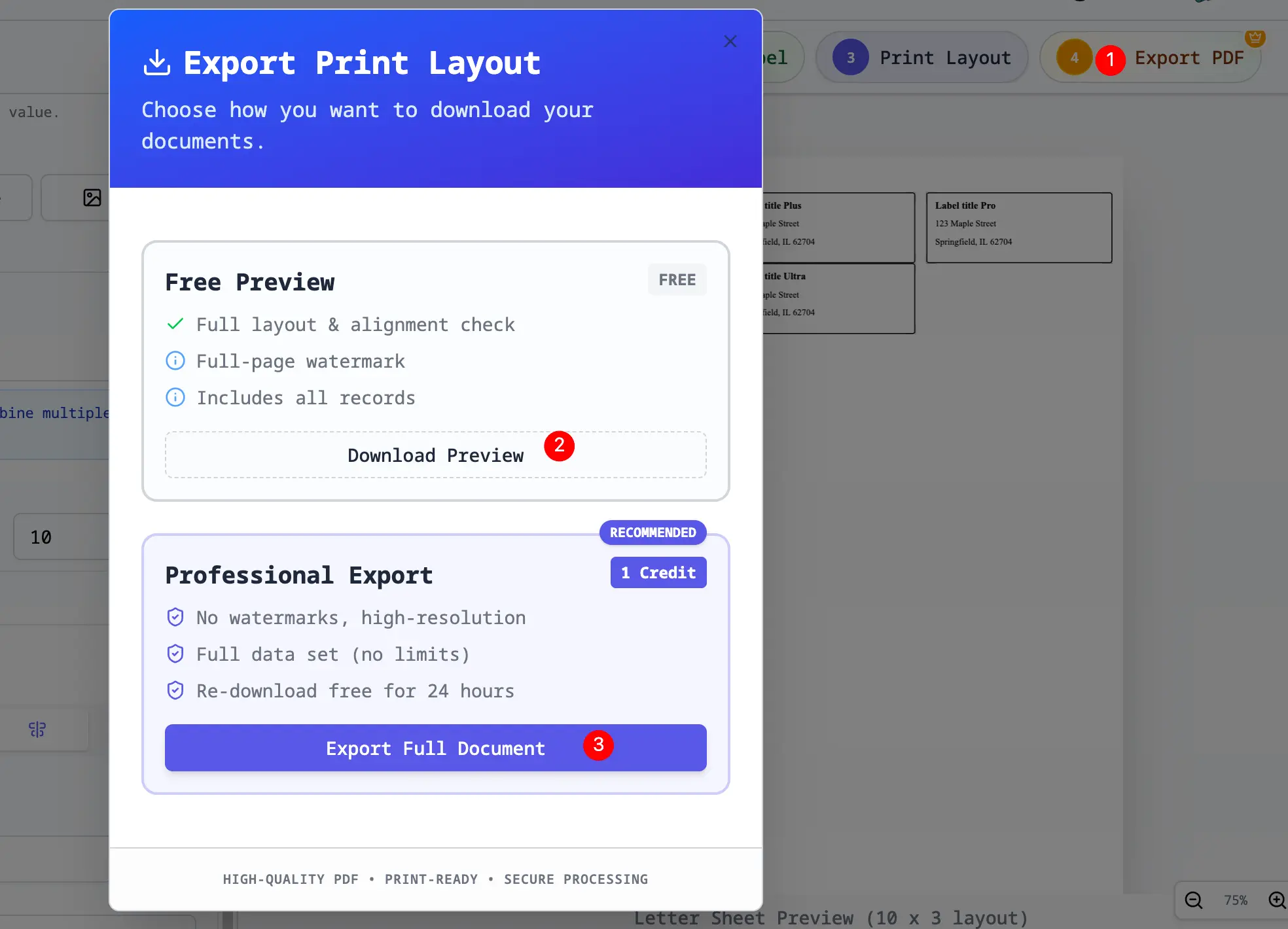
Export a print-ready PDF
The Generation Process
- Click Export PDF in the workflow toolbar.
- The system will process your logical request:
- Reading your design template.
- Iterating through every row in your data source.
- Replacing merge fields with actual data.
- Generating a new label for each row.
- Arranging them onto the sheet layout you defined (e.g., 30 per page).
Export Options
All Rows
By default, we export every row in your current view (filtered or unfiltered).
Selected Range
You can choose to print a specific range (e.g., Row 1 to 10) if you just need a partial batch.
Print Copies
Use Print Copies in the Print Layout settings when every current label should repeat the same number of times.
If each row needs a different count, use Quantity Columns & Multiple Labels before export.
Start Printing at Label
If you have a half-used sheet of labels (e.g., the first 5 are missing), you can tell the printer to skip the first 5 spots.
- Start printing at label: Enter the first physical label position that should receive output.
- Example: enter
6to leave the first five positions blank.
This saves you from wasting expensive label paper. See Test Pages & Partially Used Label Sheets.
File Management
- The file will download automatically to your browser's default download folder.
- Filename format:
SheetsToLabels-Export-[Timestamp].pdf. - Recent exports can also appear in Export History, where you can save a previous PDF again if it is still available in local storage.
Performance
- Small Batches (< 100): Instant generation.
- Large Batches (> 1000): May take 10-20 seconds. Please do not close the tab while processing.
- Image-Heavy Batches: If every label has a high-res dynamic image, generation will be slower as we fetch each image.
Post-Download
Once downloaded, open the file in a dedicated PDF viewer like Adobe Acrobat Reader or Preview (Mac) for the best printing results. While browser-based viewers are convenient, they sometimes struggle with exact scaling. For more details on avoiding misalignment, check out our Print Settings Guide.
If this export is a document you want to fold and staple rather than a normal sheet layout, create a printer-order version with the PDF Booklet Maker. The PDF booklet printing guide explains the A4/Letter choice, 100% scale, and short-edge duplex setting.
Next Steps
- Print Settings - Ensuring alignment when printing
- Export History - Recover recent generated PDFs
- Test Pages & Partially Used Label Sheets - Avoid wasting label stock
- How to Print a PDF as a Booklet - Fold and staple an existing PDF