
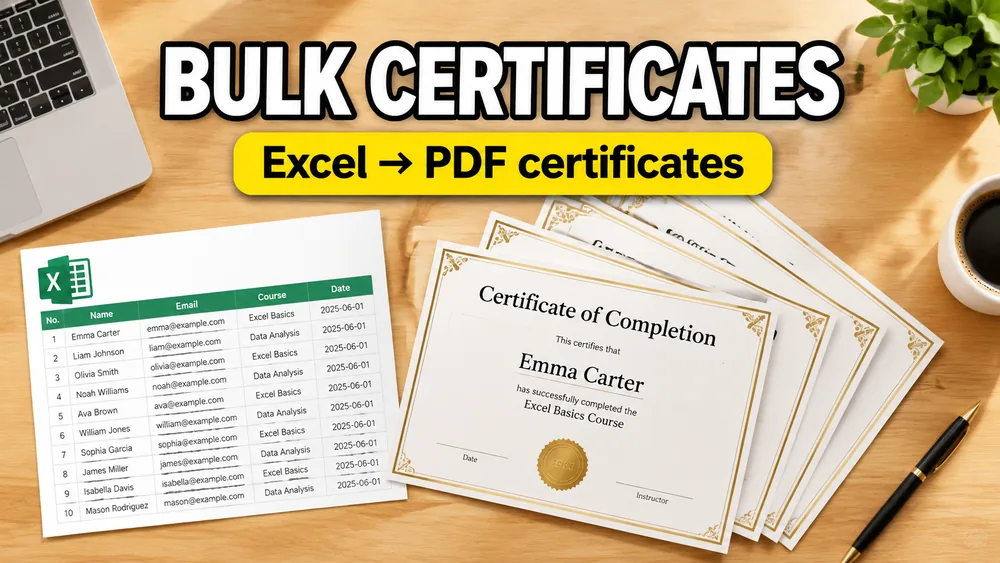
Bulk certificates are one of those jobs that sounds simple until you have to do it at scale.
Five certificates? Fine.
Fifty certificates? Annoying.
Five hundred certificates for a training cohort, school event, workshop, or internal recognition program? That is where the workflow breaks if it depends on editing PDFs one by one.
That is when the question becomes:
How do I generate bulk certificates from Excel?
If you want the product-first path, start with the Bulk Certificate Generator from Excel. If your question is broader than certificates, read How to Fill PDF Forms from Excel in Bulk.
Why certificates work so well with spreadsheet-driven PDF generation
Certificates follow a repeatable structure:
- the design stays the same
- the recipient changes
- the date changes
- the course, event, or award title may change
- the certificate ID may change
That is exactly the kind of problem a spreadsheet solves well.
Excel gives you one row per recipient. A certificate template gives you one layout. A mapper connects the two.
A common certificate workflow
Picture a training team finishing a compliance course for 320 employees.
They already have a spreadsheet with:
- full names
- completion dates
- certificate numbers
- program names
They also already have an approved certificate design as a PDF.
What they do not want is to manually type those values into hundreds of separate files.
The practical workflow is:
- import the Excel sheet
- upload the certificate template
- map each column to the certificate layout
- preview long and short names
- generate one certificate PDF per row
That is the cleanest model for batch certificate generation.
Why non-fillable PDF support matters here
Certificate templates are often designed in:
- Canva
- Illustrator
- PowerPoint
- Word
- in-house design systems
Those templates are usually exported as static PDFs. They often do not contain form fields.
That means a traditional PDF form filler is not enough. You need a visual mapper that supports non-fillable PDF templates, similar to the workflow described in How to Fill a Non-Fillable PDF from Excel or Google Sheets.
How to generate bulk certificates from Excel
1. Prepare the spreadsheet
Use one row per recipient.
Typical columns include:
recipient_namecourse_namecompletion_datecertificate_id
2. Upload the certificate PDF
Use the PDF design you already want to distribute.
This can be:
- a fillable certificate PDF
- or a normal non-fillable certificate PDF
3. Map each field
Examples:
recipient_name-> main name linecourse_name-> subtitlecompletion_date-> footercertificate_id-> bottom reference area
4. Preview difficult rows
Test:
- very long names
- long course titles
- edge cases with middle names or suffixes
5. Generate one PDF per recipient
Once the layout looks right, export one certificate per row.
Where this workflow is useful
Bulk certificates from Excel are useful for:
- employee training certificates
- graduation or course completion certificates
- workshop participation documents
- awards and recognition certificates
- membership or accreditation records
Why this is better than editing certificates manually
Manual certificate editing wastes time and increases inconsistency.
Spreadsheet-driven PDF generation gives you:
- one reusable template
- one repeatable mapping
- consistent formatting across all recipients
That is much easier to audit and reuse for the next event or cohort.
A practical option
Fill PDF from Excel, Google Sheets, or CSV supports bulk certificate workflows with Excel, CSV, and Google Sheets data.
If you want a dedicated use-case page, see Bulk Certificate Generator from Excel.
If your certificate is a static design with no form fields, pair this with How to Fill a Non-Fillable PDF from Excel or Google Sheets and How to Overlay Text on an Existing PDF Template.
Frequently asked questions
Can I generate certificates from a non-fillable PDF?
Yes. In fact, that is one of the most common certificate workflows.
Can each spreadsheet row create one certificate PDF?
Yes. That is the normal one-PDF-per-row generation model.
Can I include certificate IDs?
Yes. Any Excel column can be mapped into the certificate template.
Is this basically certificate PDF mail merge?
Yes. It is a PDF mail merge workflow using a certificate template instead of a letter template.
Fill PDFs from Excel, Google Sheets, or CSV
If you need to map spreadsheet data onto fillable or non-fillable PDF templates, try filling PDFs from Excel, Google Sheets, or CSV with PDF Mail Merge. It supports one PDF per row, merged review files, and ZIP exports.
Related reading
- How to Fill a Non-Fillable PDF from Excel or Google Sheets
- How to Generate One PDF Per Row from Excel
- How to Batch Fill PDF Forms Without Acrobat
- Bulk Certificate Generator from Excel
- How to Overlay Text on an Existing PDF Template
- How to Fill a Character Certificate PDF
- How to Fill a Bonafide Certificate PDF
- PDF Mail Merge guide