
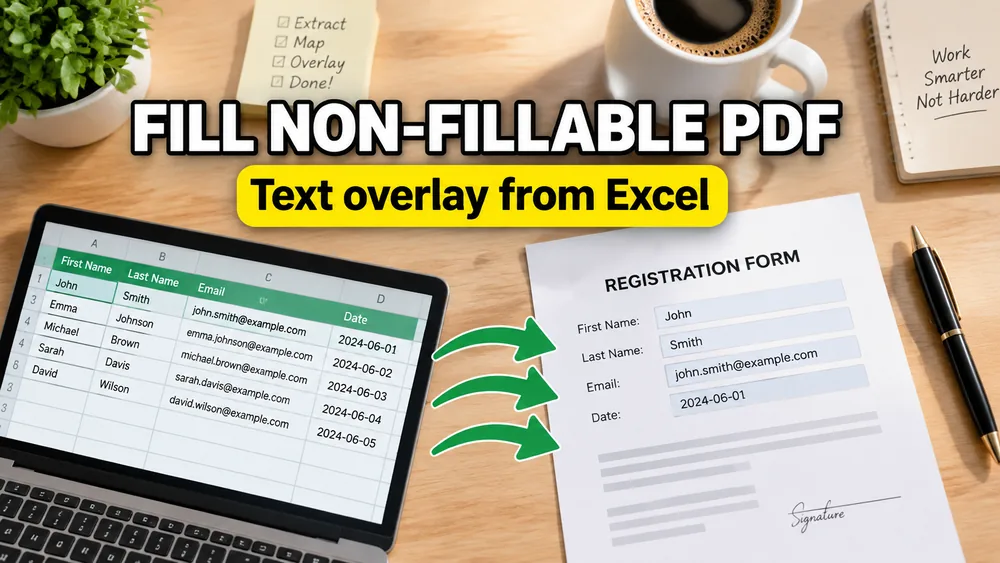
Static PDF? Start in the tool: open Fill PDF from Excel, place spreadsheet values on the page visually, preview free, and export one PDF per row.
To fill a non-fillable PDF from Excel, upload the spreadsheet, upload the static PDF template, place each column visually on the page, preview a sample row, and export the finished batch.
Open the PDF Mail Merge Tool
Batch fill PDF forms from Excel—one PDF per row. Map columns once, preview free, export separate PDFs or a ZIP. No Acrobat or VBA.
If your question is broader than static templates, read How to Fill PDF Forms from Excel in Bulk.
If you are comparing source formats, the same non-fillable PDF mapping model works for PDFs from CSV and PDFs from Google Sheets.
The key steps are:
- Upload the spreadsheet data
- Upload the non-fillable PDF template
- Place each column visually on the page
- Preview a sample row
- Export one PDF per row or one merged file
A Reddit question captured a problem that shows up all the time:
"I'm trying to find a way to find out the mapping of the fillable fields of a pdf document"
At first, that sounds simple.
Open the PDF. Find the form fields. Map Excel columns to those fields. Generate one PDF per row.
That works if the PDF is a real fillable form.
But many of the PDFs businesses actually need to automate are not fillable PDFs at all. They look like forms, labels, invoices, or certificates, but technically they are just static PDF templates with no AcroForm fields inside.
That is why the better question is not just "How do I find the fillable fields?" It is:
How do I fill any PDF from Excel, CSV, or Google Sheets, even when the PDF is not fillable?
What a non-fillable PDF actually means
A fillable PDF contains real form fields inside the file. Those fields have names and can usually be detected automatically.
A non-fillable PDF is different:
- it has no editable form fields
- it has no field names to inspect
- it is just a visual layout
This is extremely common with scanned documents (which are processed as image-only PDFs) or PDFs exported from Word, Canva, Illustrator, a shipping platform, or an internal business tool.
Why most PDF mail merge tools fail here
Many PDF form fillers only work when a PDF already contains form fields. When the template is non-fillable, they have nothing to bind your spreadsheet columns to.
The practical solution is a visual mapper.
Instead of reading built-in fields, a mapper lets you place spreadsheet data onto the PDF visually:
- text
- numbers
- images
- QR codes
- barcodes
That is what makes non-fillable PDF automation possible.
How to fill a non-fillable PDF from Excel
The right workflow for PDF mail merge looks like this:
1. Start with spreadsheet data
Your data source can be:
- Excel
- CSV
- Google Sheets
Each row becomes one output PDF.
2. Upload an existing PDF template
This can be:
- a fillable PDF form
- a regular non-fillable PDF
- a multi-page PDF template
If your source is Google Sheets, one practical workflow is to launch the add-on from the sheet first, then continue in the full browser mapper. That is the same product flow shown in PDF Mail Merge guide.
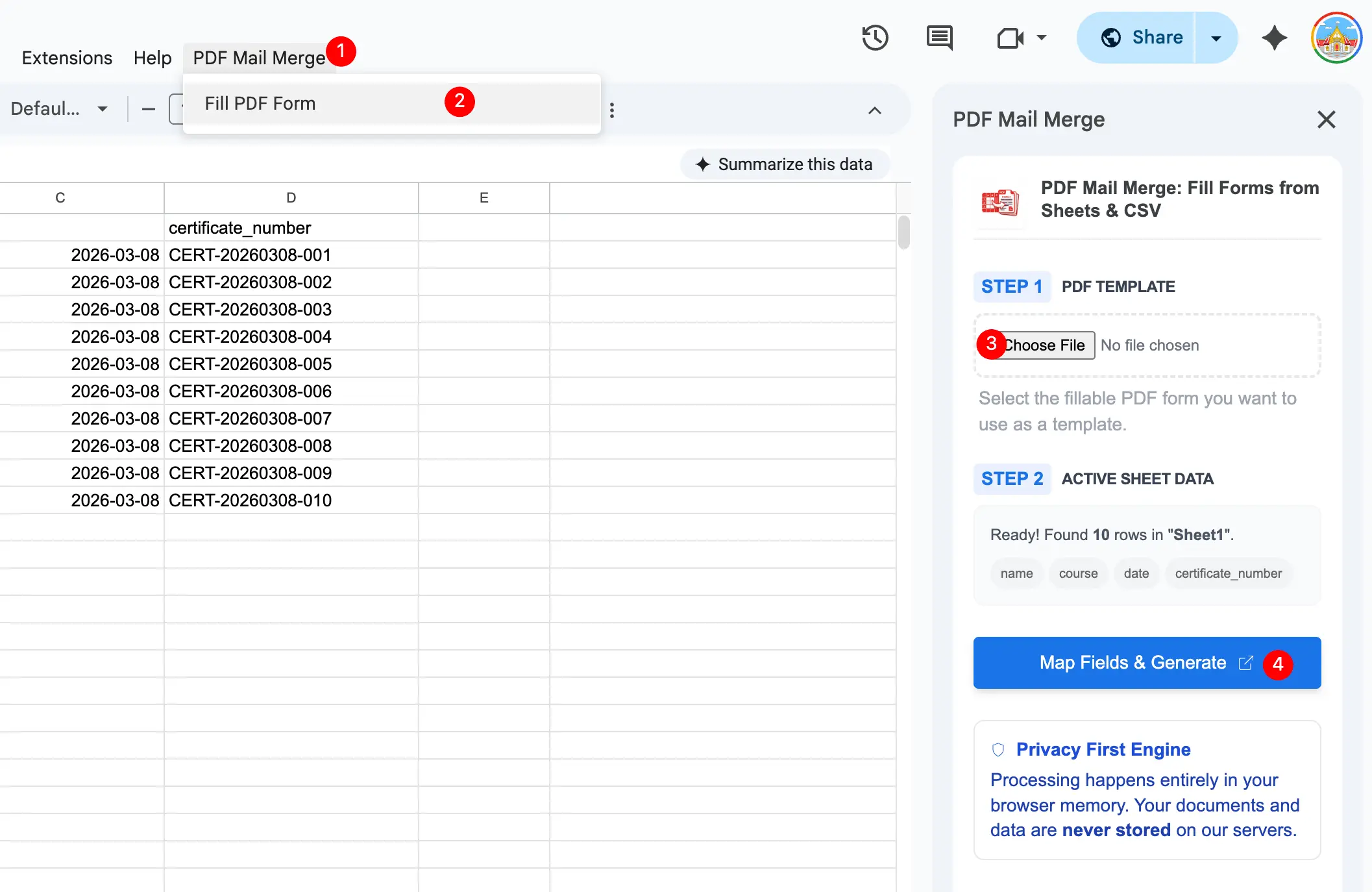
If your source is Excel or CSV, the idea is the same: bring the spreadsheet data and the PDF template into one mapping workspace before you place fields.
3. Map fields visually
If the PDF is fillable, map spreadsheet columns to the built-in fields.
If the PDF is non-fillable, map spreadsheet columns to positions on the page instead.
For example:
namegoes into the recipient blockorder_idgoes in the reference areatracking_numberbecomes a barcodecertificate_urlbecomes a QR code
In practice, this is the step that matters most for non-fillable PDFs. Instead of trying to discover fields that do not exist, you drag spreadsheet columns into the correct visual positions on the PDF.
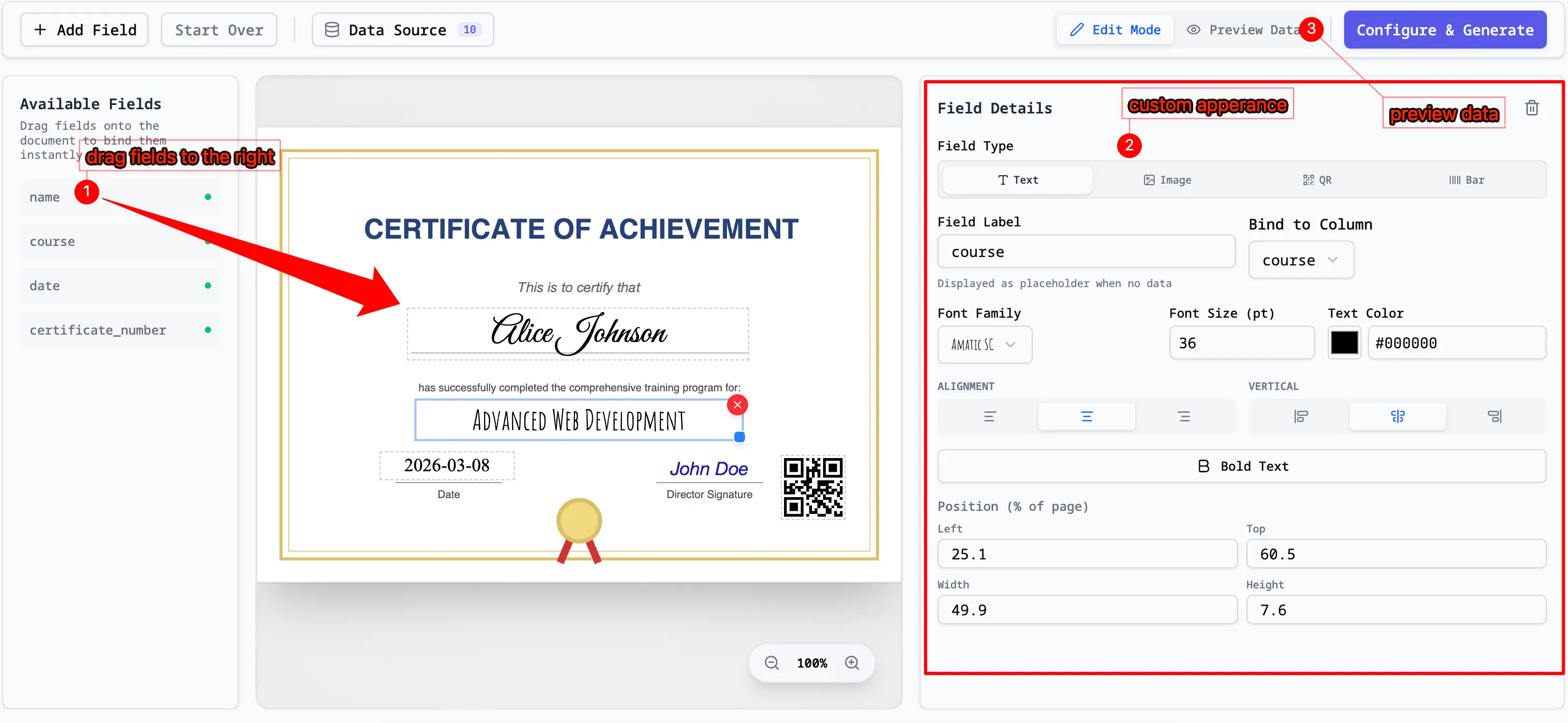
4. Preview one row
Preview a sample record before generating the full batch to check:
- alignment
- spacing
- clipping
- font size
- barcode readability
The preview step is where you catch the common real-world issues:
- long names
- narrow address blocks
- oversized numbers
- content that shifts on multi-page templates

5. Generate one PDF per row
Once the mapping is correct, generate one PDF per row from the spreadsheet.
This is the core batch PDF generation workflow most people are actually looking for.
After the preview looks right, generate the full batch. Depending on the workflow, that can mean one combined PDF or a ZIP of individual PDF files.

Auto-fill a flat PDF from Excel without making it fillable first
The old model is:
PDF form filling
The better model is:
PDF template mapping plus batch generation
That shift matters because once you support non-fillable PDFs, you can automate the messy real-world templates businesses already use.
In other words, you do not have to convert a flat PDF into a fillable form before using Excel data. Visual placement turns the existing PDF into a reusable mapping surface while preserving the approved layout.
A privacy-first way to do this
If you want to fill non-fillable PDFs from spreadsheet data, Fill PDF from Excel, Google Sheets, or CSV supports both fillable and non-fillable PDF templates with a visual web editor.
It is designed around a workflow that is:
- browser-based
- local-first
- privacy-first
That matters when your PDFs contain customer addresses, invoices, certificates, tax records, or internal business documents.
If your data already lives in Google Sheets, you can also use the Google Workspace add-on.
For a walkthrough, watch the video demo.
The reason this workflow works well for non-fillable PDFs is simple: it does not depend on embedded form fields. It depends on a visual mapper, preview, and local batch generation flow.
For concrete static-template examples, see How to Fill PDF Invoices from Excel, the Bulk Certificate Generator from Excel or CSV, and How to Overlay Text on an Existing PDF Template. The certificate workflow is specifically designed for placing names, dates, IDs, signatures, and QR codes onto an existing PDF design.
Frequently asked questions
Can I fill a non-fillable PDF from Excel?
Yes. If the PDF has no built-in form fields, you can still fill it by mapping spreadsheet columns to visual positions on the page.
Can I fill a non-fillable PDF from Google Sheets?
Yes. The workflow is the same. You connect your Google Sheets data, map columns to the PDF template, preview the result, and generate one PDF per row.
Is this the same as PDF mail merge?
Yes. Many users call this PDF mail merge, especially when a spreadsheet is merged into a PDF template to create personalized documents in bulk.
Can I mail merge or auto-fill a scanned PDF / scanned document?
Yes. A scanned document is technically just a flat image saved as a PDF (a type of non-fillable PDF). Normally, other PDF fillers force you to run complex OCR (Optical Character Recognition) or manually prepare form fields in Adobe Acrobat Pro first. With PDF Mail Merge, you don't need to do any of that. You simply upload the scanned template, drag-and-drop your spreadsheet columns onto their correct visual positions, and export.
Fill PDFs from Excel, Google Sheets, or CSV
If you need to map spreadsheet data onto fillable or non-fillable PDF templates, try filling PDFs from Excel, Google Sheets, or CSV with PDF Mail Merge. It supports one PDF per row, merged review files, and ZIP exports.
Related reading
- How to Fill PDF Forms from Excel in Bulk
- How to Fill a PDF from CSV
- PDF Mail Merge from Google Sheets
- How to Map Excel Columns to PDF Fields
- How to Generate One PDF Per Row from Excel
- Fillable vs. Non-Fillable PDF: What's the Difference?
- How to Fill PDF Invoices from Excel
- How to Generate Bulk Certificates from Excel
- PDF Mail Merge guide