
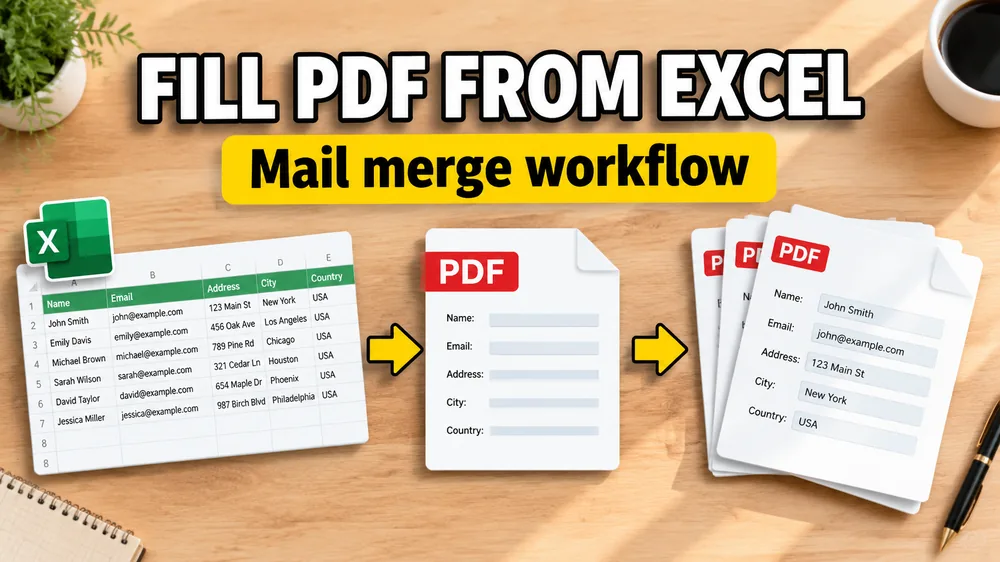
Want to fill a PDF from Excel now? Use the Fill PDF from Excel tool: upload Excel + your PDF, map columns once, preview free, then export one PDF per row, a ZIP, or one merged review file—fillable or non-fillable, no Acrobat or VBA. This guide explains the workflow; the tool page is where you run the batch.
Open the PDF Mail Merge Tool
Batch fill PDF forms from Excel—one PDF per row. Map columns once, preview free, export separate PDFs or a ZIP. No Acrobat or VBA.
To fill a PDF from Excel, upload the Excel file, upload the PDF template, map spreadsheet columns to PDF fields or page positions, preview real rows, and export one PDF per row or one merged review PDF.
If your source is not Excel, start from the same Fill PDF from Excel workspace with CSV or Google Sheets, or read the shorter notes on CSV, Google Sheets, and Airtable.
The key steps are:
- Step 1: Keep one row per output document.
- Step 2: Upload the existing PDF template.
- Step 3: Map Excel columns to PDF fields or positions.
- Step 4: Preview real rows.
- Step 5: Export the batch.
If you are here, you are probably not trying to "edit one PDF."
They already have:
- one Excel file with the real data
- one PDF template that already exists
- one repeated task where each row needs to become one finished document
That is why fill PDF forms from Excel usually means using an automated PDF filler to handle the one spreadsheet row to one PDF pattern—meaning closer to auto fill PDF forms from Excel, bulk fill PDF from Excel, or export Excel data into an existing PDF form.
The real job is not random PDF editing. It is a reusable spreadsheet-to-PDF workflow.
What you may actually need
The phrase "fill PDF forms from Excel" can cover a few different jobs:
- fill a fillable PDF form from Excel
- fill a non-fillable PDF from Excel
- auto fill PDF forms from Excel without VBA
- bulk fill PDF forms from Excel online
- use Excel data without Adobe Acrobat
- generate one PDF per row from a spreadsheet
Those are all variations of the same workflow:
- import spreadsheet data
- choose the PDF template
- map columns to fields or positions
- preview real rows
- export the finished batch
Why Excel is a common source for PDF generation
Excel is often where structured document data already lives.
Teams use it for:
- invoices
- contracts
- certificates
- tax forms
- payroll records
- internal document packs
In most of these cases, the layout does not change much. The values do. That makes Excel a natural source for repeatable PDF generation.
A realistic example
Imagine an operations team with an Excel file containing 250 rows.
Each row contains:
- name
- document ID
- date
- amount
- address
They also have one approved PDF template.
What they do not want is:
- opening 250 PDFs by hand
- copying the same fields over and over
- building a fragile Excel VBA script
- relying on Acrobat for every recurring batch
What they need is a way to connect the spreadsheet to the template once, preview the result, and generate the full batch.
Step-by-Step: How to Fill a PDF from Excel
The shortest path is usually:
Step 1: Keep one row per output document
Typical columns might include:
full_namedocument_idissue_dateamountaddress
Step 2: Upload the existing PDF template
This can be:
- a fillable form
- a non-fillable PDF
- a single-page template
- a multi-page document
Step 3: Map each Excel column to the PDF
This can mean:
- binding a column to a fillable field
- placing a value at a fixed position on the page
- setting checkbox or radio states
- placing an image or signature from a URL
- generating a QR code or barcode from a cell value
If your main question is specifically about finding field names or mapping columns correctly, read How to Map Excel Columns to PDF Fields.
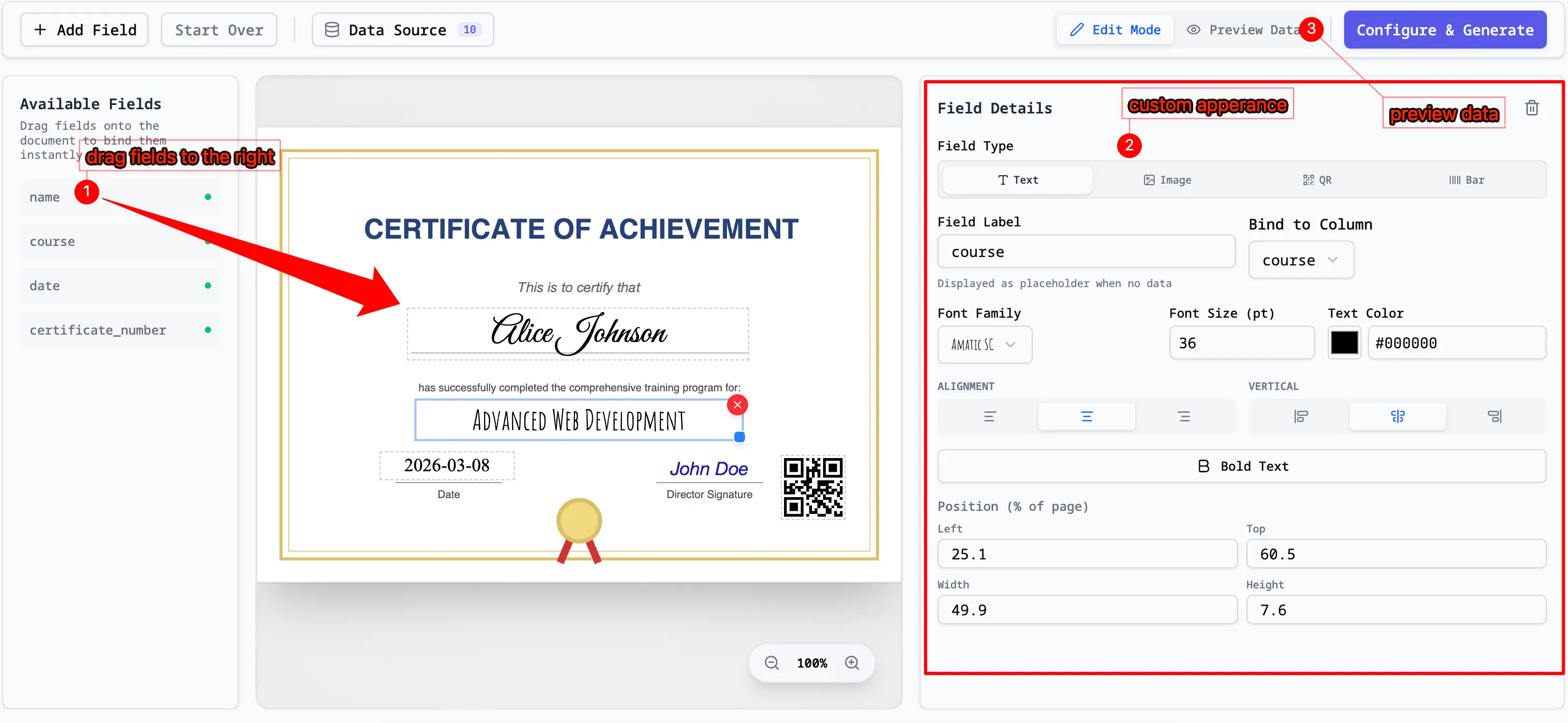
Step 4: Preview real rows before exporting the full batch
Always test:
- short values
- long values
- empty optional fields
- large numbers
- rows with missing signatures or unusual formatting
That is where broken layouts show up early instead of after the full run.

Step 5: Generate one PDF per row or one merged review file
Once the mapping is correct, every Excel row can become one PDF.
That is the core model behind Excel-driven PDF generation.
If that one-row-to-one-file workflow is your main use case, run it in Fill PDF from Excel, or read How to Generate One PDF Per Row from Excel for the output-model details.

Do I need Adobe Acrobat, Power PDF, or Excel VBA?
Usually, no.
That is why this problem often gets described in several different ways:
- Adobe Acrobat fill PDF from Excel
- Power PDF Filler Excel
- auto-fill PDF form from Excel VBA
- Excel VBA fill PDF form
They all describe the same underlying problem: you need spreadsheet data to land in a PDF repeatedly without manual editing.
The problem with those routes is usually not whether they are technically possible. It is whether they are maintainable.
Acrobat-style workflow
This often means:
- desktop-first steps
- more manual setup
- less flexibility with non-fillable templates
- more friction when batches repeat
VBA-style workflow
This can work, but it usually means:
- brittle automation
- maintenance overhead
- checkbox, image, and layout edge cases
- more developer-style effort than most operations teams want
If your main requirement is simply "fill many PDFs from spreadsheet data," a browser-based mapping workflow is usually the simpler path.
If Acrobat is your comparison point, batch fill from Excel without Acrobat in the tool, or read How to Batch Fill PDF Forms Without Acrobat.
Fillable vs non-fillable PDFs
This distinction matters because the workflow depends on the template.
Fillable PDF
A fillable PDF already contains built-in form fields.
In that case, the job is mostly:
- inspect the fields
- map Excel columns to those fields
- preview the output
- generate the batch
Non-fillable PDF
A non-fillable PDF is just a static layout.
There are no form fields to discover, so the workflow has to place values visually on the page instead.
That is why support for non-fillable templates matters so much in real business workflows.
For the static-template case, see How to Fill a Non-Fillable PDF from Excel or Google Sheets.
Common document types
This workflow is especially useful for:
- invoices
- certificates
- contracts
- payroll PDFs
- tax forms
If your use case is document-specific, see How to Fill PDF Invoices from Excel, How to Generate Bulk Certificates from Excel, How to Fill Tax Forms in Bulk from Excel, and How to Generate Pay Stubs in Bulk from Excel.
For use-case landing pages, start with the general Fill PDF from Excel, Google Sheets, or CSV workflow, or jump directly to Bulk Invoice Generator from Excel, Bulk Certificate Generator from Excel, Fill Tax PDFs from Excel, and Fill ACORD 25 from Excel.
What about "fill PDF from Excel free"?
That question usually means one of two things:
- "Can I test this workflow before paying?"
- "Can I avoid committing to Acrobat, custom scripts, or a larger PDF stack too early?"
The practical answer is to test with:
- one real PDF template
- a short Excel sheet
- a few representative rows
- the real filename and output format you need
If the preview works and the rerun story makes sense, then you have validated the workflow. That is a much better decision point than comparing abstract feature lists.
A practical way to do it
Fill PDF from Excel, Google Sheets, or CSV supports spreadsheet-to-PDF mapping in a browser workflow built for repeatable batches.
That makes it useful when you already have:
- spreadsheet data
- an existing PDF template
- a need to bulk fill or auto fill multiple personalized PDFs quickly
It also helps when the PDF is not fillable, when you want one PDF per row, or when you want a merged review file before delivery.
For a walkthrough, watch the embedded demo below, or open the Fill PDF from Excel tool and try a short batch.

Fill PDF forms from Excel automatically - one PDF per row
Frequently asked questions
Can Excel fill a PDF automatically?
Yes, when paired with a PDF mapping workflow. Excel provides the data, and the mapper applies it to the PDF template.
Can I fill a PDF from Excel online?
Yes. A browser-based workflow lets you upload the Excel file, map fields visually, preview output, and generate the batch online without relying on a desktop-only PDF editor.
Do I need Adobe Acrobat or Power PDF?
No. If your goal is to move spreadsheet data into PDFs repeatedly, you can use a browser-based mapping workflow instead of Acrobat or another desktop PDF editor.
Do I need Excel VBA?
No. VBA is one possible route, but it is not required. Most teams just need a reusable mapping workflow, not a script they have to maintain.
Do I need a fillable PDF?
No. A non-fillable PDF can also work if the tool supports visual placement on static templates.
Is this the same as PDF mail merge?
In many cases, yes. Filling a PDF from Excel is often a spreadsheet-driven PDF mail merge workflow.
Can I convert Excel into a fillable PDF?
Usually that is the wrong problem. Most teams do not need to turn Excel into a form. They need to use Excel as the data source for an existing PDF template.
Fill PDFs from Excel, Google Sheets, or CSV
If you need to map spreadsheet data onto fillable or non-fillable PDF templates, try filling PDFs from Excel, Google Sheets, or CSV with PDF Mail Merge. It supports one PDF per row, merged review files, ZIP exports, and a browser-first workflow without Acrobat or VBA.
Related reading
- Fill PDF from Excel — run the batch
- How to Fill a Non-Fillable PDF from Excel or Google Sheets
- How to Batch Fill PDF Forms Without Acrobat
- How to Map Excel Columns to PDF Fields
- How to Generate One PDF Per Row from Excel
- How to Fill a PDF from CSV
- PDF Mail Merge from Google Sheets
- PDF Mail Merge guide