
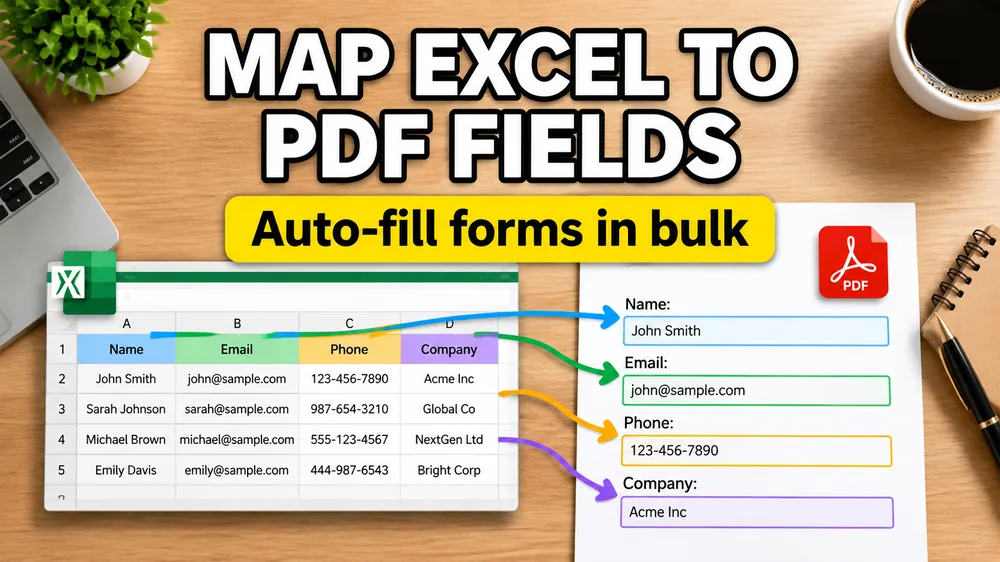
Ready to map and export? Open Fill PDF from Excel, upload Excel + PDF, bind columns to fields or page positions, preview, then export the batch. This guide covers how mapping works; the tool is where you do it.
To map Excel columns to PDF fields, upload the spreadsheet and PDF, match each column to a field name or page position, preview long and short values, and adjust the mapping before export.
The key steps are:
- Prepare clear Excel headers
- Upload the PDF template
- Match each column to a field or page position
- Preview long and short values
- Export the batch if needed
One of the most common PDF automation questions is:
How do I map Excel columns to PDF fields?
If your question is broader than field mapping itself, start in Fill PDF from Excel.
If the PDF has no embedded form fields, use visual placement in that same tool, or read How to Fill a Non-Fillable PDF from Excel or Google Sheets. If the main goal is output format, run one PDF per row in the tool, or read How to Generate One PDF Per Row from Excel.
If the data comes from Airtable, read How to Fill PDF Forms from Airtable before mapping. Airtable linked records, lookups, rollups, and attachments often need a clean export view first.
That question has two different answers depending on the PDF.
Case 1: The PDF is fillable
If the PDF contains real form fields, the job is mostly about matching Excel headers to field names.
Example:
- Excel
full_name-> PDFName - Excel
issue_date-> PDFDate - Excel
invoice_id-> PDFInvoiceNumber
In this case, field detection is the main step.
Case 2: The PDF is not fillable
If the PDF is non-fillable, there are no field names to discover. The PDF is just a static layout.
That means the mapping process changes:
- identify the visual location on the page
- place the column value there
- preview the output
- adjust styling if needed
This is where a visual mapper is much better than a simple form inspector.
How to map Excel columns to PDF fields
1. Prepare the Excel file
Keep your first row clean and descriptive.
Good examples:
employee_namestart_datecontract_idamount_due
2. Upload the PDF template
If the template is fillable, the system can often detect field names automatically.
If it is non-fillable, the system should let you place output visually.
3. Match each column to its destination
This can mean:
- binding a column to a form field
- binding a column to an X/Y area on the page
- binding a column to a barcode or QR code block
4. Preview long and short values
Always test:
- long names
- large numbers
- empty fields
- multi-page templates
That catches clipping and spacing issues early.
What if you need to find PDF field names?
If the PDF is fillable, field names can usually be read from the PDF structure or a field inspector.
If the PDF is non-fillable, there are no field names to find. In that case, the practical solution is to switch from field detection to visual mapping.
That is why many "find PDF field names" workflows eventually turn into "map spreadsheet data onto a PDF template."
A better workflow for Excel-to-PDF mapping
Fill PDF from Excel, Google Sheets, or CSV supports both approaches:
- direct mapping to fillable PDF fields
- visual placement for non-fillable PDF templates
That makes it useful for certificates, contracts, invoices, labels, and other documents that may not have built-in form fields at all.
For a deeper overview of the non-fillable workflow, read How to Fill a Non-Fillable PDF from Excel or Google Sheets.
If you are mapping fields for specific document types, the same logic applies to PDF invoices from Excel, bulk certificates from Excel, PDF contracts from Google Sheets, tax forms in bulk from Excel, and ACORD 25 PDFs from Excel.
Frequently asked questions
How do I find PDF field names from Excel mail merge data?
If the PDF is fillable, inspect the field names and map your Excel headers to them. If the PDF is not fillable, use a visual mapper instead.
Can I map Excel columns to a non-fillable PDF?
Yes. You map the column to a visual position on the page instead of to a built-in field name.
Can one Excel row generate one PDF?
Yes. That is the standard batch PDF generation workflow.
Fill PDFs from Excel, Google Sheets, or CSV
If you need to map spreadsheet data onto fillable or non-fillable PDF templates, try filling PDFs from Excel, Google Sheets, or CSV with PDF Mail Merge. It supports one PDF per row, merged review files, and ZIP exports.