
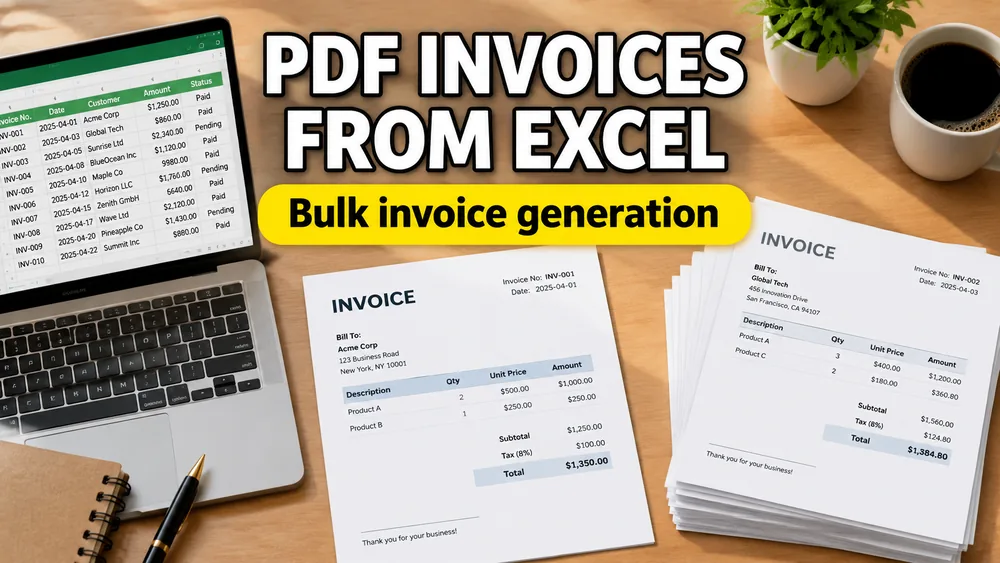
The invoice workflow usually starts out small.
At first, someone edits one PDF by hand. Then another. Then another. By the time there are 80 invoices to send, the process has quietly turned into copy-paste work:
- replace the customer name
- replace the invoice number
- replace the amount
- export the file
- repeat
That is usually the moment the question becomes:
How do I fill PDF invoices from Excel?
If your use case is broader than invoices, start with How to Fill PDF Forms from Excel in Bulk.
If you want the product page for this specific use case, use the Bulk Invoice Generator from Excel.
The good news is that invoices are one of the easiest documents to automate from a spreadsheet. The catch is that many invoice templates are not fillable PDFs, so a basic form-filling tool is often not enough.
Why invoice PDFs are a perfect spreadsheet use case
Invoices are highly structured documents.
The design stays mostly the same, but the values change from row to row:
- customer name
- billing address
- invoice number
- issue date
- due date
- subtotal
- total amount
That makes Excel a natural source of truth. One row can represent one invoice. Once the template is mapped once, the same invoice PDF can be generated again and again.
The hidden problem: many invoice templates are not fillable
If your invoice PDF already contains form fields, the workflow is straightforward. You map your Excel columns to those fields and generate the output.
But many invoice templates are exported from:
- QuickBooks
- Xero
- Word
- Canva
- Figma
- internal accounting or ERP tools
Those PDFs often look editable, but they are not interactive forms. They are just static layouts.
That changes the workflow from:
field detection
to:
template mapping
If you are in that situation, you are really solving the same problem described in How to Fill a Non-Fillable PDF from Excel or Google Sheets.
A real-world invoice scenario
Imagine a finance team that sends monthly invoices to 240 clients.
They already have:
- an Excel export from accounting
- one approved invoice PDF design
- a naming rule like
Invoice-2026-0001.pdf
What they do not want is:
- to rebuild the invoice in Word
- to open 240 PDFs manually
- to trust a workflow that depends on perfect copy-paste
The practical solution is:
- import the Excel sheet
- upload the invoice PDF template
- map the columns visually
- preview a few rows
- generate one invoice PDF per row
That is the cleanest form of invoice PDF mail merge.
How to fill PDF invoices from Excel
1. Prepare the Excel file
Use one row per invoice.
Typical columns include:
customer_nameinvoice_numberissue_datedue_datebilling_addressamount_due
Keep headers clean and consistent. That makes mapping much easier.
2. Upload the invoice PDF template
This can be:
- a fillable invoice PDF
- a non-fillable invoice PDF
- a one-page or multi-page invoice template
3. Map the fields
If the invoice PDF is fillable, map each column to the built-in field name.
If it is non-fillable, map each value to a visual location on the page.
Examples:
customer_name-> billing blockinvoice_number-> top-right header areaissue_date-> invoice metadata sectionamount_due-> totals area
If your invoice includes tracking or order references, you can also map:
- barcodes
- QR codes
- internal reference IDs
4. Preview edge cases
Always preview:
- long company names
- two-line addresses
- large currency amounts
- rows with optional blank fields
This is where layout problems usually show up.
5. Generate one PDF per row
Once the mapping is correct, generate one invoice PDF per Excel row.
That gives you a reusable invoice pipeline instead of manual editing.
Why this is better than manual invoice editing
Manual PDF editing looks manageable until you hit volume.
Then three problems show up fast:
- it is slow
- it creates formatting drift
- it makes mistakes hard to audit
Excel-to-invoice PDF generation fixes all three by keeping the data in one place and the layout in another.
Fillable invoice PDFs vs non-fillable invoice templates
This distinction matters a lot.
Fillable invoice PDF
- easier field detection
- faster first setup
- dependent on the template already having fields
Non-fillable invoice PDF
- more flexible in the real world
- works with approved, existing layouts
- requires a visual mapper
Most businesses eventually need support for both.
A privacy-first way to do it
Fill PDF from Excel, Google Sheets, or CSV supports Excel uploads, PDF template mapping, and bulk generation for both fillable and non-fillable PDFs.
That makes it useful for invoice workflows where the PDF is already designed and the data already lives in a spreadsheet.
If this is your primary use case, see Bulk Invoice Generator from Excel.
If you need adjacent finance or operations documents, the same spreadsheet-to-PDF model also applies to tax forms in bulk from Excel, pay stubs in bulk from Excel, and one PDF per row from Excel.
Frequently asked questions
Can I fill a non-fillable invoice PDF from Excel?
Yes. You need a visual mapper that places values on the PDF layout rather than only reading built-in form fields.
Can I generate one invoice PDF per row?
Yes. That is the standard workflow for a bulk invoice generator from Excel.
Is this different from an Excel-to-PDF converter?
Yes. A converter changes file formats. This workflow merges spreadsheet data into a reusable invoice PDF template.
Is this basically invoice PDF mail merge?
Yes. Filling invoice PDFs from spreadsheet rows is a common PDF mail merge workflow.
Fill PDFs from Excel, Google Sheets, or CSV
If you need to map spreadsheet data onto fillable or non-fillable PDF templates, try filling PDFs from Excel, Google Sheets, or CSV with PDF Mail Merge. It supports one PDF per row, merged review files, and ZIP exports.
Related reading
- How to Fill a Non-Fillable PDF from Excel or Google Sheets
- How to Fill PDF Forms from Excel in Bulk
- How to Generate One PDF Per Row from Excel
- How to Batch Fill PDF Forms Without Acrobat
- Bulk Invoice Generator from Excel
- How to Fill Tax Forms in Bulk from Excel
- How to Generate Pay Stubs in Bulk from Excel
- PDF Mail Merge guide