
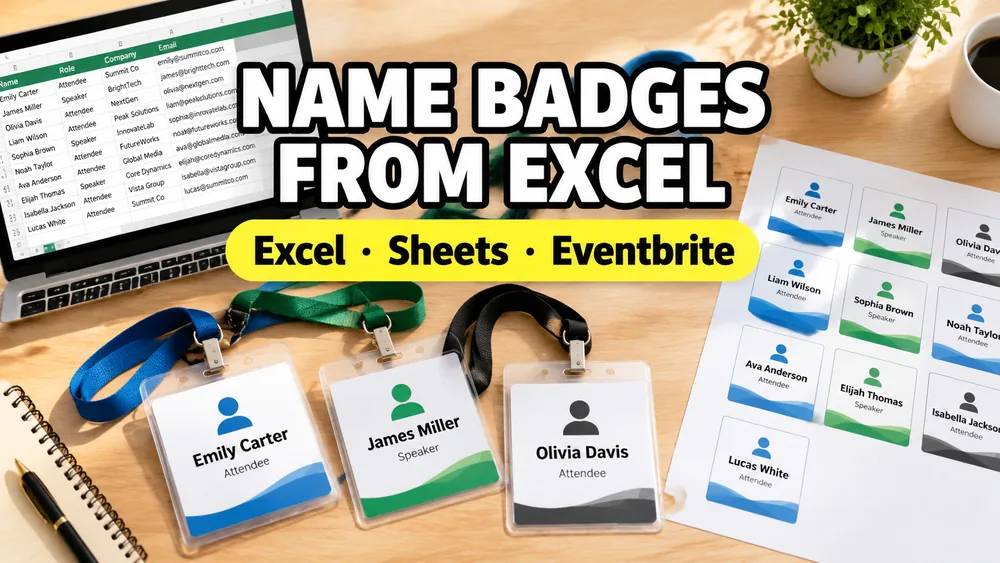
To print name badges from Excel, Google Sheets, or Eventbrite, prepare one attendee per row, include columns for name, title, company, badge type, attendee ID, and optional QR code, import the list into a badge tool, choose a 4 x 3, 4 x 6, A4, or US Letter layout, preview real attendee rows, and export a print-ready PDF.
If you want the shortest browser-first workflow, start with Name Badges from Excel.
This guide is for event teams that already have an attendee list and need printable name badges, conference badges, QR check-in badges, visitor credentials, speaker badges, VIP badges, or staff passes.
The key steps are:
- Prepare one clean attendee row per badge.
- Export from Excel, Google Sheets, Eventbrite, Cvent, Airtable, or Google Forms.
- Choose the right badge size: 4 x 3, 4 x 6, 4.25 x 3.7, or 90 x 55 mm.
- Map spreadsheet columns to badge fields.
- Add QR codes when check-in, vCards, or attendee IDs need scanning.
- Preview long names, badge types, and edge cases.
- Export the badge PDF and print at 100% scale.
You are probably not trying to design one beautiful badge. You already have a spreadsheet full of attendees and need a repeatable way to print the whole batch without rebuilding a Word mail merge or copying names into Canva one by one.
1. Prepare the attendee list
Use one row per attendee. Keep the first row as headers so the badge tool can map fields cleanly.
Recommended columns:
| Column | Use it for |
|---|---|
name | Attendee name, usually the largest badge text |
title | Job title, role, track, table, or session group |
company | Company, school, organization, sponsor, or team |
badge_type | Attendee, Speaker, VIP, Staff, Sponsor, Exhibitor |
attendee_id | Internal ID, ticket ID, registration ID, or badge number |
qr_code | Check-in URL, vCard URL, lead capture link, or attendee profile URL |
If your registration system exports First Name and Last Name separately, add a combined name column before importing. For Eventbrite, Cvent, Airtable, or Google Forms exports, keep the original CSV but rename the columns you want printed on the badge.
2. Choose the right badge size
Most conference badge problems start with the wrong physical size. Choose the size based on holders, cardstock, printer paper, and how far away the attendee name must be readable.
| Badge size | Best for | Notes |
|---|---|---|
| 4 x 3 inch badge inserts | Conferences, meetups, workshops, visitor badges | Common insert size for vinyl holders and day events |
| 4 x 6 inch portrait badges | Large credentials, trade shows, sponsor-heavy badges, QR check-in badges | Better when QR codes, logos, badge type, or sponsor blocks need space |
| 4.25 x 3.7 inch cardboard badges | One-day events and card-style badges | Usually does not need a holder if printed on heavy stock |
| 90 x 55 mm badges | Compact A4 name tags | Useful for international office printing and smaller badge sheets |
Use US Letter if your paper stock is 8.5 x 11 inches. Use A4 for international office printing. Print at 100% scale, not "fit to page", and test one sheet before printing the full batch.
3. Import Excel, CSV, or Google Sheets rows
Open Name Badges from Excel and choose one import method:
- Excel or CSV: export the attendee list from Eventbrite, Cvent, Airtable, Google Forms, or your registration system
- Google Sheets: use a shared sheet when the list keeps changing before the event
- Paste CSV: useful for late registrations, VIP upgrades, spelling fixes, and quick reprints
After import, preview real attendee rows. Check long names, long company names, missing titles, and badge types before exporting.
4. Add QR codes to event badges
For QR code event badges, add a qr_code column to the spreadsheet. The value can be:
- a check-in URL
- an attendee profile URL
- a vCard link
- a lead capture URL
- an internal attendee ID
Keep QR values short when possible. If your event platform provides long tracking URLs, test scanning on one printed badge before the full run.
5. Replace Word mail merge for badge sheets
Word mail merge can work, but it becomes slow when you need custom badge sizes, QR codes, role labels, last-minute fixes, or a full sheet preview.
The spreadsheet-to-badge workflow is simpler:
- Export or prepare the attendee spreadsheet.
- Import rows into the badge tool.
- Choose a 4 x 3, 4 x 6, A4, or US Letter layout.
- Preview real rows.
- Export the badge PDF.
This avoids rebuilding a badge layout in Word or copying names into a design file one by one.
If you want a broader comparison of merge workflows, read PDF Mail Merge vs Word Mail Merge.
6. Handle last-minute changes and reprints
Badge lists often change close to the event. Keep a small reprint workflow ready:
- keep late registrations in the same Google Sheet or a separate CSV
- keep
badge_typeupdated for Speaker, VIP, Staff, Sponsor, and Exhibitor changes - preview only the changed rows before printing
- export a fresh PDF for the registration desk
- keep paper size and printer scaling fixed at 100%
For events with frequent on-site changes, a Google Sheet can be easier than passing spreadsheet files around. Update the sheet, import the latest rows, then export the new badge PDF.
7. Print and check alignment
Before printing every badge:
- print one page at 100% scale
- confirm A4 or US Letter matches the selected layout
- check that the QR code scans
- confirm the badge fits the holder or cardstock
- check long names from the first and last rows
If the badge is shifted, confirm that the browser and printer dialogs are not scaling the PDF. Read Print Settings and Fix Misaligned Labels for alignment troubleshooting.
Frequently asked questions
Can I print name badges directly from Excel?
Excel stores the attendee data, but it is not a badge layout tool. A cleaner workflow is to import the Excel rows into a badge maker, choose the badge size, preview the full sheet, and export a PDF.
Can I use an Eventbrite export?
Yes. Export attendees from Eventbrite as CSV, keep columns such as name, company, ticket type, order number, or check-in URL, then import the file into Name Badges from Excel.
What size are conference name badges?
Common event badge sizes include 4 x 3 inch inserts, 4 x 6 inch portrait credentials, 4.25 x 3.7 inch cardboard badges, and compact 90 x 55 mm A4 badges. Match the size to your holder or cardstock before printing.
Can I make QR code badges from Google Sheets?
Yes. Put the QR value in a column such as qr_code, check_in_url, or attendee_id, import the sheet, and preview the QR badge before exporting the PDF.
Is this better than Word mail merge for badges?
For badge sheets, usually yes. Word mail merge can work, but a badge-specific workflow is faster when you need QR codes, multiple badge types, last-minute reprints, or A4 and US Letter badge presets.