
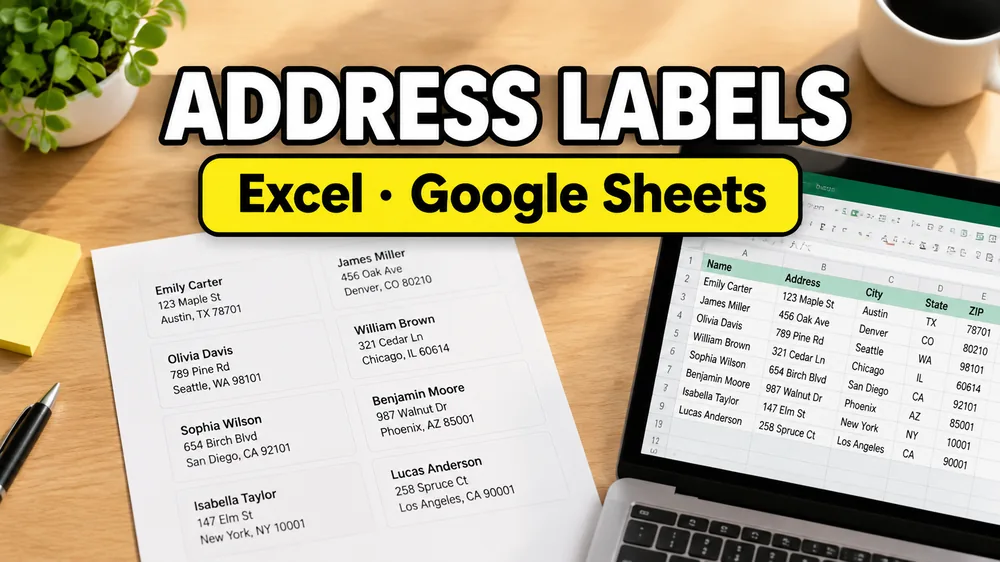
To print address labels from Excel or Google Sheets, prepare a clean spreadsheet with address columns, choose a label template such as Avery 5160, upload the Excel file or connect the Google Sheet, place each column onto the label in a visual editor, preview the full sheet, and print at 100% scale.
Address & Return Label Generator
Create mailing address labels or return address labels from any spreadsheet list. Fits Avery 5160, A4, and custom sheets.
For the fastest path, open Address Label Maker first, then use this guide as the checklist for preparing your spreadsheet, choosing the right Avery-compatible layout, and avoiding print alignment problems.
Whether your addresses start in Excel, Google Sheets, or another spreadsheet export, the practical workflow is the same: clean the spreadsheet, choose the label layout, map the columns, preview the full page, and print the PDF at 100% / Actual Size.
If you run the same mailing job regularly on an Apple Silicon Mac, Address Label Maker for Mac keeps the design, spreadsheet field mapping, and paper setup available locally and adds unlimited clean PDF exports with a one-time desktop license.
Address Label Maker also has two optional entry points for people who already work from Google tools: the Google Workspace Marketplace add-on for launching from an active Google Sheet, and the Chrome Web Store extension for opening the workflow from Chrome.
Video walkthrough: print address labels from a spreadsheet

How to print address labels from Excel or Google Sheets
If your Google Sheet contains product labels, barcode labels, QR labels, name badges, or custom label data instead of mailing addresses, use the broader guide: How to Print Labels from Google Sheets.
The key steps are:
- Prepare a clean spreadsheet with clear column headers
- Choose an address label template such as Avery 5160
- Upload the Excel file or connect Google Sheets
- Place the name and address columns onto the label visually
- Preview the full sheet and export a print-ready PDF
- Print at 100% scale or Actual Size
Most teams are trying to solve one practical job:
- they already have addresses in a spreadsheet
- they need mailing labels or return labels
- they want to avoid rebuilding everything in Word or Google Docs
- they need a printable result that stays aligned on real label paper
That is why the best workflow is usually not "type labels inside Excel."
The real workflow is to prepare the spreadsheet well, choose the right label layout, map spreadsheet columns to the label, and export a print-ready PDF.
What you'll need
- one row per recipient
- clear headers such as
full_name,address_line_1,city,state, andzip - address label stock such as Avery 5160, A4 sheets, or US Letter sheets
- a label workflow that can preview the full page before printing
Part 1: Prepare your spreadsheet
Whether your source is Excel or Google Sheets, the structure matters more than the file type.
Recommended column structure
Typical columns for mailing labels:
full_namecompany(optional)address_line_1address_line_2(optional)citystatezipcountry(optional)
You can also keep separate columns like first_name and last_name, but one combined full_name column is usually easier for printing.
Data cleaning checklist
Before you generate labels, check these:
- keep one row per label
- avoid merged cells
- use plain text headers in row 1
- remove fully blank rows
- keep ZIP or postal codes as text if they can start with
0 - move apartment or suite information into
address_line_2when needed
If your list comes from a form, CRM export, or another system, this cleanup step is what prevents broken labels later.
If your source is not addresses but broader label data such as SKU, price, or barcode fields, the better workflow is Label Designer or Excel to Labels.
Part 2: Choose the address label layout
The second step is matching your data to the paper you will actually print on.
Common choices include:
- Avery 5160 for standard US mailing labels
- Avery 8160 for inkjet variants
- smaller return address sheets
- A4 address label layouts for non-US printers
- custom label sizes for specialty stock
If you are not sure where to start, Address Label Maker is the clearest entry point for mailing labels and Avery-style sheets.
If you specifically bought Avery 5160-style sheets, use the dedicated Avery 5160 address labels from Excel or Google Sheets guide. That page focuses on the 30-up layout, print scale, and alignment checks.
Part 3: Import Excel or connect Google Sheets
Excel workflow
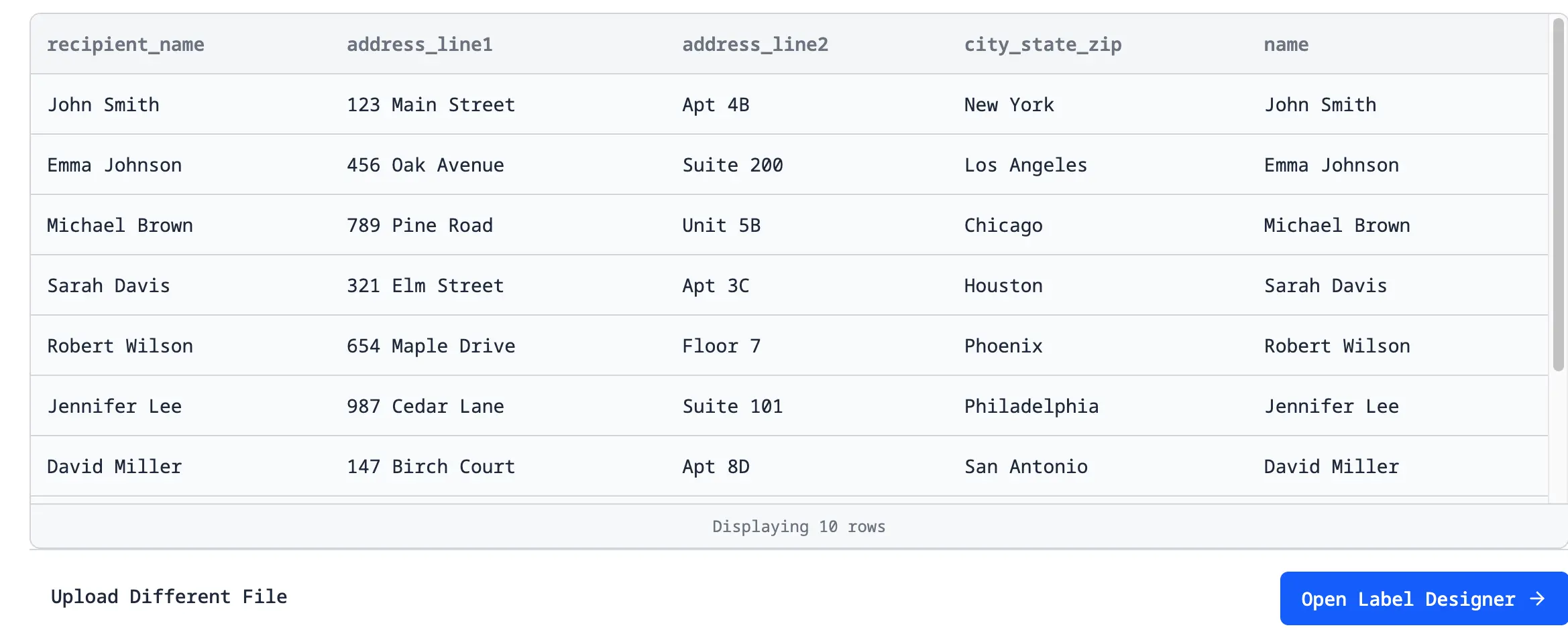
If your addresses are in Excel:
- save the workbook as
.xlsxor.xls - open Address Label Maker
- upload the file
- let the tool detect the headers
Google Sheets workflow
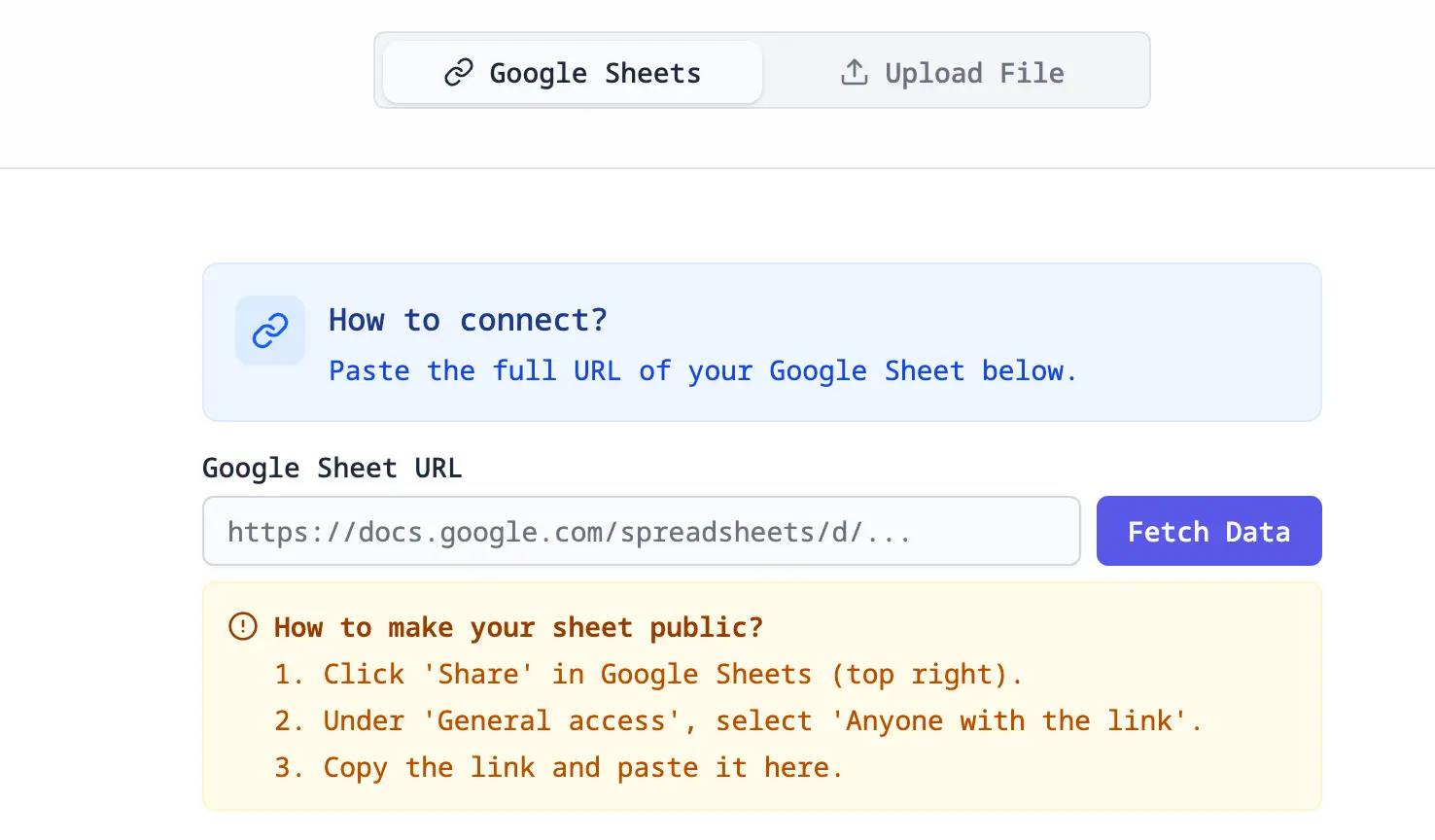
If your addresses are in Google Sheets:
- open Address Label Maker
- choose the Google Sheets import path
- connect the sheet or start from the Google Sheets add-on guide
- select the worksheet that contains the addresses
The file type is different, but the printing workflow after import is basically the same.
If you need the broader tutorial version, read How to Print Labels from Google Sheets.
Part 4: Place the address columns visually
Once the spreadsheet is loaded, place your columns onto the label layout in the visual editor. You can see the label while you work, so you are not guessing where merge fields will land after export.
Typical mapping looks like this:
full_nameat the topcompanybelow the name if neededaddress_line_1on the next lineaddress_line_2below it when presentcity,state, andzipon the final line
This is the step where a dedicated label tool is much easier than Word mail merge. You can drag the address block, adjust spacing, preview real rows, and check the full sheet before printing.
Part 5: Preview the full sheet before printing
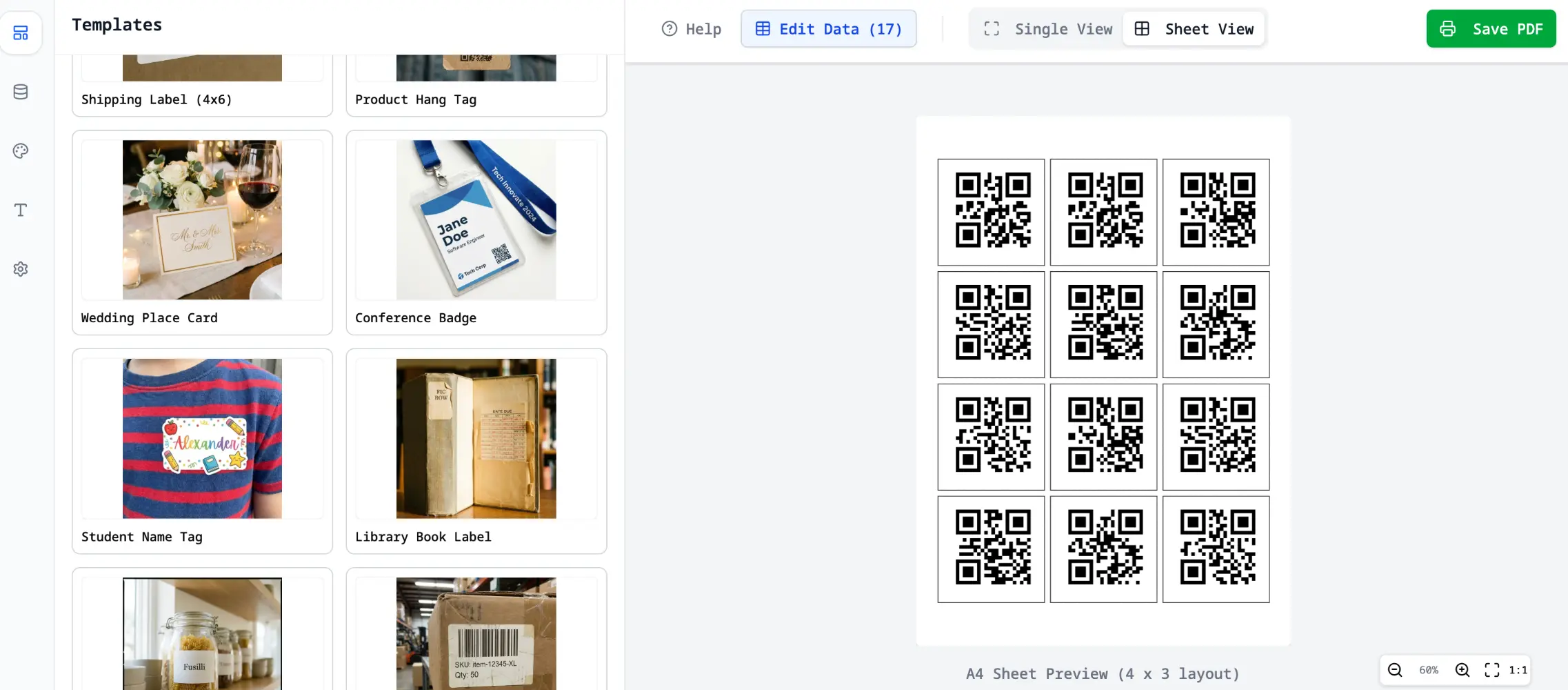
Do not skip the preview step.
Check for:
- long names wrapping badly
- ZIP codes losing leading zeros
- blank rows creating blank labels
- addresses overflowing the label box
- paper size mismatches between the PDF and your printer
For mailing labels, alignment problems are usually easier to catch in preview than after you waste a full label sheet.
If the preview shows drifting rows or off-center output, fix that before the final run with How to Fix Label Printing Misalignment.
Part 6: Export PDF and print at 100% scale
After the preview looks correct, export the full label sheet, open the PDF in your print dialog, set scale to 100% or Actual Size, print one test page on plain paper first, and compare the test page against your label stock before printing the final run.
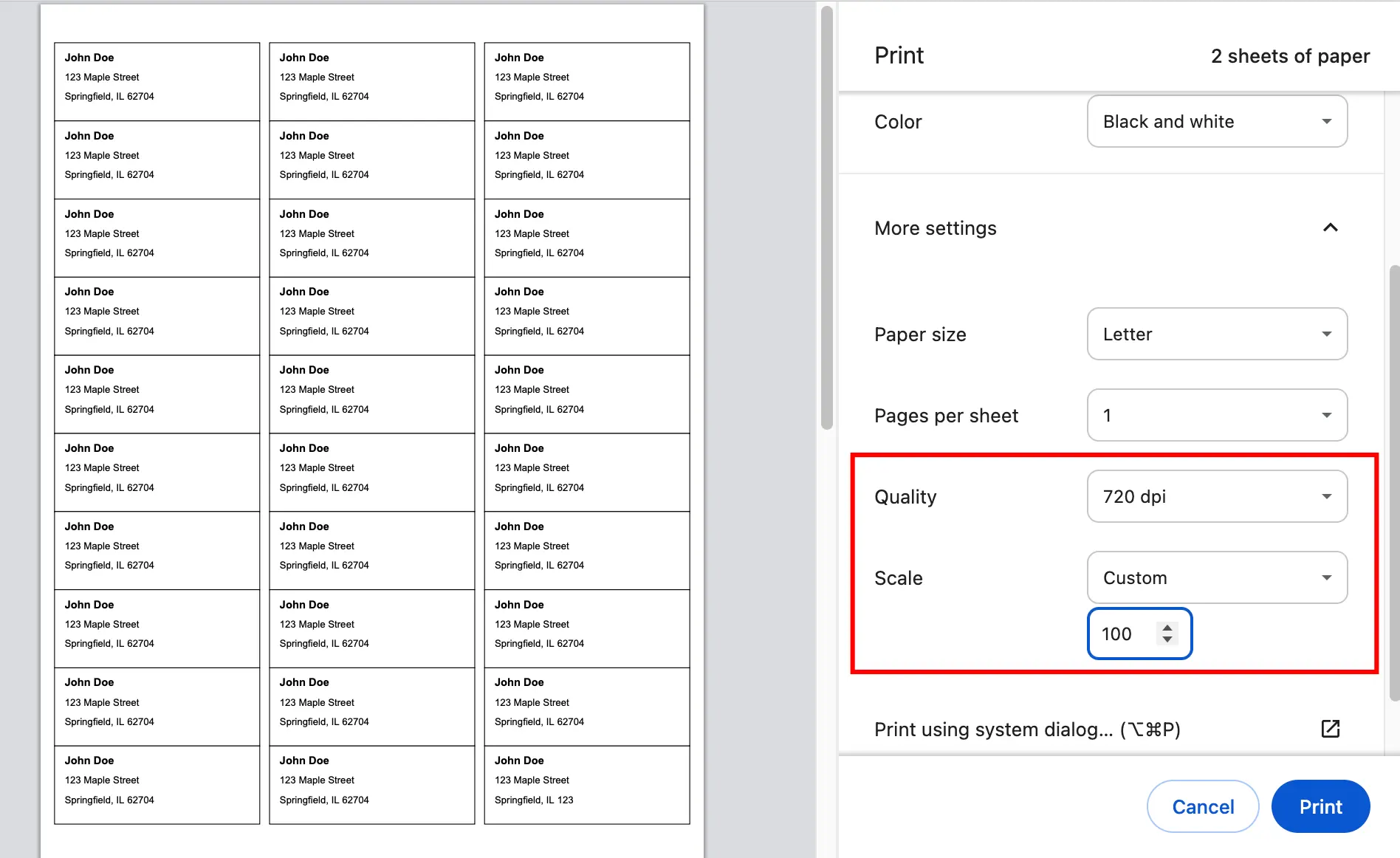
If alignment is still off, use Fix Misaligned Labels.
The short version is simple: print at 100% or Actual Size, not Fit.
Do I need Word mail merge or Google Docs?
Not necessarily.
That is the main gap between the job you need done and what older tutorials teach.
Traditional instructions usually say:
- keep the addresses in Excel
- open Word
- start mail merge
- choose the Avery template
- insert merge fields
- finish the merge
That workflow still works, but it is slower to set up and more fragile when the data changes.
A dedicated address label workflow is simpler when:
- you need to print more than one sheet
- the list changes often
- you want to use Google Sheets directly
- you want a drag-and-drop visual preview before printing
- you do not want to configure Word mail merge fields
For a focused side-by-side comparison, read Address Label Maker vs Word Mail Merge.
How this differs from Google Docs add-ons and generic label makers
Google Docs add-ons are a good fit when you want to build the final printout inside a Google Doc. Generic label makers are a good fit when you are designing many different label types from scratch.
For mailing labels, the faster path is usually a focused address-label workflow:
- Excel, CSV, and Google Sheets can all be used as address-list sources.
- Avery 5160, A4, and US Letter sheet layouts are selected before export.
- The full sheet is previewed before printing.
- The output is a PDF that should be printed at
100% / Actual Size. - Google Sheets users can start from the Workspace add-on and continue in the full web editor.
- Chrome users can start from the Address Label Maker extension.
Common problems and fixes
My ZIP codes lost leading zeros
Keep ZIP codes as text in Excel or Google Sheets before importing. This is common with East Coast ZIP codes and other postal codes that start with 0.
My labels are slightly misaligned
Most of the time this is a print settings issue, not a data issue. Make sure the PDF is printed at 100% or Actual Size, not Fit.
My address lines are too long
Use address_line_2 for apartment, suite, or building information. That gives the layout more room and reduces ugly wrapping.
I only want return address labels
Use the same workflow, but choose a smaller return-address layout and keep the sender information as static text or as one repeated row.
Frequently asked questions
Can I make address labels directly from Excel?
Yes, but Excel is usually the data source, not the final label layout tool. The practical workflow is to import the Excel file into a label workflow and export a print-ready PDF.
Can I make address labels from Google Sheets without exporting CSV?
Yes. You can connect Google Sheets directly or start from the Google Sheets add-on guide.
What template should I choose for mailing labels?
Avery 5160 is one of the most common US formats. If you use A4 stock or another brand, choose the matching size in the template list before exporting.
Can I also make return address labels?
Yes. The same workflow works for return labels, mailing labels, and other address-based sticker sheets.
Do I need special software installed?
No. A browser-based tool such as Address Label Maker can handle the import, layout, preview, and PDF export workflow without installing Word plugins or desktop label software.
Make address labels faster
If your goal is simply to turn spreadsheet rows into print-ready mailing labels, start with Address Label Maker. It supports Excel, Google Sheets, and CSV imports, standard Avery-style layouts, visual field placement, full-sheet preview, and PDF export.
Related reading
- Address Label Maker
- How to Print Address Labels from The Knot Guest List
- Excel to Labels
- Google Sheets to Labels
- How to Print Labels from Excel
- How to Fix Label Printing Misalignment
- How To Print Labels From Google Sheets
- Wedding & Mailing Address Labels
- Google Sheets Address Label Maker guide
- Fix Misaligned Labels