
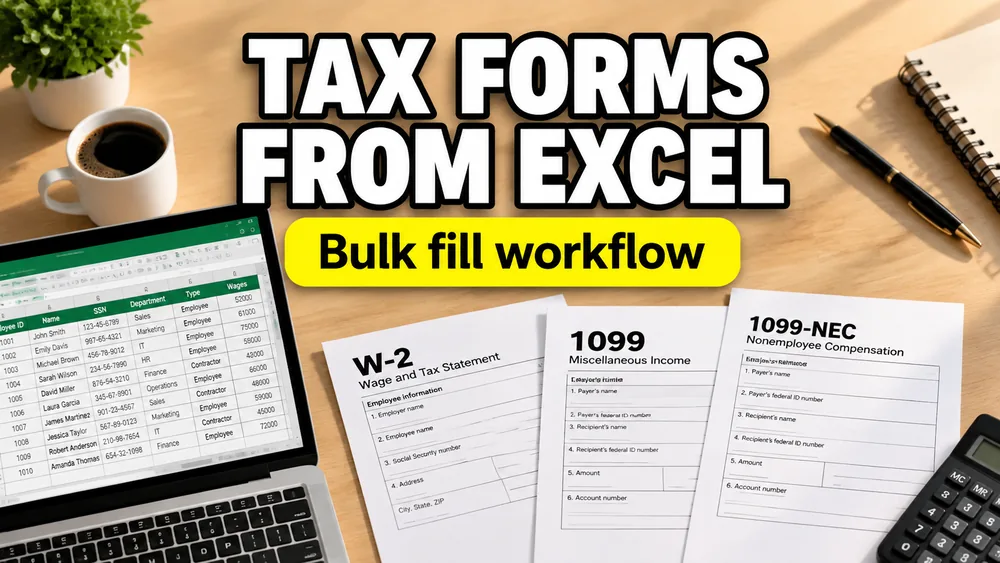
Tax-related document work is where manual PDF editing becomes especially risky.
With labels or certificates, a formatting mistake is annoying. With tax forms, a formatting mistake can turn into rework, delay, or a compliance headache.
That is why teams who already keep structured values in spreadsheets eventually ask:
How do we fill tax forms in bulk from Excel without doing them one by one?
If you want the product-first path for this use case, start with Fill Tax PDFs from Excel. For the general spreadsheet-to-PDF workflow, read How to Fill PDF Forms from Excel in Bulk.
Why spreadsheet-driven tax form workflows exist
The repeated part of tax-related paperwork is often the structure, not the data source.
The data may already exist in Excel as:
- names
- dates
- IDs
- EIN or reference numbers
- amounts
When each row corresponds to one document, Excel becomes a practical staging layer for batch PDF generation.
The real issue is not just form filling
If the tax PDF is fillable, the workflow may be close to standard form filling.
But if the PDF is non-fillable, you need a mapping workflow that places the values on the template visually. That is why support for static PDF templates matters here too.
In other words, the problem is often not “can I fill a PDF field?” but:
can I take spreadsheet data and generate a large number of accurate PDF documents from a fixed template?
A realistic tax-form scenario
Imagine an operations or finance team preparing repeated tax-related documents for many entities or recipients.
They already have:
- an Excel export
- the official or approved PDF form template
- a repeated document structure
What they want to avoid is:
- opening every PDF by hand
- copying values field by field
- relying on an error-prone manual process for sensitive data
This is where a batch tax form filler or tax PDF mail merge workflow becomes useful.
How to fill tax forms in bulk from Excel
1. Clean the spreadsheet first
For sensitive forms, clean headers and values matter more than usual.
Use a clear structure such as:
taxpayer_namedocument_idtax_yearamountaddress
2. Upload the PDF form or template
This can be:
- a fillable PDF form
- a non-fillable tax-related PDF template
3. Map fields carefully
Tax form workflows need more precision than most marketing or label templates.
Map each field deliberately and review:
- numeric formatting
- date formatting
- spacing
- multi-page positions
4. Preview several rows
Always preview multiple rows, not just one.
Check:
- short and long names
- zero or blank values
- large numbers
- edge-case record lengths
5. Generate one PDF per row
Once the mapping has been verified, export one form per spreadsheet row.
Why privacy matters even more here
Tax-related documents often contain highly sensitive information. That is why a privacy-first workflow matters more here than in most other PDF use cases.
A browser-based local workflow is a stronger fit when you want to minimize unnecessary exposure of financial or identity data.
When this approach is a good fit
This workflow is useful for:
- repeated internal preparation workflows
- recurring reporting document packs
- standardized tax-related PDFs that follow the same layout every time
In many teams, tax documents sit next to payroll documents in the same operational pipeline. The values may come from the same spreadsheet exports, but the output templates are different. If your work is more employee-document oriented, see How to Generate Payroll PDFs from Excel or Google Sheets and How to Generate Employee Compensation Documents from Excel or Google Sheets.
A practical option
Fill PDF from Excel, Google Sheets, or CSV supports spreadsheet-driven PDF mapping in a local, privacy-first workflow.
For the landing page tied to this use case, see Fill Tax Forms in Bulk from Excel.
If your tax form is static or scanned, pair this with How to Fill a Non-Fillable PDF from Excel or Google Sheets. If each spreadsheet row needs its own finished file, see How to Generate One PDF Per Row from Excel.
Frequently asked questions
Can I use Excel to fill repeated tax forms?
Yes. If each row represents one document, Excel is a practical source for batch generation.
Does the PDF have to be fillable?
No. A non-fillable PDF can also work if the workflow supports visual mapping.
Should I preview every form type first?
Yes. For tax-related documents, previewing and spot-checking are essential.
Is this the same as tax PDF mail merge?
In many cases, yes. It is a spreadsheet-to-PDF generation workflow for repeated forms.
Fill PDFs from Excel, Google Sheets, or CSV
If you need to map spreadsheet data onto fillable or non-fillable PDF templates, try filling PDFs from Excel, Google Sheets, or CSV with PDF Mail Merge. It supports one PDF per row, merged review files, and ZIP exports.
Related reading
- How to Fill a Non-Fillable PDF from Excel or Google Sheets
- How to Fill PDF Forms from Excel in Bulk
- How to Generate One PDF Per Row from Excel
- How to Generate Payroll PDFs from Excel or Google Sheets
- How to Generate Employee Compensation Documents from Excel or Google Sheets
- How to Map Excel Columns to PDF Fields
- How to Batch Fill PDF Forms Without Acrobat
- Fill Tax Forms in Bulk from Excel
- PDF Mail Merge guide