
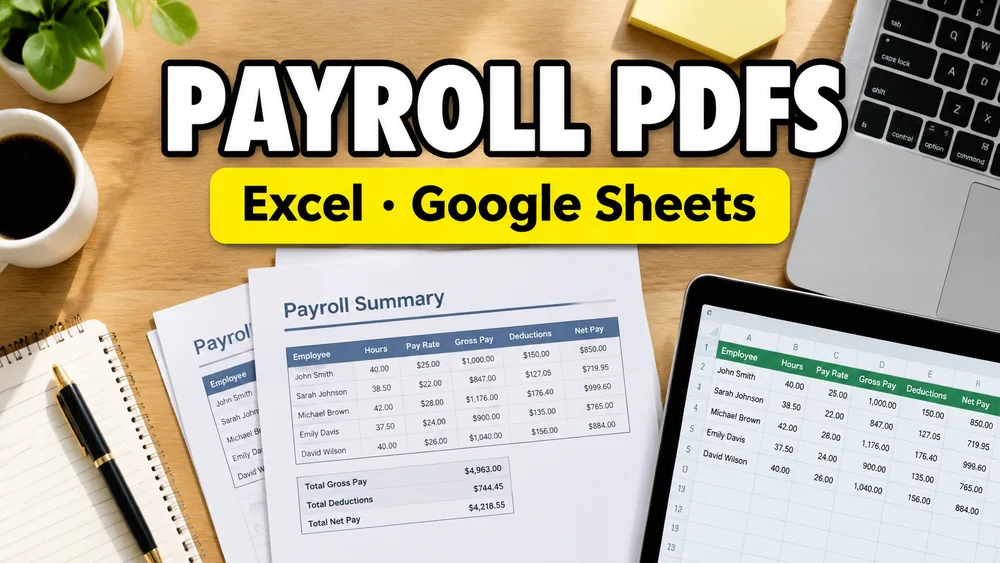
Payroll work tends to become repetitive before anyone formally calls it automation.
At first, somebody creates one pay stub PDF for one employee.
Then payroll week arrives and the same steps repeat:
- open the template
- replace the employee name
- replace the pay period
- replace the gross pay and deductions
- export the file
- repeat 40 times, or 400 times
That is usually when the team realizes the real problem is not "how do we edit a PDF?" It is:
How do we generate payroll PDFs from Excel or Google Sheets without rebuilding each document by hand?
Why payroll is a strong spreadsheet-to-PDF use case
Payroll documents are highly structured.
The wording, layout, and branding usually stay the same, while the values change by employee and pay period:
- employee name
- pay date
- pay period
- employee ID
- gross pay
- deductions
- net pay
- department or cost center
That makes Excel and Google Sheets natural sources of truth. One row can represent one employee document. Once the template is mapped, the workflow becomes predictable and repeatable.
The document types are different, but the workflow is the same
Teams use different names for payroll PDFs:
- pay stubs
- payslips
- payroll notices
- salary statements
- compensation summaries
The exact document varies by company and region, but the generation pattern is usually the same:
- maintain structured payroll values in a spreadsheet
- apply them to a fixed PDF template
- generate one PDF per row
That is why this is best understood as pay stub PDF mail merge or payroll document automation, not just one-off PDF editing.
A realistic payroll scenario
Imagine an HR or payroll operations team preparing monthly payslips for 180 employees.
They already have:
- an Excel export from payroll software
- or a Google Sheet used for final review
- a company-approved PDF payslip format
- a deadline that leaves no room for manual copy-paste
What they do not want is:
- opening each PDF separately
- introducing one wrong number into the wrong employee file
- sending sensitive compensation documents through a clumsy manual process
This is where a spreadsheet-driven payroll PDF workflow becomes useful.
The hidden issue: many payroll PDFs are not fillable
Some payroll templates are interactive PDFs with real form fields.
But many are not.
A payroll PDF might come from:
- a payroll vendor export
- Word
- a design template
- a finance system
- an internal HR workflow
In those cases, the PDF looks like a form but is technically just a static layout.
That matters because many PDF tools only work if the file already contains built-in fields.
If the payroll PDF is non-fillable, you need a visual mapper that can place values directly onto the template. This is the same core problem described in How to Fill a Non-Fillable PDF from Excel or Google Sheets.
How to generate payroll PDFs from Excel or Google Sheets
1. Start with one row per employee document
Typical columns might include:
employee_nameemployee_idpay_periodpay_dategross_paydeductionsnet_pay
If payroll data comes from a system export, clean the headers before mapping. Clear column names reduce setup errors.
2. Upload the payroll PDF template
This can be:
- a fillable PDF
- a non-fillable payroll PDF
- a one-page payslip
- a multi-page payroll statement
3. Map each spreadsheet column to the template
If the PDF is fillable, connect columns to the existing fields.
If the PDF is non-fillable, place values visually on the page:
- employee name in the identity section
- pay period in the summary header
- gross pay and deductions in the earnings table
- net pay in the totals area
Some teams also map:
- QR codes
- internal payroll references
- approval signatures
- department labels
4. Preview multiple rows, not just one
Payroll is sensitive enough that one-row preview is not enough.
Always preview:
- long employee names
- employees with zero deductions
- large numbers
- unusual formatting cases
- rows with optional blank values
5. Generate one PDF per row
Once the mapping is verified, generate one payroll PDF per spreadsheet row.
That turns a repetitive editing task into a repeatable payroll document pipeline.
Why privacy matters more in payroll workflows
Payroll PDFs are not generic documents. They often contain highly sensitive personal and financial information.
That is why a privacy-first workflow matters here more than in many other PDF use cases.
Teams usually care about:
- minimizing unnecessary data exposure
- avoiding casual file-handling mistakes
- keeping payroll values inside a controlled workflow
A local, browser-based editor is a better fit for this than a workflow that depends on sending payroll records to a remote service just to render PDFs.
Excel vs Google Sheets for payroll PDF generation
Both sources can work well.
Excel is a strong fit when:
- payroll exports already come as
.xlsx - finance teams review offline files
- the document set is prepared in batches
Google Sheets is a strong fit when:
- HR and operations need live collaboration
- multiple reviewers need access before export
- the sheet acts as a final approval table before generation
The key is not which spreadsheet you use. The key is whether each row can cleanly map to one output PDF.
Common payroll-related PDF use cases
This workflow is useful for:
- employee pay stubs
- monthly payslips
- compensation notices
- salary revision letters
- payroll summaries
- internal payroll confirmation documents
It is also closely related to tax and HR document workflows, especially when the same employee dataset is reused across multiple templates.
A practical payroll PDF workflow
PDF Mail Merge supports spreadsheet-driven PDF mapping with both fillable and non-fillable templates in a local, privacy-first web editor.
That makes it useful for payroll workflows where:
- the template is already approved
- the values already live in Excel or Google Sheets
- each employee row needs its own finished PDF
If your process is closer to tax-related forms, see How to Fill Tax Forms in Bulk from Excel. If your source of truth is a shared sheet, also see PDF Mail Merge from Google Sheets.
If you want a more specific workflow for Excel-led pay stub batches, see How to Generate Pay Stubs in Bulk from Excel. If your team collaborates in Sheets and wants a lighter process, see How to Create Payslips from Google Sheets Without Payroll Software.
If your HR workflow is more focused on statement-style summaries or compensation notices, see How to Generate Employee Compensation Documents from Excel or Google Sheets.
Frequently asked questions
Can I generate pay stub PDFs from Excel?
Yes. If each row represents one employee record, Excel can drive a pay stub or payslip PDF generation workflow.
Can I generate payroll PDFs from Google Sheets?
Yes. Google Sheets works well when teams need a collaborative source before generating one PDF per row.
Does the payroll PDF have to be fillable?
No. A non-fillable payroll PDF can still work if the tool supports visual mapping on static templates.
Is this basically payroll PDF mail merge?
Yes. In many cases, this is a spreadsheet-to-PDF mail merge workflow for payroll documents.
Fill PDFs from Excel, Google Sheets, or CSV
If you need to map spreadsheet data onto fillable or non-fillable PDF templates, try filling PDFs from Excel, Google Sheets, or CSV with PDF Mail Merge. It supports one PDF per row, merged review files, and ZIP exports.
Related reading
- How to Fill Tax Forms in Bulk from Excel
- How to Generate Pay Stubs in Bulk from Excel
- How to Create Payslips from Google Sheets Without Payroll Software
- How to Generate Employee Compensation Documents from Excel or Google Sheets
- PDF Mail Merge from Google Sheets
- How to Fill a Non-Fillable PDF from Excel or Google Sheets
- How to Batch Fill PDF Forms Without Acrobat
- How to Fill PDF Contracts from Google Sheets
- PDF Mail Merge guide