
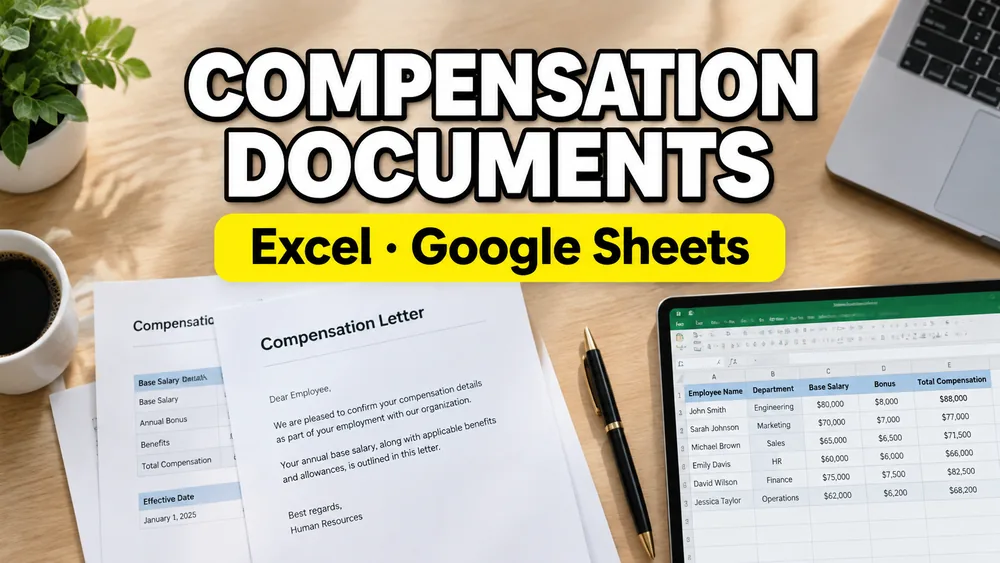
Most teams do not start by saying "we need compensation document automation."
They start with one urgent request:
- a salary statement for one employee
- a compensation letter after a review cycle
- a formal PDF summary for finance or HR records
Then the requests repeat.
At that point, the real problem is not writing one document. It is generating many employee-specific PDFs accurately from structured data.
That is why this workflow is best framed as:
Generate employee compensation documents from Excel or Google Sheets.
Why these documents are good candidates for spreadsheet-to-PDF workflows
Compensation documents usually have fixed layout and variable values.
The template remains stable. The data changes by employee:
- employee name
- role or department
- salary amount
- bonus or allowance
- effective date
- manager or approver
If that data already exists in Excel or Google Sheets, each row can become one output PDF.
Which documents this includes
This workflow can cover:
- salary statements
- compensation letters
- salary revision notices
- annual compensation summaries
- internal HR compensation confirmations
The document names vary by company, but the generation pattern is often identical: map columns once, then generate one PDF per row.
A realistic scenario
Imagine a people operations team after a compensation review cycle.
They already have:
- reviewed values in Google Sheets
- an approved PDF letter/statement format
- a tight deadline for internal distribution
What they need is consistency and speed, not manual copy-paste into each file.
A spreadsheet-driven PDF workflow gives them:
- one-row-to-one-PDF generation
- reusable mappings
- predictable output across every employee document
Fillable and non-fillable templates both matter
Some compensation templates are interactive PDFs.
Many are not.
A lot of HR letter and statement templates are static PDFs exported from Word or internal systems. In that case, there are no built-in fields to detect.
The workflow then depends on visual mapping:
- map each column to a position on the template
- preview edge cases
- run batch generation
For static layouts, see How to Fill a Non-Fillable PDF from Excel or Google Sheets.
How to generate compensation documents from spreadsheets
1. Normalize the spreadsheet
Use one row per employee document.
Typical columns:
employee_nameemployee_iddepartmentsalary_amountbonus_amounteffective_date
2. Upload the PDF template
This can be:
- a fillable compensation form
- a non-fillable salary statement template
- a compensation letter PDF
3. Map fields to template locations
Examples:
employee_name-> employee details sectionsalary_amount-> compensation summary blockeffective_date-> effective date linemanager_name-> sign-off section
4. Preview multiple employees
Check:
- long names
- large values
- optional blank fields
- pages with mixed static and dynamic sections
5. Generate one PDF per row
After validation, generate all output files in batch.
Excel vs Google Sheets for this workflow
Both work.
Excel is often better when payroll/finance exports are batch-based and offline.
Google Sheets is often better when HR, finance, and approvers need live collaboration before generation.
The deciding factor is not the tool name. It is whether your data is cleanly row-based.
Keep related compensation documents together
Salary statements and compensation letters often share the same employee data, approval flow, and PDF generation steps. Splitting them into separate workflows can create duplicate setup work.
A cleaner structure is:
- one core compensation-documents page (this page)
- supporting pages for payroll, pay stubs, and payslips
That keeps the workflow easier to maintain while still giving each document type enough room for its own details.
A practical option
PDF Mail Merge supports Excel/Google Sheets PDF mapping and one-row-per-PDF generation for fillable and non-fillable templates in a local, privacy-first workflow.
For payroll-heavy cases, see How to Generate Payroll PDFs from Excel or Google Sheets. For pay-run documents, see How to Generate Pay Stubs in Bulk from Excel and How to Create Payslips from Google Sheets Without Payroll Software.
Frequently asked questions
Can I generate salary statements and compensation letters from one spreadsheet?
Yes. As long as each row has the required fields, different templates can be generated from the same dataset.
Does the template have to be fillable?
No. Non-fillable templates also work when visual mapping is supported.
Is this different from payroll PDF generation?
It overlaps, but compensation documents usually focus on HR/employee communication workflows beyond routine pay-run outputs.
Fill PDFs from Excel, Google Sheets, or CSV
If you need to map spreadsheet data onto fillable or non-fillable PDF templates, try filling PDFs from Excel, Google Sheets, or CSV with PDF Mail Merge. It supports one PDF per row, merged review files, and ZIP exports.