
Asset Tag Maker for Inventory Labels
Turn Excel, CSV, pasted rows, or Google Sheets into printable asset tags, QR property labels, serial number stickers, equipment labels, and warehouse inventory labels. Import asset IDs, serial numbers, locations, owners, QR URLs, and quantities, then export an Avery-ready or thermal PDF.
Use this for printable tags and internal tracking labels. If your organization needs rugged metal plates, tamper-evident materials, or a full asset management system, use the generated IDs with the label stock and tracking process your team approves.


Built for IT teams, schools, warehouses, offices, labs, and field equipment


Generate asset tags from spreadsheet rows
Import asset IDs, serial numbers, locations, assigned users, departments, QR URLs, and quantities. Choose an asset tag layout, preview real rows, and export a print-ready PDF for sheet labels or thermal printers.
Import and edit data
4 asset rows ready. Quantity expands into 5 printable tags.
| Actions | Asset name | Barcode | Asset ID | Serial | Location | Copies | Price |
|---|---|---|---|---|---|---|---|
1. MacBook Pro 14
AST-1001 · IT Office / Shelf A
2. Document Camera
AST-1002 · Room 204
3. Barcode Scanner
AST-1003 · Warehouse / Receiving
4. Projector Cart
AST-1004 · Building B / Storage
Preview and export
Add data fields
11Click an imported column, add fixed text, upload an image, or paste text/image from the clipboard.
Label sheet
Barcode label workflow
4 asset rows ready. Quantity expands into 5 printable tags.
Label sheet
Decide What Each Asset Tag Should Do
Most teams do not need a perfect design first. They need labels that match the way assets are scanned, reassigned, repaired, and replaced.
From Asset Spreadsheet to Printable Tags
This page is for teams that already have the asset list but still need labels that print cleanly. Keep the data in Excel, CSV, or Google Sheets, then use the label workflow to create QR tags, barcode tags, and replacement labels.
Bring the Asset List You Already Use
Upload Excel or CSV, paste rows, or import a shared Google Sheet with asset IDs, serial numbers, locations, departments, and QR links.
Use QR, Barcode, or Both
Print QR codes for asset lookup pages, Code 128 for scanner workflows, or a mixed label with human-readable text and a fallback code.
Preview Real Asset Rows
Check the longest equipment names, serial numbers, and locations before using adhesive stock.
Print Bulk Batches or Replacements
Quantity columns expand repeated tags, while pasted rows make it easy to reprint one damaged or reassigned asset label.
How to Print Asset Tags from Excel or Google Sheets
Start with the asset records you already have. The label design should follow the workflow your team uses to scan, find, and maintain equipment.
Prepare One Row per Asset
Use columns such as asset_id, serial_number, item_name, location, department, assigned_to, quantity, and qr_url.
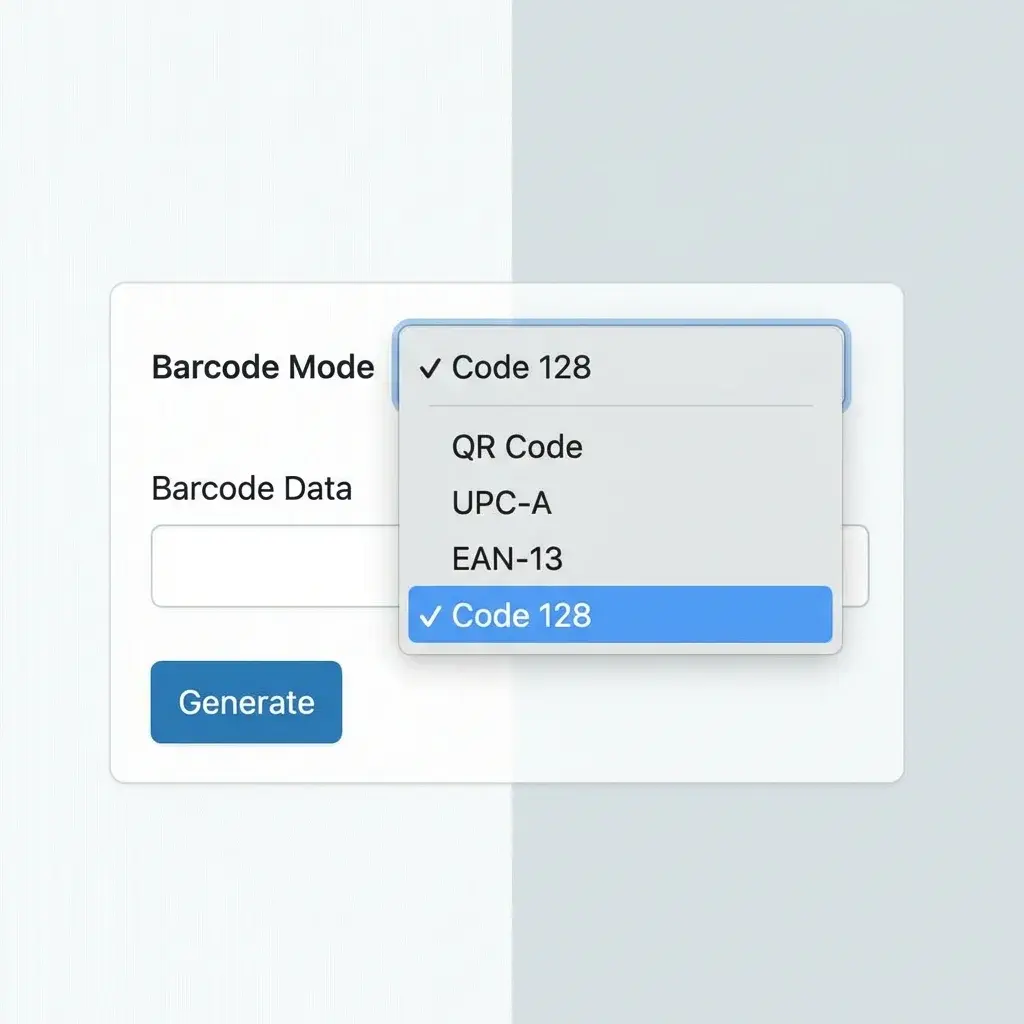
Choose the Scan Method
Use QR codes for links and web records. Use Code 128 or Code 39 for compact asset IDs and scanner-first inventory counts.
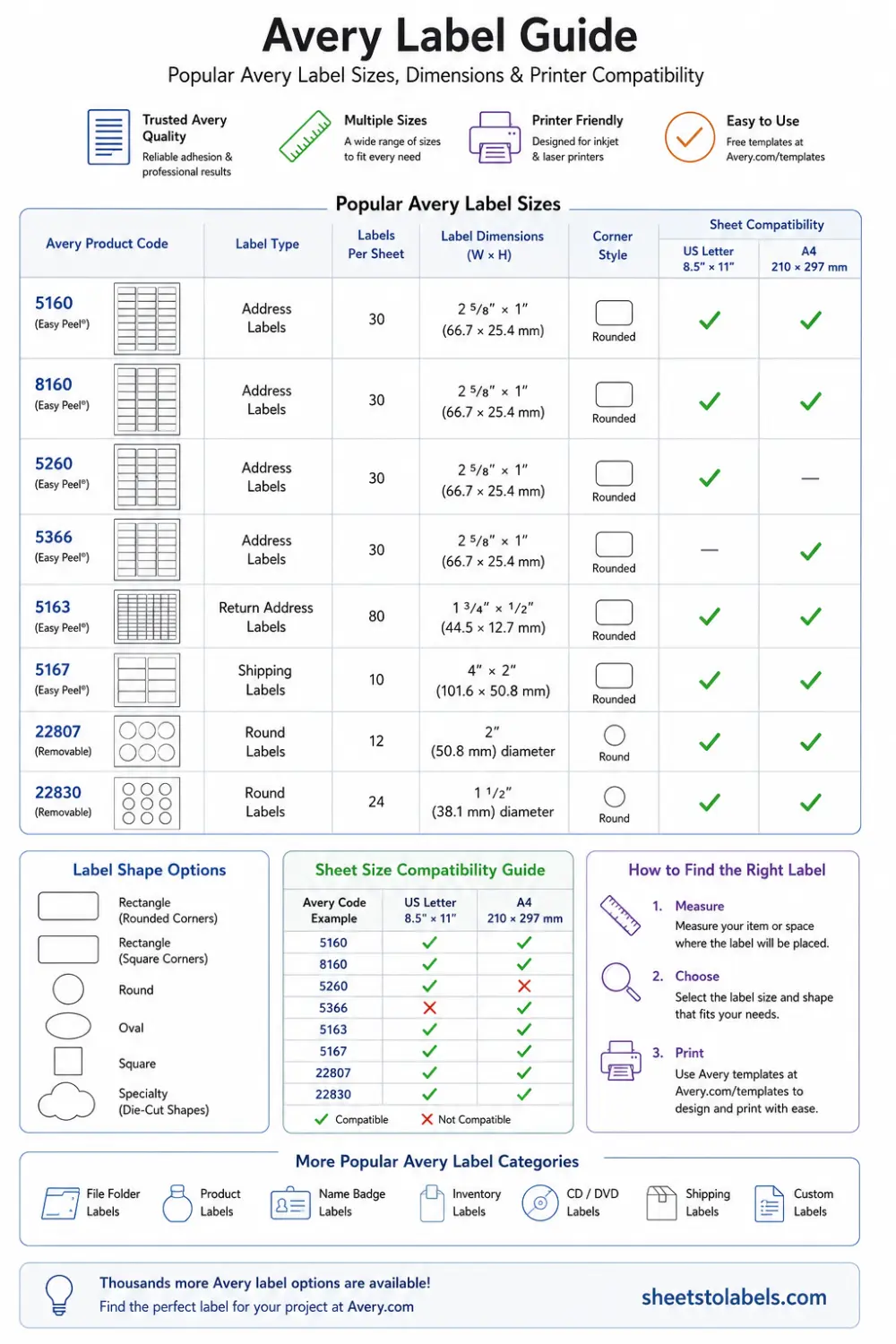
Pick Label Stock
Choose thermal roll labels for one-at-a-time printing, Avery-style sheets for batches, or durable stock for high-touch equipment.
Export, Test, and Apply
Export the PDF, print a plain-paper or spare-label test, scan a few tags, then apply labels to the final equipment batch.
Choose Label Stock by How the Asset Is Used
A tag for a laptop cart has different needs than a tag for a storage bin. Pick the stock and layout before printing the full batch.
Before You Print the Full Asset Batch
Asset labels are often applied in one long tagging session. Catch layout and scanning problems before staff start sticking labels to equipment.
Asset Tag Maker FAQ
Practical questions teams ask before printing asset tags, QR labels, and replacement inventory labels.
Still have questions?
If you couldn't find the answer you're looking for, please feel free to ask us!
Create Asset Tags from Your Existing Inventory List
Import asset IDs, serial numbers, locations, QR URLs, and quantities, preview the label batch, and export a PDF that your team can test before tagging equipment.