
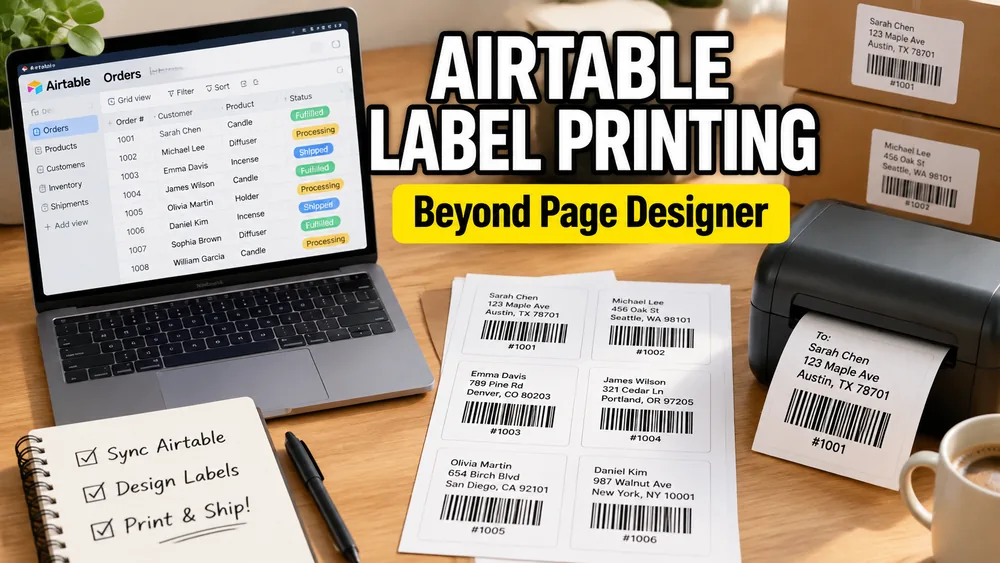
Airtable's native Page Designer extension is a popular choice for designing documents, invoices, and product cards directly within your base. However, when it comes to printing standard retail price tags, shipping stickers, or Avery-style address sheets in bulk, users quickly hit structural and pricing bottlenecks.
If you are looking for an Airtable Page Designer alternative that supports standard Avery grid sheets, thermal label rolls, auto-generated barcodes, and batch quantity handling without locking you into expensive paid plans, a dedicated external label maker is often the best solution.
In this guide, we compare Airtable Page Designer with dedicated printing alternatives to help you choose the fastest, most cost-effective path for your team.
Airtable Label Maker
Export your Airtable view as CSV, import it into our designer, map fields onto any label layout, add barcodes or QR codes, and export a print-ready PDF — no extra extensions needed.
Why Look for a Page Designer Alternative?
While Page Designer is great for single-page records, it presents several painful limitations for labels:
1. The Paid Plan Bottleneck (Pricing)
To use native Extensions (including Page Designer) in Airtable, you must subscribe to a paid plan (such as the Team plan, which costs a minimum of $20 per user per month). For small teams, boutique retail shops, or event organizers, paying a monthly subscription just to print a few sheets of address labels is highly cost-prohibitive.
2. Painful Avery Alignment
Avery label sheets (like the classic 30-up Avery 5160) require extreme layout precision. If your column margins, row gutters, or outer padding are off by even a millimeter, the entire print job will drift, ruining expensive sticker sheets. Page Designer does not have built-in Avery layouts, meaning you have to manually calculate pixels and grid alignment by hand.
3. No Native Thermal Printing
If you use a thermal label printer (such as a Dymo, Zebra, or Brother roll printer), Page Designer struggles to output the exact single-page dimensions required for continuous feed rolls, resulting in blank sheets or cut-off barcodes.
4. Poor Quantity Controls
If you have a database of products and need to print 5 copies of Item A, 12 copies of Item B, and 3 copies of Item C, Page Designer cannot easily read a "quantity" column to repeat those records automatically on a sheet. You have to duplicate the database rows manually to get the correct print counts.
Top Alternatives to Airtable Page Designer
If Page Designer is not a good fit, here are the top three alternative approaches:
Option 1: Dedicated Online Label Makers (Recommended)
By exporting your Airtable grid as a CSV file and importing it into our free online Airtable Label Maker, you bypass Airtable's limitations entirely.
- Cost: Free (no Airtable upgrade required).
- Avery Layouts: Hundreds of preloaded layouts (5160, 5163, 5167, L7160, etc.) that align perfectly.
- Thermal Support: Native layouts for roll printers (57x32mm, 50x25mm, etc.).
- Barcodes: Instant conversion of SKU text into scannable Code 128, UPC, EAN, or QR codes.
- Batch Quantity: Reads a "quantity" column to repeat labels automatically.
Option 2: Paid Marketplace Extensions
There are third-party extensions in the Airtable Marketplace designed specifically for printing labels.
- Cost: Usually requires a paid Airtable plan plus a monthly subscription for the extension (ranging from $15 to $49/month).
- Pros: Keeps the workflow inside the Airtable interface.
- Cons: Expensive, and still subjects you to Airtable's native layout rendering lag.
Option 3: Integration Platforms (Zapier / Make + Google Docs)
You can build an automation that triggers when an Airtable record is created, sending the data to a Google Doc template via Zapier or Make.com.
- Cost: Free to start, but scales with task counts.
- Pros: Fully automated.
- Cons: Extremely complex to configure, prone to integration errors, and slow when processing large batches of historical records.
How to Print Labels Using the CSV Alternative
The easiest alternative to Page Designer is the CSV-to-PDF import flow. It takes under 3 minutes and works on any free Airtable account:
- Filter & Export: Create a grid view in Airtable containing only the records you want to print, and select Export to CSV.
- Select Layout: Open the Airtable Label Maker or the Bulk Barcode Generator and select your target paper size or label format.
- Map & Design: Upload the CSV. Drag your columns (Name, Price, SKU, URL) onto the label. The tool will instantly render text and barcodes.
- Download PDF: Click Export PDF and print with scaling set to
100% / Actual Size.
Choosing the Right Path
- Choose Page Designer if: You already pay for Airtable Team, only print occasionally, and need to design complex multi-page PDF documents rather than sheets of stickers.
- Choose a dedicated tool if: You want to print on standard Avery sheets or thermal rolls, need to generate barcodes or QR codes in batches, or want to avoid upgrading to a paid Airtable plan.
For more details on setting up your data fields and managing alignment errors, read our detailed Airtable label printing guide. If you need each database row to fill out a full B2B document template (like a W-9 tax form or a customer service agreement), you should explore our Airtable to PDF generator workflow instead.