
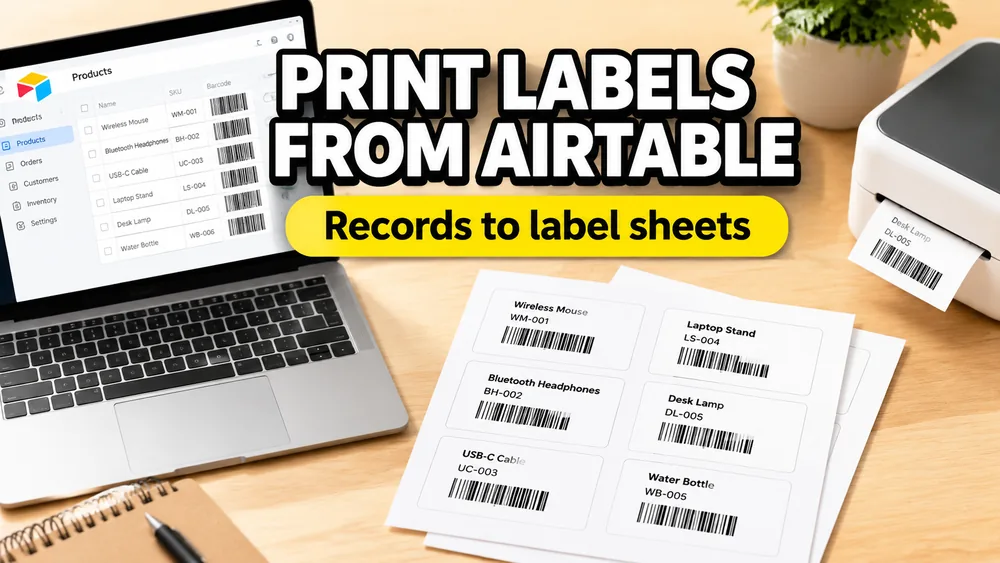
To print labels from Airtable, export the Airtable view as a CSV, clean the column headers, import the CSV into a label maker, map Airtable fields onto the label design, preview the full sheet, export a PDF, and print at 100% / Actual Size.
This guide uses the CSV export workflow. SheetsToLabels does not need direct access to your Airtable base for this method, which keeps the process simple and avoids setting up API keys, automations, or extra Airtable extensions.
Address & Return Label Generator
Create mailing address labels or return address labels from any spreadsheet list. Fits Avery 5160, A4, and custom sheets.
[!TIP] Use the Dedicated Airtable Label Maker: If you want to print address labels or barcode sheets directly from Airtable, try our free online Airtable Label Maker. Just export your records to CSV, drop the file in, and start printing instantly.
If your Airtable table is a contact, donor, member, guest, or customer list, the fastest path is our Airtable Label Maker or the standard Address Label Maker. Export your Airtable view as CSV, choose an Avery layout such as Avery 5160, map the address fields, and print the PDF.
For inventory labels, QR labels, product tags, or custom label layouts, use the Airtable Label Maker or Label Designer.
If each Airtable record should become a completed form, invoice, certificate, contract, or other document instead of a label sheet, use the Airtable PDF Generator or read the Airtable to PDF form guide.
Quick Answer
- Open the Airtable view that contains the records you want to print.
- Hide columns you do not need on the label.
- Export the view as CSV.
- Open Address Label Maker for mailing labels, or Label Designer for custom labels.
- Import the CSV.
- Pick an Avery, US Letter, A4, thermal, or custom label layout.
- Place fields such as
Name,Address,SKU,Barcode, orLocationonto the label. - Preview the full page, export a PDF, and print at
100% / Actual Size.
If you only need mailing labels, start with Address Label Maker. If you need product labels, inventory labels, QR labels, name badges, or custom layouts, use Label Designer or CSV to Labels.
When this workflow makes sense
Airtable is excellent for organizing records, but it is not always the easiest place to create precise printable label sheets. A CSV export is often the fastest bridge between your Airtable base and a print-ready PDF.
This works well for:
- donor, member, customer, or guest address labels
- inventory labels with SKU, location, barcode, or QR code
- event attendee name badges
- classroom, library, or asset labels
- product tags and price labels
- sample, tray, shelf, or storage labels
The important idea is simple: Airtable stays as the database. The label tool handles layout, repetition, PDF export, and print alignment.
Step 1: Create an Airtable view for printing
Before exporting, create a dedicated Airtable view for the label job. This keeps the CSV clean and prevents internal fields from cluttering the label import.
For example, an address label view might include:
| Field | Example |
|---|---|
full_name | Jordan Lee |
company | Northside Studio |
address_line_1 | 120 Market Street |
address_line_2 | Suite 4B |
city | Portland |
state | OR |
zip | 97205 |
An inventory label view might include:
| Field | Example |
|---|---|
item_name | Cordless Drill |
asset_id | AST-1042 |
barcode | AST1042 |
location | Tool Room A |
assigned_to | Maintenance |
Recommended cleanup before export:
- keep one Airtable record per label
- hide internal notes, formulas, and linked-record fields that do not print
- use clear field names instead of generic names like
Field 1 - format ZIP or postal codes as text if leading zeros matter
- filter the view to only the records you want to print
- sort the view in the order you want labels to appear
Step 2: Export the Airtable view as CSV
Open the Airtable view menu and export the current view as CSV. Airtable exports the visible fields and filtered records from that view, so the CSV should already match the job you want to print.
After downloading the CSV, open it quickly in a spreadsheet editor if you need to check the headers or remove extra columns. Avoid making the data too clever. A simple CSV with clean headers is easier to map onto labels.
If your Airtable data includes linked records or lookup fields, check the exported text. Sometimes those fields are better converted into a formula or plain text field before export.
Step 3: Choose the right label workflow
Different Airtable tables need different label starting points.
| Airtable data | Best starting point |
|---|---|
| mailing addresses | Address Label Maker |
| general CSV label sheets | CSV to Labels |
| custom product, asset, or QR labels | Label Designer |
| barcode or inventory labels | Bulk Barcode Generator |
| Google Sheets copy of the same data | Google Sheets to Labels |
For Avery address labels such as Avery 5160, use Address Label Maker or the dedicated Avery 5160 address labels guide.
For mixed label designs with text, barcodes, QR codes, images, prices, or custom paper sizes, use Label Designer.
Step 4: Import the Airtable CSV
Import the CSV into the label workflow you chose. The tool reads the first row as field names, then lets you map those fields onto the label design.
Common Airtable field mappings:
full_nameto the main address or badge name linecompanyto the second address line or badge subtitleaddress_line_1,address_line_2,city,state, andzipto an address blockitem_nameto a product or inventory label titlesku,asset_id, orbarcodeto a barcode elementqr_urlto a QR code elementpriceto a product taglocationto an inventory or shelf label footerquantityorcopiesto control repeated labels, if your workflow uses a copy-count column
If you need several Airtable fields in one text block, use a text template. For example:
{{full_name}}
{{address_line_1}}
{{city}}, {{state}} {{zip}}
Or for inventory:
{{item_name}}
Asset: {{asset_id}}
Location: {{location}}
Step 5: Pick the label size
Match the label layout to the paper or printer you will actually use.
Common choices:
- Avery 5160 for standard US mailing labels
- Avery 8160 for inkjet mailing label sheets
- Avery 5163 or 8163 for larger shipping or name-tag style labels
- smaller return address label sheets
- 4x6 thermal labels for shipping-style output
- custom A4 or US Letter layouts for internal labels
Do not guess the layout number. If the label package says Avery 5160, choose Avery 5160 or a truly compatible 30-up layout. Small differences in margins can cause the whole page to drift.
For broader compatibility details, read Avery Label Sizes and Template Compatibility.
Step 6: Preview the full sheet
Previewing one label is not enough. Always preview the full page before printing.
Check for:
- long names or company names wrapping badly
- city/state/ZIP lines overflowing
- blank records creating blank labels
- barcode values mapped to the wrong field
- duplicate labels caused by an unexpected quantity field
- labels drifting because the wrong paper size was selected
- Airtable lookup fields exporting too much text
This is the step that replaces most of the trial-and-error people run into with Word mail merge or manual document layouts.
Step 7: Export PDF and print at actual size
When the preview looks correct, export the label sheet as a PDF.
Then print with these settings:
- scale:
100%orActual Size - avoid:
Fit to Page,Shrink to Fit, or browser auto-scaling - paper size: match the PDF, usually US Letter or A4
- first run: print on plain paper and hold it against the label sheet
If the printed output is shifted, do not resize the design randomly. First confirm paper size, printer scale, and the selected label template. For more detail, use How to Fix Label Printing Misalignment.
Example: Airtable address labels
For a nonprofit, school, event, or membership list, the usual flow is:
- Create an Airtable view named
Address Label Export. - Include only recipient and address fields.
- Export the view as CSV.
- Open Address Label Maker.
- Choose an Avery layout such as Avery 5160.
- Map the recipient and address fields.
- Preview the full sheet and print the PDF at actual size.
This avoids building a Word mail merge document and lets you check the finished label sheet before using real label stock.
Example: Airtable barcode or inventory labels
For inventory labels, the flow is similar, but the design usually includes a barcode or QR code.
Useful Airtable fields:
item_nameskuasset_idbarcodeserial_numberlocationdepartmentqr_url
After importing the CSV, add a barcode or QR code element and bind it to the correct field. Test a few labels with the scanner or phone app you actually use before printing the full batch.
For a step-by-step walkthrough of every barcode format and alignment setting specific to Airtable data, read How to Generate and Print Barcode / QR Codes from Airtable. The same barcode preparation rules apply to any CSV exports from Airtable.
Example: Airtable event name badges
If your Airtable base tracks event attendees, export fields such as:
nametitlecompanybadge_typeattendee_idqr_code
Then use a name badge or custom label layout, place the attendee fields onto the badge, and export the full sheet as a PDF. This is useful when you need badges on Avery-style sheets rather than individual designs.
For the spreadsheet version of this workflow, read How to Print Name Badges from Excel or Google Sheets.
Common questions
Does SheetsToLabels connect directly to Airtable?
This guide uses CSV export instead of a direct Airtable integration. Exporting a view as CSV is usually enough for label printing, and it keeps your Airtable base private.
Can I print Avery labels from Airtable?
Yes. Export the Airtable view as CSV, then import the CSV into Address Label Maker, CSV to Labels, or Label Designer. Choose the Avery layout that matches your label paper, preview the full sheet, export the PDF, and print at actual size.
Can I print barcode labels from Airtable?
Yes. Include a field such as barcode, sku, asset_id, or qr_url in your Airtable view. Export the view as CSV, import it, add a barcode or QR element, and map that element to the right field.
Should I use Airtable Page Designer instead?
Airtable Page Designer can work for some record layouts, especially when you want one record per page. For precise Avery label sheets, barcode batches, QR labels, or repeated sheet layouts, exporting CSV to a dedicated label workflow is usually easier to control. For a detailed side-by-side comparison of pricing, alignment accuracy, and thermal label support, read Airtable Page Designer Alternatives for Printing Labels.
What if my Airtable address is split across many fields?
That is fine. Keep separate fields like address_line_1, city, state, and zip, then place them together in the label editor. Separate fields are usually easier to clean and map than one large unstructured address field.
Related guides
- How to Generate and Print Barcode / QR Codes from Airtable
- Airtable Page Designer Alternatives for Printing Labels
- CSV to Labels
- How to Print Labels from Excel
- How to Print Labels from Google Sheets
- How to Fill PDF Forms from Airtable
- How to Print Address Labels from Excel or Google Sheets
- How to Create Barcode Labels from Google Sheets
- Avery Label Sizes and Template Compatibility