
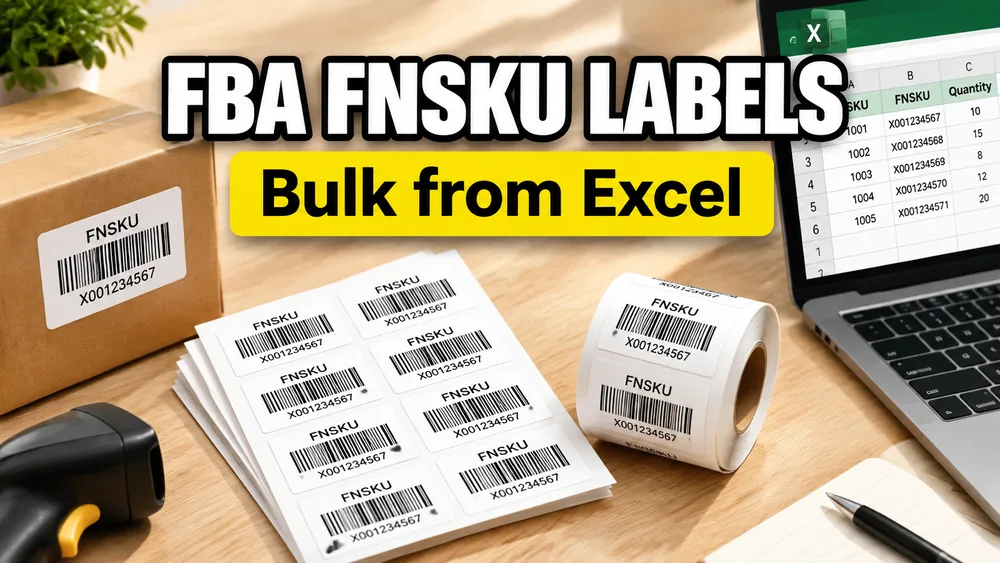
As an Amazon FBA (Fulfillment by Amazon) seller, labeling your inventory correctly is critical. Before sending your products to an Amazon fulfillment center, each unit must have a scannable barcode called the FNSKU (Fulfillment Network Stock Keeping Unit).
While you can print labels one by one through Amazon Seller Central, doing this for hundreds of products across different SKUs is extremely time-consuming.
In this tutorial, we will show you how to bulk generate FNSKU barcode labels directly from an Excel spreadsheet or CSV file, format them for thermal printers (like Rollo, Munbyn, or Zebra) or standard Avery sheets, and export a print-ready PDF in seconds.
Excel Label Printing Tool
Ditch Word mail merge. Upload your .xlsx or .xls spreadsheet, place fields visually, and generate perfectly aligned label PDFs in seconds.
What is an FNSKU Label?
An FNSKU is a unique barcode that Amazon uses to link a product to your specific seller account. Unlike a standard manufacturer UPC or EAN, the FNSKU ensures that your inventory does not get commingled with identical products sent in by other sellers.
Amazon requires every FNSKU item label to have three specific elements:
- The Barcode: Rendered in standard Code 128 barcode format.
- The FNSKU number: The alphanumeric code printed directly under the barcode.
- The Product Title and Condition: The name of the product and its condition (typically "New").
Step 1: Prepare your Excel Inventory Sheet
To batch-print labels, start by creating a clean spreadsheet containing your FBA item details. You can export this data from Seller Central or create a simple sheet with the following columns:
fnsku: The FNSKU code (usually starts withX00...).title: The product name.condition: UsuallyNeworUsed.quantity: The number of labels you need to print for this item.
Ensure that the first row of your spreadsheet contains these clear headers, and avoid merging cells.
Step 2: Upload to FNSKU Label Generator
Using a dedicated browser tool is the fastest way to translate spreadsheet rows into Code 128 barcodes without installing software:
- Open the Amazon FBA Label Maker.
- Click Upload Excel / CSV and select your inventory spreadsheet.
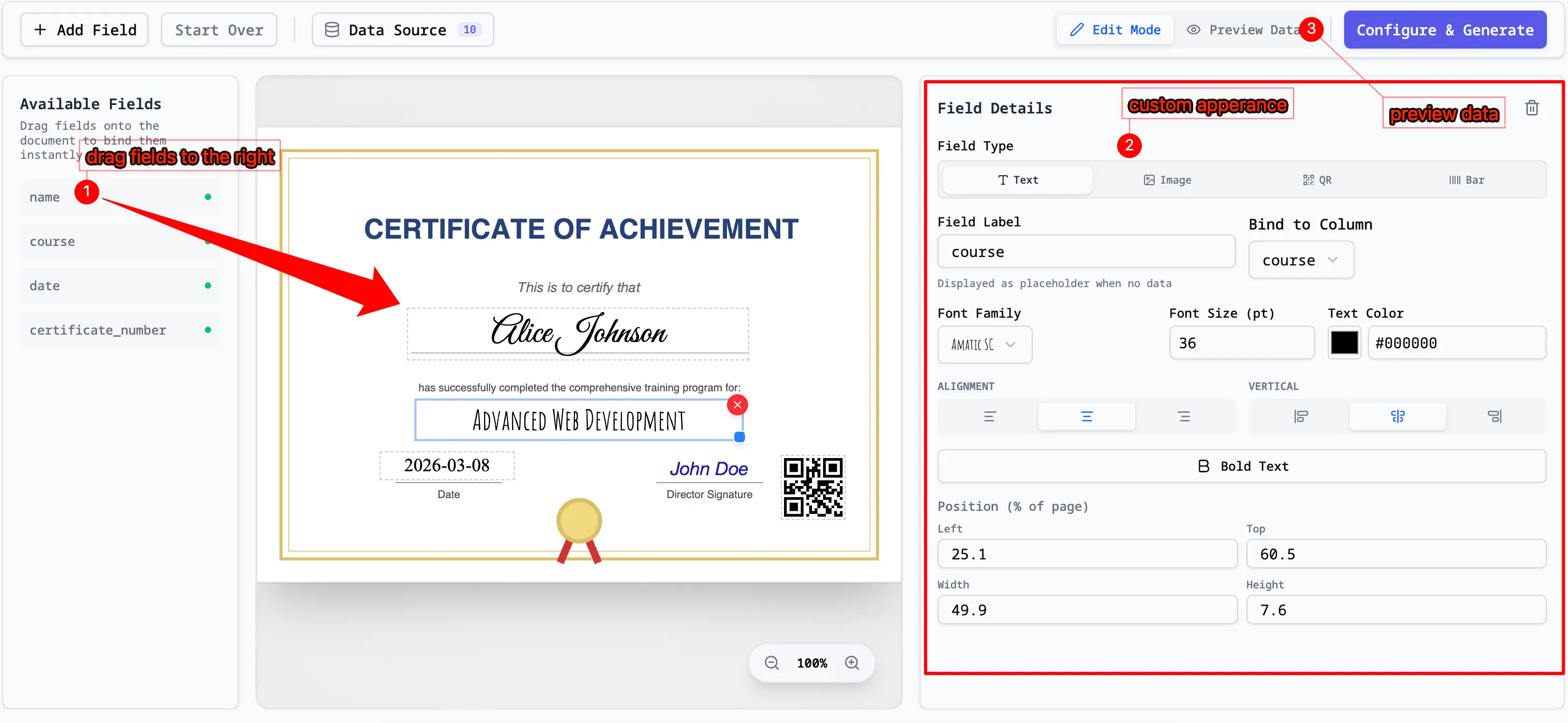
- The visual designer will show a preview of your FBA label.
Step 3: Map Columns to Barcode and Text
Now, connect your Excel columns to the label layout:
- The Barcode Field: Map the
fnskucolumn to the barcode generator. Choose Code 128 as the barcode format (this is the Amazon standard). - Text Line 1: Map the
titlecolumn. - Text Line 2: Map the
conditioncolumn (e.g., "New" or "New - Sold as Pack"). - Quantity: If your spreadsheet has a
quantitycolumn, select it to automatically generate the correct number of label copies for each product row.
Step 4: Choose your Label Size and Layout
Amazon accepts several standard label dimensions. Select the layout that matches your printer setup:
For Thermal Printers (Rollo, Zebra, Munbyn, Brother)
- Choose a roll format such as 2" x 1" (50.8mm x 25.4mm) or 2-1/4" x 1-1/4" (57mm x 32mm).
- The tool will generate a PDF with one barcode per page, perfect for continuous thermal label printing.
For Inkjet or Laser Printers (A4 / Letter sheets)
- Choose a 30-up sheet format like Avery 5160 / 8160 or 30-up A4 sheets.
- The tool will lay out the FNSKUs across the grid automatically, filling the sheets from left to right.
Step 5: Export and Print at 100% Scale
Click Export PDF to generate the batch. When printing the PDF, follow these critical rules to prevent scans from failing at the Amazon warehouse:
- Set Scale to 100%: In your PDF print settings (Acrobat or Browser), select "Actual Size" or "100% Scale". Do not let the printer shrink or stretch the layout.
- High Resolution: Print at a high DPI (300 DPI or higher) so the black lines of the Code 128 barcode remain sharp and scannable.
- Scan Test: Before applying the labels to your products, use a smartphone scanner app or a handheld barcode scanner to verify that the printed FNSKU reads correctly.
By automating this process, you can generate thousands of scannable product labels in a single click, ensuring your inventory is processed quickly and accurately at Amazon Fulfillment Centers.