
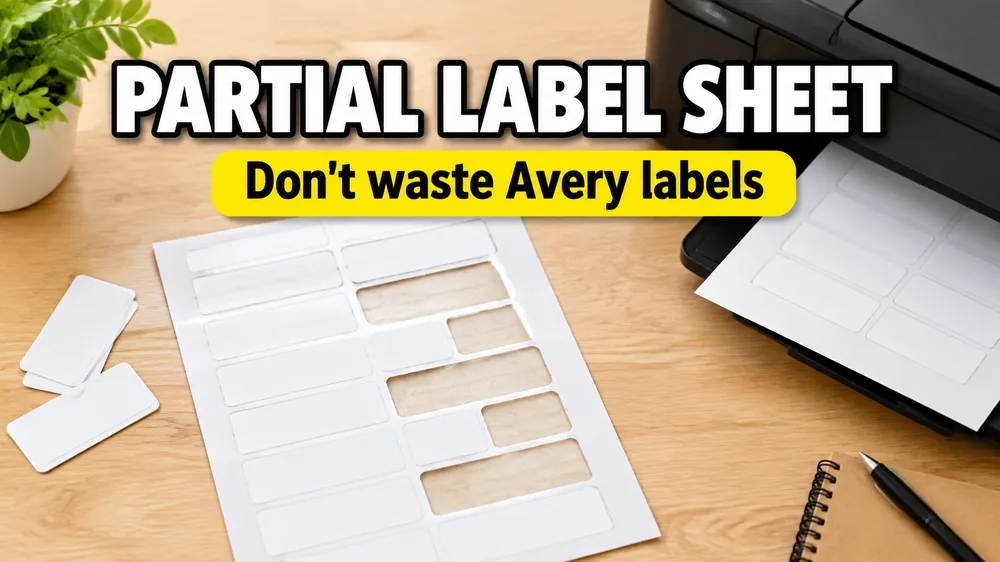
If you only need a few labels, a full sheet can feel wasteful. Maybe the first row of an Avery 5160 sheet is already gone, or you used half a page of return address labels and want to start the next print job lower down.
The trick is to tell the label maker where the first available label position starts. In Label Designer, this is handled with Start printing at label in the print layout settings.
Quick Answer
Count the label positions from left to right, top to bottom. If the first 5 labels are already used, set Start printing at label to 6. The first 5 spaces on the PDF stay blank, and your first imported row prints on the sixth physical label.
This works best for sheet labels such as Avery-compatible address labels, return address labels, file folder labels, product labels, and custom sheet layouts.
Before You Reuse a Label Sheet
Partially used label sheets are convenient, but they are not always risk-free.
- Labels that have already passed through a printer can curl.
- Heat from laser printers can loosen adhesive.
- Missing labels can expose sticky backing if the sheet was peeled roughly.
- A second printer pass can drift slightly compared with the first pass.
If the remaining labels are curling, lifting, or sticky around the edges, use a fresh sheet. A peeled label inside a printer is much more expensive than one wasted page.
How to Count the Start Position
Most label templates fill the page in reading order:
- Start at the top-left label.
- Count across the row from left to right.
- Move to the next row.
- Continue until you reach the first unused label.
For example, Avery 5160 has 30 labels per US Letter sheet: 3 columns by 10 rows.
If the first row and the first two labels in the second row are already used, count:
| Position | Sheet spot |
|---|---|
| 1 | Row 1, column 1 |
| 2 | Row 1, column 2 |
| 3 | Row 1, column 3 |
| 4 | Row 2, column 1 |
| 5 | Row 2, column 2 |
| 6 | Row 2, column 3 |
Your first open label is position 6, so set Start printing at label to 6.
Print on a Partially Used Sheet in SheetsToLabels
- Open Label Designer or the focused tool for your job, such as Address Label Maker or Avery Label Maker.
- Import your Excel file, CSV, pasted rows, or Google Sheets data.
- Choose the correct sheet layout, such as Avery 5160, Avery 5167, Avery 5163, A4, Letter, or a custom grid.
- Open the print layout settings.
- Set Start printing at label to the first unused position.
- Preview the full sheet.
- Export the PDF.
- Print at
100% / Actual Size.
The preview should show blank spaces before the first printed label. Those blank spaces represent the labels you already used.
Test Before Loading the Label Sheet
Do one plain-paper test before using the partially used sheet:
- Export the PDF.
- Print it on regular paper at
100% / Actual Size. - Place the printed paper over the label sheet.
- Hold both sheets up to a light.
- Confirm the printed content lands on the remaining labels.
If the test print is shifted, fix the alignment before loading label stock.
For alignment issues, use the full troubleshooting guide: Why Are My Labels Printing Out of Alignment?
Avery 5160 Example
Avery 5160 is a common address-label layout with 30 labels per US Letter sheet.
If the top 10 labels are used, the next available label is position 11. Set Start printing at label to 11, preview the PDF, and print at actual size.
If you are printing mailing addresses from a spreadsheet, start with Address Label Maker. If you need exact Avery 5160 dimensions and compatibility details, use the Avery 5160 Template.
Avery 5167 Example
Avery 5167-style return address labels are much smaller, so it is easier to miscount.
Count every small label from left to right and top to bottom. If the first 24 positions are already used, set Start printing at label to 25.
For return address labels, use Personalized Return Address Labels or Address Label Maker.
When Not to Use a Partially Used Sheet
Use a fresh sheet when:
- the sheet has curled after a previous printer pass
- any labels are lifting from the backing
- the printer path bends the sheet sharply
- you are printing a large batch that must be perfect
- the label stock package warns against refeeding sheets
Thermal roll labels do not need this workflow because there is no sheet grid to skip. For thermal labels, choose the correct roll size and print the next label normally.
FAQ
Can I start printing at any label on the sheet?
Yes, if the layout has more than one label per sheet. Set the first available position in Start printing at label. The PDF keeps earlier positions blank.
Does this work with Excel or Google Sheets data?
Yes. Import Excel, CSV, pasted rows, or Google Sheets data first, then choose the start label position before exporting the PDF.
Should I print on a half-used label sheet with a laser printer?
Be careful. Laser printers use heat, and a sheet that has already been heated once may curl or loosen. Test with plain paper first, and avoid reusing sheets with lifted label edges.
Why did my labels print in the wrong spot?
The most common causes are wrong template number, wrong paper size, or print scaling. Use 100% / Actual Size, not Fit to Page. Read the label alignment troubleshooting guide if the page drifts.
Can I print just one label on an Avery sheet?
Yes. Use one row of label data, set Start printing at label to the unused position, preview the PDF, and print at actual size.
Final Checklist
- The sheet is flat and safe to refeed.
- The template matches the label package.
- The start position is counted left to right, top to bottom.
- The PDF preview shows blank spaces before the first printed label.
- The test print lines up on plain paper.
- The final print uses
100% / Actual Size.
When those checks pass, you can reuse the remaining labels without rebuilding the sheet in Word or wasting another page.