
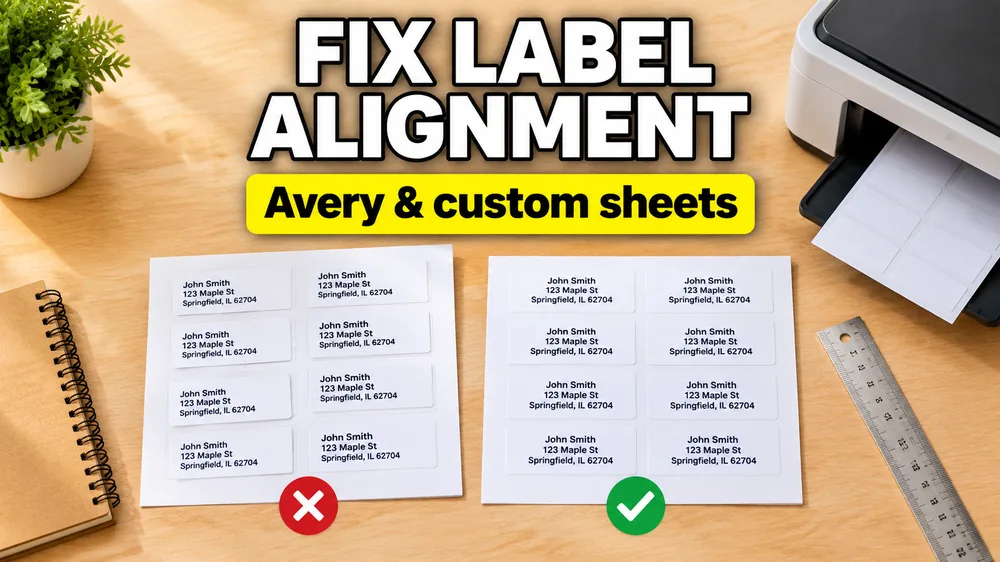
There is nothing more frustrating than printing a batch of labels and finding that the first row looks fine, the middle row is a little off, and the bottom row has drifted outside the sticker.
This creeping misalignment is the most common label printing issue. It happens with Avery 5160 address sheets, round candle labels, product stickers, barcode labels, and custom multi-row layouts.
If your label job starts in a spreadsheet, you can test the layout first in Address Label Maker, Excel to Labels, or Label Designer before wasting actual stock.
If you need a printable staff reference for school offices, PTAs, libraries, or nonprofit mailings, download the Avery 5160 institutional printing checklist.
The key fixes are:
- Set print scale to
100% / Actual Size. - Make sure the PDF paper size matches the real label stock.
- Confirm the template number, rows, columns, and label size.
- Check non-printable printer margins.
- Test on plain paper before loading labels.
- Adjust offsets only after the basics are correct.
Diagnose the Pattern First
Before changing margins, look at how the printed sheet is wrong.
| What you see | Likely cause | First fix |
|---|---|---|
| First row is right, lower rows drift | Print scaling, A4/Letter mismatch, or wrong vertical pitch | Print at 100% / Actual Size and confirm paper size |
| Every label is shifted left or right by the same amount | Printer feed or page offset | Add a small left/right offset after testing scaling |
| Only the outer edge is clipped | Non-printable printer margin | Move text away from label edges |
| Round labels are close at the top but miss the circles lower down | Scaling or wrong round-label template | Check stock number, paper size, and PDF scale |
| One label looks fine but long rows break | Text wrapping or oversized content | Preview the full sheet with real data |
The Culprit: "Fit to Page"
90% of alignment issues are caused by your printer settings. When you print a PDF, most browsers/systems default to "Fit to Page" or "Shrink to Fit".
- Label sheets (A4 or Letter) have very specific margins.
- If your printer shrinks the content by even 2% to "fit" it, the cumulative error grows with every row. By the bottom of the page, the alignment is off by inches.
The Fix
In your print dialog:
- Look for Scale or Page Sizing.
- Select "Custom: 100%" or "Actual Size".
- Ensure "Fit to Page" is unchecked.
This is the moment when labels start showing the classic symptoms:
- why are my labels printing out of alignment
- avery labels printing off center
- my avery labels are not printing correctly
- why do my labels not print correctly
- round labels not lining up
- candle labels printing off center
Issue 2: Wrong Paper Size
Are you printing a "US Letter" (8.5x11") design on "A4" paper (or vice versa)?
- Symptom: The labels are centered left-to-right but drift vertically, or are cut off at the side.
- Fix: Ensure your design template in Label Designer or Address Label Maker matches the physical paper you bought. Check the box on your label package.
If you bought US Letter label sheets, do not print an A4 template. If you bought A4 label sheets, do not scale a US Letter PDF to fit. The PDF may look acceptable on screen, but the row spacing will not match the physical cuts.
Issue 3: Wrong Label Template
Avery numbers often look similar, but small differences matter.
For example:
- Avery 5160-style sheets use a 3 x 10 layout on US Letter paper.
- Avery 5163-style sheets use a 2 x 5 layout on US Letter paper.
- Return-address labels can have many more rows, so tiny scaling errors become obvious.
- Round candle labels need the exact circle diameter, columns, rows, margins, and gaps.
If the stock number is not listed in your editor, match the physical layout instead:
- Paper size
- Label width and height, or circle diameter
- Number of columns
- Number of rows
- Top and left margins
- Horizontal and vertical gaps
Use the Avery Label Sizes and Template Compatibility Guide if you need help comparing common layouts.
Issue 4: Non-Printable Margins
Most home printers cannot print to the absolute edge of the paper (borderless).
- Symptom: Content near the very edge is clipped.
- Fix: Keep important text and barcodes at least 0.25" (6mm) away from the edge of the label itself, especially if the label is close to the edge of the page.
This matters for product and candle labels because the design often has a border, circle text, or a logo near the cut line. Even if the label itself reaches the edge, your printer may not.
Issue 5: Long Spreadsheet Values
Sometimes the sheet alignment is fine, but the data makes individual labels look broken.
Common examples:
- long scent names on small candle labels
- apartment addresses wrapping to extra lines
- barcode text printed below a code and pushing other text down
- product names colliding with prices
- blank spreadsheet rows creating blank labels
Preview the full sheet with real rows before printing. A single perfect sample label does not prove that row 28 will fit.
How to Test Without Wasting Labels
Label paper is expensive. Don't waste it on calibration.
- Load plain paper into your printer.
- Print your design.
- Place the plain paper on top of a sheet of label paper.
- Hold them up to a bright light (window or lamp).
- You can see through the paper to check if the text aligns with the peel-off borders.
Check the top row, middle row, and bottom row. If the error gets worse as you move down the sheet, fix scaling or paper size before adjusting offsets.
Advanced Tip: Custom Offsets
If your printer consistently pulls paper slightly to the left or right, some tools allow page offsets. In Label Designer, you can define custom paper sizes with adjusted margins such as adding 2mm to the top margin to compensate for a quirky printer feed.
Use offsets only after you have confirmed:
- print scale is
100% / Actual Size - paper size matches the template
- template rows, columns, and gaps match the physical sheet
- you tested with a dedicated PDF viewer instead of relying only on a browser print dialog
Special Case: Candle and Product Labels
Candle, fragrance, soap, and handmade product labels are especially sensitive because they often use round labels, small warning stickers, or product sheets with tight margins.
If round jar labels are drifting:
- Confirm the exact label diameter.
- Confirm the row and column count.
- Print at
100% / Actual Size. - Avoid designs that place text right on the circle edge.
- Test on plain paper before loading glossy or waterproof stock.
If you are printing many scent variations from a spreadsheet, keep one row per label and preview the whole sheet. Read How to Make Candle Labels from Google Sheets for a candle-specific workflow.
Which workflow should you test in?
- For mailing sheets and Avery-style address labels, use Address Label Maker.
- For Excel-based label jobs, use Excel to Labels.
- For product, barcode, shipping, and custom layouts, use Label Designer.
If your source data is already in Google Sheets, read How to Print Labels from Google Sheets before testing another print run.
Try Label Designer
If you want a faster way to test templates, margins, and custom paper sizes, try Label Designer. If you are printing mailing labels, use Address Label Maker. If your source data is already in Google Sheets, read How to Print Labels from Google Sheets.