
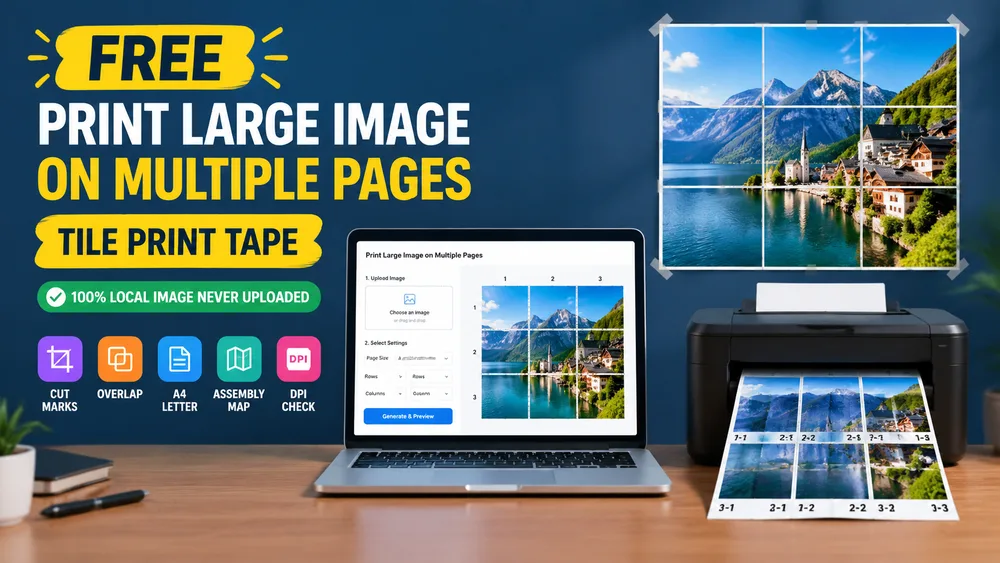
Home printers stop at A4 or Letter. A wall poster does not. The practical fix is tiling: split one image into a grid of normal pages, print every tile at actual size, then tape the sheets together.
Use the Print Large Image tool to build that multi-page PDF in your browser. Files stay local; preview is free; a clean export uses credits per output sheet.
This workflow fits classroom displays, dorm wall art, party backdrops, board-game maps, and temporary signs when a print shop plotter is overkill.
The short version
- Start with the highest-resolution JPG, PNG, or WebP you have.
- Choose the paper that is actually in the tray (A4 or Letter).
- Set sheets wide × sheets tall (for example 2×2 or 3×3).
- Add a few millimeters of overlap and keep cut marks on.
- Print every page at 100% / Actual size — never Fit to page.
- Trim, align labels, and tape from the back.
Why Fit to page ruins posters
Every tile is sized for one sheet of paper. If the printer dialog shrinks the page to “fit,” each tile becomes slightly smaller than planned. Gaps appear, labels drift, and overlap stops lining up.
Treat the PDF like a label sheet: scale locked at actual size, paper size matching the tool settings.
Overlap and cut marks
Overlap (about 5–10 mm) duplicates a thin strip of image on neighboring tiles. That strip is your alignment guide while taping. Cut marks at the content corners show where to trim after printing.
Without overlap, even a 1 mm tray skew shows as a seam. With overlap, you can nudge and trim until edges match.
Adobe Poster mode vs an image tiler
Adobe Acrobat / Reader can print an existing PDF in Poster mode. That helps when the source is already a PDF page.
If you only have an image, a browser tiler is usually faster: pick the grid, add labels and an assembly map, and download one print-ready PDF without converting through Acrobat first.
For folded booklets instead of wall posters, use the PDF Booklet Maker.
DPI and soft prints
Effective DPI falls as the finished poster grows. A phone screenshot may look fine as a 2×2, then soft as a 4×4. The tool shows an estimated DPI before you export. When the number drops below ~100, use a sharper source or fewer sheets.
Proof one tile
Large posters use a lot of ink. Print a center tile first to check color, margins, and scale. Then run the full grid.