
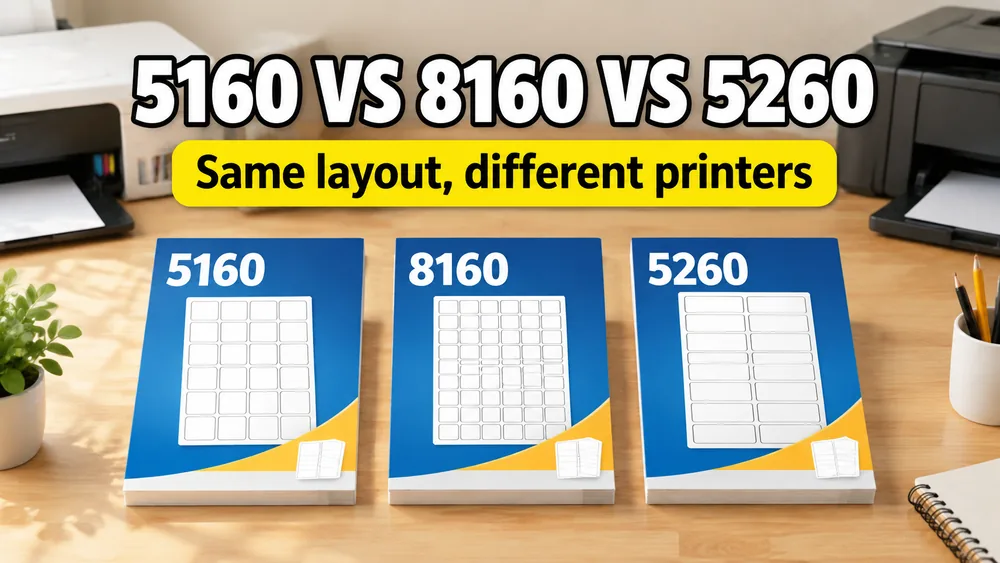
If you are preparing a mailing list, wedding envelopes, or client mailings, you have probably run into three very common label numbers: Avery® 5160® Address Labels, Avery® 8160® Address Labels, and Avery® 5260® Address Labels.
If you are standing in an office supply aisle or looking at templates online, you might be asking: “What is the difference between these labels? Do I need a different template for each one? Are they compatible?”
The short answer is: Yes, they are 100% layout-compatible. They have the exact same physical dimensions and layout, meaning they share the same template. The only differences are the printer type they are designed for and the materials they are made of.
Trademark note: This program is not made, tested or endorsed by Avery Products Corporation. Avery and all Avery brands, product names and codes are trademarks of CCL Label, Inc. Product names and codes are referenced only to describe compatible label layouts.
Address & Return Label Generator
Create mailing address labels or return address labels from any spreadsheet list. Fits Avery 5160, A4, and custom sheets.
Avery® 5160® vs Avery® 8160® vs Avery® 5260® Address Labels: Quick Comparison
Here is how these three popular 30-up address labels compare:
| Property | Avery® 5160® Address Labels | Avery® 8160® Address Labels | Avery® 5260® Address Labels |
|---|---|---|---|
| Dimensions | 1" x 2-5/8" (2.625" x 1") | 1" x 2-5/8" (2.625" x 1") | 1" x 2-5/8" (2.625" x 1") |
| Labels per Sheet | 30 labels (3 cols x 10 rows) | 30 labels (3 cols x 10 rows) | 30 labels (3 cols x 10 rows) |
| Paper Size | US Letter (8.5" x 11") | US Letter (8.5" x 11") | US Letter (8.5" x 11") |
| Primary Printer | Inkjet | Inkjet (Eco-friendly) | Laser |
| Material | Standard White Paper | Recycled Paper & Adhesive | Heat-resistant Laser Paper |
| Template Layout | Identical | Identical | Identical |
Detailed Differences Explained
Avery® 5160® Address Labels: The Inkjet Standard
The Avery® 5160® Address Labels layout is the most widely used address label sheet in North America. It is designed specifically for inkjet printers.
- Pros: Sharp text and vibrant colors when printed with standard inkjet ink.
- Cons: If you run it through a hot laser printer, the adhesive might melt slightly, causing labels to peel off inside the printer drum and create a paper jam.
Avery® 8160® Address Labels: The Eco-Friendly Alternative
The Avery® 8160® Address Labels layout has the exact same dimensions as 5160® and is also designed for inkjet printers, but it is manufactured using 100% recycled paper and processed chlorine-free.
- Pros: Uses water-based, solvent-free adhesives. Safe for the environment and works seamlessly with any template that accepts 5160®.
- Cons: Colors might appear slightly less bright due to the recycled paper composition compared to standard bright white paper.
Avery® 5260® Address Labels: The Laser Printer Special
Laser printers use intense heat to fuse toner onto the paper. The Avery® 5260® Address Labels layout is engineered specifically for laser printers.
- Pros: Made with heat-resistant paper and a special adhesive that will not dry out or melt when passed through the hot rollers of a laser printer.
- Cons: Using laser labels in an inkjet printer is physically safe, but the ink might take longer to dry or smudge slightly because laser paper is less absorbent than inkjet paper.
Template Compatibility: Can you use a 5160® template for 8160® and 5260® sheets?
Yes. If your software, word processor, or template builder lists the "Avery® 5160® Address Labels" layout, it will work perfectly for Avery® 8160® Address Labels and Avery® 5260® Address Labels sheets as well.
Because the spacing, margins, column gaps, and row heights are identical across all three formats, you do not need to look for separate templates. They are completely interchangeable. Other compatible templates sharing this exact same size include:
- 5520®, 5810®, 5960®, 8160®, 8250®, 8460®, and 8660®
- Pre-cut 18160®, 48160®, 48260®, and 48460®
- Standard generic "30-up address labels" (3 columns, 10 rows, 1" x 2-5/8" dimensions)
How to Print Avery® 5160® / Avery® 8160® / Avery® 5260® Address Labels from Excel
Typing addresses directly into a Word template or manually copying rows from Excel is a slow and frustrating chore. The easiest way to print address labels from Excel is to use a visual label builder.
Step 1: Prepare your spreadsheet
Create an Excel file (.xlsx) or CSV containing your recipient addresses. Keep your column headers simple:
namecompany(optional)address_line_1citystatezip
Ensure that each row represents a separate recipient (one row = one printed label).
Step 2: Upload and choose the template
Open Address Label Maker in your browser:
- Click Import Excel / CSV and upload your spreadsheet.
- Select the Avery® 5160® Address Labels layout (this automatically covers 8160® and 5260® as well).
- Connect your Excel columns to the lines on the label preview. You can customize font styles, sizes, and alignments.
Step 3: Print at 100% (Actual Size)
When you are satisfied with the preview, export the print-ready PDF file.
- Crucial Rule: When sending the PDF to your printer, open the printer settings dialog and set Page Scaling to "Actual Size" or "100%".
- Do NOT select "Fit to page" or "Shrink to print area", as this shrinks the sheet layout slightly, causing the print alignment to drift.
For more information on setting margins and fixing alignment, see our Troubleshooting Alignment Guide.