
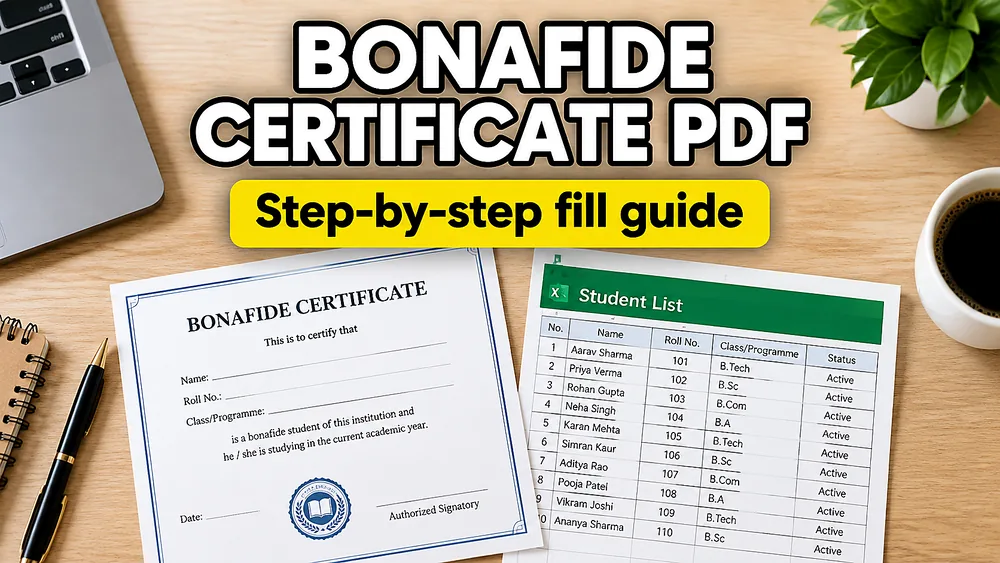
To fill a bonafide certificate PDF, prepare one row per student or recipient, upload the certificate PDF, map the spreadsheet columns to the certificate layout, preview a few real rows, and export one PDF per record.
If you want the shortest product-first path, start with Fill PDF from Excel or Google Sheets.
The key steps are:
- Prepare a clean spreadsheet with one student or recipient per row.
- Upload the bonafide certificate PDF template you already use.
- Map columns like name, class, roll number, and academic year to the PDF.
- Preview rows with long names and unusual values.
- Export one finished certificate PDF per row.
This is usually not a one-off PDF editing task.
It is a repeated document workflow where:
- the certificate layout stays mostly the same
- the recipient changes
- the class, course, year, or ID changes
- the institution wants consistent formatting every time
That is why this job fits a spreadsheet-to-PDF workflow so well.
What is a bonafide certificate PDF usually used for?
A bonafide certificate is usually a proof-of-status document issued by a school, college, university, training center, or organization.
Typical uses include:
- proving that a student is currently enrolled
- confirming course, class, or academic year
- supporting scholarship or bank requests
- supporting visa, passport, or government paperwork
- confirming affiliation with an institution or program
In practice, many institutions issue the same layout again and again with only a few values changing.
That makes it a good fit for batch PDF generation.
What you'll need
You usually need:
- one PDF certificate template
- one spreadsheet with one record per certificate
- clear headers for the values that actually appear on the PDF
Typical bonafide certificate columns include:
student_nameclass_or_courseroll_numberacademic_yearinstitution_nameissue_datecertificate_no
Some teams also include:
guardian_namedate_of_birthadmission_nodepartment
Part 1: Prepare the spreadsheet
The cleanest structure is one row per finished certificate.
That means each row should represent one student or one recipient, not one event or one class summary.
A practical starter sheet might look like this:
student_nameclass_or_courseroll_numberacademic_yearissue_datecertificate_no
If the institution uses slightly different wording in the PDF, that is fine. The important part is that the spreadsheet columns stay clear and predictable.
Part 2: Upload the bonafide certificate PDF
Use the PDF template that the institution already issues.
This may be:
- a fillable PDF with existing form fields
- a non-fillable static PDF exported from Word or another editor
- a scanned or designed certificate layout with fixed positions
Many bonafide certificates are not true PDF forms at all. They are just static layouts with blank spaces.
That is why support for non-fillable PDFs matters here.
If your template is static, see How to Fill a Non-Fillable PDF from Excel or Google Sheets.
Part 3: Map the spreadsheet columns to the PDF
This is where the repeated workflow becomes reusable.
Common mappings look like this:
student_name-> certificate recipient lineclass_or_course-> class or program lineroll_number-> student ID areaacademic_year-> year or term sectionissue_date-> issue date linecertificate_no-> reference number or footer area
If the PDF is fillable, the job is mostly field-to-column mapping.
If the PDF is non-fillable, you place the values visually on the page instead.
If your main concern is binding the right column names to the right PDF fields, read How to Map Excel Columns to PDF Fields.
Part 4: Preview the stressful rows first
Preview is where certificate workflows either become reliable or become a cleanup problem later.
For bonafide certificates, test:
- long student names
- long course or department names
- empty optional values
- unusual certificate numbers
- layouts where the institution name already takes a lot of space
If a long value breaks the layout, that is useful feedback. Fixing the template once is far better than manually repairing dozens of PDFs later.
Part 5: Export one PDF per row
Once the preview looks right, export one certificate per row.
That gives you:
- one repeatable workflow
- one approved layout
- one consistent output per student or recipient
You can also use filename rules based on the spreadsheet columns, such as:
Bonafide-{student_name}-{roll_number}.pdfBonafide-{certificate_no}.pdf{academic_year}-{student_name}-bonafide.pdf
If your main need is the one-row-to-one-file pattern, see How to Generate One PDF Per Row from Excel.
Common problems and fixes
The PDF is not fillable
That is common.
Use a workflow that supports placing text visually on a static PDF template instead of relying only on built-in form fields.
Long names push the layout out of balance
Preview the longest names first and adjust font size, position, or line width before generating the full batch.
The sheet has too many columns
Start with only the fields that appear on the certificate. Extra spreadsheet columns usually slow down the first setup.
The institution wants a signature or stamp area left unchanged
Keep the approved static areas in the PDF template and map only the dynamic text fields that actually change.
The team needs certificates for many students at once
That is exactly where a spreadsheet-to-PDF workflow performs better than editing files one by one.
Why this is better than manual certificate editing
Manual editing tends to create three problems:
- inconsistent formatting
- repeated typing work
- higher chance of small mistakes in names, years, or IDs
A reusable mapping workflow solves those problems more cleanly.
The institution keeps the approved certificate design, while the spreadsheet provides the changing values.
Summary
To fill a bonafide certificate PDF:
- Prepare one row per student or recipient.
- Upload the bonafide certificate PDF template.
- Map the spreadsheet columns to the certificate fields or positions.
- Preview long names and edge-case rows.
- Export one finished PDF per row.
That is the most practical way to turn repeated bonafide certificate work into a reusable process.
A practical option
PDF Mail Merge supports spreadsheet-driven PDF generation for fillable and non-fillable templates using Excel, Google Sheets, or CSV data.
Frequently asked questions
Can I fill a bonafide certificate from Excel?
Yes. If each row represents one certificate, Excel is a practical source for repeated PDF generation.
Does the bonafide certificate PDF need form fields?
No. A non-fillable certificate can still work if the workflow supports visual mapping on the PDF.
Can I generate one bonafide certificate per student?
Yes. That is the standard one-row-per-certificate model.
Can I include roll number, academic year, and certificate number?
Yes. Those are typical spreadsheet columns for this workflow.
Fill PDFs from Excel, Google Sheets, or CSV
If you need to map spreadsheet data onto fillable or non-fillable PDF templates, try filling PDFs from Excel, Google Sheets, or CSV with PDF Mail Merge. It supports one PDF per row, merged review files, and ZIP exports.