
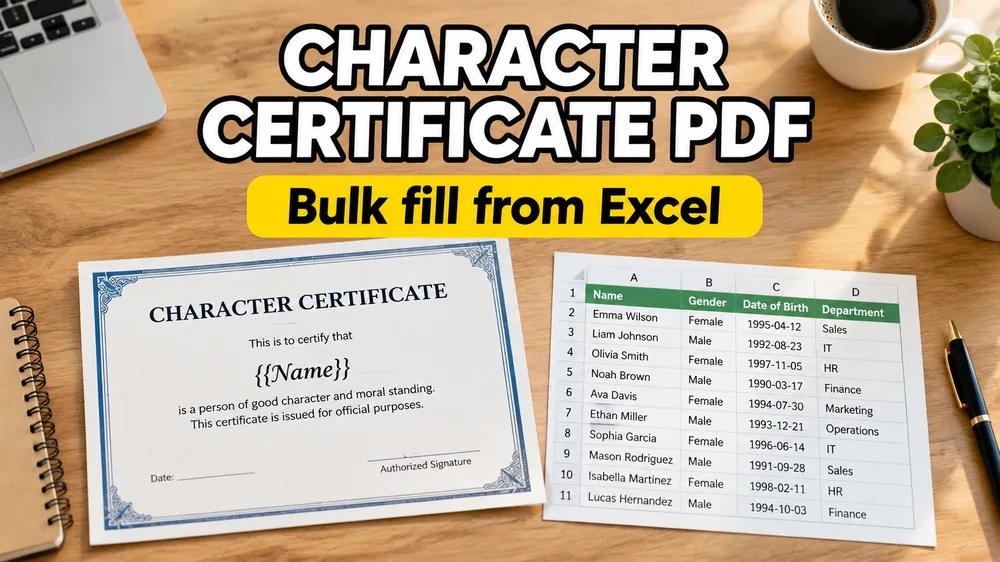
To fill a character certificate PDF, prepare a spreadsheet with one person per row, upload the certificate PDF, map the relevant fields such as name, class or period, conduct remark, and issue date, preview the output, and export one PDF per record.
If you want the shortest product-first path, start with Fill PDF from Excel or Google Sheets.
The key steps are:
- Prepare a clean spreadsheet with one person per row.
- Upload the character certificate PDF template.
- Map fields such as name, class, conduct remark, authority name, and date.
- Preview long text rows before the full batch.
- Export one certificate PDF per record.
Character certificates are usually repetitive documents with a fixed layout and changing personal details.
That means the real task is not “edit one PDF.”
It is:
- keep the approved certificate wording
- replace the individual values cleanly
- repeat the process for many records without retyping
That is why a spreadsheet-driven PDF workflow fits this use case.
What is a character certificate PDF usually used for?
A character certificate is usually issued by a school, college, employer, or institution to confirm a person's conduct, standing, or period of association.
Typical uses include:
- school or college transfer paperwork
- admissions or scholarship documents
- employment or internship records
- administrative or institutional requests
The wording is often similar from one certificate to the next, while the names, dates, and context values change.
What you'll need
You usually need:
- one PDF certificate template
- one spreadsheet with one certificate record per row
- clear column headers for the values that appear in the document
Typical character certificate columns include:
person_namefather_or_guardian_nameclass_or_courseperiod_of_study_or_workconduct_remarkissue_dateauthority_name
Some institutions may also use:
admission_noroll_numberdepartmentdesignationcertificate_no
Part 1: Prepare the spreadsheet
Use one row per certificate.
That keeps the output predictable and makes it easier to export one finished PDF per person.
A simple starter sheet might include:
person_nameclass_or_courseperiod_of_study_or_workconduct_remarkissue_dateauthority_name
If your certificate uses a longer paragraph structure, keep the paragraph inputs separated into sensible columns first. That makes mapping and previewing easier than storing everything in one giant text field.
Part 2: Upload the character certificate PDF
Use the exact PDF that the institution already issues.
This may be:
- a fillable PDF with text fields
- a non-fillable static PDF designed in Word or another editor
- a certificate layout that includes fixed body text with a few dynamic values
Many character certificates are effectively static templates.
That means you may need visual positioning rather than simple form-field binding.
For that case, see How to Fill a Non-Fillable PDF from Excel or Google Sheets.
Part 3: Map the changing values carefully
A character certificate usually has fewer fields than an invoice or tax form, but the wording can be more sensitive.
Common mappings include:
person_name-> certificate recipient namefather_or_guardian_name-> family reference lineclass_or_course-> class, standard, or program lineperiod_of_study_or_work-> date or duration sectionconduct_remark-> character or conduct sentenceissue_date-> issue date lineauthority_name-> signature name block
The main risk here is not quantity of fields. It is text length and balance inside the certificate wording.
If you need help with binding the right columns to the right PDF positions, read How to Map Excel Columns to PDF Fields.
Part 4: Preview the longest text rows first
Character certificate workflows should always be previewed with the rows most likely to break the layout.
Test:
- long person names
- long class or department values
- longer conduct remarks
- missing optional fields
- certificates where the authority name is long
This matters because character certificates often include sentence-style wording rather than isolated short labels.
Part 5: Export one certificate per row
Once the preview looks correct, export one certificate PDF per row.
Typical filename patterns include:
Character-Certificate-{person_name}.pdfCharacter-{certificate_no}.pdf{person_name}-{issue_date}-character-certificate.pdf
If your core need is turning each spreadsheet row into a separate finished file, see How to Generate One PDF Per Row from Excel.
Common problems and fixes
The main certificate text becomes too long
Split long wording into clearer mapped fields where possible, and preview the longest remarks first.
The PDF template is static, not fillable
Use a workflow that supports visual placement on non-fillable PDFs.
Some rows have blank optional values
Preview those rows before the full export so the certificate does not look awkward when a field is empty.
Names or authority blocks overflow
Adjust positioning or font size before batch generation instead of fixing exported files manually.
The institution needs many certificates quickly
That is exactly where a one-row-per-certificate spreadsheet workflow becomes more reliable than typing each document separately.
Why this is better than manual editing
Manual character certificate work often leads to:
- repeated typing
- inconsistent wording placement
- avoidable spelling mistakes
- slow turnaround for repeated requests
Using one approved PDF template with spreadsheet-driven values creates a cleaner operational process.
Summary
To fill a character certificate PDF:
- Prepare one row per certificate.
- Upload the character certificate PDF template.
- Map the changing text fields to the PDF.
- Preview rows with long names and long remarks.
- Export one finished PDF per record.
That is the most practical way to turn repeated character certificate work into a reusable workflow.
A practical option
PDF Mail Merge supports spreadsheet-driven PDF generation for fillable and non-fillable templates using Excel, Google Sheets, or CSV data.
Frequently asked questions
Can I fill a character certificate from Excel?
Yes. If each row represents one certificate, Excel is a practical source for repeated PDF generation.
Does the character certificate have to be a fillable PDF?
No. A static PDF template can also work if the workflow supports visual mapping.
Can I generate one character certificate per student or employee?
Yes. That is the normal one-row-per-document model.
What fields are usually mapped in this workflow?
Typical fields include name, class or period, conduct remark, issue date, and authority name.
Fill PDFs from Excel, Google Sheets, or CSV
If you need to map spreadsheet data onto fillable or non-fillable PDF templates, try filling PDFs from Excel, Google Sheets, or CSV with PDF Mail Merge. It supports one PDF per row, merged review files, and ZIP exports.