
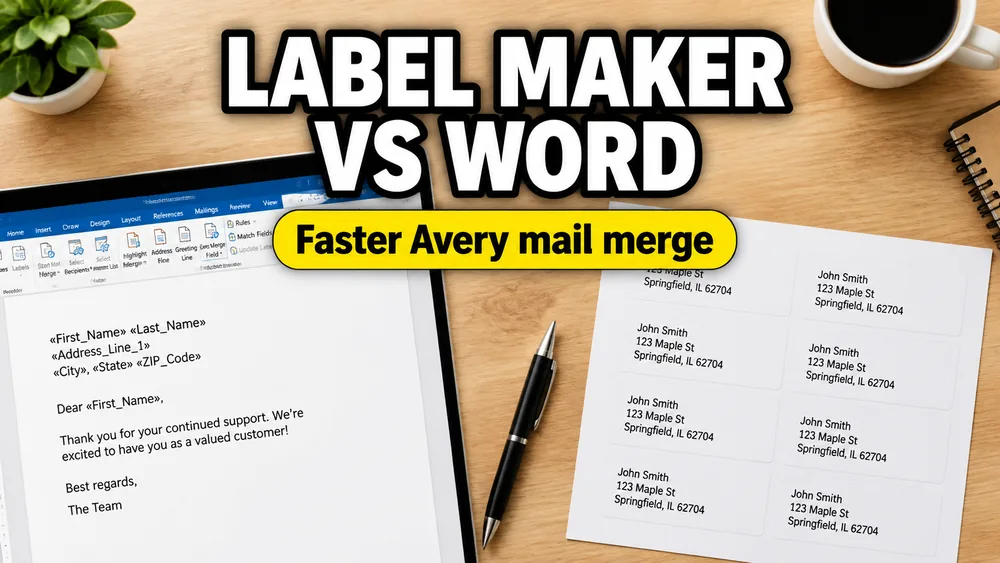
Word mail merge can print address labels, but it is not always the shortest path. If your addresses already live in Excel, CSV, or Google Sheets, a dedicated Address Label Maker workflow usually gets you to a print-ready PDF with fewer setup steps and a better full-sheet preview.
This comparison is for teams choosing between Word mail merge, Excel address labels without Word, Google Sheets address labels without Word, or a simpler mail merge alternative for mailing labels.
If you already know you want the no-Word workflow, start with Address Label Maker. Use this page to understand when that focused label workflow is a better fit than setting up merge fields in Microsoft Word.
If you are comparing Word mail merge because the final output should be a personalized PDF document rather than a label sheet, see PDF Mail Merge vs Word Mail Merge or start with Fill PDF from Excel, Google Sheets, or CSV.
Quick Answer
Use Word mail merge when you already have a Word document workflow and you are comfortable connecting an Excel data source to a Word label template.
Use Address Label Maker when the job is mostly:
- import an address list from Excel, CSV, pasted rows, or Google Sheets
- choose an Avery-style address label layout
- map name and address columns visually
- preview the whole label sheet before printing
- export a print-ready PDF at the correct paper size
For address labels, the second workflow is often faster because the tool is built around label sheets instead of general document merging.
For a recurring local workflow on Apple Silicon, Address Label Maker for Mac adds saved designs, reusable Excel or CSV field mappings, custom paper setup, and unlimited watermark-free PDF exports after activating the one-time desktop license.
Workflow Comparison
| Task | Word Mail Merge | Address Label Maker |
|---|---|---|
| Start from Excel | Supported, but requires Word setup | Upload the workbook directly |
| Start from Google Sheets | Usually export or copy data first | Use Google Sheets import or the Workspace add-on |
| Choose Avery 5160-style labels | Select the Word label template | Choose the label layout in the tool |
| Map fields | Insert merge fields into Word | Place spreadsheet columns onto the label |
| Preview a full sheet | Preview after merge setup | Preview before export |
| Export PDF | Often an extra print/export step | Built around PDF export |
| Avoid desktop software | No, Word is required | Yes, browser workflow |
Why Word Mail Merge Feels Fragile for Address Labels
Word mail merge is powerful, but it was designed for many document types. Address labels are more constrained:
- every row needs to fit inside a small label box
- paper size, margins, columns, and gutters must match the label sheet
- long names and apartment lines need to wrap cleanly
- ZIP and postal codes must keep leading zeros
- users usually want to print one test sheet before using label stock
When any of those details are wrong, the result may look acceptable on screen but drift on the printed sheet. That is why address labels benefit from a workflow that treats the full label sheet as the main preview, not as a final byproduct.
When Address Label Maker Is the Better Fit
Address Label Maker is the better fit when you want to create mailing labels quickly from a spreadsheet.
Common cases include:
- holiday card address labels from Excel
- customer mailing labels from a CSV export
- wedding invitation labels from a Google Sheets guest list
- return address labels for envelopes and cards
- Avery 5160-style mailing labels
- A4 or US Letter address label sheets
- shared Google Sheets lists that change before printing
If you are specifically printing Avery 5160-style labels, use the Avery 5160 address labels guide.
If your source is a live Google Sheet, the Google Sheets add-on guide explains how to start from the active spreadsheet. Chrome users can also open the workflow from the Address Label Maker Chrome extension.
When Word Mail Merge Still Makes Sense
Word mail merge is still a reasonable choice when:
- your organization already requires Word templates
- the label design must live inside a
.docxfile - you are merging labels as part of a broader letter or envelope workflow
- the person printing already knows the Word mail merge steps well
The issue is not that Word cannot print labels. It can. The question is whether you want to spend the time setting up a general-purpose merge workflow for a job that is mostly spreadsheet-to-label-sheet printing.
How to Make Address Labels Without Word
The no-Word workflow is straightforward:
- Prepare one address per spreadsheet row.
- Use clear headers such as
full_name,address_line_1,city,state, andzip. - Open Address Label Maker.
- Import Excel, CSV, pasted rows, or Google Sheets data.
- Choose the matching address label layout.
- Map the columns onto the label.
- Preview the full sheet.
- Export the PDF and print at
100% / Actual Size.
For a full tutorial, read How to Print Address Labels from Excel or Google Sheets.
Common Mistakes When Replacing Word Mail Merge
Using the wrong label layout
Do not choose Avery 5160 just because it is popular. Match the physical label package. If your sheet is A4, return-address size, or a different Avery-compatible layout, choose that preset instead.
Printing with Fit to Page
Most label alignment problems come from print scaling. Export the PDF, then print at 100% or Actual Size. Avoid Fit, Shrink, and automatic scaling.
Keeping addresses in one messy column
A label tool can map columns cleanly when the source data is clean. Split names, street address, city, state, ZIP, and country into clear columns before import.
Skipping the full-sheet preview
Preview the longest names and addresses before printing on label stock. It is much cheaper to fix wrapping and spacing before the final PDF.
FAQ
Can I make address labels from Excel without Word?
Yes. Import the Excel file into Address Label Maker, choose the label layout, map the address columns, preview the sheet, and export a PDF.
Can I make address labels from Google Sheets without Word mail merge?
Yes. Use the browser workflow, the Google Workspace Marketplace add-on, or the Google Sheets add-on guide to start from the spreadsheet.
Is Address Label Maker a Word mail merge replacement?
For address labels, yes. It is not a general Word document merge replacement, but it is a focused replacement for printing mailing labels, return labels, and Avery-style address label sheets from spreadsheet data.
Does Address Label Maker support Avery 5160 labels?
Yes. It supports Avery-style address label workflows, including Avery 5160-style mailing labels. See the Avery 5160 address labels guide for the dedicated workflow.
Should I use Word mail merge or a PDF label maker?
Use Word mail merge if Word is already the required output. Use a PDF label maker when you want a print-ready label sheet with predictable printer settings and a full-page preview.
Start with Address Label Maker
Open Address Label Maker when you want the shortest path from spreadsheet rows to printable address labels.
Related guides: