
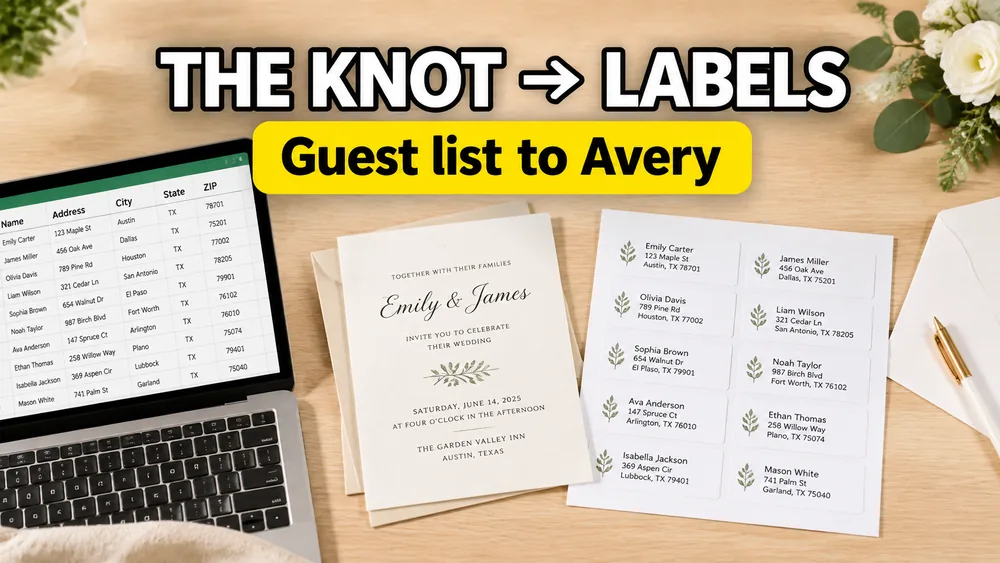
To print address labels from The Knot guest list, open your guest list in The Knot, use Download List or the address-label option if it appears in your account, review the exported guest names and mailing addresses, then import the file into Address Label Maker. Choose a US Letter or A4 address-label template, export a PDF, and print it at 100% / Actual Size.
Wedding Invitation Label Maker
Exported your guest list from The Knot? Import it directly into our designer to print beautiful, perfectly aligned wedding address labels.
You do not need a thermal printer. SheetsToLabels creates a normal PDF for home inkjet printers, laser printers, and office printers.
Quick answer
- Open The Knot Guest List Manager.
- Use Download List.
- Choose create address labels if available, or download the guest list as a table/CSV.
- Review household names, plus-ones, and missing addresses.
- Import the exported file into Address Label Maker.
- Choose Avery 5160, US Letter, A4, or another matching label sheet.
- Export the PDF and print at
100% / Actual Size.
This page is specifically for The Knot guest list exports. If your addresses are already in Excel or Google Sheets, use the broader address labels from Excel or Google Sheets guide.
The Knot export options to look for
The Knot's Guest List Manager FAQ has documented a download flow that can include choices such as downloading your list as a table, creating address labels, or downloading RSVP responses. The Knot also has a separate guest addressing flow for printed envelopes tied to invitation orders. The exact interface can vary by account and current product flow, so do not worry if your screen does not match an older forum answer or tutorial.
Look for terms like:
Download Listcreate address labelsdownload as tableguest listRSVP responsesCSV
If you see a direct address-label option and it gives you the exact layout you need, that may be enough. If you need more control over fonts, A4/US Letter paper, Avery-style templates, or a home-printer PDF, use the spreadsheet export route instead.
Built-in labels vs exporting to SheetsToLabels
Use The Knot's built-in label option when:
- you want the fastest default output
- the built-in format matches your label paper
- you do not need custom fonts or styling
- you are only printing a small batch
Export the guest list and use Address Label Maker when:
- you bought Avery 5160 or another specific label sheet
- you need A4 instead of US Letter
- you want centered wedding-style typography
- you want to test alignment before using real label stock
- you need to edit household names before printing
- you do not want to use a thermal printer or 4x6 shipping-label workflow
Fix household names before printing
The biggest The Knot-specific cleanup issue is usually not the street address. It is the name line.
Wedding mailings often need household names, couple names, or family names instead of raw guest records. Before you print, decide what each label should say.
Examples:
John SmithJohn and Jane SmithJane Smith and GuestThe Smith FamilyDr. Jane Smith and Mr. John Smith
Avoid printing one label for each person if two guests live at the same mailing address and should receive one envelope. For formal invitations, also check whether plus-ones, children, or separate last names should appear on the same line.
Check which wedding event the list represents
The Knot can help manage different wedding events and RSVP states. Before exporting labels, confirm that the rows match the mailing you are printing.
Examples:
- save-the-dates for the full invite list
- wedding invitations for confirmed invitees
- rehearsal dinner invitations for a smaller event
- thank-you cards after gifts arrive
- holiday cards using the same guest data later
If the export contains guests from multiple events, filter the file before importing it into Address Label Maker.
Prepare the exported file
After downloading the file from The Knot, review these fields:
- guest or household name
- address line 1
- address line 2
- city
- state or region
- ZIP or postal code
- country
Clean the file before importing:
- remove rows without a mailing address
- keep ZIP codes as text if they start with
0 - move apartment and suite details into address line 2
- remove duplicate households
- standardize state and country formatting
- keep only the guests who should receive this mailing
Import The Knot data into Address Label Maker
Open Address Label Maker, then import the file from The Knot.
If your export is an Excel or CSV file, upload it directly. If you prefer to review the guest list in Google Sheets first, open the export in Google Sheets, clean the columns there, and then import or connect that sheet.
After import, check the first few rows in preview. This catches missing addresses, long name lines, and duplicate households before you spend label stock.
Choose the right paper
For wedding address labels, you usually want sheet labels rather than thermal labels.
SheetsToLabels supports:
- US Letter label sheets
- A4 label sheets
- Avery-style address labels
- return address label sheets
- custom label sizes
For many US mailings, Avery 5160-style labels are a common starting point. For non-US printers, use an A4 layout that matches the physical label sheet. The PDF template must match the paper you put in the printer.
Print without a thermal printer
Address Label Maker exports a PDF, so you can print with:
- home inkjet printers
- home laser printers
- office printers
- copy-shop printers
When printing:
- Open the exported PDF.
- Select the same paper size used in the template.
- Set scale to
100%orActual Size. - Print one test sheet on plain paper.
- Hold the test sheet against your label sheet to check alignment.
- Print the final run on label stock.
Do not use Fit, Shrink, or automatic scaling. Those settings are the most common cause of address labels drifting off the sticker boundaries.
FAQ
Can I print labels directly from The Knot?
If your account shows a create address labels option, you can try it. If it does not match your label paper or you want more control, download the guest list and import the file into Address Label Maker.
What if I cannot find the address-label option?
Use the regular guest list download or table export. A spreadsheet export is often more flexible because you can clean names and addresses before printing.
Can I use The Knot guest list for save-the-date labels?
Yes. Export the relevant guest list, clean the household names, and print address labels for save-the-dates, invitations, thank-you cards, or holiday mailings.
Do I need a thermal printer?
No. Use a normal home or office printer with US Letter or A4 label sheets.
Should I use this page or the general address-label guide?
Use this page if your source data starts in The Knot. Use How to Make Address Labels from Excel or Google Sheets if your source list already lives in a spreadsheet.
Print The Knot guest list labels
If your guest list is already in The Knot, export the list, clean the household names, and open Address Label Maker. You can print address labels from The Knot data without retyping every guest and without buying a thermal printer.