
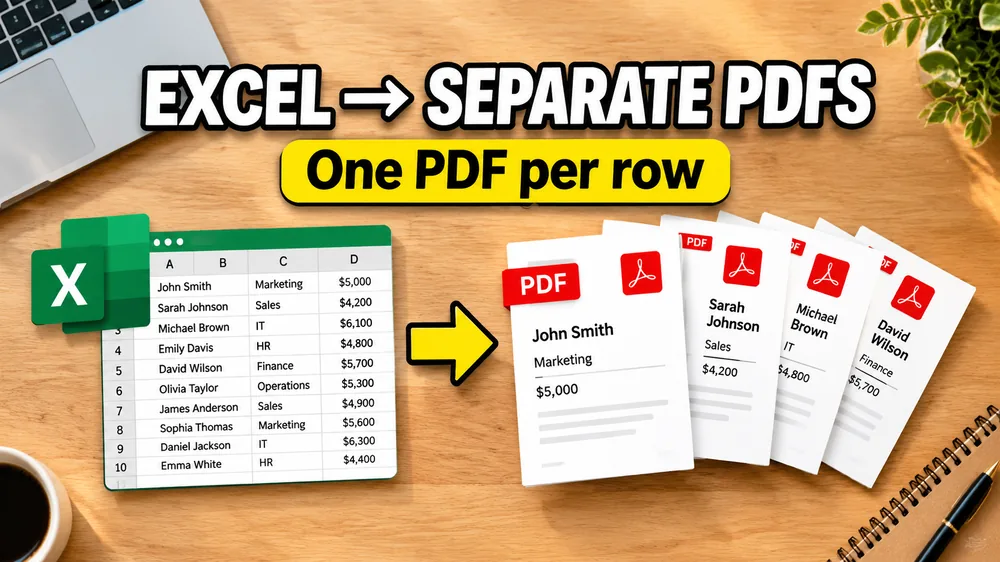
A common challenge in business operations is generating customized documents from spreadsheet records:
- Human Resources: Creating 150 unique employee agreements.
- Education: Generating certificates of completion for 400 graduates.
- Real Estate: Exporting lease contracts with distinct names, rents, and addresses.
- Accounting & Tax: Filling W-9 or invoice forms for dozens of suppliers.
If the output document must be a PDF, doing this manually in Adobe Acrobat is incredibly slow.
If you use Microsoft Word Mail Merge, you get a single massive Word document that requires you to split pages, save each page as a PDF, rename files manually, and cross-reference records.
The practical solution is a dedicated batch processor:
How do I mail merge Excel rows into separate PDF files?
If you want to start mapping your document templates immediately, try batch filling PDF forms from Excel. If you need help comparing PDF mail merge methods, check out PDF Mail Merge vs Word Mail Merge.
The Core Concept: Spreadsheet-to-PDF Mapping
A bulk PDF filler acts as a bridge between structured data and static layouts.
Instead of opening a PDF, typing details, saving, closing, and repeating, the software:
- Loads your Excel (
.xlsxor.csv) spreadsheet. - Loads your target PDF form template.
- Allows you to map spreadsheet columns directly to the PDF layout.
- Processes all rows in a single batch.
- Outputs separate PDF files named automatically after columns in your sheet (e.g.,
agreement_john_doe.pdf).
Why Generating Separate PDF Files is Challenging
Many generic office tools fail when separate files are required:
- Microsoft Word: Excel-to-Word mail merge generates a single combined document. Splitting it requires custom VBA scripts or manual copying.
- Google Docs: Similar to Word, mail merge add-ons default to exporting a single document or require third-party premium plugins to create separate files.
- Adobe Acrobat Pro: Acrobat allows form filling, but its spreadsheet import tools are built for one document at a time. It lacks batch filename rules and folder zip outputs.
How to Mail Merge Excel to Separate PDF Files in 5 Steps
Open the PDF Mail Merge Tool
Batch fill PDF forms from Excel—one PDF per row. Map columns once, preview free, export separate PDFs or a ZIP. No Acrobat or VBA.
1. Structure the Excel Sheet
Create your spreadsheet with clean headers. Use one row for each document you want to generate:
| employee_name | job_title | start_date | salary | |
|---|---|---|---|---|
| John Doe | Engineer | 2026-07-01 | $95,000 | [email protected] |
| Jane Smith | Designer | 2026-07-15 | $85,000 | [email protected] |
2. Upload the PDF Template
Your PDF template can be:
- Fillable (AcroForm): Contains interactive fields like
Text1,Date_field, orCheckbox_G. - Non-Fillable (Static): A flat image, scanned agreement, or layout designed in Canva with no interactive fields.
3. Map Columns to PDF Positions
Open the visual mapper.
- If the PDF is fillable, click a form field and select the matching Excel column from the dropdown (e.g., map the name field to the
employee_namecolumn). - If the PDF is non-fillable, draw a text box on the canvas, position it where you want the text to print, and bind it to the column.
4. Set Filename Rules
Configure how output files should be named. A good generator lets you use column variables. For example, setting the filename pattern to:
Agreement_{employee_name}
will automatically export Agreement_John_Doe.pdf and Agreement_Jane_Smith.pdf. This removes the need for manual renaming.
5. Preview and Run the Bulk Export
Select a few sample rows to check text fit and alignment. Once validated, click run. The tool will process the rows, generate separate filled PDFs, and compile them into a single downloadable ZIP archive.
Common Use Cases
- Employee onboarding agreements: Generating employment contracts, NDA agreements, and W-4 forms from candidate logs.
- Training & event certificates: Mail merging names, dates, and course titles to create separate award certificates.
- Real estate lease agreements: Bulk generating leasing contracts with distinct names, rents, and property addresses.
- Invoice and billing generation: Filling invoice layouts with distinct invoice numbers, line items, and balances.
Frequently Asked Questions
Can I batch fill PDFs if they do not contain form fields?
Yes. Modern bulk PDF fillers support visual mapping, allowing you to overlay text directly on static layouts without needing to add form fields first.
Are the files generated locally?
It depends on the tool. For maximum security, use a local-first browser tool that processes your files directly inside your browser sandbox rather than uploading sensitive employee or financial records to a remote server.
What is the maximum number of PDFs I can generate?
Most browser-based systems can process hundreds of rows per batch without issue. If you are generating thousands of PDFs, split your Excel sheet into smaller batches to ensure stability.
Try Excel-to-PDF Mail Merge
If you are ready to mail merge Excel rows into separate PDF files, try batch filling PDF forms from Excel. If you need help with certificates, check out the Bulk Certificate Generator from Excel.