
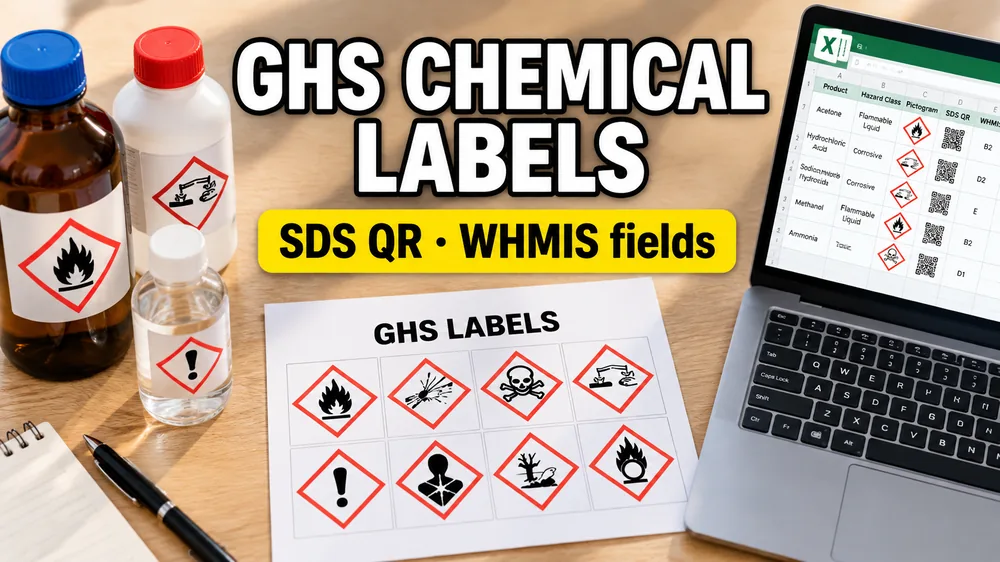
Globally Harmonized System (GHS) labels are a strict safety and compliance requirement for anyone manufacturing, packaging, distributing, or handling chemical products.
Under OSHA Hazard Communication standards (and international equivalents like WHMIS in Canada or CLP in Europe), chemical containers must be clearly labeled with standardized elements: pictograms, signal words, hazard statements, and supplier identifiers.
Writing and formatting these labels manually for dozens of formulas, concentrations, and container sizes is slow and highly prone to regulatory compliance errors.
The efficient approach is to drive the layouts directly from your chemical inventory spreadsheet:
How do I generate GHS labels in bulk from Excel?
If you want to start formatting your compliance sheets immediately, try the GHS Label Generator. If you need help with logistics tracking, read GS1-128 Labels from Excel.
The Key Elements of a GHS Label
GHS labels follow a highly structured layout that requires six specific compliance components:
- Product Identifier: The chemical name, CAS registry number, or formula code.
- Signal Word: Either "DANGER" (severe hazards) or "WARNING" (less severe hazards).
- GHS Pictograms: Red diamond-bordered symbols showing hazard classifications (e.g., flame, corrosion, skull & crossbones, health hazard).
- Hazard Statements: Standardized phrases describing the nature of the hazard (e.g., "Highly flammable liquid and vapor").
- Precautionary Statements: Standardized phrases describing how to minimize risk during storage, handling, or emergency exposure.
- Supplier Identification: Name, address, and emergency telephone number of the manufacturer or importer.
Why Drive GHS Labels from Excel?
For industrial operations, laboratories, or custom chemical blenders, safety data is already structured in:
- Safety Data Sheets (SDS): Contain the exact hazard phrases, signal words, and required pictograms.
- ERP Inventory Records: Track product codes, batch dates, container sizes, and volumes.
- Laboratory Manifests: Log custom solutions, concentrations, and research samples.
By mapping these Excel columns to a label design template, you can print compliant labels in batches without copy-pasting warning text or selecting pictograms manually for every single bottle.
How to Print GHS Compliance Labels from Excel
Excel Label Printing Tool
Ditch Word mail merge. Upload your .xlsx or .xls spreadsheet, place fields visually, and generate perfectly aligned label PDFs in seconds.
1. Organize Your Excel Columns
Create a spreadsheet where each row is a GHS label and the columns match your safety and logistics fields:
chemical_name(Product Identifier)signal_word(DANGER or WARNING)pictograms(a list or codes representing the required symbols, e.g.,flame, corrosion)hazard_statements(complete warning text)precautionary_statements(handling instructions)sds_url(a link to the Safety Data Sheet, which will become a QR code)qty(number of labels to print)
2. Add an SDS QR Code Field
Safety coordinators and workers need quick access to the full SDS sheet. Place a QR code element on your design template and bind it to the sds_url column. Scanning the bottle will instantly open the SDS PDF on a mobile device or tablet.
3. Place Hazard Pictograms
Place GHS pictogram boxes on your template. A smart designer will dynamically show or hide the correct red-bordered diamonds (flame, health, environmental, etc.) based on the comma-separated text values or codes in your Excel pictograms column.
4. Arrange Text Blocks with Clear Hierarchy
Arrange the product identifier, signal word, and hazard statements on the label. Ensure the signal word is bold and prominent, and use GHS-compliant font sizes to ensure readability.
5. Preview, Validate, and Export to PDF
Different chemicals have hazard text of varying lengths. Use the preview selector to check your longest precautionary statements to ensure the text does not scale down too small or clip off the label margins. Once validated, generate your print-ready PDF.
Common GHS Labeling Scenarios
- Secondary Container Labels: Secondary labels are required when transferring chemicals from large bulk drums into smaller spray bottles, squirt bottles, or laboratory beakers.
- Laboratory Sample Tubes: Small-scale labels containing a compact product name, signal word, and small GHS pictograms.
- Industrial Drum Labeling: Large 4x6" or 8.5x11" labels designed for shipping drums, pallets, or chemical storage bins.
- SDS Binder Codes: Printing sheets with product barcodes and QR codes linking to the digital safety binder for storage rooms.
Frequently Asked Questions
Can I print GHS labels on standard laser printers?
Yes, but for wet, greasy, or laboratory environments, standard paper labels are not recommended. Use chemical-resistant polyester or vinyl label sheets (like Avery UltraDuty GHS sheets) with a laser printer, or use compatible thermal transfer printers.
How do I handle GHS pictograms in an Excel file?
You do not need to insert images into your Excel spreadsheet. Keep it clean by listing the codes or names of the required pictograms in a text column (e.g., flame, health_hazard). The GHS label designer will interpret this text and render the corresponding official GHS pictogram files.
Does SheetsToLabels provide chemical classification?
No. The GHS Label Generator is a layout and generation utility. You must supply your own classification details (signal words, pictograms, and statements) sourced directly from the chemical's Safety Data Sheet (SDS).
Try GHS Label Maker
If you are ready to map safety sheets to compliant layouts, try GHS Label Generator. For logistics and product labeling, check out GS1-128 Labels from Excel and Label Designer.