
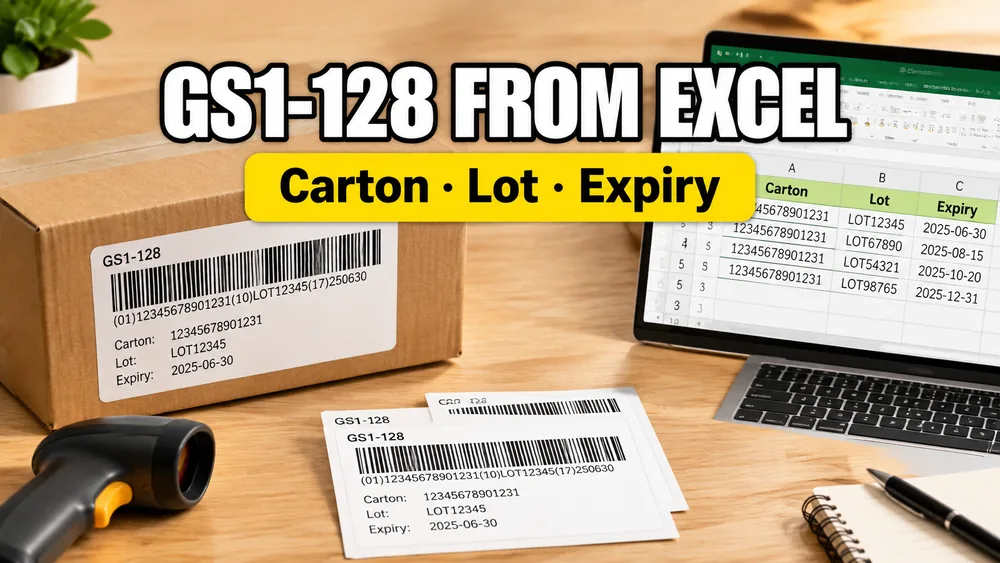
Generating GS1-128 barcode labels (formerly UCC/EAN-128) is a standard requirement in supply chain, retail distribution, logistics, and medical tracking.
Unlike simple product barcodes that only contain a SKU, GS1-128 barcodes can encode multiple data points in a single symbol—such as GTINs, batch numbers, expiration dates, serial numbers, and container codes (SSCC)—demarcated by Application Identifiers (AIs).
Doing this for one carton is simple.
But when you need to print a batch of shipping labels with distinct lot numbers, expiration dates, and quantities from a spreadsheet, typing them one by one into barcode software is slow and prone to errors.
The efficient approach is to generate them directly from your spreadsheet data:
How do I generate GS1-128 labels in bulk from Excel?
If you want to start printing immediately, try the GS1-128 Barcode Generator from Excel. If you are looking for generic inventory or retail tags, read How to Create Barcode Labels from Google Sheets.
What is a GS1-128 Barcode?
A GS1-128 barcode is a high-density, alphanumeric linear barcode format designed for global supply chain tracking. It uses parentheses to group different pieces of information into Application Identifiers.
Common GS1 Application Identifiers (AIs) include:
- (01): Global Trade Item Number (GTIN) - 14 digits
- (10): Batch or Lot Number - up to 20 alphanumeric characters
- (17): Expiration Date - YYMMDD format (6 digits)
- (21): Serial Number - up to 20 alphanumeric characters
- (37): Count or Quantity - up to 8 digits
- (00): Serial Shipping Container Code (SSCC) - 18 digits (often printed as its own dedicated label)
For example, a barcode containing (01)09520123456788(17)261231(10)LOT456 represents:
- GTIN:
09520123456788 - Expires: December 31, 2026 (
261231) - Lot:
LOT456
Why Excel-Driven GS1-128 Labeling is Essential
In inventory and distribution workflows, GS1 data points are already stored in an ERP, WMS, or warehouse spreadsheet:
- Production Logs: Contain date, product name, GTIN, and active batch code.
- Shipping Manifests: Contain container numbers, purchase orders, and item counts.
- Quality Control Sheets: Track lot IDs and exact shelf-life expiration details.
By linking this Excel data directly to a visual label designer, you remove manual copy-pasting, eliminate barcode scan mismatches, and automate print layouts.
How to Print GS1-128 Labels from Excel in 5 Steps
Excel Label Printing Tool
Ditch Word mail merge. Upload your .xlsx or .xls spreadsheet, place fields visually, and generate perfectly aligned label PDFs in seconds.
1. Structure Your Spreadsheet Columns
Organize your Excel or CSV spreadsheet so that each row represents one distinct label (or carton batch) and each column holds an Application Identifier field:
gtin(14 digits)lot_number(alphanumeric batch ID)expiry_date(can be written as a normal date or directly as YYMMDD)serial(unique item ID)qty(number of labels to print for this row)
2. Choose Your Label Size or Thermal Layout
Match your printer type:
- Thermal Labels: 4x6", 3x2", or 50x25mm labels for Zebra, Rollo, Dymo, or Honeywell printers.
- Avery Sheets: Multi-row layouts for standard laser or inkjet printers (e.g., Avery 5163 for shipping cartons).
3. Create and Configure the Barcode Field
Place a barcode element on the design canvas and select the GS1-128 symbology format.
Bind the barcode value dynamically to your columns. Most modern generators allow you to string columns together using variables. For example:
({gtin_col})({lot_col})({expiry_col})
The rendering engine will automatically compile these variables into the GS1 format, calculate checksums, and draw the correct barcode pattern.
4. Add Human-Readable Text Fields
Supply chain staff need to read the details if a scanner fails. Place text blocks near the barcode and bind them to the same columns (Lot: {lot_number}, Expires: {expiry_date}).
5. Preview and Batch Export to PDF
Check that long batch numbers or GTIN formats do not overflow the printable label area. Once verified, click export to generate a print-ready PDF containing all the expanded label rows.
Common Use Cases
- Retail Supply Chain Carton Labels: Generating outer case labels with GTIN, batch, and count for Amazon FBA, Walmart, or Target distribution.
- Food Packaging & Compliance Labels: Printing expiration dates and lot numbers for perishable goods.
- Medical Equipment Tracking: Compliance labeling for pharmaceuticals or devices requiring serial number registration.
- Manufacturing Batch Tracking: Placing batch numbers and production codes on incoming raw materials.
Frequently Asked Questions
Do I need to type the parentheses in the Excel data?
No. Keep the data in your Excel columns clean (e.g., LOT456 or 09520123456788). The barcode designer handles wrapping parentheses around the AIs when rendering.
Can I print GS1-128 barcodes to Avery templates?
Yes. You can place GS1-128 barcode elements on Avery 5160, 5163, A4, or custom label sheet grids.
How do I handle expiration date formatting?
GS1 standards require dates in the YYMMDD format. If your Excel sheet stores dates as 12/31/2026 or 2026-12-31, choose a tool that can auto-format date columns during label generation.
Try GS1-128 Label Maker
If you are ready to connect your spreadsheets and generate compliant logistics labels, try GS1-128 Barcode Generator from Excel. For generic product design, check out Label Designer and Avery Label Maker.