
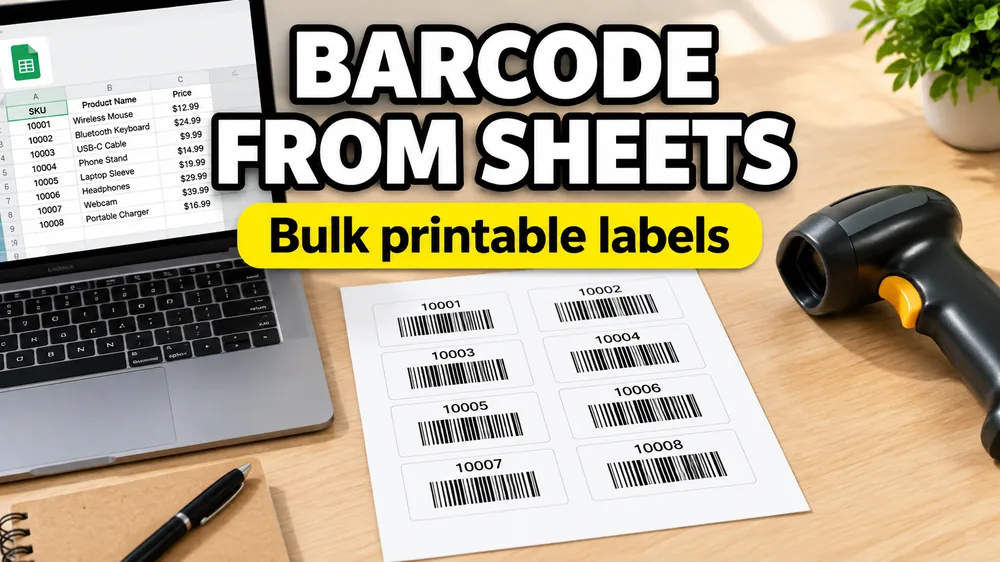
To create barcode labels from Google Sheets, prepare a sheet with one item per row, include a clean barcode or SKU value, choose a barcode-compatible label layout, drag a barcode element onto the label, bind it to the sheet column, preview sample labels, test scanning, export a PDF, and print at actual size.
This workflow works for inventory labels, product labels, asset tags, shelf labels, event check-in labels, and internal tracking labels.
If you are still choosing the overall spreadsheet-to-label workflow, start with the broader guide: How to Print Labels from Google Sheets. This article focuses on the barcode-specific parts.
Short Version
- Create a Google Sheet with one item per row.
- Add a column such as
barcode,sku,asset_id, orproduct_code. - Open Label Designer or Google Sheets to Labels.
- Choose a label size.
- Drag a barcode element onto the label canvas.
- Bind the barcode element to the sheet column.
- Preview and scan a few test labels.
- Export a PDF and print at
100% / Actual Size.
Prepare Barcode Data in Google Sheets
Barcode labels need cleaner data than ordinary text labels. The barcode value should be stable, unique, and valid for the barcode type you plan to print.
Useful sheet columns:
| Column | Example |
|---|---|
product_name | Organic Soap |
sku | SOAP-042 |
barcode | 10000042 |
price | $8.00 |
location | Shelf A3 |
Before importing:
- remove spaces from barcode values unless your barcode type supports them
- keep leading zeros when they matter
- avoid duplicate codes
- decide whether the human-readable SKU should print under the barcode
- test the shortest and longest barcode values

Choose a Barcode Type
Different barcode formats have different rules. For many internal workflows, Code 128 is flexible and works well with letters and numbers. Retail UPC or EAN codes have stricter length and digit requirements.
Common choices:
- Code 128 for internal SKUs, asset IDs, and inventory codes
- QR codes for URLs, check-in links, and longer values
- UPC or EAN when you already have valid retail product codes
If you are not sure, start with Code 128 for internal labels and test with the scanner you actually use. For Amazon FBA shipment items, you should use the dedicated FBA FNSKU Label Maker.
Design the Label Visually
A good barcode label should be easy to scan and easy to read. Include the barcode plus enough text to identify the item without scanning.
Common elements:
- product name
- SKU or asset ID
- barcode
- location or category
- price or batch number when needed
Keep the barcode area clean. Do not place text or images too close to the barcode, and avoid shrinking the barcode until it becomes difficult to scan.
The practical advantage of SheetsToLabels is that barcode placement is visual. You can drag the barcode, resize it, add text fields around it, and preview real Google Sheets rows before exporting the batch. That is much easier than generating barcode images separately and pasting them into a document one by one.

Map the Barcode Column
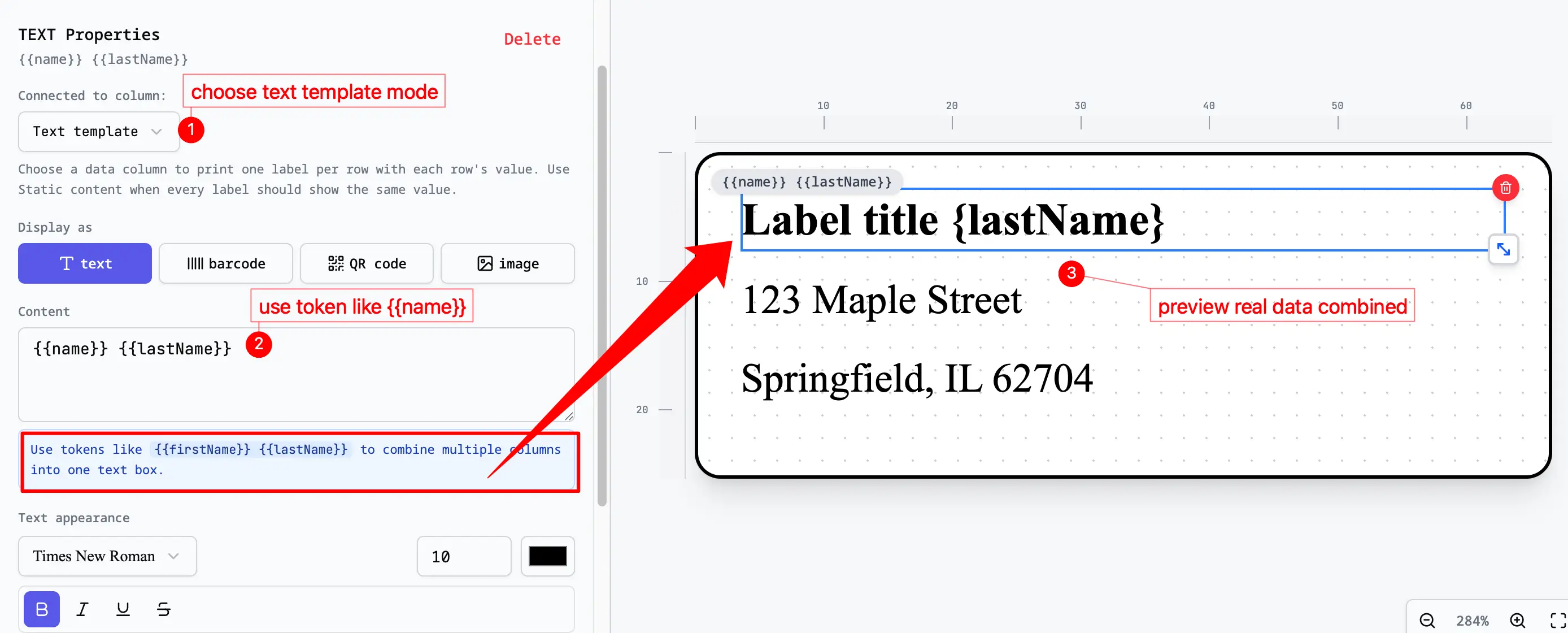
In the label editor, add a barcode element and bind it to the correct Google Sheets column. You can then move it on the canvas, change its size, and keep the human-readable SKU text aligned with the barcode.
For example:
barcodemaps to the barcode graphicskumaps to the text below the barcodeproduct_namemaps to the label titlelocationmaps to a small footer line
This lets every row create one finished barcode label without manually generating barcode images one at a time. The WYSIWYG preview also helps you catch the real problems: barcodes that are too small, product names that collide with the barcode, or labels that look fine alone but break when printed as a full sheet.
Test Before Printing the Full Batch
Barcode labels should be tested with the real scanner, phone app, or checkout workflow.
Before printing the full batch:
- Export a small test PDF.
- Print at
100% / Actual Size. - Scan the shortest code.
- Scan the longest code.
- Scan at normal working distance.
- Confirm the scanned value matches the sheet.
If the scanner struggles, increase barcode size, improve contrast, or choose a larger label.
Common Problems
The barcode scans the wrong value
Check that the barcode element is mapped to the right column. It is easy to map the visible SKU text correctly but accidentally bind the barcode graphic to another field.
Do I need to create barcode images first?
No. Use the barcode element in the visual editor and bind it to your Google Sheets column. The barcode is generated from each row during preview and export.
Leading zeros disappear
Format the Google Sheets column as plain text before entering the values. This is especially important for codes such as 001245.
The barcode looks fine but will not scan
The barcode may be too small, printed with low contrast, or scaled by the print dialog. Reprint at 100% / Actual Size and test a larger barcode area.