
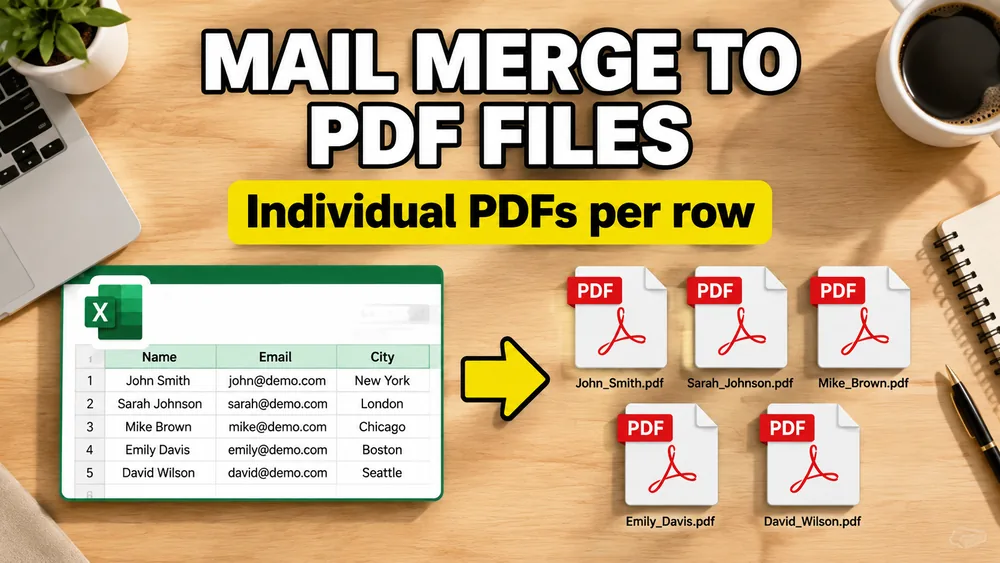
Need separate PDFs now? Use Fill PDF from Excel to generate one PDF per row with custom filenames—or read on for why Word mail merge falls short.
Open the PDF Mail Merge Tool
Batch fill PDF forms from Excel—one PDF per row. Map columns once, preview free, export separate PDFs or a ZIP. No Acrobat or VBA.
When you have a spreadsheet (Excel or CSV) with hundreds of rows of data and need to generate a personalized PDF document for each row, you are looking for a PDF Mail Merge workflow.
Common use cases include:
- Generating individual invoices for clients
- Creating unique warehouse labels or barcodes
- Preparing personalized employee contracts or offer letters
- Outputting pay slips or statement PDFs
However, if you try to do this using standard Microsoft Office tools, you will immediately run into a major limitation: Word Mail Merge merges all records into a single, massive PDF document.
In this guide, we will analyze the legacy workarounds (VBA macros, XML mapping, and Acrobat plugins) and introduce a modern, visual browser-based approach that bypasses these complexities entirely.
Real Forum Questions: Why Standard Mail Merge is a Struggle
To understand why this is not a straightforward task, we can look at actual questions from the Microsoft Learn Q&A community where users struggle with standard tools.
Case 1: How to mail merge Excel data into a branded PDF label template?
The Question: "I have been asked to pull a spreadsheet of data into a PDF form that is set up as a label template. The excel data is the products stocked along with their code. We are wanting to pull this data into the branded PDF form I have created to make labels for each item in the warehouse... It seems it is not a straightforward task." — Microsoft Q&A Thread
- The standard issue: When creating barcode or warehouse labels, you need pixel-perfect alignment. If you try to run a standard Word Mail Merge and export to PDF, the margins and spacing frequently shift, causing your barcodes to print off-center or crop incorrectly. Furthermore, Word cannot dynamically generate barcodes or QR codes from plain text values.
Case 2: How to fill a PDF using Excel automatically without VBA?
The Question: "Is there a way to fill the PDF forms by extracting data from Excel automatically? Or is there a way to set the PDF as the background of the Excel page so I only have to put the data into the cells which are in the right position in PDF form? ... I'm looking for a solution without VBA." — Microsoft Q&A Thread
- The standard issue: Users try to work around VBA by setting the PDF as a background watermark in Excel and typing text over it. However, because different laptops use different screen resolutions, display scaling (DPI), and printer drivers, the text alignment completely breaks when the spreadsheet is opened or printed on another computer.
Case 3: How to auto-fill a PDF with Excel data using Microsoft tools (Power Automate, Copilot)?
The Question: "I want to take data from an Excel file and automatically fill a PDF with that data. I’m thinking about using Power Automate or maybe Copilot Studio, but I’m not sure what the right setup looks like. Does anyone here already have a working flow for this?" — Reddit Thread
- The standard issue: Users look to modern AI or low-code options like Power Automate or Copilot Studio. However, setting up a PDF filling action in Power Automate requires a premium connector subscription, setting up Azure storage or OneDrive actions, and mapping schema arrays. There is no simple, straight-to-the-point native button.
Case 4: Is there a simple built-in way to populate a PDF form from Excel columns?
The Question: "Is there a way to populate a pdf document with data from an excel spreadsheet? For example, if I had a spreadsheet that had the first, last and middle name for my employees, could I click a few buttons and have a PDF ready to print to hand out to each one? ... didn’t know if it was something I could setup myself." — Reddit Thread
- The standard issue: For basic business tasks like naming labels or certificates, users expect a simple click-to-run setup. Standard Excel has no built-in "Fill PDF Form" button, forcing users to buy external, proprietary desktop tools or write complex VBA macros.
Case 5: Filling premade PDF forms without third-party plugins (PII/PHI Security constraints)
The Question: "Can Excel fill premade pdf templates (Forms in Adobe Acrobat 2020) w/out third party plug-ins/programs. ... I work with PII/PHI. ... final output can either be PDFs saved in a specified file folder or a print job." — Reddit Thread
- The standard issue: Users working in healthcare or finance are bound by strict security regulations (PII/PHI/HIPAA). They cannot upload files to third-party servers that store or process their documents. This makes the search for a secure, local, client-side browser solution (or native Excel-only workflow) a critical requirement.
Case 6: Writing command-line scripts to map PDF fields (Perl/Python)
The Question: "How would I go about filling in a PDF form from an Excel spreadsheet?" — Quora Thread
- The standard issue: Tech-savvy answers suggest running Perl scripts (using packages like
CAM::PDForPDF::API2) or Python libraries (fillpdf,pypdf). While powerful, this requires installing command-line interpreters, debugging script syntax, mapping dictionary fields manually, and handling cross-platform library incompatibilities (e.g. issues running on Windows).
Legacy Workaround 1: Word Mail Merge + VBA Script
The traditional way to split a mail merge into separate files in Microsoft Office is to run a VBA macro from within Word. This macro loops through the mail merge data source row-by-row, executes the merge for that single row, and exports the result as an individual PDF.
Here is a simplified example of what this VBA code looks like:
Sub MergeToSeparatePDFs()
    Dim masterDoc As Document
    Dim singleDoc As Document
    Dim mailMergeEngine As MailMerge
    Dim recordCount As Long
    Dim i As Long
    Dim outputPath As String
    Dim fileNameField As String

    Set masterDoc = ActiveDocument
    Set mailMergeEngine = masterDoc.MailMerge
    outputPath = "C:\PDF_Output\" ' Destination folder

    ' Connect to the data source and get the count
    mailMergeEngine.DataSource.ActiveRecord = wdLastRecord
    recordCount = mailMergeEngine.DataSource.ActiveRecord
    mailMergeEngine.DataSource.ActiveRecord = wdFirstRecord

    For i = 1 To recordCount
        mailMergeEngine.DataSource.ActiveRecord = i

        ' Run mail merge for just this record
        mailMergeEngine.Destination = wdSendToNewDocument
        mailMergeEngine.Execute

        Set singleDoc = ActiveDocument

        ' Name file using a field from the Excel sheet (e.g. "ClientName")
        fileNameField = mailMergeEngine.DataSource.DataFields("ClientName").Value

        ' Save document as PDF
        singleDoc.ExportAsFixedFormat OutputFileName:=outputPath & fileNameField & ".pdf", _
                                      ExportFormat:=wdExportFormatPDF

        singleDoc.Close SaveChanges:=False
    Next i
End Sub
Why this VBA approach is complex and brittle:
- Steep Learning Curve: You have to enable the Developer Tab, paste code into the VBA Editor, and debug file paths.
- Mac & Cloud Incompatibility: Excel VBA scripts rely on local ActiveX/COM controls. They do not work on Mac computers or Excel/Word Online.
- Process Hangs: If a single record fails or the path is incorrect, Word can lock up, leaving "ghost" processes running in your Task Manager.
- Brittle Naming: If your Excel data contains characters like
/,\,:, or*, the macro will crash because Windows doesn't allow those characters in file names.
Legacy Workaround 2: Excel XML Data Schema Mapping
Another common forum suggestion is to map an XML schema to an Excel spreadsheet.
Under this method:
- You must create an XML schema description (
.xsd) file. - In Acrobat Pro, you map those XML fields to your fillable PDF form.
- In Excel, you map the XML schema to your table rows.
- You export the XML data and import it into the PDF form.
The Problem with XML Mapping:
- Highly Technical: Setting up XSD schemas is beyond the comfort level of most business users.
- Acrobat Required: You still need Adobe Acrobat Pro installed to handle the schema mapping.
- One-by-One Import: You often still have to manually import the XML data file-by-file for each separate PDF.
Legacy Workaround 3: Adobe Acrobat Pro & Plugins
You can purchase Adobe Acrobat Pro (which starts at around $20/month per user) and use its API or install plugins like AutoMailMerge.
While robust, this approach requires:
- An expensive software license for every team member who needs to run the merge.
- Local desktop installation (cannot run inside standard web browsers or on Chromebooks).
- Running a complex configuration wizard for every new PDF template.
PDF mail merge from Excel to individual PDFs with custom filenames
Rather than wrestling with macros, XML schemas, or high licensing costs, a modern solution like SheetsToLabels shifts the entire process into a visual, browser-based workspace.
Instead of converting back and forth between Word and PDF, you work directly on the PDF template itself.
This is the practical meaning of PDF mail merge from Excel for operations teams: each spreadsheet row produces an individual PDF, and each file can use a custom filename built from columns such as client_name, invoice_number, or employee_id.
How it works:
- Upload your PDF template: This can be a fillable PDF form or a normal static PDF layout.
- Upload your Excel (.xlsx) or CSV file: The tool automatically reads your column headers.
- Map visually: Drag and drop column tags directly onto your PDF template where you want the data to appear.
- Choose your export option: Choose One PDF per Row to download a ZIP archive containing individual PDFs with useful filenames, or generate a single merged file.
+-----------------------------------------------------------+
|                    SheetsToLabels Tool                    |
|                                                           |
|  [ PDF Template ]  <=== Visual Drag & Drop ===> [ Excel ] |
|  - Invoice Layout                                - Name   |
|  - Certificate                                   - Amount |
|                                                           |
|             [ Download: Individual PDFs (ZIP) ]           |
+-----------------------------------------------------------+
Key Innovations of the Visual Approach:
- No Coding or Macros: You never have to touch a single line of VBA, XML, or Python code.
- Visual Precision: If your PDF template is not fillable, you don't need to recreate it. You simply click and drag data fields visually to place them exactly where they need to be.
- Avoid Split & Merge Workflows: You don't need to generate a giant document and then split it later. The tool generates individual, cleanly named PDFs from the start.
- Fully Cross-Platform: Because it runs locally inside your browser, it works seamlessly on Windows, macOS, Linux, and ChromeOS.
- Strict Privacy Compliance (PII/PHI Friendly): Unlike cloud-based document generation APIs, the processing runs entirely client-side inside your browser. Your sensitive spreadsheets and PDFs never leave your local computer, making it 100% compliant with strict regulations like HIPAA or GDPR.
- Dynamic Content: Unlike Word Mail Merge, you can map image URLs to render dynamic photos/logos or automatically generate barcode and QR code elements on the fly.
Ready to Mail Merge Excel to PDF?
If you want a secure, zero-installation way to populate PDF files in bulk from Excel, Google Sheets, or CSV, try our Online PDF Mail Merge Tool. It runs locally in your browser, ensuring your data never leaves your computer.