
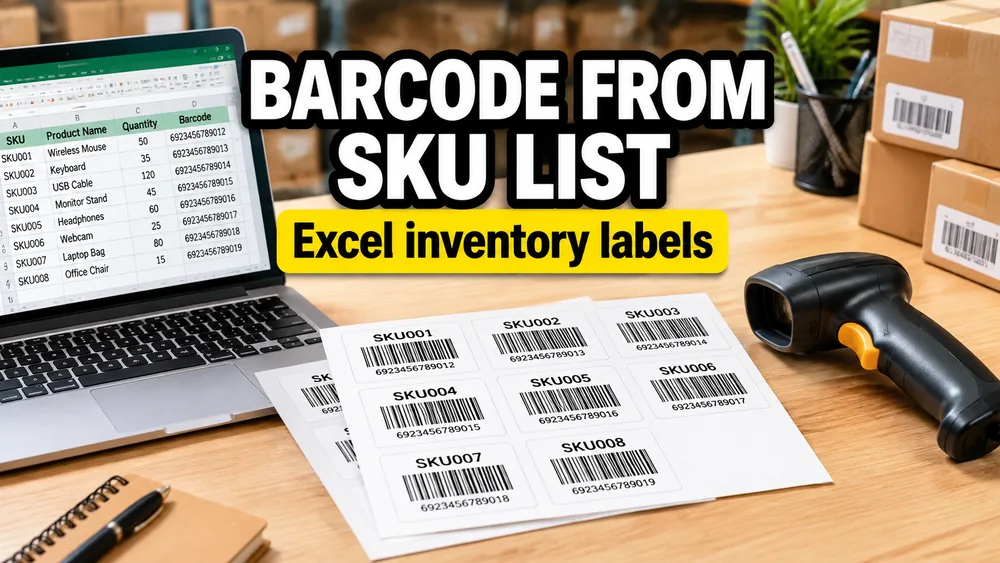
Moving from manual inventory checks to a barcode-based system is a huge step up for any small business. It reduces errors and speeds up checkout. But how do you actually create the barcode stickers?
You don't need expensive barcode software for a basic spreadsheet-driven workflow. If you have your inventory in Excel, CSV, or Google Sheets, you can design one reusable label, bind the barcode value to a column, preview the batch, and export a print-ready PDF.
Understanding Barcode Types
Before you print, choose the right format:
- UPC-A / EAN-13: Standard for retail products worldwide. Requires a specific number of digits (12 or 13).
- Code128: The most versatile. Can encode letters and numbers. Great for internal SKUs (e.g., "TSHIRT-BLK-L").
- QR Code: Best for linking to websites or storing longer text.
Step-by-Step: Excel to Barcode Sticker
1. Clean Your Data
Ensure your Excel file has a column for the unique ID.
| Item Name | SKU | Price |
|---|---|---|
| Blue Widget | WID-BLU-01 | $10.00 |
2. Configure the Element
In the Label Designer:
- Add a Barcode element onto the canvas.
- Data Binding: Select your
SKUcolumn as the source. - Format: Choose Code 128 for most internal SKUs.
- Show Text: Toggle the human-readable value below the bars, or add a separate text element for more control.
3. Add Context
A barcode alone isn't enough. Add text fields for item name, price, location, or lot number so customers or staff know what the item is without scanning it.
For example, one text element can use a dynamic text template:
{{Item Name}}
SKU: {{SKU}} - ${{Price}}
You can also add a small shape, such as a dot, ribbon, or starburst, to mark sale items, warehouse zones, or special handling.
4. Print & Verify
Print a sample sheet. Crucial: Use your barcode scanner (or a phone app) to scan the printed label. Ensure it beeps and decodes the correct SKU ("WID-BLU-01").
Scaling Up
Whether you have 50 items or 50,000, the process is the same. A dedicated Label Designer workflow keeps the barcode lines crisp and scannable even when printed on small labels.
If labels need to be generated automatically by a CRM, inventory system, or backend service, use the Label Generation API. The guide to generating print-ready barcode label PDFs from JSON explains how it differs from an API that returns only a barcode image.
Try Label Designer
If you want to turn your SKU list into scannable barcode labels, try Label Designer. If your inventory already lives in Google Sheets, start from Google Sheets import.