
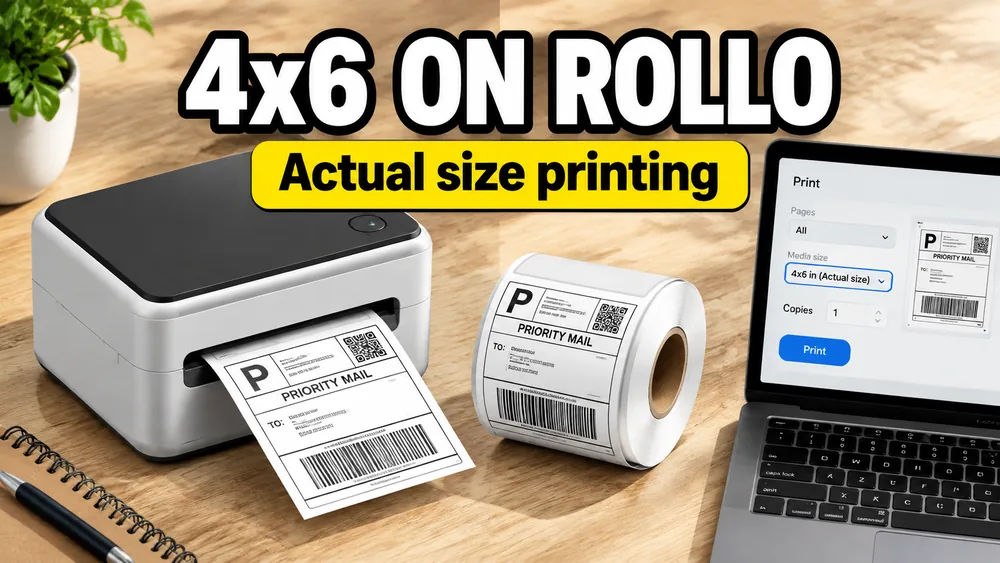
To print 4x6 shipping labels on a Rollo thermal printer, export a PDF sized exactly to 4x6 inches, open the print dialog, choose the Rollo printer, and set scale to 100% or Actual Size. Do not use Fit to Page, which shrinks barcodes and can make tracking codes fail at scan time.
If your labels come from spreadsheet rows, start in Shipping Label Maker. If you are still preparing the data workflow, read How to Make Shipping Labels from Excel or Google Sheets first.
Why Actual Size matters on Rollo
Rollo printers expect one 4x6 label per page. The PDF page dimensions and the print scale must match the physical label stock.
When the scale is wrong, the most common failures are:
- barcodes print too small or too wide
- address blocks drift toward the top or bottom edge
- labels look correct on screen but waste stock on the printer
The fix is almost always scale, not template design.
Step 1: Export a true 4x6 PDF
- open the 4x6 shipping template
- import your shipment rows from Excel, CSV, or Google Sheets
- preview one label and one full batch
- choose the 4x6 layout
- export PDF
The exported file should be one label per page at 4x6 inches, not a letter-size sheet you trim later.
If you use Zebra-compatible hardware instead of PDF printing, export ZPL from the same workflow.
Step 2: Run one test print on plain paper
Before you use label stock:
- print one page to plain paper
- hold the printout against a real 4x6 label
- check that the address block and barcode sit inside the label edges
This takes one minute and prevents a run of misaligned thermal labels.
Step 3: Print at Actual Size on Mac
- open the PDF
- choose File → Print
- select your Rollo printer
- set Scale to 100% or Actual Size
- disable Scale to Fit or Fit to Page
- print one label and scan the barcode with your phone if tracking is critical
If the preview still shows margins, check the Rollo driver paper size is set to 4x6.
Step 4: Print at Actual Size on Windows
- open the PDF in your browser or Adobe Reader
- choose Print
- select the Rollo printer
- open More settings or Page Setup
- set scaling to Actual Size or 100%
- turn off Fit or Shrink oversized pages
Chrome and Edge often default to Fit. That single setting causes most Rollo alignment complaints.
Step 5: Confirm barcode readability
After the test print:
- scan the tracking barcode with a phone camera or scanner app
- confirm long tracking values did not wrap into a second line
- re-export if the code sits too close to the label edge
If alignment is close but still off, use How to Fix Label Printing Misalignment.
Common Rollo mistakes
| Mistake | What happens | Fix |
|---|---|---|
| Fit to Page enabled | Barcode scales incorrectly | Use 100% / Actual Size |
| Wrong paper size in driver | Label prints offset vertically | Set printer to 4x6 stock |
| Letter PDF on thermal stock | Content appears tiny or clipped | Export 4x6 PDF, not US Letter |
| Skipping preview | Blank or mis-mapped rows waste labels | Preview the batch before export |
| Confusing label with postage | Package ships without paid postage | Buy postage separately from the carrier |
Label layout vs carrier postage
A Rollo-ready PDF is the printable label document. It is not prepaid postage.
You still need to buy shipping service from USPS, UPS, FedEx, DHL, or a discount reseller when the package must ship on a paid label. Read Shipping Label vs Postage for the full distinction.
When to use Shipping Label Maker vs a carrier PDF
Use Shipping Label Maker when:
- your shipment data already lives in Excel, CSV, or Google Sheets
- you need internal, return, or manually fulfilled labels in batch
- you want a consistent 4x6 layout with your own tracking or reference barcodes
Use the carrier's official PDF when:
- you already purchased postage inside USPS Click-N-Ship, UPS.com, Amazon Buy Shipping, or similar
- you only need to reprint an official label exactly as issued
For Amazon Seller Central labels that arrive as letter-size PDFs, see Shipping Label Maker vs Cropping Amazon Labels.
Quick checklist
- export 4x6 PDF, one label per page
- print one test page on plain paper
- set scale to 100% or Actual Size
- verify barcode scan before the full batch
- buy postage separately when the package needs carrier service
Open Shipping Label Maker when you are ready to generate the PDF batch.