
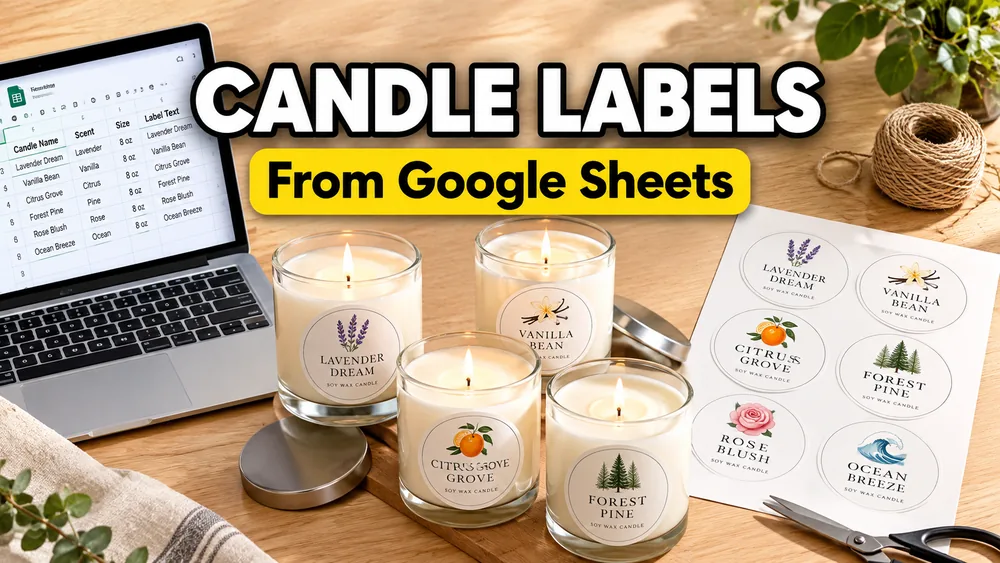
To make candle labels from Google Sheets, keep one candle, scent, or product variant per row, choose an Avery-style label sheet, map spreadsheet columns into a visual label design, use dynamic text templates for repeated copy, preview the full sheet, export a PDF, and print at 100% / Actual Size.
This workflow is useful when you have more than one scent or batch to print. Instead of copying each candle name into Canva, Word, or a static template by hand, you can keep the scent list in a spreadsheet and generate a full sheet of printable labels from the rows.
Use Google Sheets to Labels if your product list lives in Google Sheets, Excel to Labels if you work from a workbook, or Avery Label Maker when you already know the label sheet style you want to print.
Short Version
- Create one spreadsheet row per scent, product, or batch.
- Add columns for scent name, size, warning text, ingredients, batch code, and price if needed.
- Choose the Avery-style sheet or custom label layout that matches your paper.
- Design one label with text, logo, barcode, QR code, shapes, or static warning copy.
- Bind each element to a spreadsheet column, or combine fields with dynamic text templates.
- Preview the full sheet before printing.
- Export the PDF and print at
100% / Actual Size.
When a Spreadsheet Helps
A spreadsheet is usually the right source of truth when your candle line has many small variations:
- different scent names
- seasonal collections
- jar sizes such as 4 oz, 8 oz, or 12 oz
- warning labels for multiple product lines
- batch numbers or lot codes
- craft fair price tags
- wholesale or retail SKU labels
If you only need one decorative front label, a design tool can be enough. If you need 20, 50, or 200 variations with the same layout, a spreadsheet-driven label workflow is much faster.
Set Up Your Candle Label Spreadsheet
Start with clear column headers. Keep one printable label record per row.
| scent_name | collection | size | burn_time | warning_text | batch_code | price |
|---|---|---|---|---|---|---|
| Lavender Mist | Spring Market | 8 oz | 45 hours | Burn within sight. Keep away from drafts. | LM-0526 | $18 |
| Citrus Cedar | Spring Market | 8 oz | 45 hours | Burn within sight. Keep away from drafts. | CC-0526 | $18 |
You do not need every column on every label. For example:
- Front label:
scent_name,collection,size - Warning label:
warning_text,batch_code,business_name - Price tag:
scent_name,price,sku - Inventory label:
sku,batch_code,barcode
Before importing, remove blank rows, keep header names simple, and shorten very long scent names that may not fit on small round labels.
Choose the Right Label Sheet
Match the template to the physical label paper. This is more important than the design itself.
Common choices include:
- round labels for jar lids, seals, and front stickers
- rectangle labels for jars, tins, boxes, and bags
- small return-address style labels for warning stickers or batch codes
- larger shipping-style labels for boxes or wholesale packaging
- custom rows and columns when your stock is not a standard Avery layout
If you are unsure which sheet to use, compare label dimensions, rows, columns, margins, and paper size in the Avery Label Sizes and Template Compatibility Guide.
SheetsToLabels is independent from Avery, but it can generate Avery-compatible layouts for spreadsheet-based printing.
Design One Label, Generate the Batch
The key is to design the label once, then let the spreadsheet fill in the variations.
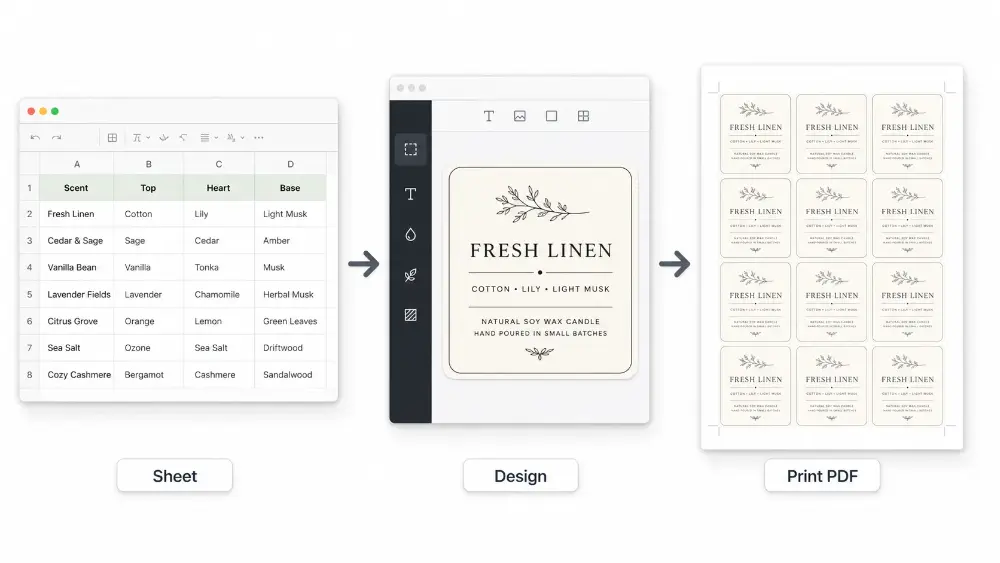
For a candle front label, you might add:
- a large
scent_nametext element - a smaller
collectionor product line - a fixed brand name or logo
- a
sizefield such as8 oz - a QR code that links to care instructions or a product page
- a ribbon, oval, or starburst shape for collection, sale, or seasonal markers
For a warning label, you might add:
- static safety copy that stays the same for every candle
- a dynamic
batch_code - a business name or contact URL
- a small SKU or barcode for inventory
Dynamic text templates are useful when one text box should combine several fields:
{{scent_name}}
{{collection}} - {{size}}
Batch {{batch_code}}
Use your own compliant warning language for your product and market. A label maker can help with layout and batch printing, but it does not replace product-safety, ingredient, or legal review.
Avoid Copy-Paste Label Work
Many candle makers start by duplicating text boxes in a static template. That works for a few products, then becomes fragile:
- one scent name gets typed differently in two places
- a price changes in the spreadsheet but not in the label
- seasonal variants are copied into the wrong template
- warning labels and front labels fall out of sync
When the spreadsheet is the source, you update the row and export again. That is especially useful before markets, restocks, wholesale orders, or seasonal launches.
Preview the Full Sheet
Do not judge the design from a single label. Preview the whole sheet because printing problems often appear only across rows and columns.
Check for:
- scent names wrapping into two or three lines
- round-label text sitting too close to the edge
- warning copy becoming unreadable
- empty rows creating blank labels
- QR codes or barcodes printed too small
- the wrong paper size, such as A4 vs US Letter
- sale badges, ribbons, or tag-hole shapes sitting too close to the cut edge
If the label stock is expensive, print one plain-paper test first and hold it behind the real label sheet to check alignment.
Print Candle Labels Without Drift
Most Avery-style alignment problems come from print scaling.
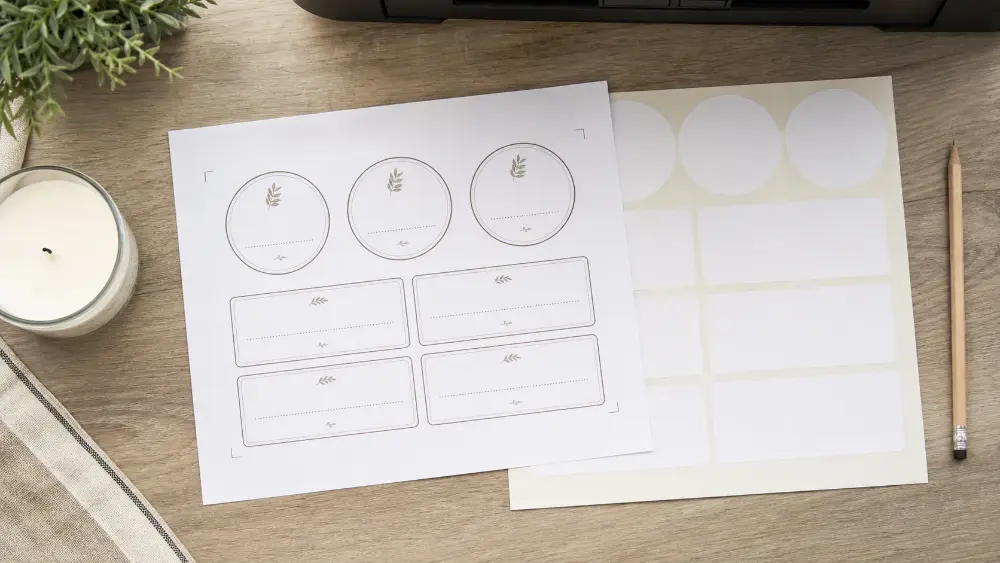
Before printing on label stock:
- Open the exported PDF in a PDF viewer.
- Set scale to
100%,Actual Size, or equivalent. - Turn off
Fit to PageandShrink to Fit. - Confirm the paper size matches the template.
- Test on plain paper before using label sheets.
If the first row looks right but the lower rows drift off the stickers, read How to Fix Label Printing Misalignment.
Example Workflows
Candle scent labels
Use columns such as scent_name, collection, size, and price. Design one front label and export one sheet for a market table or small batch.
Candle warning labels
Use a fixed warning block plus dynamic fields such as batch_code, scent_name, or business_url. Choose a small rectangle or return-address style layout if the label goes on the bottom of the jar.
Fragrance and diffuser labels
Use columns for fragrance_name, volume, collection, sku, and barcode. Larger rectangular labels usually work better than small round stickers when you need ingredients, volume, or compliance text.
Handmade product labels
The same workflow works for soaps, bath salts, skincare samples, wax melts, room sprays, and other small-batch goods. Use the spreadsheet for names, variants, prices, SKUs, and batch notes.
Common Questions
Can I make Avery candle labels from Google Sheets?
Yes. Use a spreadsheet-driven label workflow, choose the matching Avery-style layout, map sheet columns into the design, export a PDF, and print at 100% / Actual Size.
Can I use Excel or CSV instead of Google Sheets?
Yes. Use Excel to Labels or CSV to Labels if your product list is stored locally or exported from Etsy, Shopify, Square, QuickBooks, or another tool.
What columns should candle makers keep in a spreadsheet?
Useful columns include scent_name, collection, size, warning_text, ingredients, batch_code, sku, barcode, and price. Keep only the fields you actually need to print.
Why are my round candle labels drifting down the page?
The most common causes are print scaling, wrong paper size, or a template that does not match the physical label sheet. Print the PDF at 100% / Actual Size and test on plain paper before loading label stock.
Should I use Canva, Avery Design & Print, or SheetsToLabels?
Use a design tool when you want one polished static label. Use SheetsToLabels when the label design repeats across many rows from Google Sheets, Excel, or CSV and you need batch PDF export.
Try the Candle Label Workflow
Start with Google Sheets to Labels if your scent list is already in Google Sheets, or open Avery Label Maker to choose an Avery-style sheet and build a printable PDF from spreadsheet rows.