
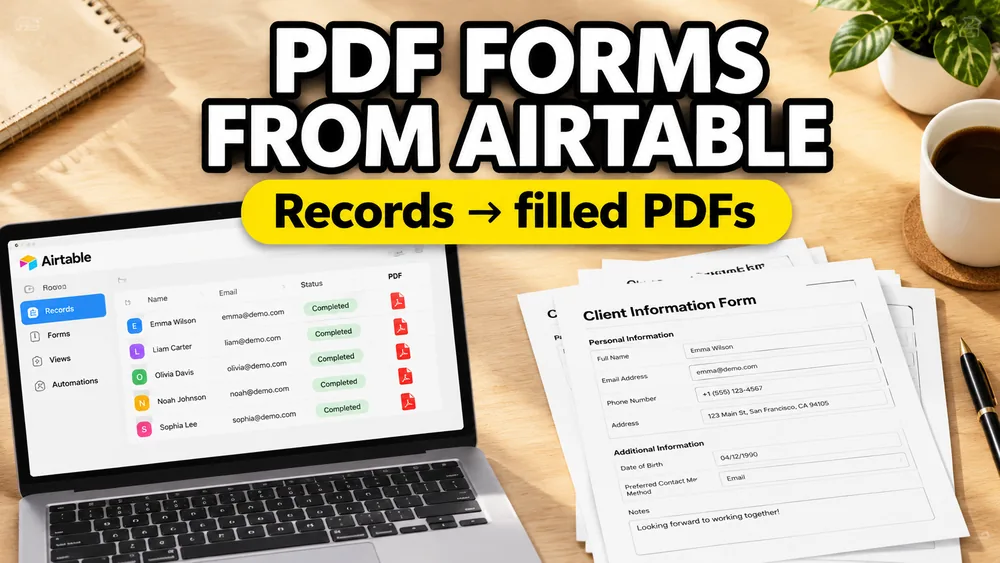
If your data lives in Airtable but your final output needs to be a completed PDF form, the most reliable workflow is usually: create a clean Airtable export view, download that view as CSV, map the CSV columns to your PDF template, preview real records, and generate one PDF per Airtable record.
This is different from a generic spreadsheet mail merge problem because Airtable bases often include linked records, lookup fields, select options, attachments, formula fields, filtered views, and internal workflow columns. Those details affect how cleanly the data lands in a PDF.
Open the PDF Mail Merge Tool
Batch fill PDF forms from Excel—one PDF per row. Map columns once, preview free, export separate PDFs or a ZIP. No Acrobat or VBA.
[!TIP] Use the Dedicated Airtable PDF Generator: Need to automate documents directly from Airtable? Try our online Airtable PDF Document Generator to map your records visually onto any PDF template and download completed files in seconds.
For the PDF mapping and export step, use the dedicated Airtable PDF Generator. Since Airtable can export any view as a CSV spreadsheet, you can use Airtable as your central database and our mail merge tool as the dynamic document generator.
Video walkthrough: bulk fill PDF forms from Airtable
The practical Airtable workflow
Use this approach when you want a controlled batch, not a fragile automation:
- Build an Airtable view only for PDF export.
- Flatten linked records, lookups, rollups, and formulas into readable fields.
- Hide internal fields that should not appear in the PDF batch.
- Export the Airtable view as CSV.
- Upload the CSV and the PDF template.
- Map Airtable columns to PDF fields or visual positions.
- Preview edge-case records before exporting the full batch.
- Generate separate PDFs or one merged review PDF.
That gives you a repeatable bridge from Airtable to PDF without giving a PDF tool direct access to your Airtable base.
Why Airtable data needs its own preparation step
Excel and CSV files are usually flat. Airtable bases are often relational.
That is great for operations work, but it can create messy PDF exports if you send the wrong view to a mail merge workflow.
Common Airtable fields that need attention:
| Airtable field type | What to check before PDF generation |
|---|---|
| Single select | Confirm the exported label is the text you want in the PDF. |
| Multiple select | Decide whether values should be comma-separated, line-broken, or simplified. |
| Linked record | Make sure the linked record name is meaningful outside Airtable. |
| Lookup | Check whether it exports one value or a long list. |
| Rollup | Format numbers and separators before export. |
| Formula | Use formulas to create clean PDF-ready text. |
| Attachment | CSV exports usually include file URLs or names, not embedded files. |
| Checkbox | Decide whether it should become Yes/No, true/false, or a checked PDF box. |
| Date | Set the date format before exporting. |
This is the main reason an Airtable-to-PDF article should not just say "export CSV and upload it." The quality of the export view determines the quality of the finished PDF.
Create a dedicated Airtable export view
Do not export from your main operational view. Create a view named something like:
PDF ExportInvoice PDF ExportApproved Applications PDFCertificate Batch ExportClient Intake PDF Export
This view should include only fields needed for the PDF.
For example, a client intake PDF view might include:
| Field | Example |
|---|---|
client_name | Jordan Lee |
email | [email protected] |
phone | 555-0198 |
intake_id | INT-1042 |
service_type | Consultation |
submitted_on | 2026-06-28 |
assigned_staff | Maya Chen |
approval_status | Approved |
Hide fields such as:
- internal notes
- Airtable collaborator fields
- automation status flags
- formula debugging fields
- raw linked-record helper fields
- fields used only for filtering or grouping
The export view becomes the contract between Airtable and the PDF template.
Flatten linked records and lookup fields
Linked records and lookups are useful inside Airtable, but they can export in ways that are not ideal for PDF forms.
For example, a linked Company field may display:
Northside StudioThat is fine if the PDF only needs the company name. But if the PDF also needs company address, billing email, or tax ID, create explicit lookup or formula fields for each output value:
company_name
company_billing_email
company_address
company_tax_id
If a lookup field can contain multiple values, decide how the PDF should show them. A long comma-separated list may look bad on a form. Sometimes it is better to create a formula field that formats the text specifically for the PDF.
Good PDF-ready fields are boring and clear. That is the point.
Use Airtable formulas for PDF-ready text
Airtable formula fields can save a lot of cleanup after export.
Use formulas to create fields like:
full_namefull_addressinvoice_titlecertificate_recipientdate_for_pdfamount_for_pdfcheckbox_label
For example, instead of mapping five address fields one by one, you might prepare a mailing_address_block field that already looks like:
Jordan Lee
120 Market Street
Suite 4B
Portland, OR 97205
For a PDF form with separate boxes, keep the fields separate. For a PDF area that expects a block of text, a formula field can be cleaner.
Decide how Airtable checkboxes should map to the PDF
Checkboxes deserve special handling.
In Airtable, a checkbox may export as a checked value or blank value depending on the export. In a PDF, you may need one of these outcomes:
- a real PDF checkbox checked or unchecked
YesorNotextApprovedorNot approved- a visible mark placed on a non-fillable PDF
Before exporting, create a formula field if needed:
| Airtable source | PDF-ready output |
|---|---|
approved checkbox | Approved / Pending |
tax_exempt checkbox | Yes / No |
needs_signature checkbox | Signature required / blank |
This makes the PDF mapping step easier and avoids guessing how blank values should render.
Be careful with attachment fields
Airtable attachment fields are one of the biggest differences from a normal CSV workflow.
When you export a view as CSV, attachment fields may not behave like embedded files in a PDF generator. You may get filenames or URLs, depending on how the data is exported and accessed.
Use attachment fields carefully for:
- signatures
- profile photos
- ID scans
- product images
- supporting documents
If your PDF needs an image from Airtable, test one record first. If the image is private, expired, or not directly accessible, the PDF generator may not be able to place it automatically.
For simple text-based PDF forms, avoid attachment fields in the first version of the workflow. Add image handling only after the text fields work reliably.
Export the Airtable view as CSV
Once the view is clean, export it as CSV.
The useful part of Airtable CSV export is that it respects the current view structure. That means your hidden columns, filters, and visible fields help control what goes into the PDF batch.
Before uploading the CSV, quickly check:
- the first row has clear column names
- one row equals one PDF
- lookup fields are readable
- multi-select fields are not too long
- dates look correct
- currency values include the formatting you want
- empty fields are expected
If the CSV looks confusing, fix the Airtable view first instead of fixing the generated PDFs later.
Map Airtable columns to your PDF template
After uploading the Airtable CSV and PDF template, map each column to the right field or location.
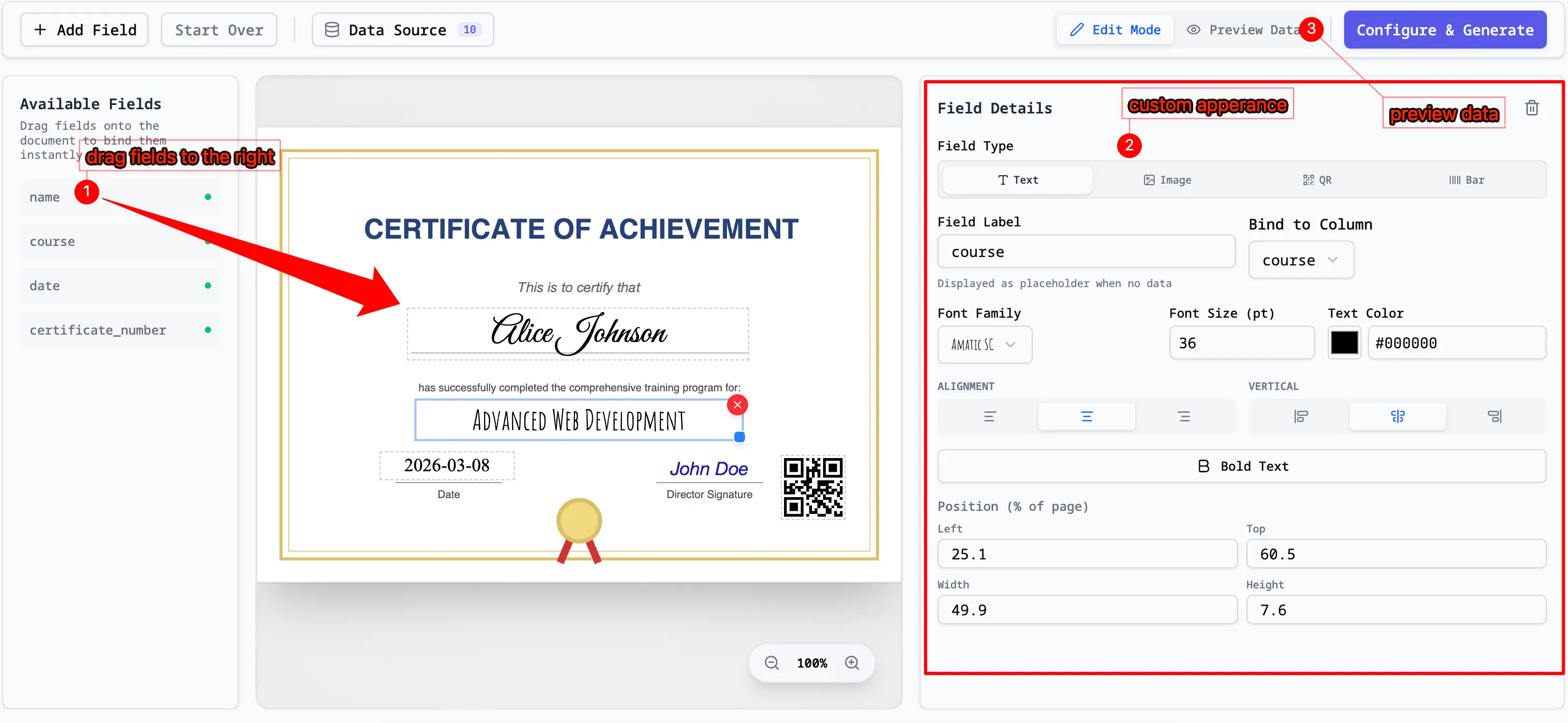
For fillable PDFs, map to the built-in PDF fields:
| Airtable column | PDF form field |
|---|---|
client_name | ClientName |
submitted_on | Date |
intake_id | ReferenceNumber |
approval_status | Status |
For non-fillable PDFs, place values visually:
- client name near the top of the page
- record ID in the header
- approval status near the signature block
- address block in the mailing section
- QR code or barcode in a fixed box
If your PDF template does not have form fields, read How to Fill a Non-Fillable PDF from Excel or Google Sheets. The same visual mapping method applies to Airtable CSV exports.
Preview Airtable records that are likely to break
Do not preview only the first row.

Pick records that represent edge cases:
- the longest name
- the longest address
- a record with missing optional fields
- a record with multiple linked values
- a record with a long multi-select list
- a record with unusual punctuation
- a record with large currency values
- a record with attachment fields, if you use them
This is where most Airtable-to-PDF problems reveal themselves. The issue is rarely the CSV itself. It is usually a field that looks fine in Airtable but is too long, too nested, or too loosely formatted for a fixed PDF layout.
Generate one PDF per Airtable record
For most Airtable workflows, one record should become one PDF.

This works well for:
- one applicant -> one application PDF
- one order -> one invoice PDF
- one member -> one membership form
- one employee -> one HR document
- one student -> one certificate
- one client -> one intake packet
If you need a single review file, generate a merged PDF. If you need files to send or archive separately, export one PDF per row or a ZIP of individual PDFs.
For the broader one-row-to-one-file concept, see How to Generate One PDF Per Row from Excel.
Example: Airtable applications to PDF forms
Suppose you manage applications in Airtable.
Your operational table might include many fields:
- applicant details
- reviewer notes
- linked program record
- submission date
- approval status
- internal comments
- attachment uploads
- automation flags
For PDF generation, create a clean Approved Applications PDF Export view with only:
full_nameemailphoneapplication_idprogram_namesubmitted_dateapproval_statusreviewer_name
Then export that view as CSV and map it onto the approved PDF form. This avoids sending reviewer notes, hidden workflow flags, or raw linked-record values into the document batch.
Example: Airtable orders to PDF invoices
For an order table, your PDF export view might include:
customer_nameorder_idinvoice_datebilling_address_blockitem_summarysubtotal_for_pdftax_for_pdftotal_for_pdf
The important part is the _for_pdf style fields. Those can be formula fields that format numbers, dates, and line items the way the invoice should display them.
If invoice PDFs are your main use case, read How to Fill PDF Invoices from Excel. Use Airtable as the source, but keep the same PDF mapping logic.
CSV export vs Airtable automation
There are two common ways to think about Airtable PDF generation.
| Method | Best for | Tradeoff |
|---|---|---|
| Export view as CSV | Reviewable batches, occasional PDF runs, privacy-conscious workflows | Manual export step |
| Airtable automation or API | Fully automated pipelines | More setup, permissions, and maintenance |
For many businesses, CSV export is the better first version. It is easy to inspect, easy to repeat, and easy to troubleshoot. Once the PDF layout and data fields are stable, you can decide whether direct automation is worth the extra setup.
Should you use Airtable Page Designer?
Airtable Page Designer can work for some one-record layouts, especially if your document is simple and stays inside Airtable.
But a dedicated PDF mapping workflow is usually better when you need:
- an existing official PDF form
- one PDF per record
- a non-fillable PDF template
- repeatable field mapping
- ZIP export
- a merged review PDF
- more control over final PDF output
If your starting point is a fixed PDF form that already exists, use the PDF as the template and map Airtable data onto it. For a detailed comparison of Page Designer vs. external tools for label and form printing, read Airtable Page Designer Alternatives for Printing Labels.
Common Airtable-to-PDF mistakes
Avoid these problems:
- exporting from a busy operational view instead of a PDF export view
- leaving linked records in a format that only makes sense inside Airtable
- mapping lookup fields that contain too many values
- assuming Airtable attachments will behave like embedded images
- using raw dates or currency values without formatting them for the PDF
- forgetting that one Airtable row should usually equal one PDF
- generating the full batch before previewing edge-case records
- sending internal notes or reviewer comments into customer-facing PDFs
Most issues are fixed by improving the Airtable export view, not by changing the PDF template.
Frequently asked questions
Can Airtable fill a PDF form directly?
Airtable can store and organize the data, but filling an external PDF form usually requires a PDF generation or mail merge step. A clean CSV export is often the simplest bridge.
Can I generate one PDF per Airtable record?
Yes. Export the Airtable view as CSV and use one row per generated PDF.
Can I use Airtable data with a non-fillable PDF?
Yes. Use a visual PDF mapper that can place Airtable values onto fixed positions in the template.
What should I do with linked records?
Create lookup or formula fields that produce PDF-ready text. Do not rely on raw linked-record fields if the PDF needs specific values from the linked table.
What should I do with Airtable attachments?
Test attachment fields separately. CSV export may provide filenames or URLs rather than embedded files, and private attachments may not be usable as direct image inputs.
Is this better than a direct Airtable integration?
For reviewed batches, CSV export is usually simpler. For fully automated production systems, a direct integration can make sense after the PDF template and field mapping are stable.
Fill PDFs from Airtable data
If your Airtable view can be exported as CSV, you can use Fill PDF from Excel, Google Sheets, or CSV to map Airtable records onto fillable or non-fillable PDF templates, preview real rows, and export one PDF per record.
Related reading
- Fill PDF from Excel, Google Sheets, or CSV
- How to Fill a PDF from CSV and Generate One PDF Per Row
- PDF Mail Merge from Google Sheets
- How to Map Excel Columns to PDF Fields
- How to Fill a Non-Fillable PDF from Excel or Google Sheets
- How to Fill PDF Invoices from Excel
- How to Print Labels from Airtable
- Airtable Page Designer Alternatives for Printing Labels
- How to Generate and Print Barcode / QR Codes from Airtable