
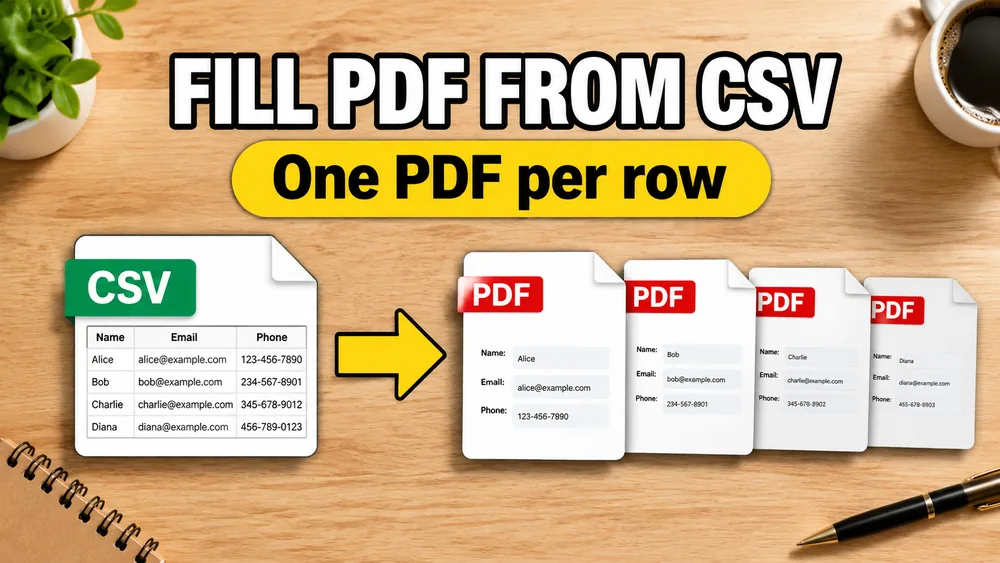
CSV is still one of the most common export formats for orders, contacts, invoices, and fulfillment data. That is why many teams eventually run into the same question:
How do I fill a PDF from CSV and generate one PDF per row?
If you need a batch pdf generator to handle a separate pdf per csv row export workflow, using a visual mapper is the most reliable way.
Open the PDF Mail Merge Tool
Batch fill PDF forms from Excel—one PDF per row. Map columns once, preview free, export separate PDFs or a ZIP. No Acrobat or VBA.
The good news is that CSV works perfectly well for PDF mail merge. The bad news is that many tools only support fillable PDFs, which is not enough for real-world templates.
If your source data is in Excel instead, read How to Fill PDF Forms from Excel in Bulk. If the data is live in a shared sheet, read PDF Mail Merge from Google Sheets. If the CSV comes from an Airtable base, use How to Fill PDF Forms from Airtable to prepare linked records, lookups, attachments, and formula fields before mapping the PDF.
Why CSV is a strong input format for PDF mail merge
CSV is simple and portable. It works well when your data comes from:
- Shopify exports
- WooCommerce exports
- CRM exports
- warehouse systems
- internal admin tools
Each CSV row can become one generated PDF, which makes it a clean fit for batch document generation.
Fillable and non-fillable PDFs both matter
If your PDF already contains form fields, you can map CSV columns directly to those fields.
If your PDF is not fillable, you need a visual mapper instead. That lets you place CSV values onto fixed positions in the template.
That is the difference between a basic PDF form filler and a real CSV-to-PDF workflow.
How to fill a PDF from CSV
1. Clean your CSV headers
Use readable column names such as:
customer_nameinvoice_numbertracking_numberissue_date
Good headers make field mapping much easier.
2. Upload the CSV file
Make sure the first row contains your headers and the rest of the rows contain data.
3. Upload the PDF template
Use either:
- a fillable PDF form
- a non-fillable PDF template
4. Map columns to the PDF
Examples:
customer_name-> recipient nameinvoice_number-> invoice referencetracking_number-> barcodepayment_url-> QR code
5. Preview and batch generate
Preview one record first, then generate one PDF per CSV row.
Common CSV-to-PDF use cases
This workflow is useful for:
- invoices
- receipts
- shipping documents
- certificates
- event badges
- internal forms
A privacy-first option
Fill PDF from Excel, Google Sheets, or CSV supports CSV imports, PDF field mapping, non-fillable PDF templates, and batch generation in a local, privacy-first browser workflow.
If your template has no form fields, the visual mapper still lets you place text, barcodes, QR codes, and images exactly where they belong.
If your data is in Google Sheets instead of CSV, see PDF Mail Merge from Google Sheets.
If your CSV is being used for invoices, certificates, contracts, or internal forms rather than labels, the same mapping model also applies to How to Fill PDF Invoices from Excel, How to Generate Bulk Certificates from Excel, How to Fill PDF Contracts from Google Sheets, and How to Batch Fill PDF Forms Without Acrobat.
Frequently asked questions
Can I generate one PDF per row from CSV?
Yes. That is the normal batch generation model. Each CSV row becomes one personalized PDF.
Can I use CSV with a non-fillable PDF?
Yes. As long as the tool supports visual mapping onto the PDF template, CSV works fine with non-fillable PDFs.
Is CSV better than Excel for PDF mail merge?
CSV is often simpler for exports and automation pipelines. Excel is more convenient for manual editing. Both work well.
Fill PDFs from Excel, Google Sheets, or CSV
If you need to map spreadsheet data onto fillable or non-fillable PDF templates, try filling PDFs from Excel, Google Sheets, or CSV with PDF Mail Merge. It supports one PDF per row, merged review files, and ZIP exports.
Related reading
- How to Fill a Non-Fillable PDF from Excel or Google Sheets
- How to Fill PDF Forms from Excel in Bulk
- PDF Mail Merge from Google Sheets
- How to Fill PDF Forms from Airtable
- How to Generate One PDF Per Row from Excel
- How to Map Excel Columns to PDF Fields
- How to Batch Fill PDF Forms Without Acrobat
- How to Batch Print Labels from CSV Files
- PDF Mail Merge guide